
Holiday Calendar lets PlanCore teams organize holidays by location, religion, or company policy and assign the appropriate calendar to members. Only users with the App Admin role can change Holiday Calendar settings.
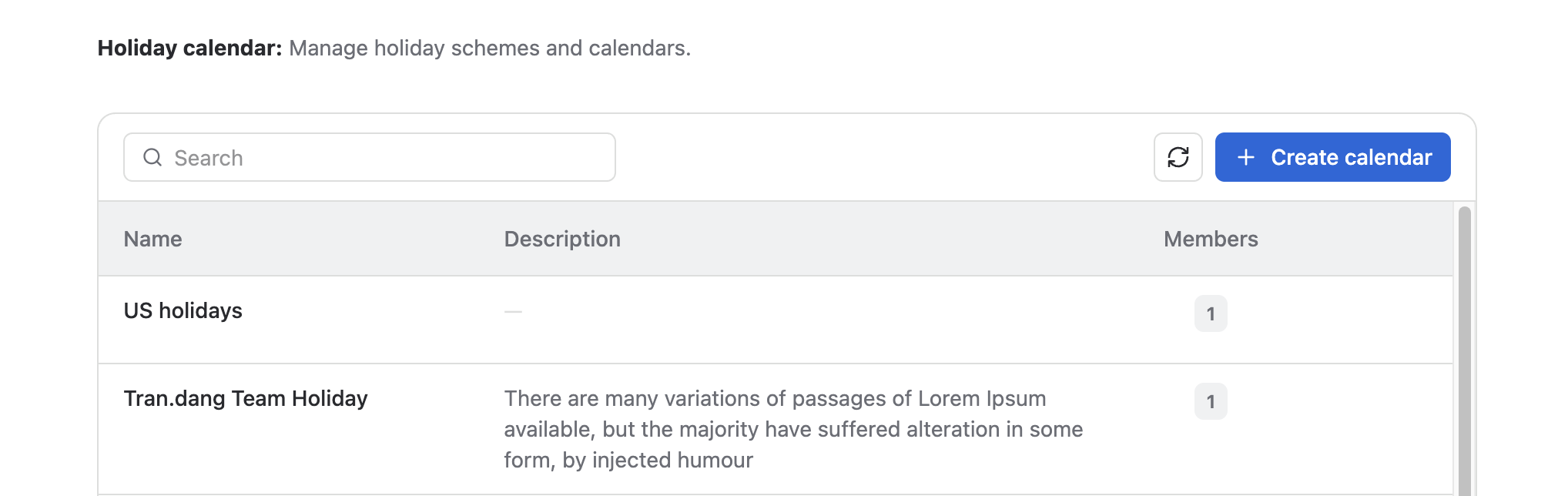
Set up a holiday calendar
Go to Settings → Holiday Calendar to view and manage calendars.
1. Create a calendar
-
Choose the option to create a new holiday calendar.
-
Enter a Name and Description so members can identify its purpose.
-
Click Create.
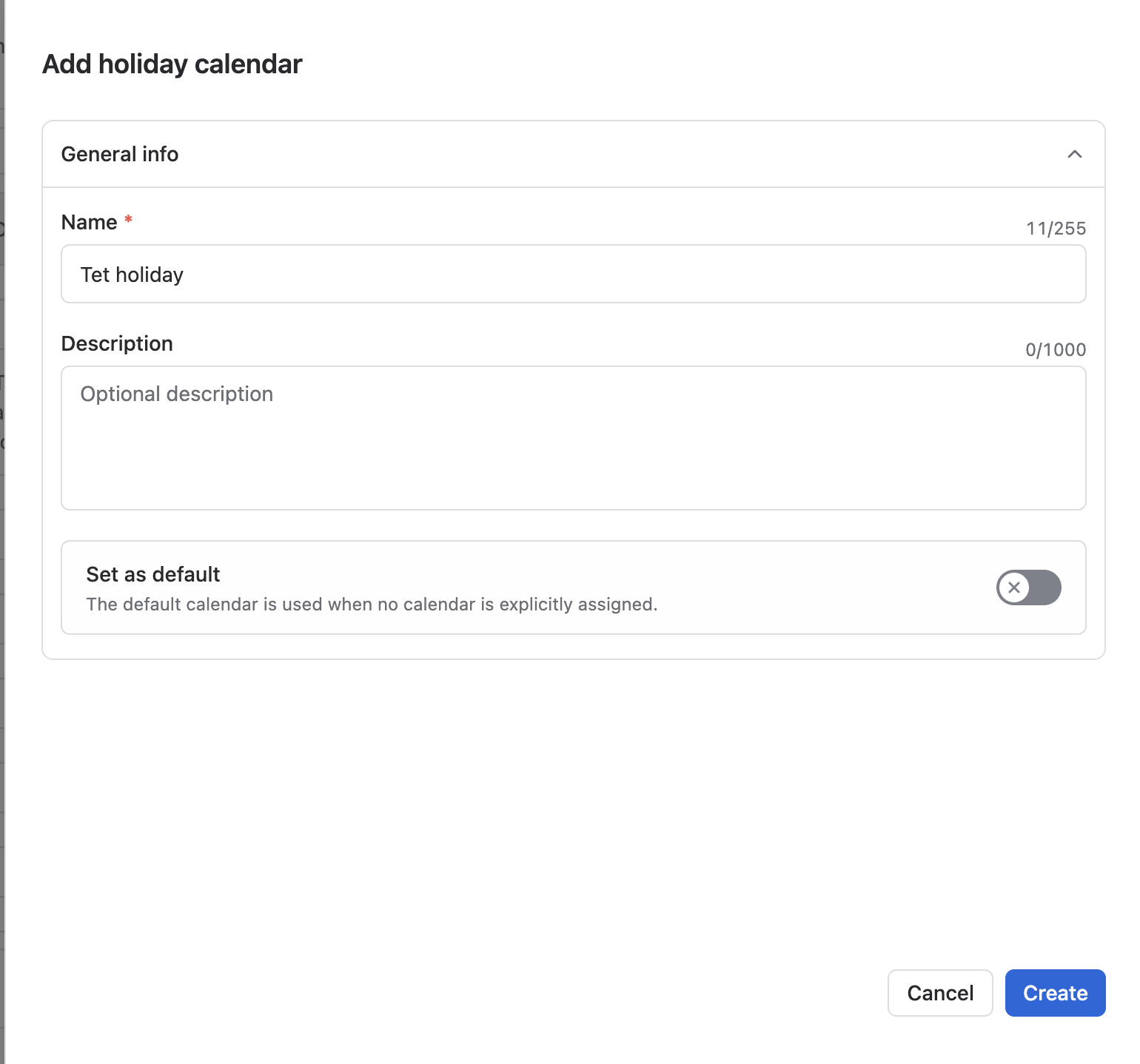
2. Add holidays
After creating the holiday calendar, you can import official holidays or add custom holidays manually. Review the dates before confirming the calendar.
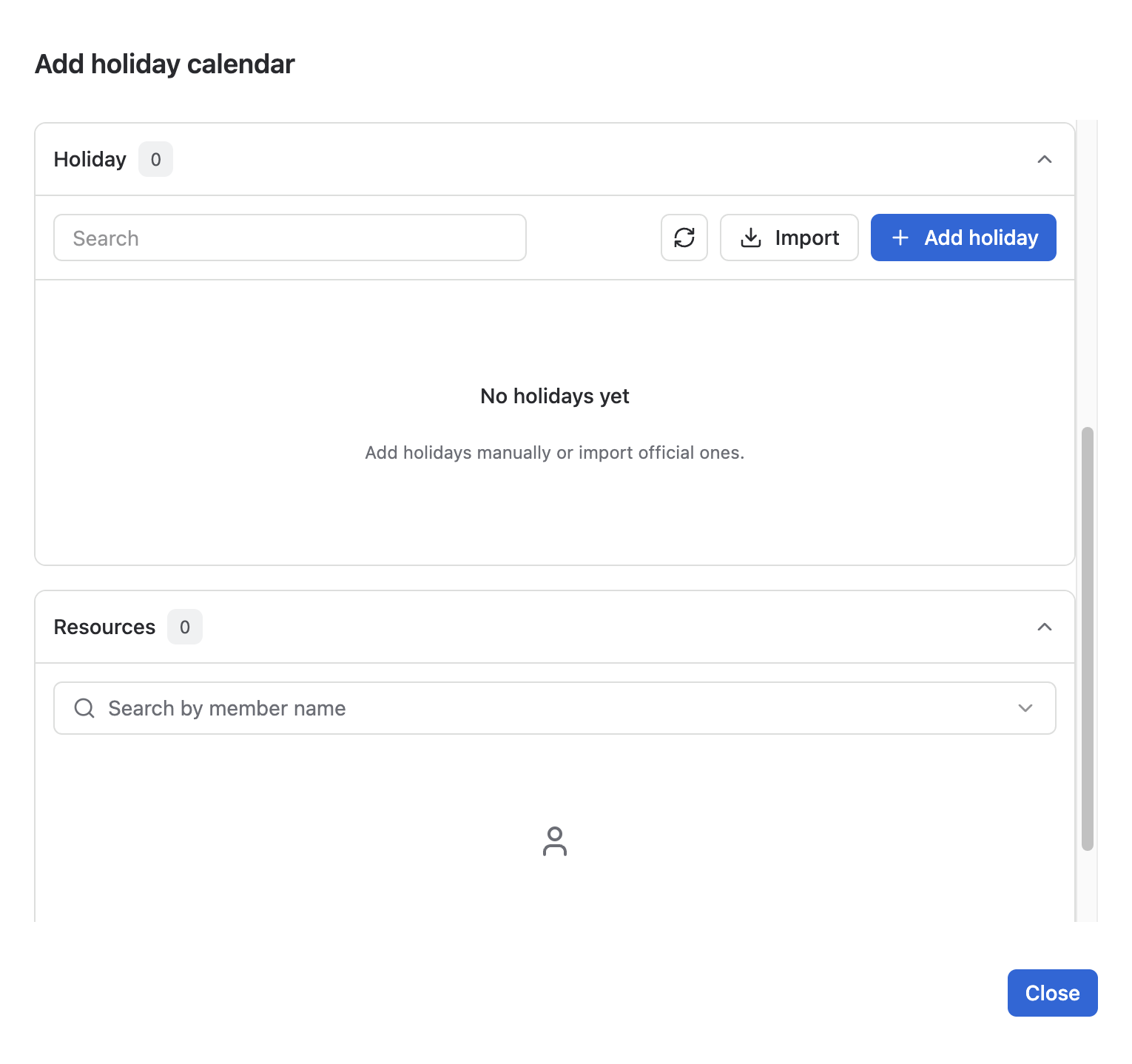
Import official holidays
-
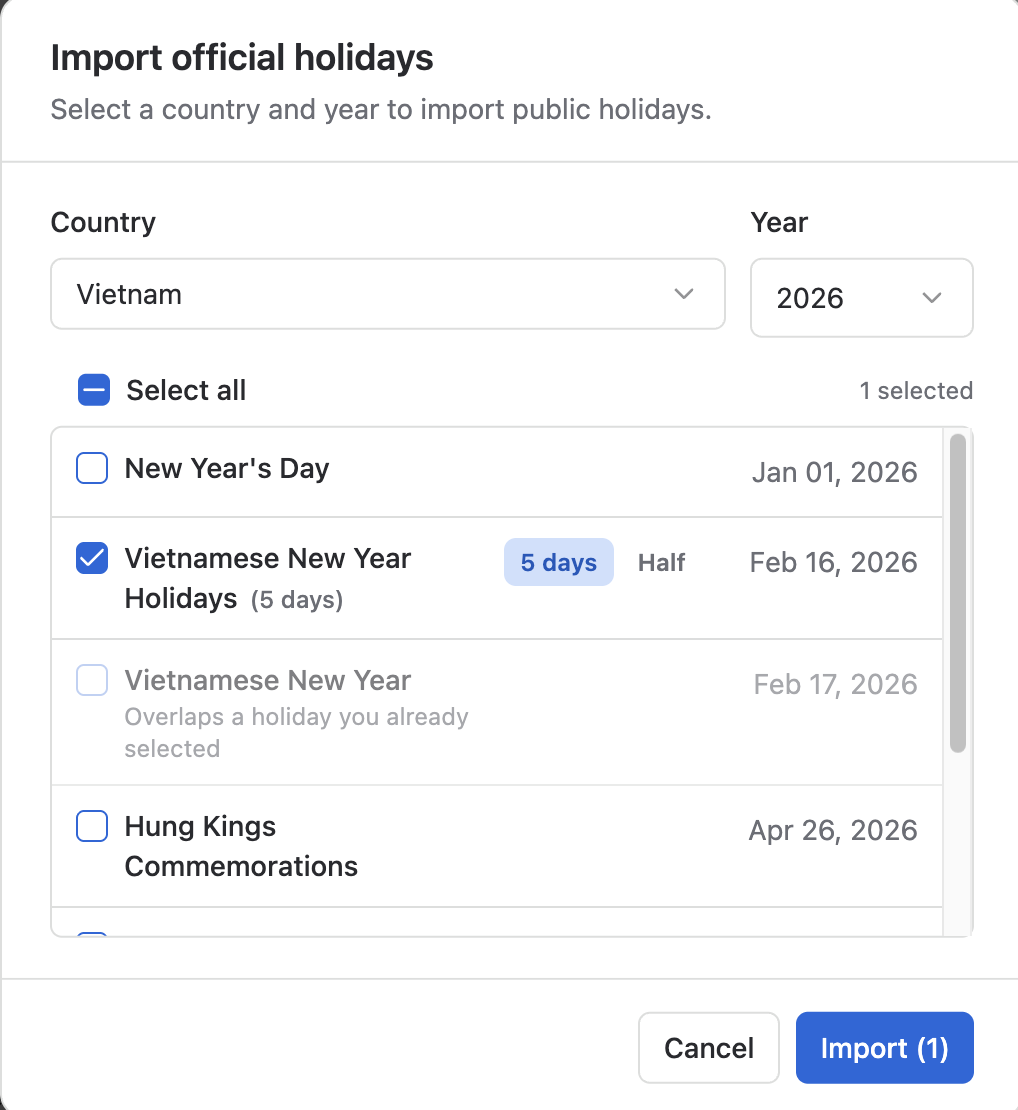
In the Country dropdown, select the relevant country or religious holiday set.
-
Select the applicable Year of the holiday.
-
Review the imported holidays. Correct any dates, choose a time-off session where applicable, and remove entries that do not apply.
Religious holidays, such as Christian, Muslim, or Orthodox holidays, can be imported using the same process where available.
Add holidays manually
-
Create a new calendar or open the calendar you want to update.
-
Choose the option to add a holiday.
-
Set the Date and enter a descriptive Holiday Name, such as Company Foundation Day.
-
Save the holiday. When the calendar is ready, click Confirm to complete the setup.
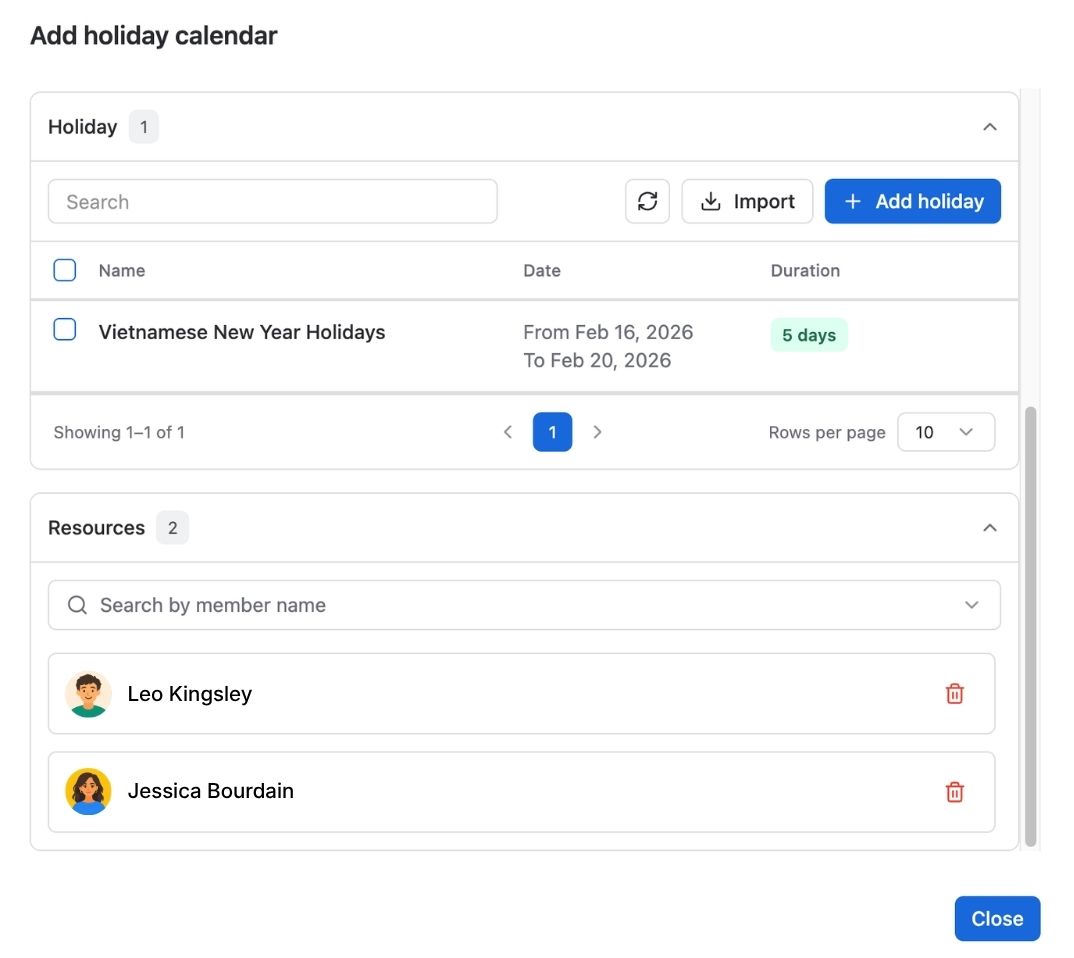
3. Assign members
Assigning members to a holiday calendar helps PlanCore use the appropriate holidays when showing their availability and planning time off.
-
Open the relevant holiday calendar.
-
Scroll to Resources.
-
Search for and select the members who should use the calendar.
-
Click Confirm to save the assignments.
4. Set the default calendar
The default holiday calendar applies to members who have not been assigned another calendar. In the calendar list, find the Default column and toggle the calendar you want to use as the default.