
Only users with App Admin role can access and manage Data fields.
What are Data fields? The Data fields section in PlanCore allows administrators to define reusable people-classification data used across the app, including Departments, Roles, and Skills. These fields help standardize user profiles, resource planning, reporting, and assignment workflows.
Accessing Data fields
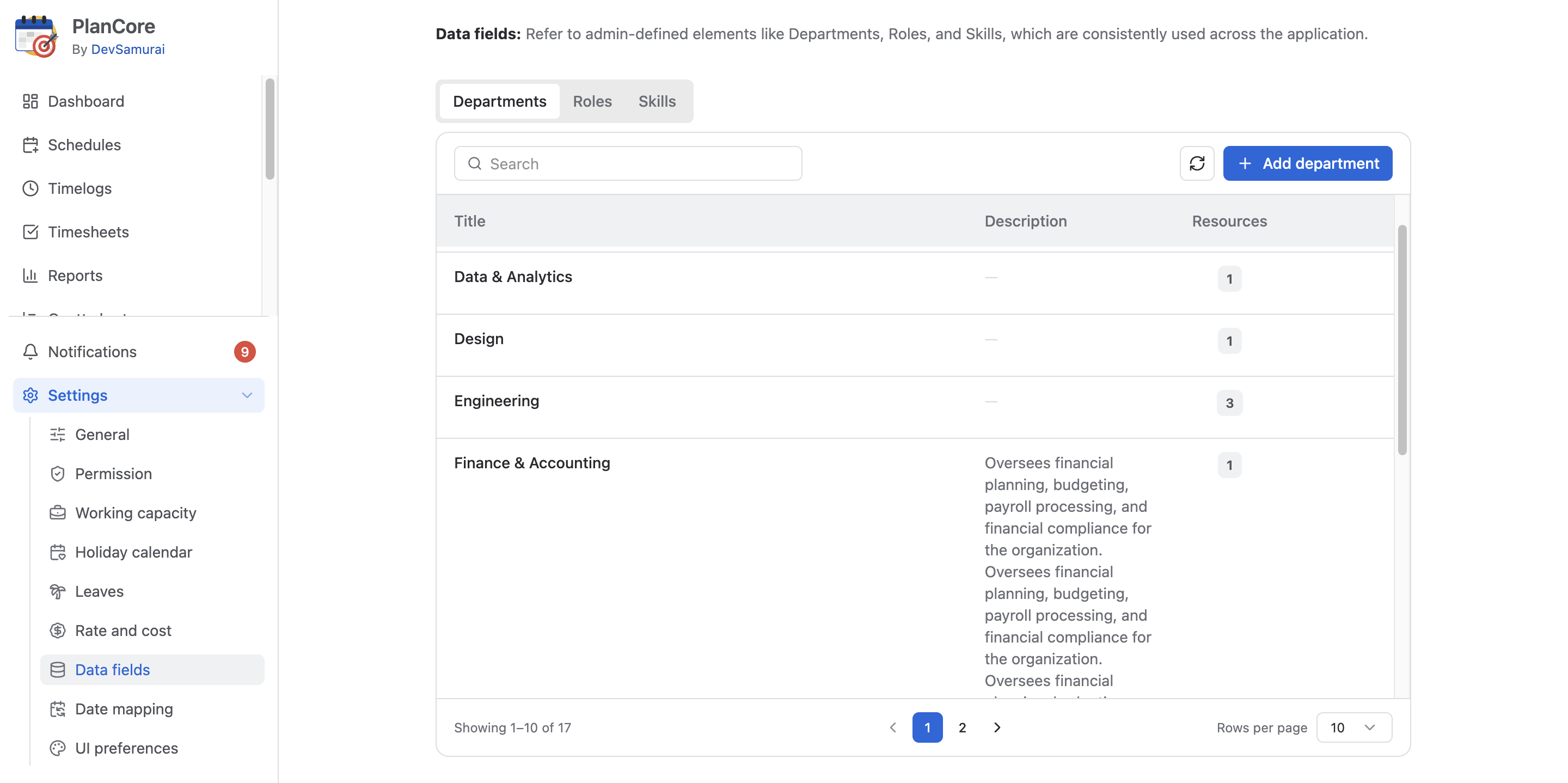
To access Data fields, open the Settings area from the left-hand menu, then select Data fields under the Settings section.
The Data fields page includes the following tabs covered in this guide:
-
Departments
-
Roles
-
Skills
Overview of Data field types
🏢 Departments
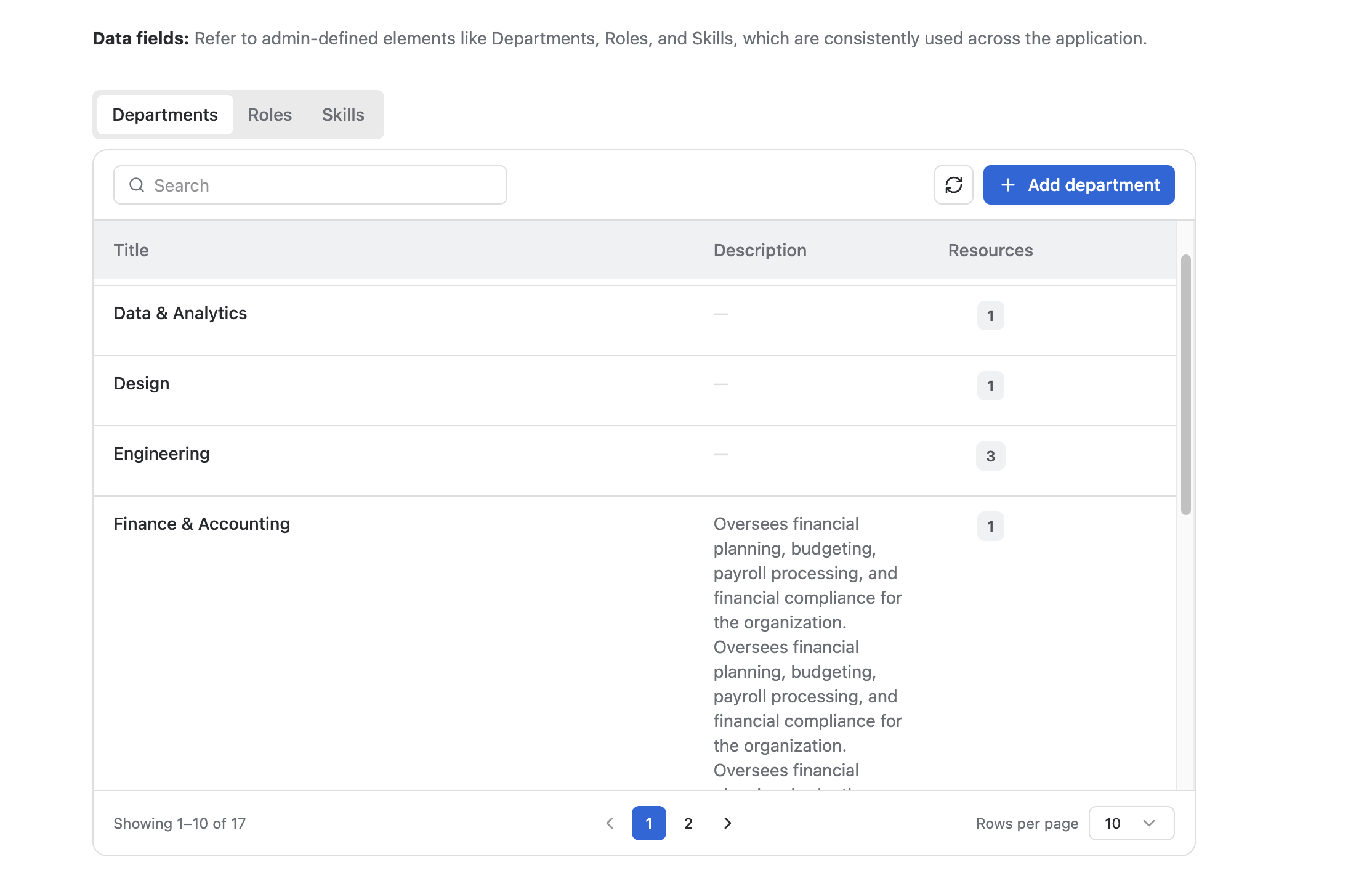
Departments are used to group people by the functional area or business unit they belong to in your organization.
-
Examples: Human Resources, Engineering, Sales, Finance, Customer Success.
-
User impact: Departments make it easier to categorize people, filter resources, organize reports, and understand capacity by team or business function.
To manage Departments:
-
Click the Departments tab.
-
Use the + Add department button to create a new department.
-
Enter the department Name and, if available, a clear Description.
-
Save the new department so it becomes available for use in PlanCore.
To update an existing department, edit the relevant row or field directly. To remove a department that is no longer needed, use the delete action at the end of the row.
👤 Roles
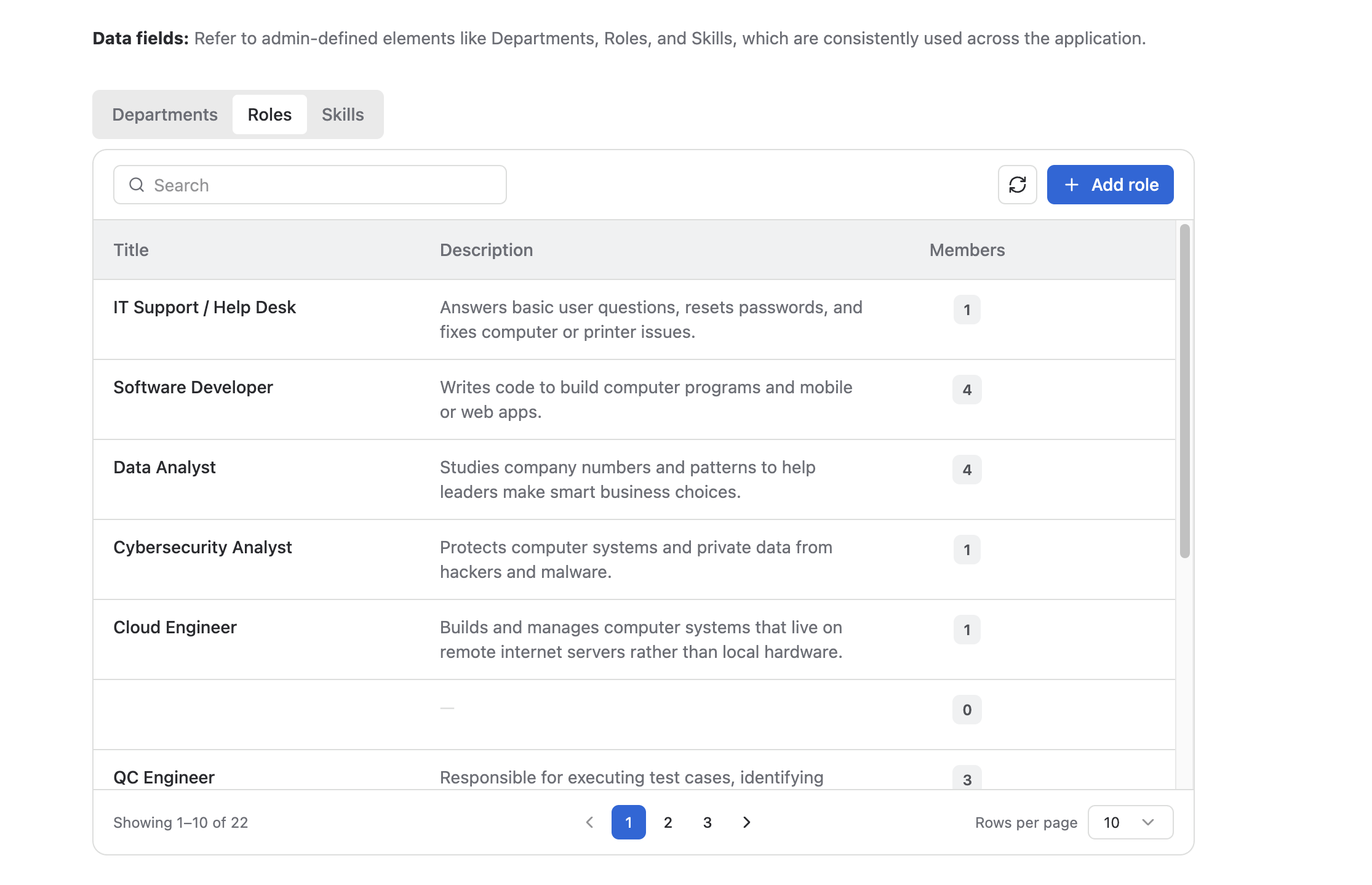
Roles define the job functions, responsibilities, or resource roles that people can be assigned to in PlanCore.
-
Examples: Project Manager, Software Engineer, Designer, QA Engineer, Business Analyst.
-
User impact: Roles help admins and managers identify the type of work a person can perform, support resource planning, and improve assignment and reporting accuracy.
To manage Roles:
-
Navigate to the Roles tab.
-
Click the + Add role button to create a new role.
-
Enter the role Name and add a helpful Description so other admins understand how the role should be used.
-
Save the role to make it available for profiles, planning, and reporting.
To modify a role, edit the row or field for that role. To delete a role, use the delete action at the end of the row.
🛠️ Skills
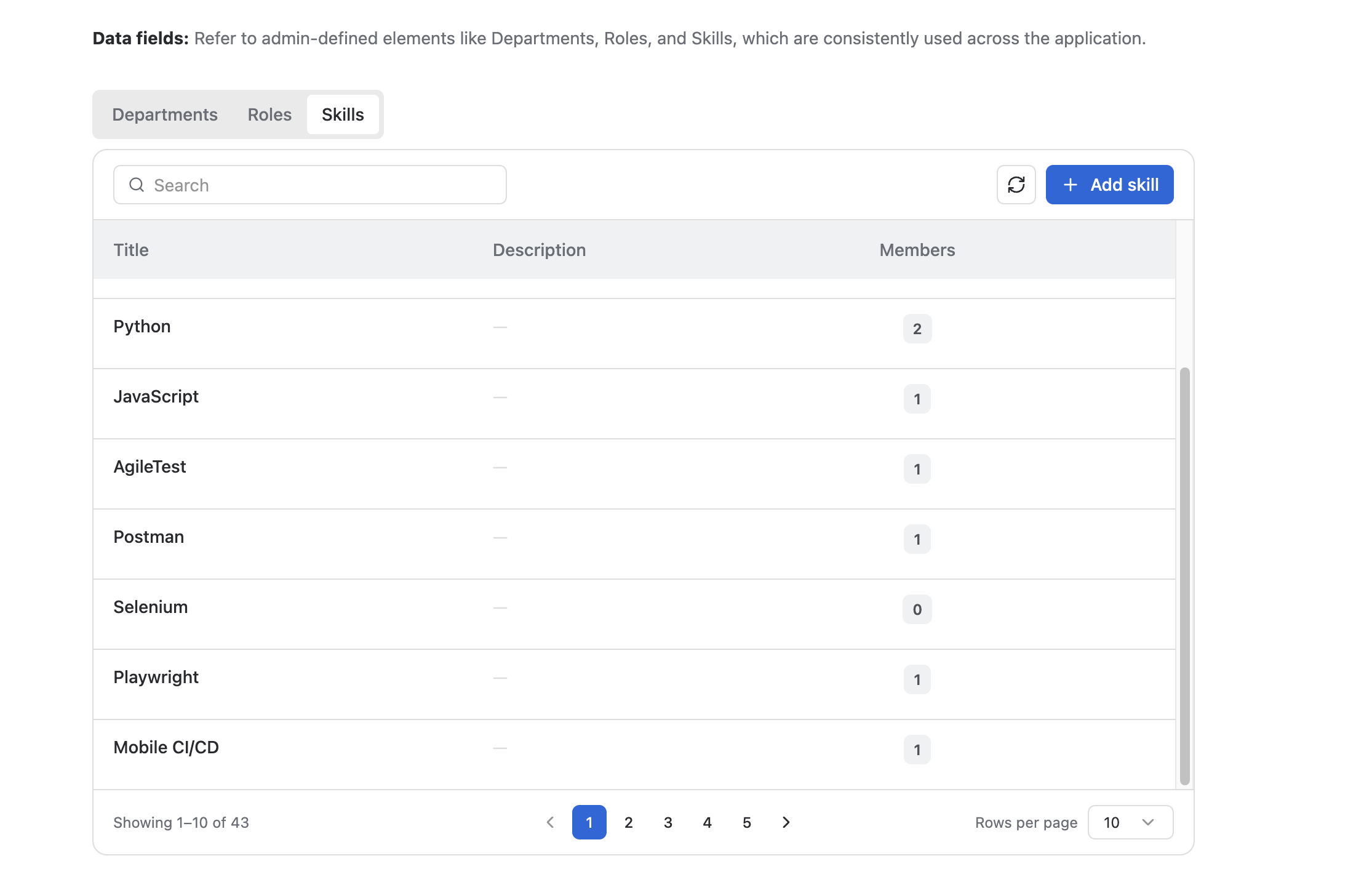
Skills represent specific expertise, competencies, tools, technologies, or capabilities that people have.
-
Examples: JavaScript, Python, Agile Project Management, UX Research, Content Writing.
-
User impact: Skills make it easier to find suitable people for work, match resources to project needs, and understand team capability across the organization.
To manage Skills:
-
Open the Skills tab.
-
Click the + Add skill button to create a new skill.
-
Enter the skill Name and include a concise Description when clarification is needed.
-
Save the skill so it can be used in user profiles and planning workflows.
To update a skill, edit the corresponding row or field. To delete a skill, use the delete action at the end of the row.
Editing and deleting data fields
PlanCore supports direct editing for data field entries. When a field such as Name or Description needs to be changed, select or edit the relevant cell in the table and save the update.
To delete an entry, use the delete action shown at the end of the row. Before deleting a data field, confirm that it is no longer needed in active profiles, planning views, reports, or other workflows.