.png)
The Depreciation report helps you track how asset values decrease over time in AssetIT. Use this report to review depreciation details, monitor current asset value, and support financial or lifecycle planning for your assets.
Generate a depreciation report
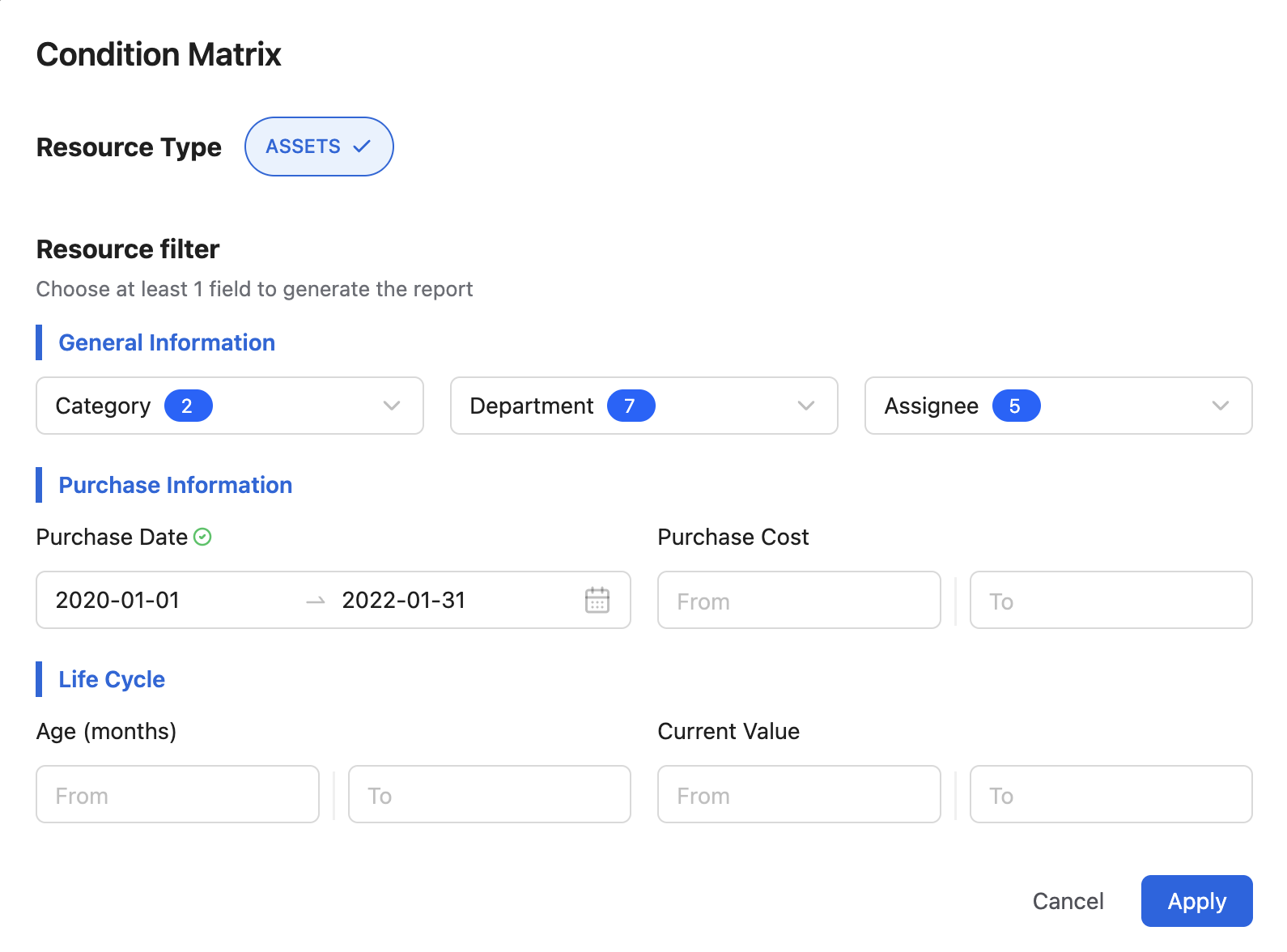
After you select New Report for the Depreciation report type, the Condition Matrix screen appears. Use it to choose the assets you want to include and define the depreciation-related criteria for the report.
-
The Depreciation report supports the
Assetsresource type only. -
Customize the Resource filter to narrow the report results based on your needs.
-
General Information: Select asset details such as
Category,Department, andAssignee. -
Purchase Information: Define the purchase date and cost range for the assets included in the report.
-
Life Cycle: Set lifecycle criteria such as asset age in months and current asset value.
-
-
Click Apply to generate the depreciation report with the latest conditions.
-
Enter a name, then click Save to save the report. Saved reports are available on the Reports page.
Manage Depreciation report results
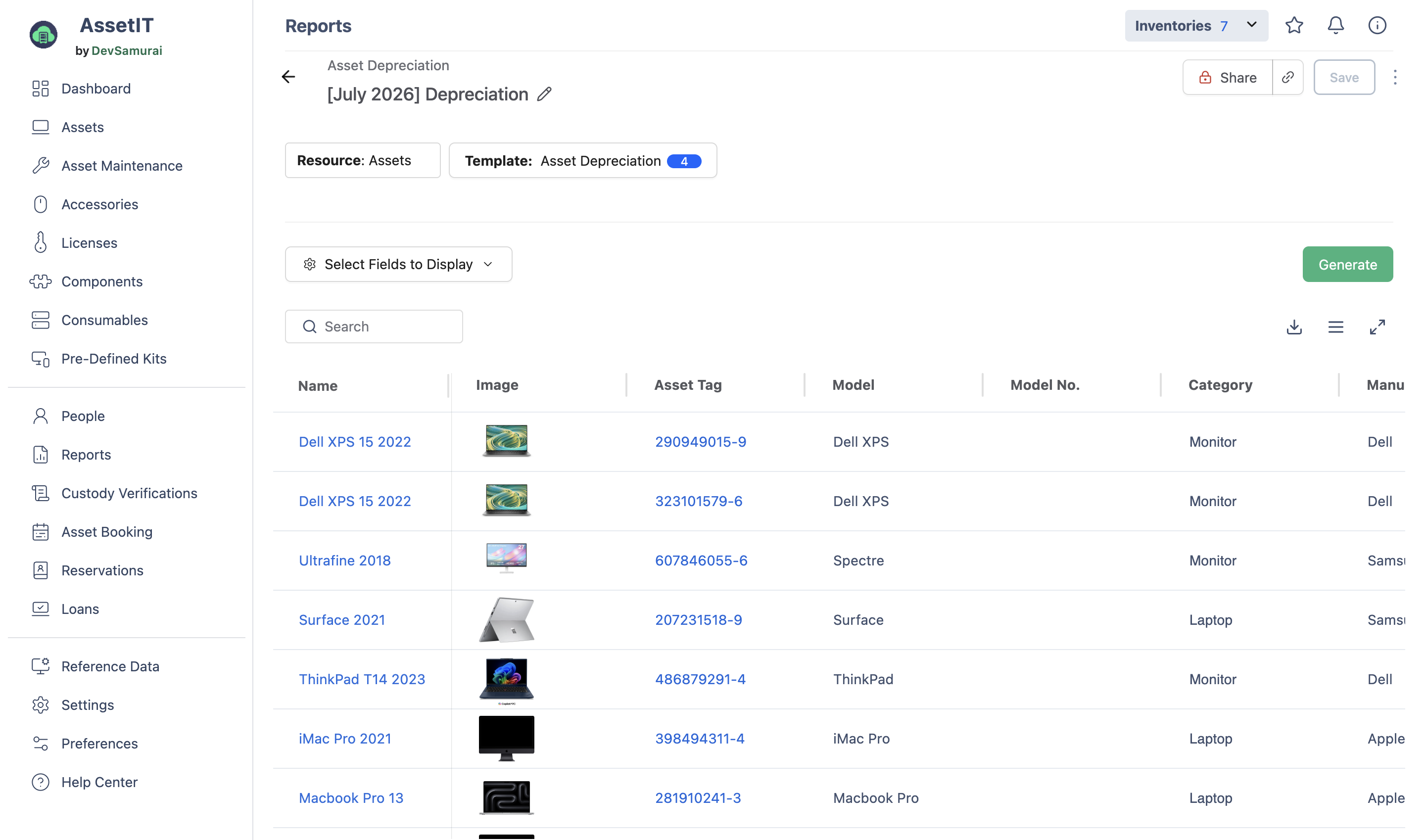
The report details page lets users manage and customize depreciation report results.
Generate the report
When users open a saved depreciation report, the results do not appear automatically. Click Generate to load the latest depreciation data based on the saved conditions.
Search and filter
Use Select Fields to Display to choose which columns appear in the report results, so users can focus on the most relevant fields.
Use the Search box to quickly find assets in the report by Name, Asset Tag, or Serial.
Edit the current resource and conditions
To update the report’s resource type or conditions, click the Condition box to open the Condition Matrix screen, then make your changes.
Click Save to keep the updated conditions for future use.
Share, duplicate, and delete reports
To share a report, click the link icon or click Share to open the Share Report options, then select Copy link. You can also choose a permission level:
-
Private (Only owner and shared users can view private report)
-
Public (Everyone can view public report)
The Duplicate and Delete report actions can be found in the More (3 dots) menu. The delete action is permanent.