.png)
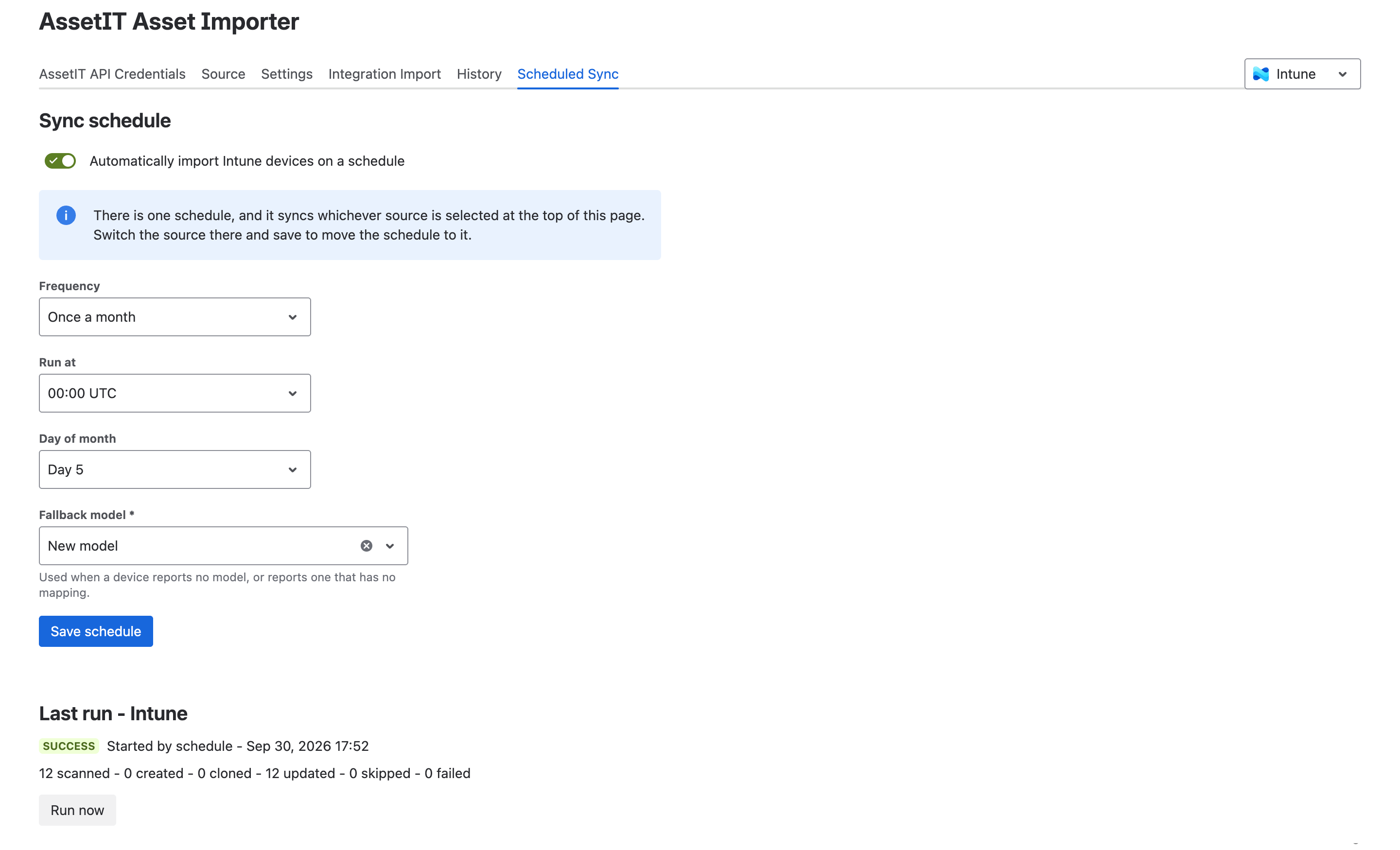
Use Scheduled Sync to automatically import assets from external systems, such as Intune or Jamf, into AssetIT on a recurring schedule.
Before you start
-
Only one schedule can be active at a time.
-
The schedule applies to the source selected at the top of the page.
-
To schedule a different source, select that source and save your changes.
Enable scheduled sync
-
Open the Scheduled Sync tab.
-
Turn on the Sync schedule toggle.
-
Configure the schedule options.
-
Click Save schedule.
After the schedule is saved, AssetIT automatically imports devices based on the configured schedule.
Configure the sync schedule
|
Option |
Description |
|---|---|
|
Frequency |
Choose how often the sync runs: once a day, once a week, or once a month. |
|
Run at |
Set the time when the sync should run. |
|
Day of week/month |
If you choose once a week or once a month, select the specific day for the sync. |
|
Fallback model |
Select an available model, or set it to New model. This option is used when a device reports no model or reports a model that has no mapping. |
View previous runs
Use the Last run section to review recent sync results, including:
-
Status
-
Run date
-
Detailed status: scanned, created, cloned, updated, skipped, and failed
Run a sync manually
Click Run now to run the sync immediately without waiting for the next scheduled run.