.png)
To use AssetIT Asset Importer, you must have AssetIT installed in your Jira instance.
If you haven’t installed it yet, you can get AssetIT here: Install AssetIT
Before importing data from any external system, Asset Importer must be authorized to communicate with both sides of the integration:
-
AssetIT, which receives and manages the imported asset data
-
The selected data source, which provides the data to be imported
Validate AssetIT API Credentials
AssetIT API credentials are required to allow Asset Importer to create or update asset records in AssetIT.
-
Open AssetIT Asset Importer.
-
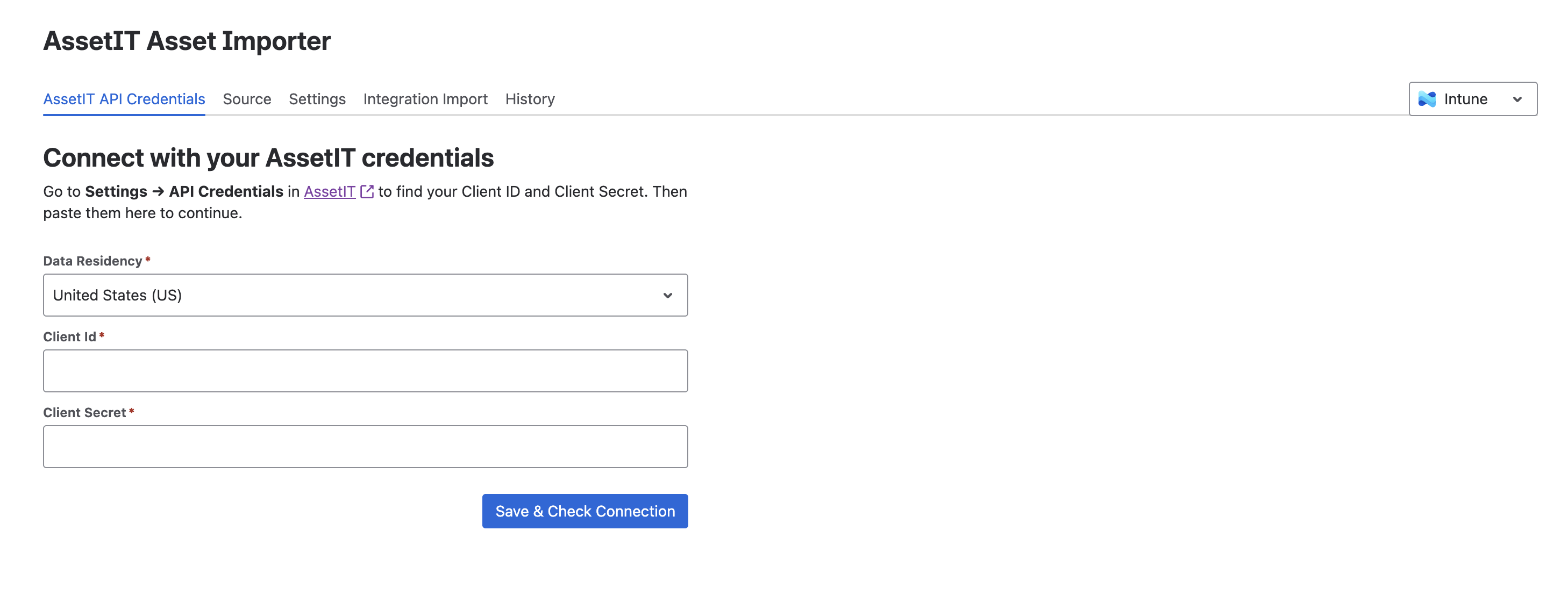
Navigate to the AssetIT API Credentials tab.
-
Select your Data Residency: Choose the region where your data is stored (e.g., United States (US), Europe (EU)).
-
Enter the Client ID and Client Secret generated in AssetIT. Learn how to generate your Client ID and Client Secret in AssetIT ->
-
Click Save & Check Connection.
Important
Ensure that the AssetIT app and Asset Importer are installed on the same instance of AssetIT for the credentials to work.
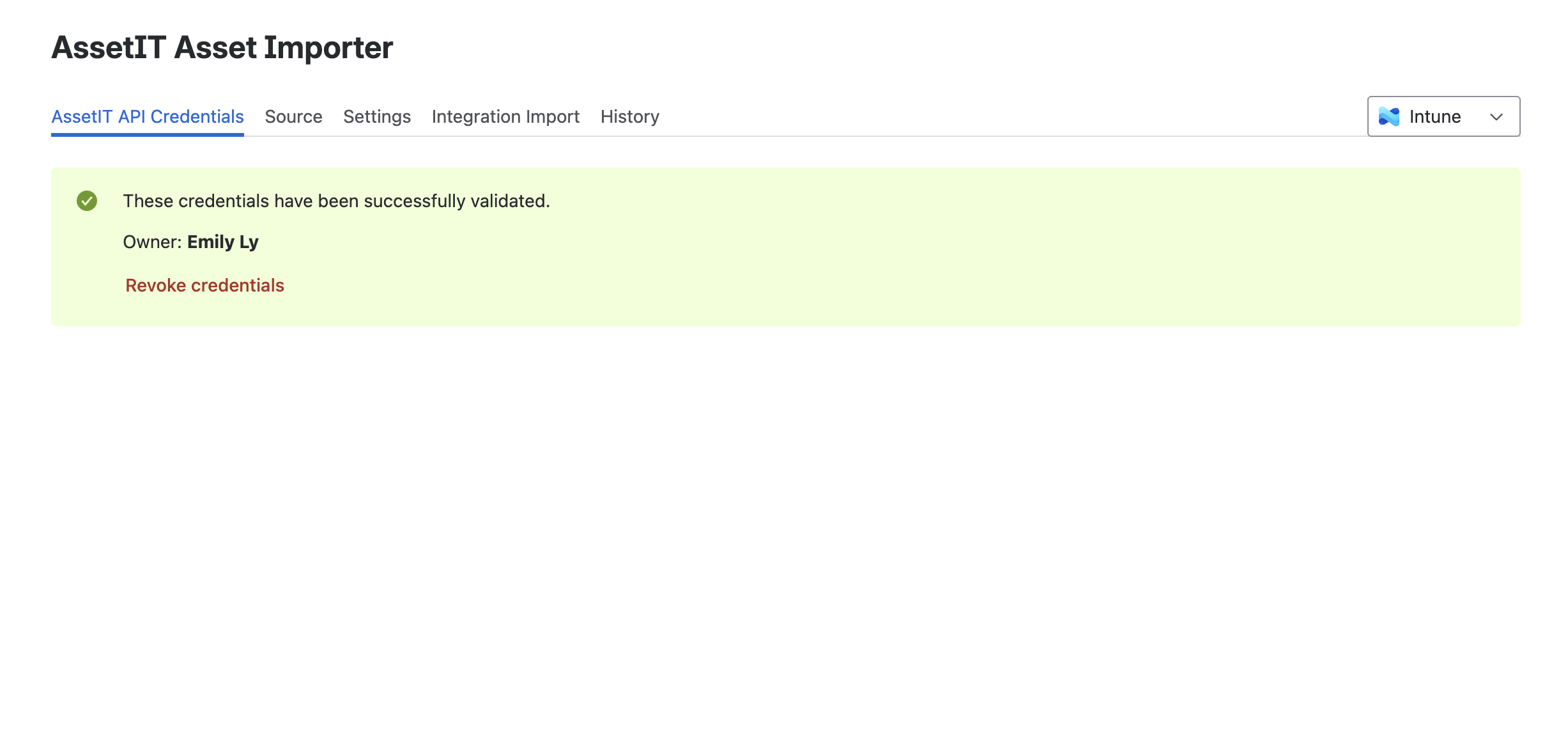
If the credentials are valid, a confirmation message will indicate that the connection is established.
Choose a Source to Connect
After successfully validating your AssetIT API credentials, you must connect a data source to import data.
-
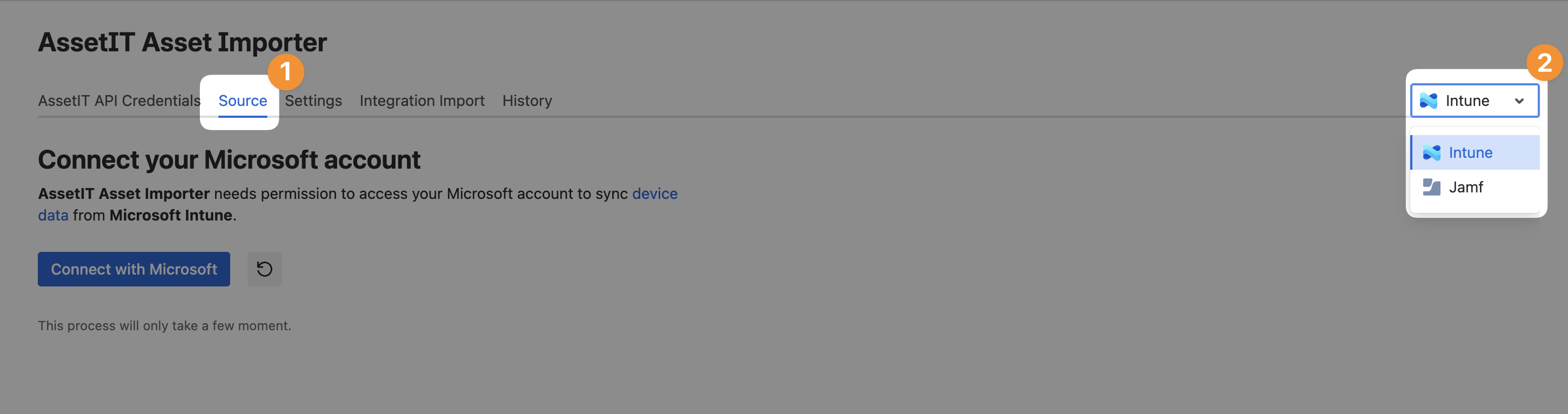
Navigate to the Source tab in AssetIT Asset Importer.
-
Click on the dropdown to choose your data source.
Revoke External Credentials
Revoking access will immediately prevent Asset Importer from retrieving data from the Microsoft source or Jamf source, and w not delete any data that has already been imported into AssetIT.
You can revoke access to the connected Microsoft account or Jamf account at any time. To revoke credentials, simply locate the Source tab in AssetIT Asset Importer and click Revoke Credentials.
-
For Jamf Pro: Click Revoke Credentials to immediately remove the connection and authorization.
-
For Microsoft Intune:
-
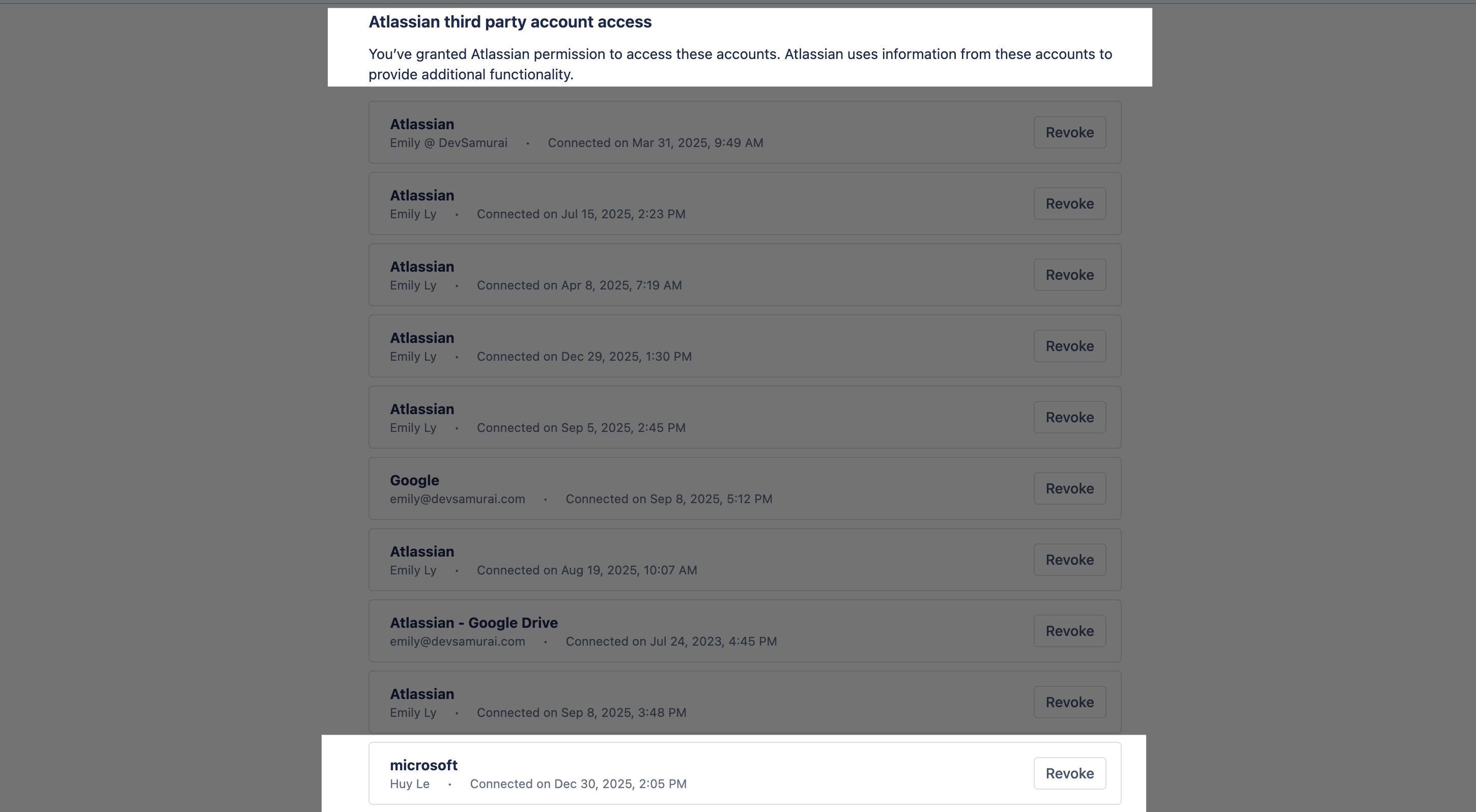
Clicking Revoke Credentials will redirect you to your Atlassian account management page. Here, you will:
-
Locate the Microsoft account access by scrolling down to Atlassian third party account access and find the connected Microsoft account.
-
Click

-
-