
Use Time off to block unavailable hours for a team member directly on the schedule board. Time off helps planners see when someone is unavailable before assigning work.
Use time off for planned absences such as vacation, sick leave, public holidays, or other non-working time.
Create time off
Step 1. Select the time off timeframe
From the member row, click a blank date cell, or click and drag across multiple dates to open the Planning dialog.
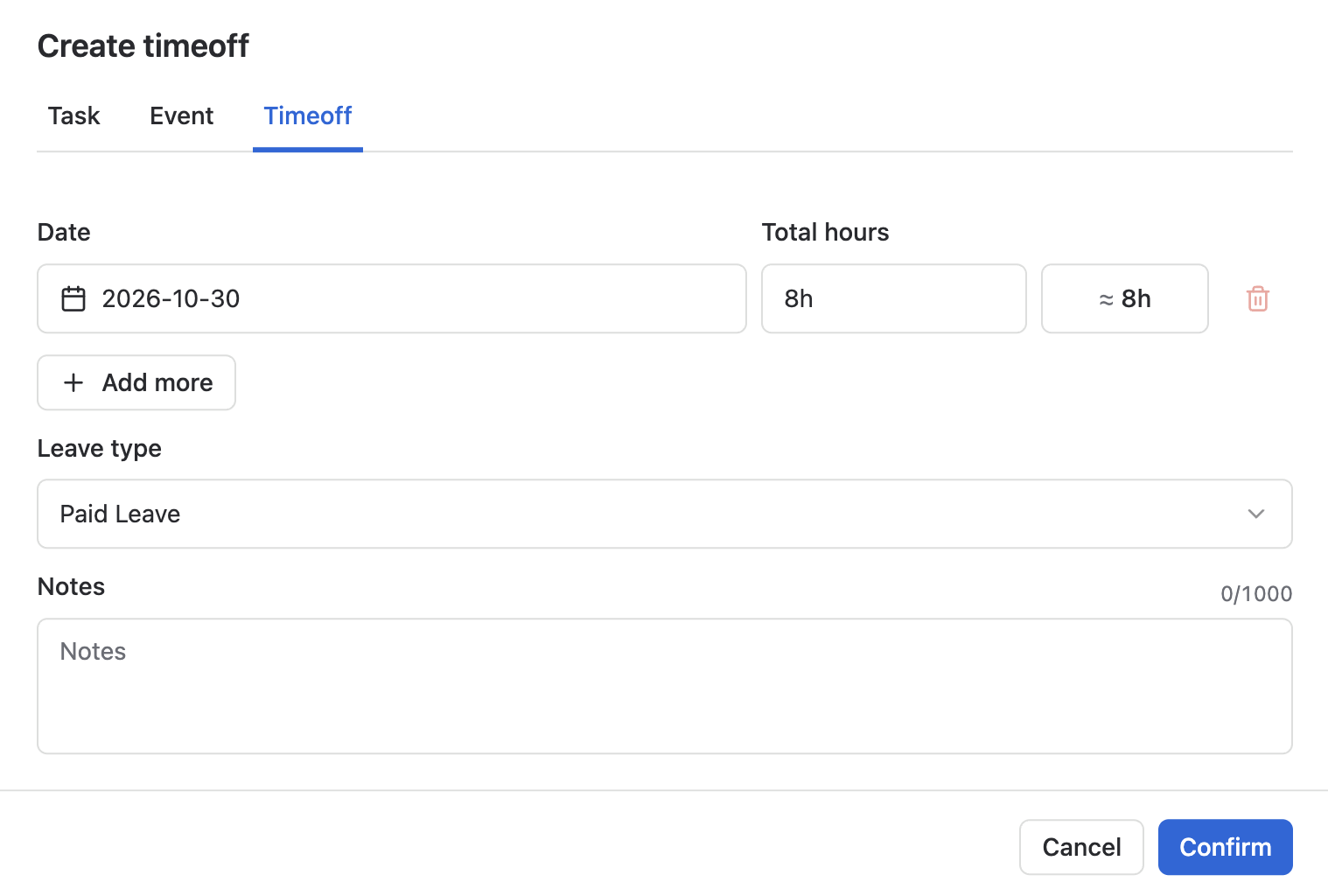
In the Planning dialog, switch to the Time off tab.
Step 2. Enter time off details
Complete the required time off information:
|
Field |
Description |
|---|---|
|
Date |
Review the selected date or date range. Click Add more to add additional time off dates. |
|
Total hours |
Enter the total time off hours for each day. The default value is 8h. |
|
Leave type |
Select a leave type from the dropdown. Leave types are managed in Leaves settings. |
|
Notes |
Add any additional context for the time off entry. |
Click Confirm to save the time off details.
View time off details
Click a time off entry on the board to open its details in the right sidebar.
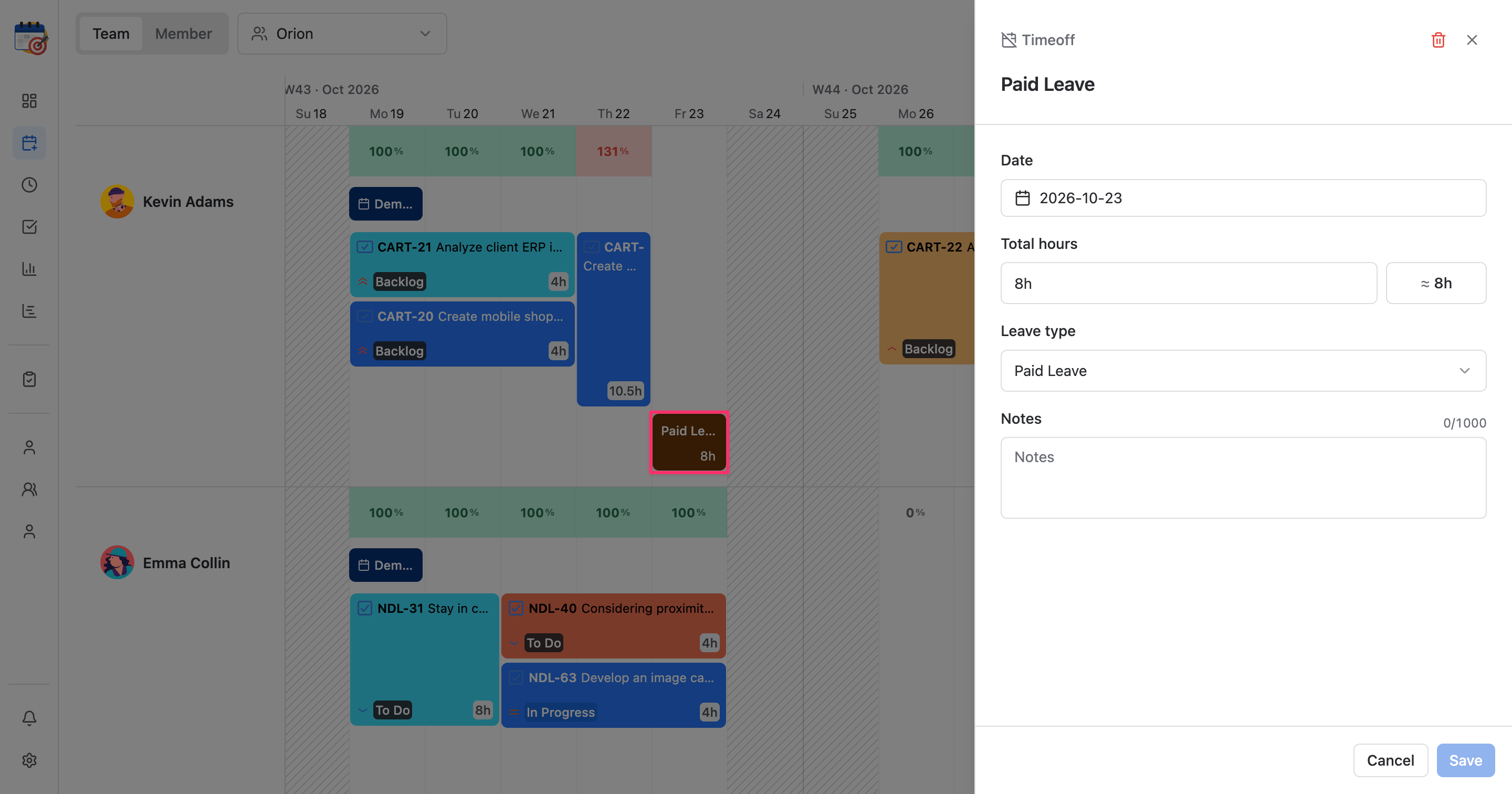
Time off is displayed under the scheduled task plan. The sidebar shows:
-
Date
-
Total hours
-
Leave type
-
Notes
Delete time off
In the time off details sidebar, click the Trash icon in the top-right corner to remove the time off from the schedule board.
Deleting time off removes the unavailable time from the member’s schedule. Review the member’s planned work before deleting time off that may affect scheduling accuracy.