
Use the workload view to quickly understand how much work each member has planned compared with their available capacity. Workload indicators help teams identify overloaded, balanced, or underused members directly on the schedule board.
How workload is calculated
Workload is calculated by comparing planned work against each member’s configured working capacity.
|
Component |
Description |
|---|---|
|
Scheduled hours |
The total hours assigned to a member through planned tasks or work items. |
|
Resource capacity |
The maximum number of hours a member is expected to work during a day or week, such as 8 hours per day. |
Workload only counts scheduled hours from tasks or work items. It does not include events or time off.
Capacity is configured in Working capacity settings. For detailed setup instructions, refer to the settings documentation.
Enable workload view
-
Open the schedule board.
-
From the PlanCore navigation bar, turn on the Workload toggle.
-
Review the workload indicator displayed above each person’s daily schedule.
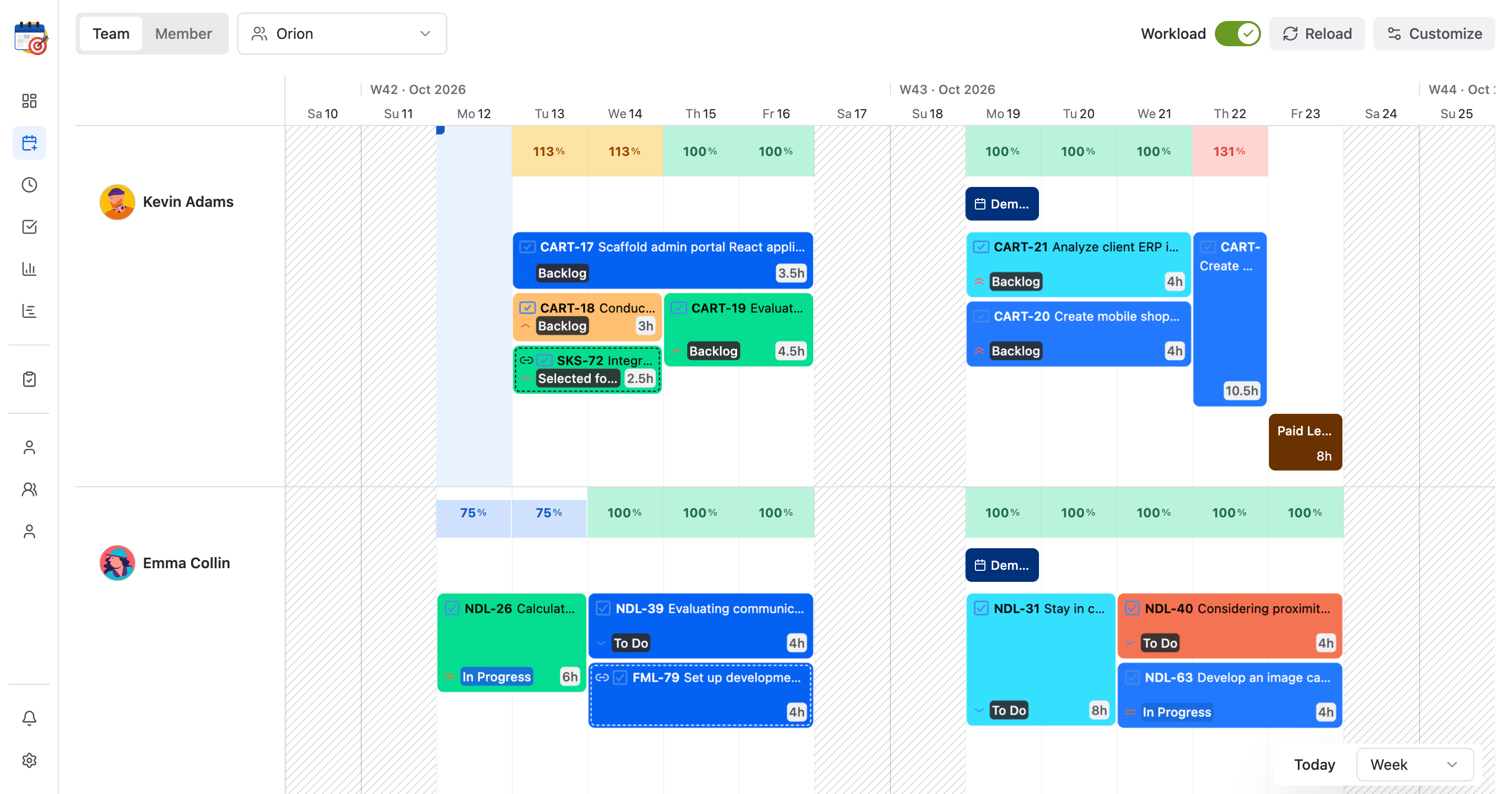
Understanding workload indicators
The color-coded workload indicators make it easier to scan the schedule board and understand each member’s daily workload at a glance.
|
Indicator |
Range |
Status |
Meaning |
|---|---|---|---|
|
|
0% → 80% |
Underutilized |
The member has scheduled work below 80% of their available capacity for the day. |
|
|
80% → 100% |
Balanced |
The member’s scheduled work is within their available capacity and close to fully allocated. |
|
|
100% → 120% |
At risk |
The member has slightly more scheduled work than their available capacity, so review and adjust if needed. |
|
|
120%+ |
Overloaded |
The member has significantly more scheduled work than their available capacity and may need workload rebalancing. |
Workload on non-working days
A non-working day is any day when a team member has no available working capacity, such as weekends, public holidays, or approved full-day leave based on the member’s configured working calendar.
Scheduled hours that fall on non-working days are excluded from:
-
Workload view
-
Reports
-
Dashboard metrics
These hours are not included in workload calculations.
Important: If planned work appears missing from workload totals, check whether the work was scheduled on a non-working day or whether the member’s working capacity is configured correctly.