.png)
ConfluPlan allows synchronizing tasks and work items from Jira to document their product roadmaps in documentation.
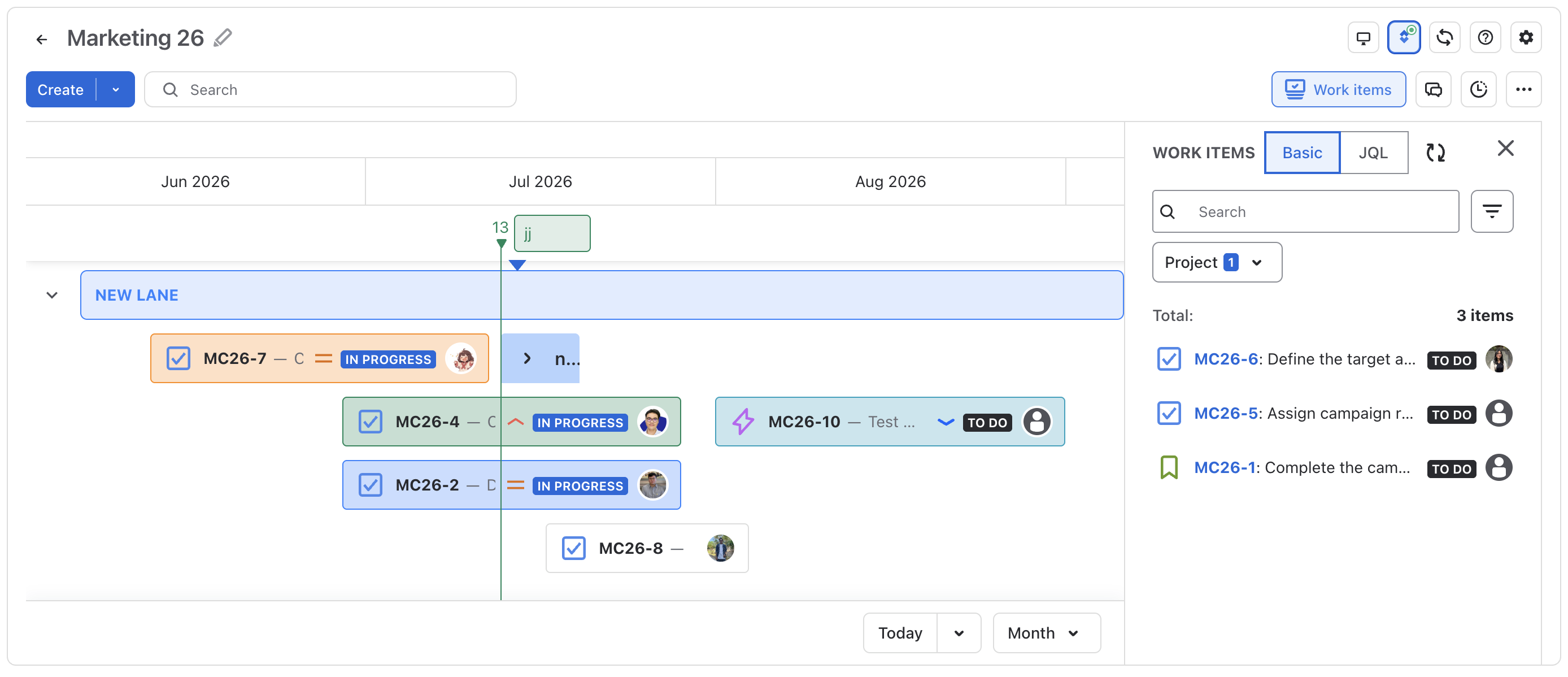
Users can integrate Jira with the Timeline, Kanban boards, and Gantt charts of ConfluPlan.
Enable / Disable Jira integration
To start syncing tasks from your roadmap to the Jira space, locate the button 
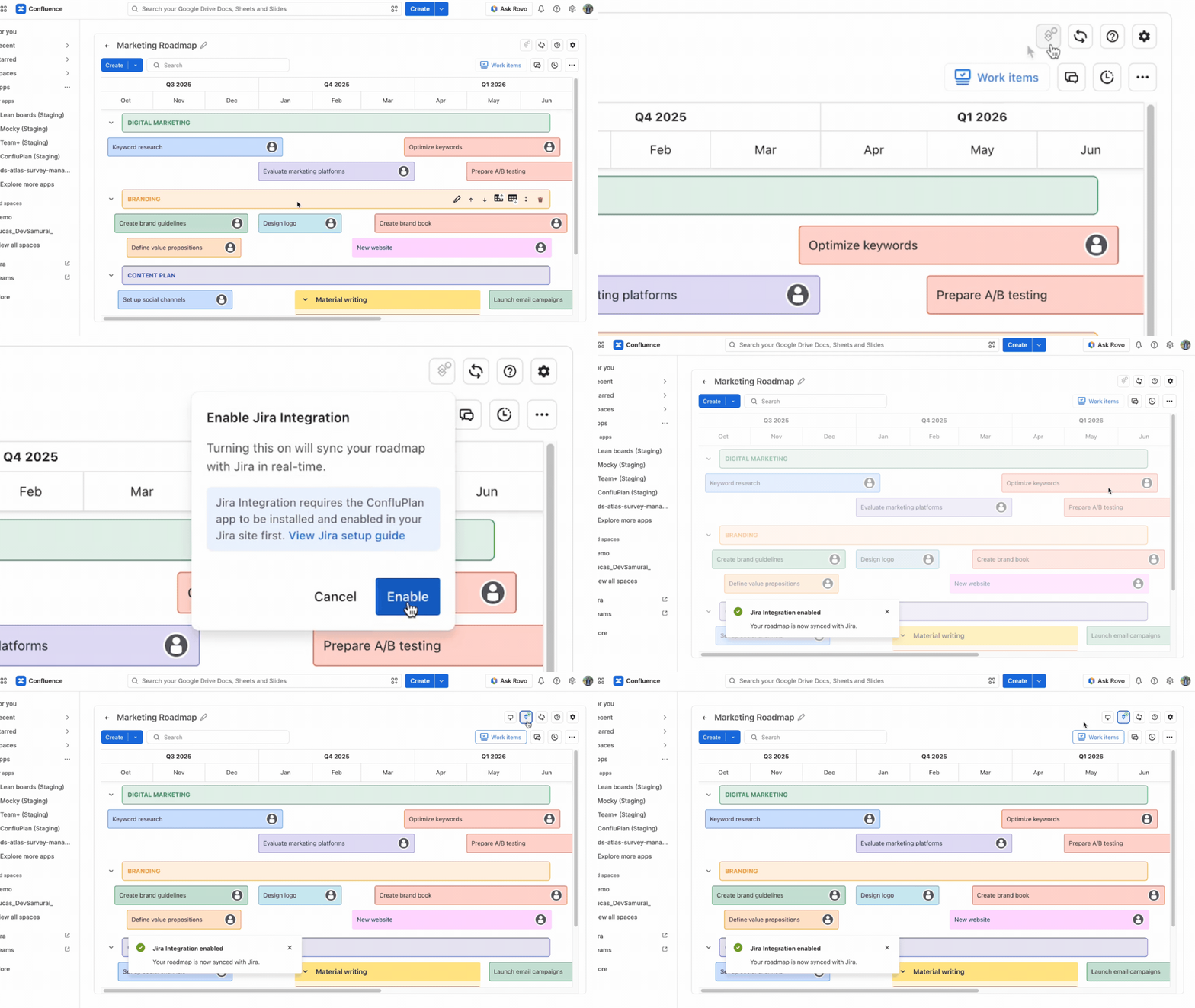
Once turned on, the icon will glow 
Before using Jira integration, you will need to install ConfluPlan and connect the app to Jira.
Read more: Connecting ConfluPlan to Jira setup guide.
To add Jira spaces (projects) to a ConfluPlan board, locate the Work items box and search for projects you want to include.
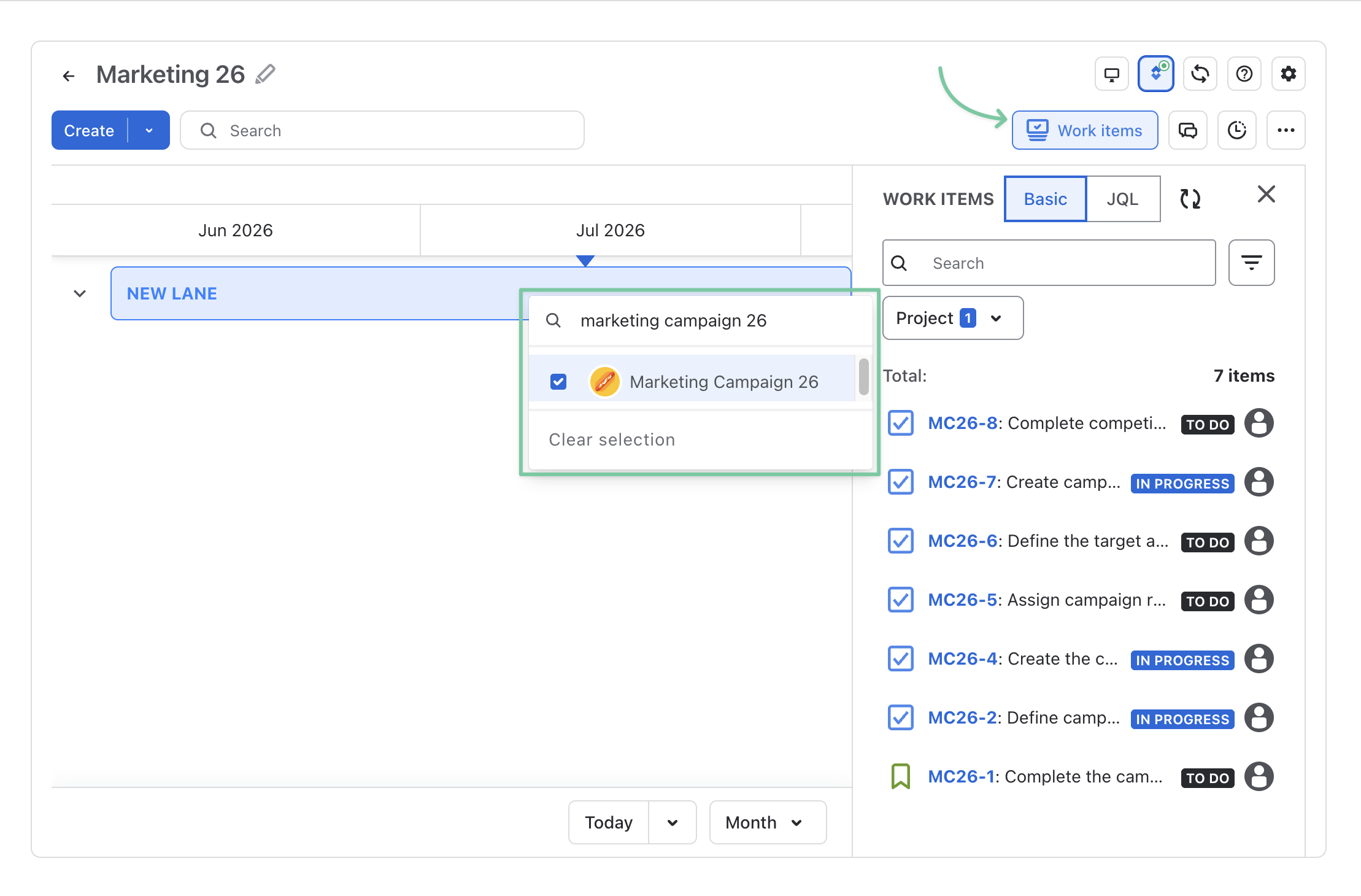
You can select multiple projects to the board.
To plan Jira work items in the ConfluPlan, you can drag and drop a card from the work item box onto the board. You can then change the task duration accordingly.
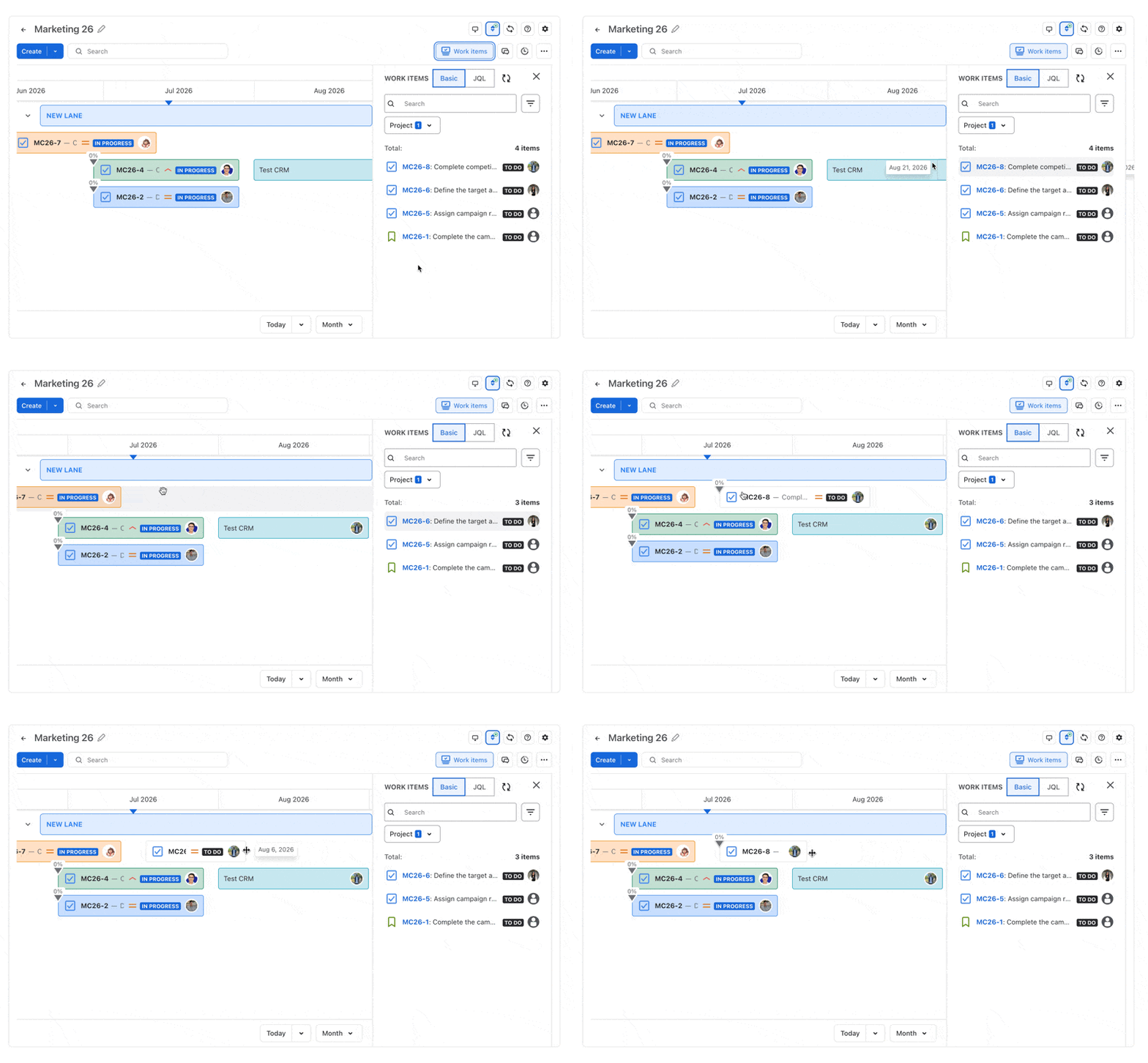
For existing blank tasks in the board, you can also link them to available Jira work items in the project or create a new work item directly while synchronizing it to Jira.
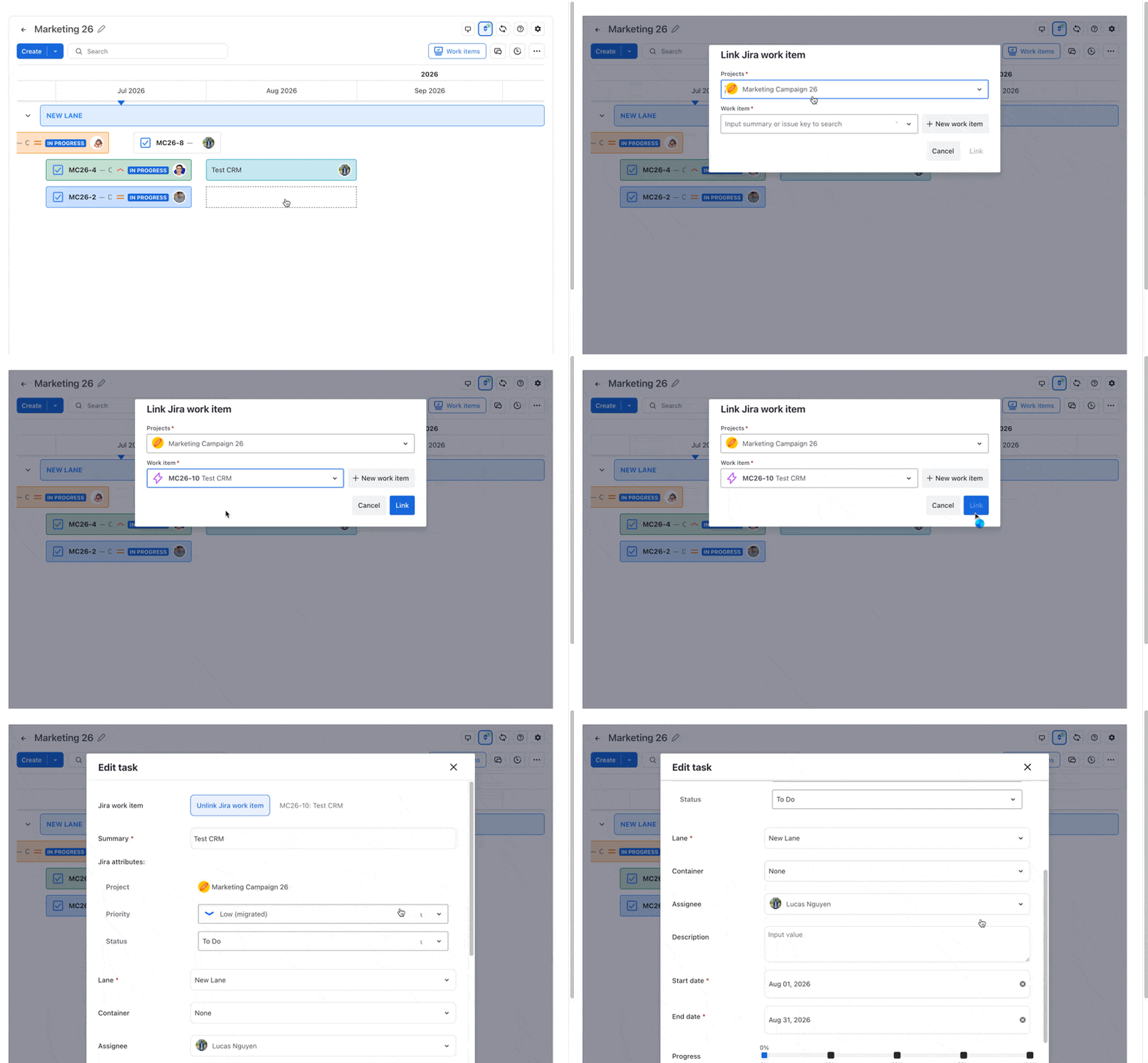
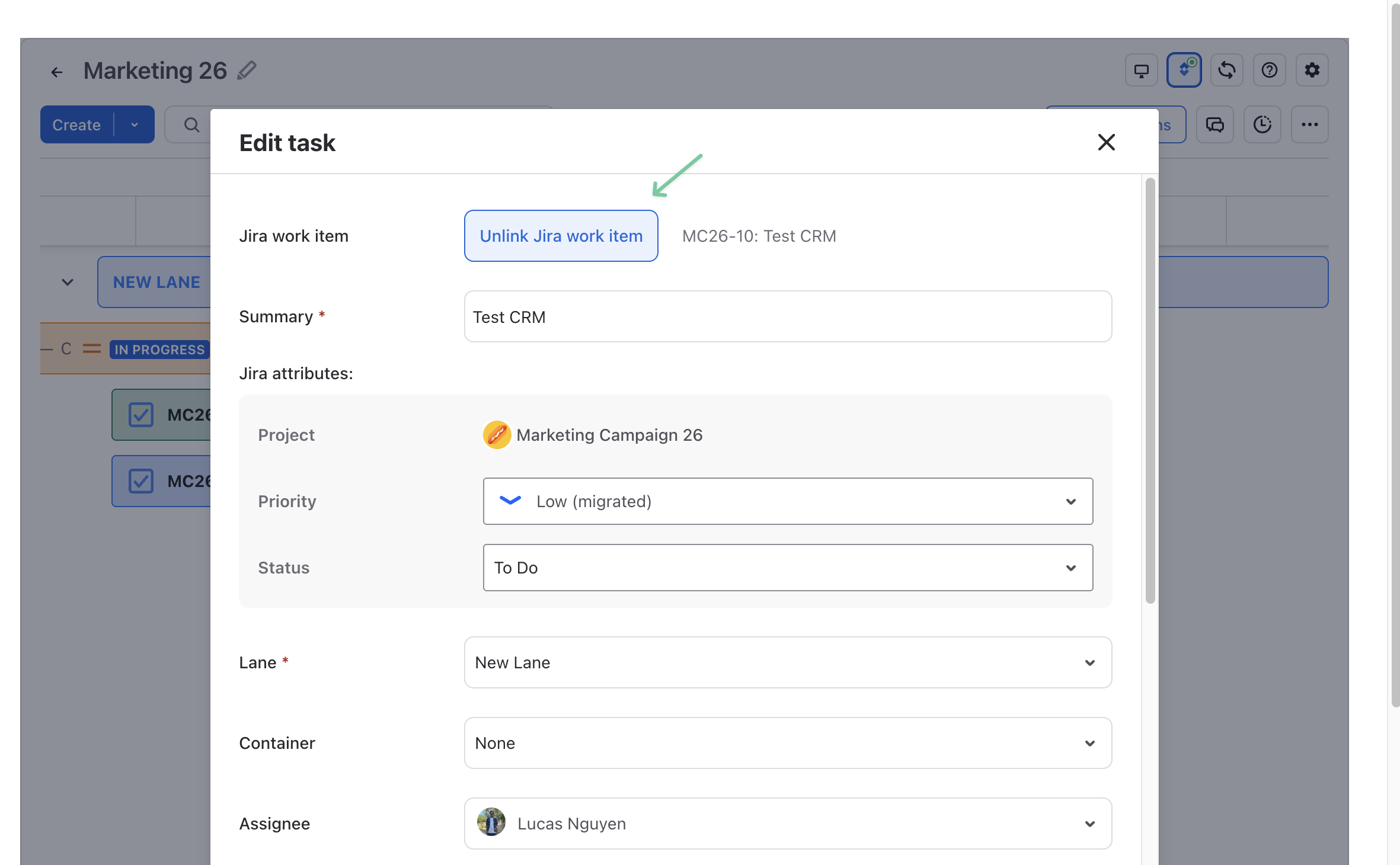
You can also unlink the Jira work item from the task in ConfluPlan.
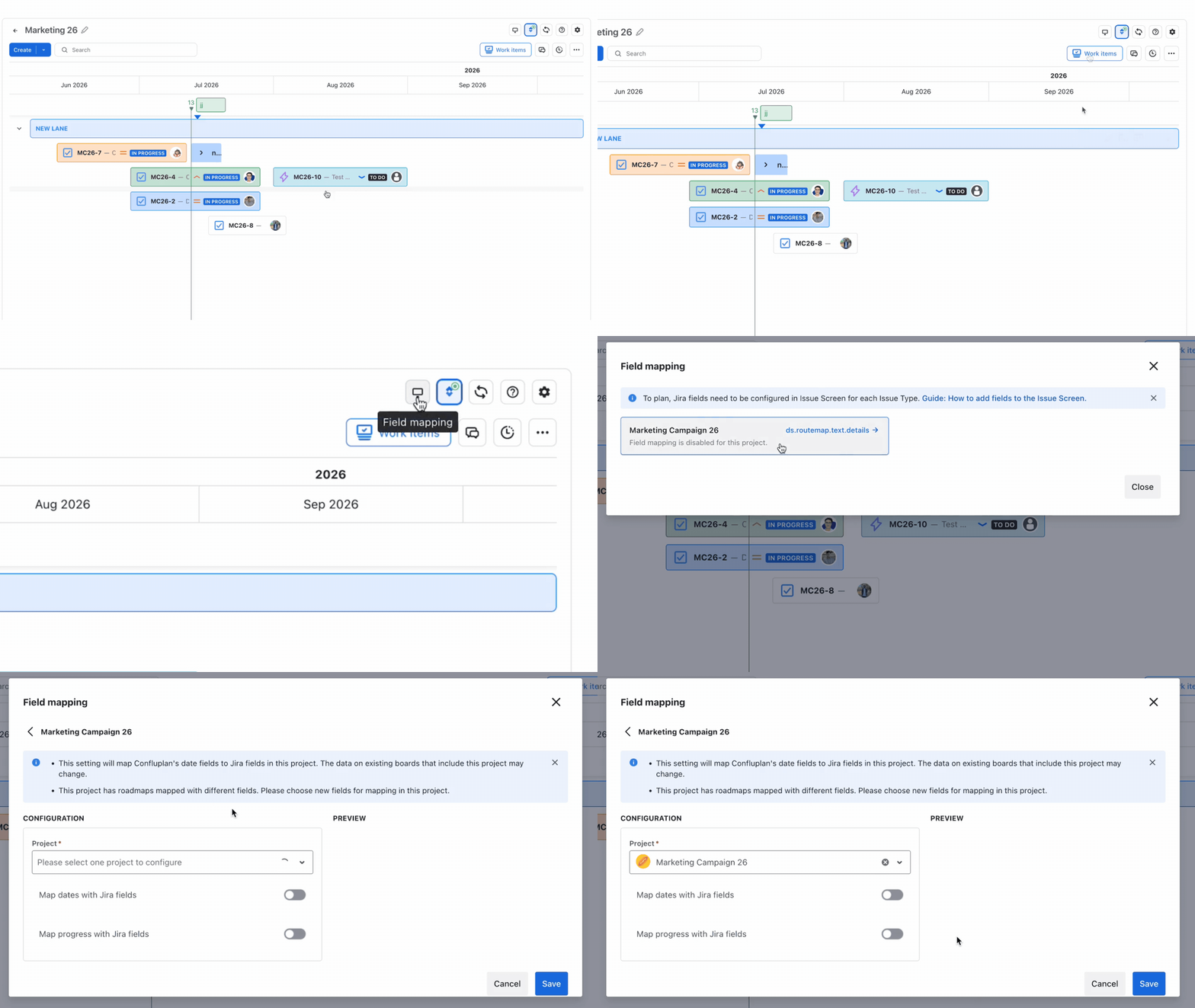
Field mapping
By mapping Jira fields to ConfluPlan, any changes made in the app will automatically synchronize with work items in your Jira spaces.
NOTICE
Field mapping for the Jira integration feature is not available for the Kanban board type in ConfluPlan.
After planning tasks from a Jira project, you can start mapping the start and end dates from Jira to your Confluence pages.
If there are no available fields for mapping, that means those fields have not been added to your Jira projects and screens yet.
For more details, please read: How to add fields to Screens in Jira.
Locate the button (next to the Jira integration toggle button) to start field mapping.
In this field mapping, you can map the Start and End dates to Jira date fields.
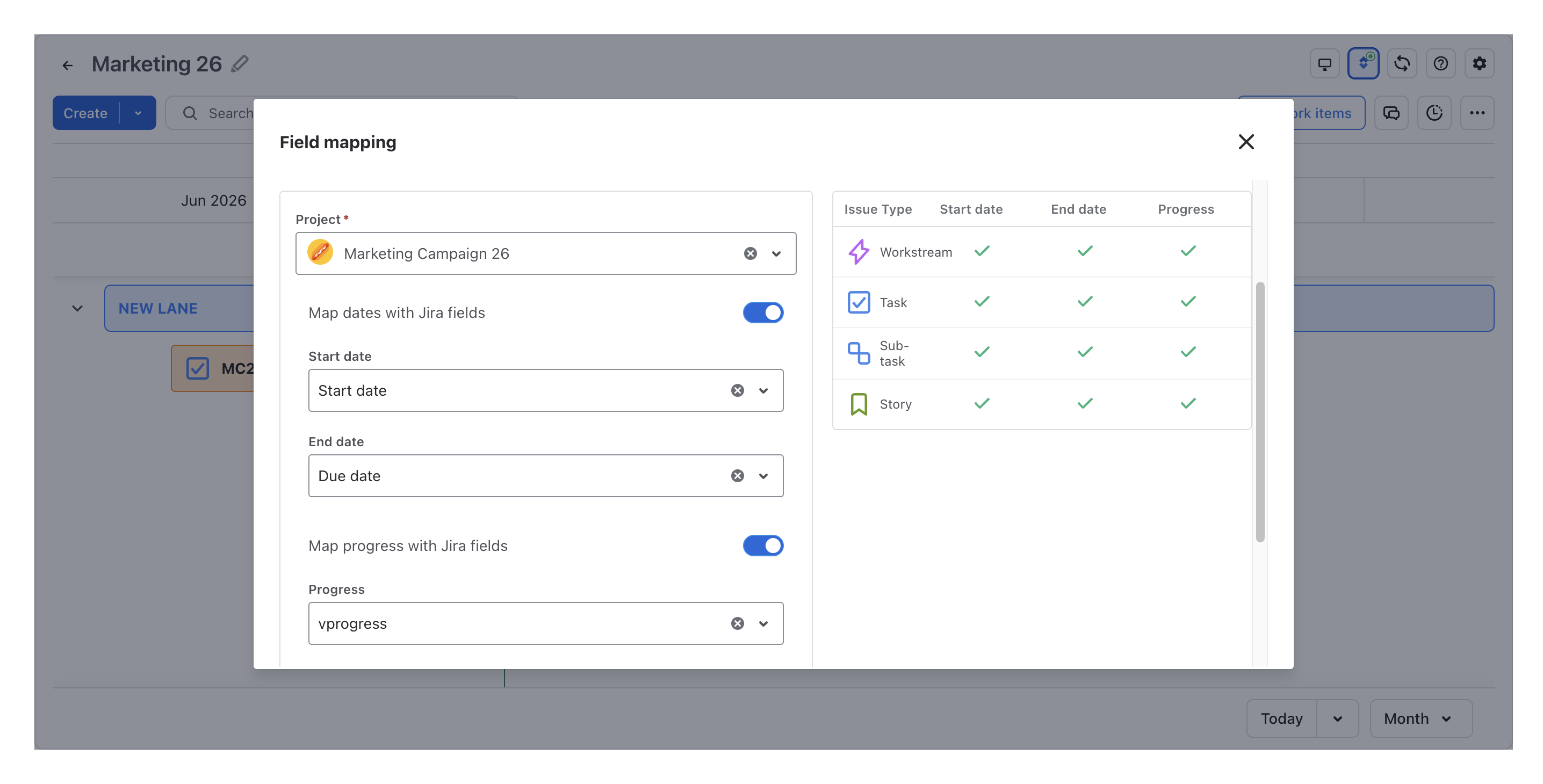
You can also map the progress field to visualize your task progression as a percentage.
You can then decide whether to migrate data and overwrite existing Jira fields or not:
-
Migrate data: when enabled, it will copy all the existing data values from ConfluPlan to Jira fields accordingly.
-
Overwrite: when enabled, it will overwrite the existing data of Jira fields by using the data from roadmaps.
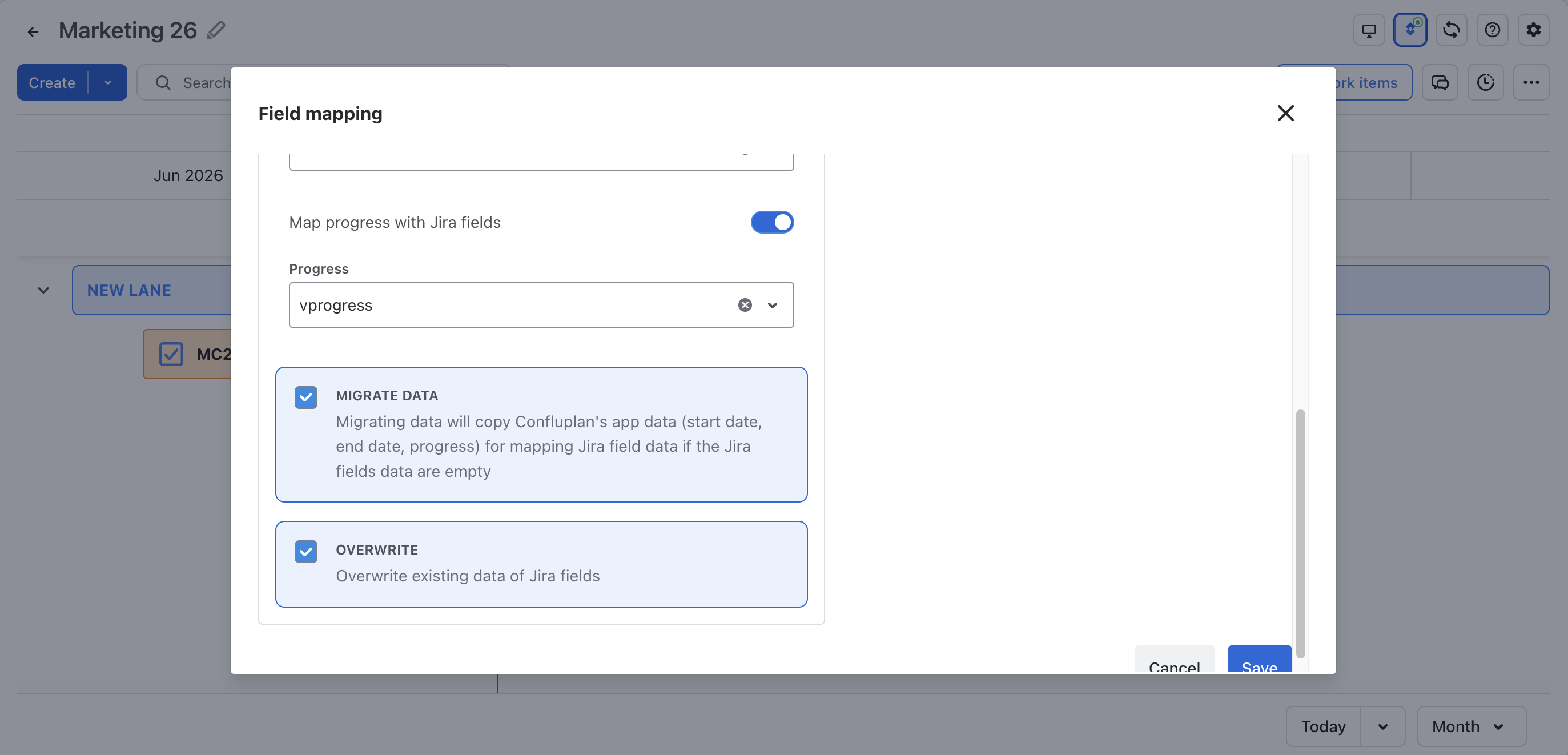
Once done, click Save to complete the field mapping process.