.png)
Release Date:
We’ve rolled out updates to enhance time tracking in TimePlanner, with new controls for locking time periods, setting daily hour limits, and improved customization for worklogs and billable hours.
🚀 What’s New
🌟 Period Management
TimePlanner now includes the Period Management feature, which allows administrators to define specific, often weekly time intervals for employee timesheets. By managing these periods, administrators can lock or unlock them, which prevents users from adding, editing, or deleting time logs after a designated period closes, ensuring data integrity for payroll and reporting.
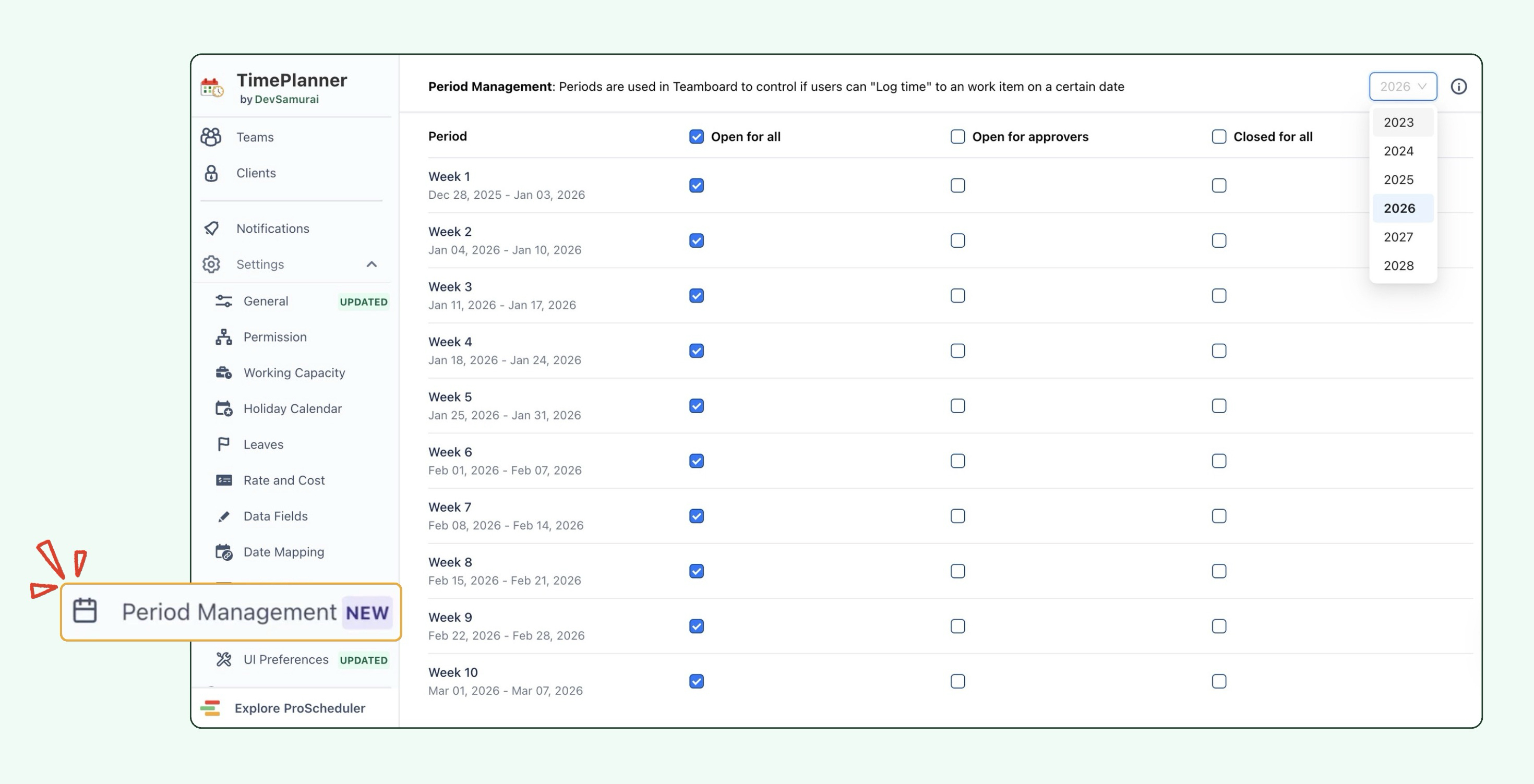
Explore more details about Period Management
🌟 Time Logging – Maximum Hours per Day per User
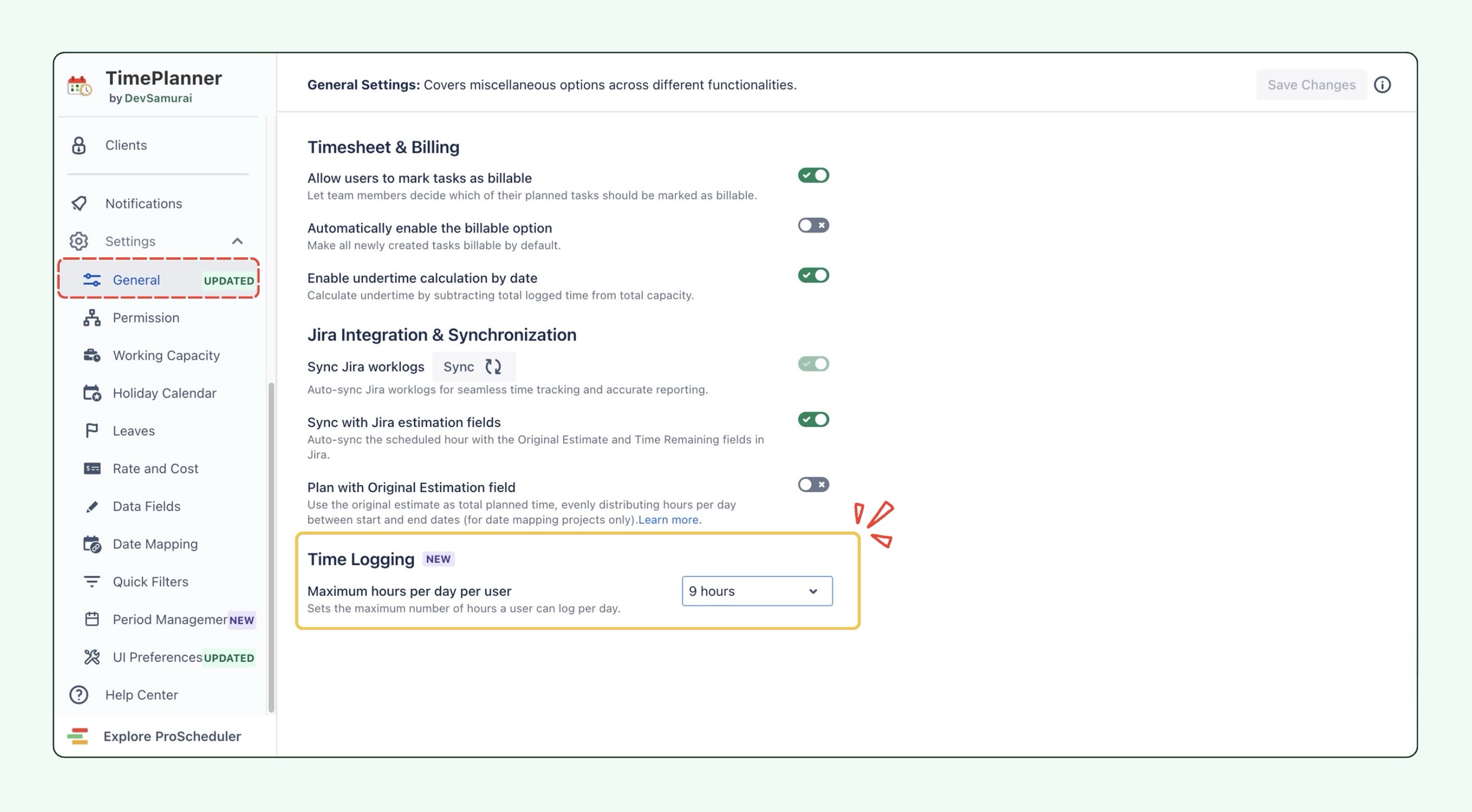
TimePlanner now enables administrators to set a limit on the number of hours a user can log in a 24-hour period. This ensures team members don't exceed their daily capacity, keeping worklog reports accurate for payroll and budgeting.
🛠️ Improvements
"Mark as Billable" on Jira Work Item Detail Panel
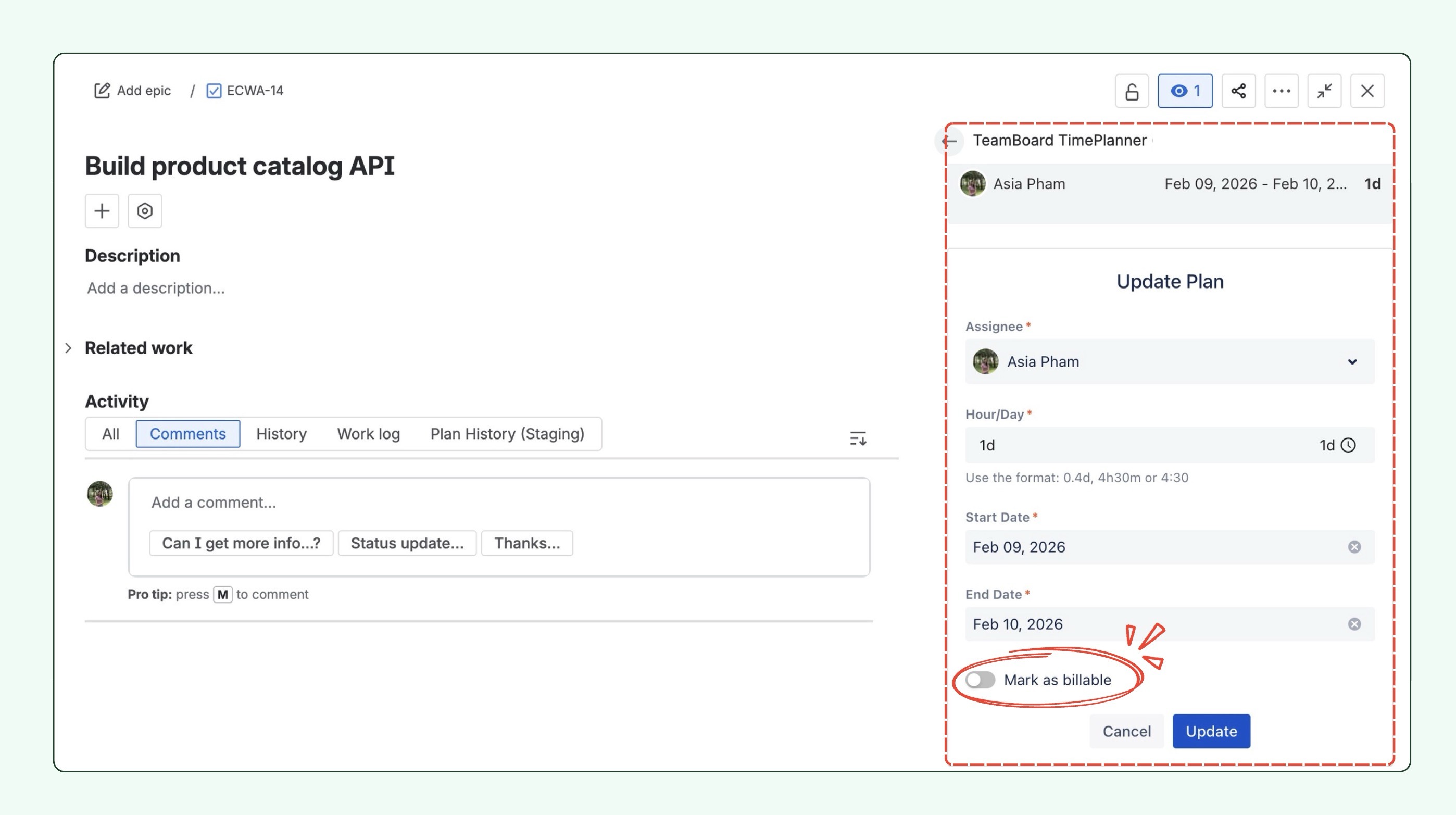
The Mark as Billable feature is now available directly on Jira work items when planning tasks via TeamBoard TimePlanner. You can easily toggle the billable status from the right panel, making it more convenient to manage and track billable hours while planning tasks.
Customizable Time Display Format
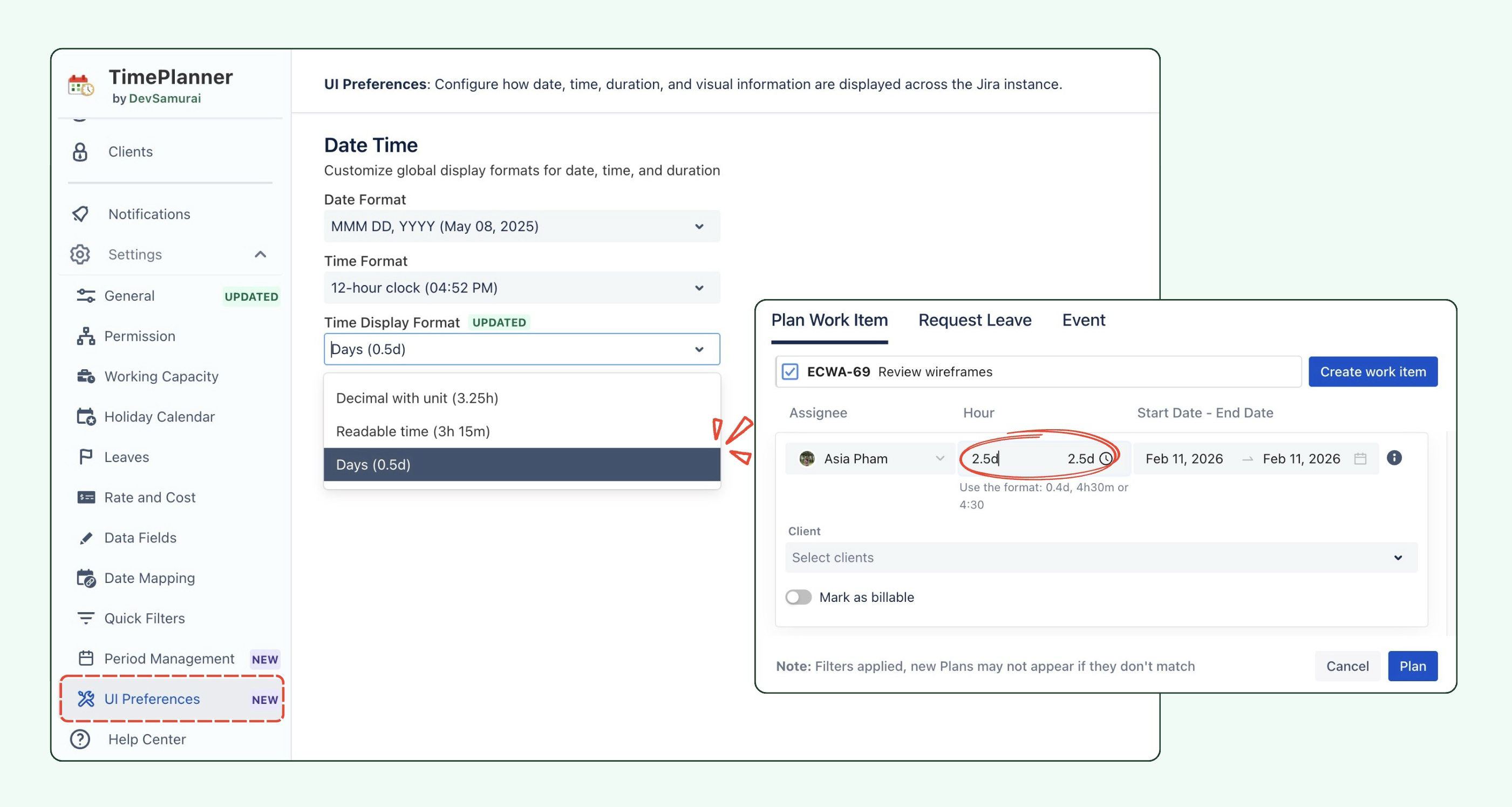
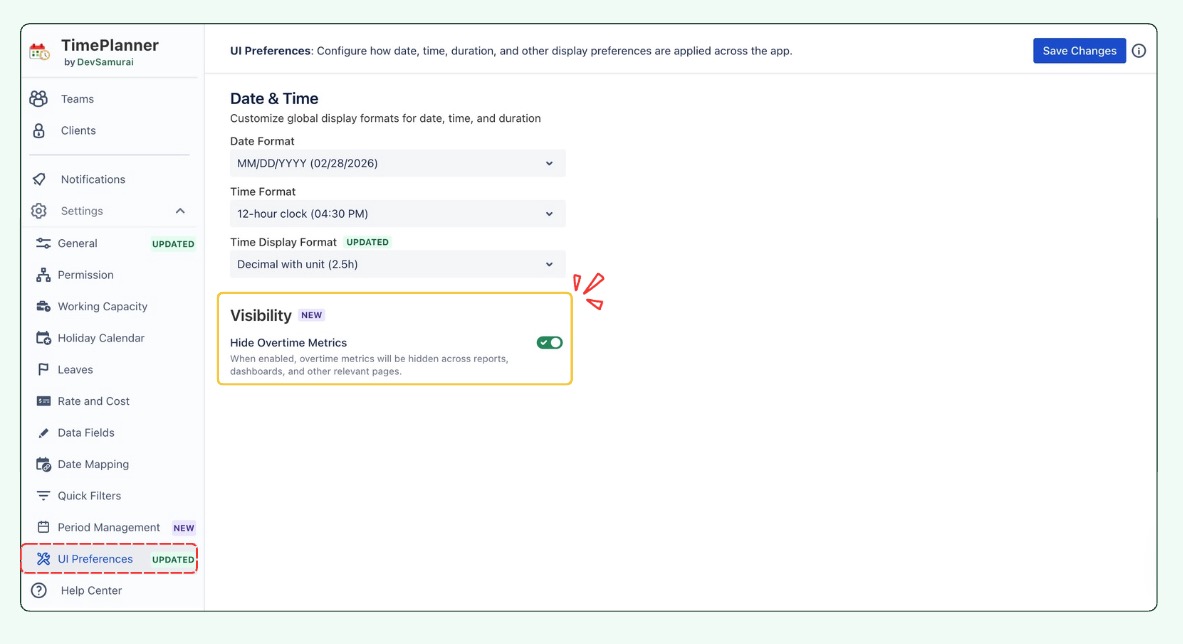
TimePlanner now allows users to configure the Time Display Format to show time in days (e.g., 0.5d, 3d), offering a more flexible and user-friendly way to view and track time spent on tasks. This setting will impact how time is displayed when planning tasks on the Schedule Board.
Hide Overtime Data
A new setting allows administrators to hide overtime data across the entire app, creating a cleaner and more controlled reporting experience. When enabled, overtime calculation and visibility are disabled in:
-
Dashboard – Overall Chart
-
My Profile – Overview Tab
-
Reports – General Report
-
Reports – Exported General Report Files
-
Dashboard – Drag & Drop Components
-
Dashboard – Overtime Chart
Initiative-Level Aggregation
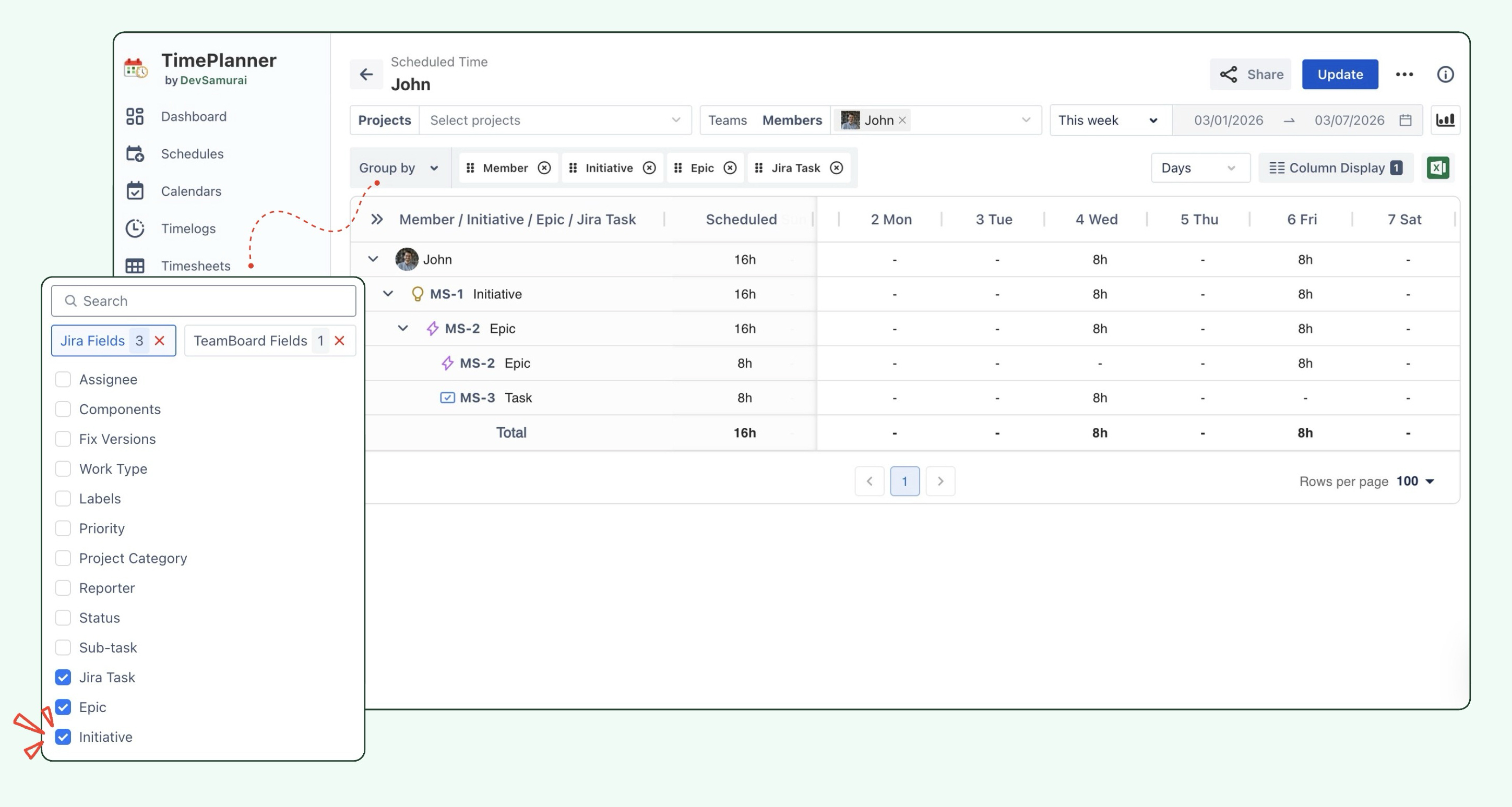
Worklogs and scheduled hours can now be aggregated at the Initiative level in the report. By selecting the "Initiative" field in the "Group by" options, you can view aggregated data for entire initiatives, providing a clearer overview of progress and helping with more effective project tracking.
📘 Help Center
If you have any questions, please don't hesitate to contact us through our support desk. Our team is available 24/7 to assist you.
If you're enjoying our app, we'd appreciate it if you could leave us a positive review. ⭐⭐⭐⭐ Your feedback is valuable and means a lot to us!