
Only Jira admin/App admin can access UI Preferences in the Settings.
PlanCore allows users to customize their interface through UI Preferences. Users can apply these settings globally for their entire organization.
Accessing UI Preferences
To access the UI Preferences settings:
-
Navigate to the :setting: Settings tab on the left-hand menu.
-
Click on UI Preferences under the Settings section.
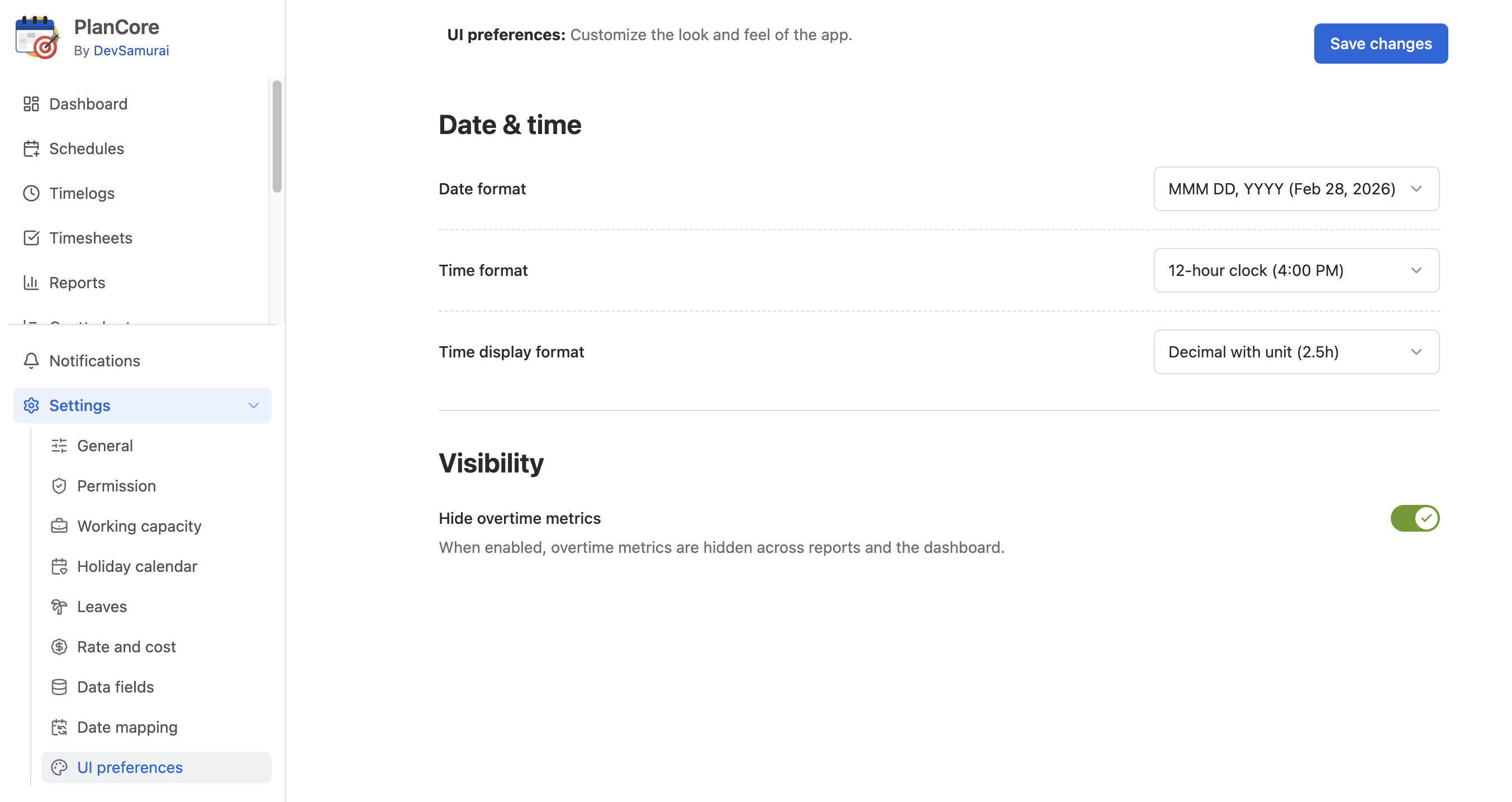
-
Date & Time: Customize global display formats for date, time, and duration used across PlanCore.
-
Visibility: Hide overtime calculations and overtime-related metrics across PlanCore.
Date & time
Only Jira Admin/App Admin can set up the Date and Time format for the entire organization.
Various regions and cultures follow different conventions for date, time, and duration formats. To support this diversity, the UI Preferences feature allows organizations to customize and standardize how date, time, and duration values are displayed for all users in PlanCore.
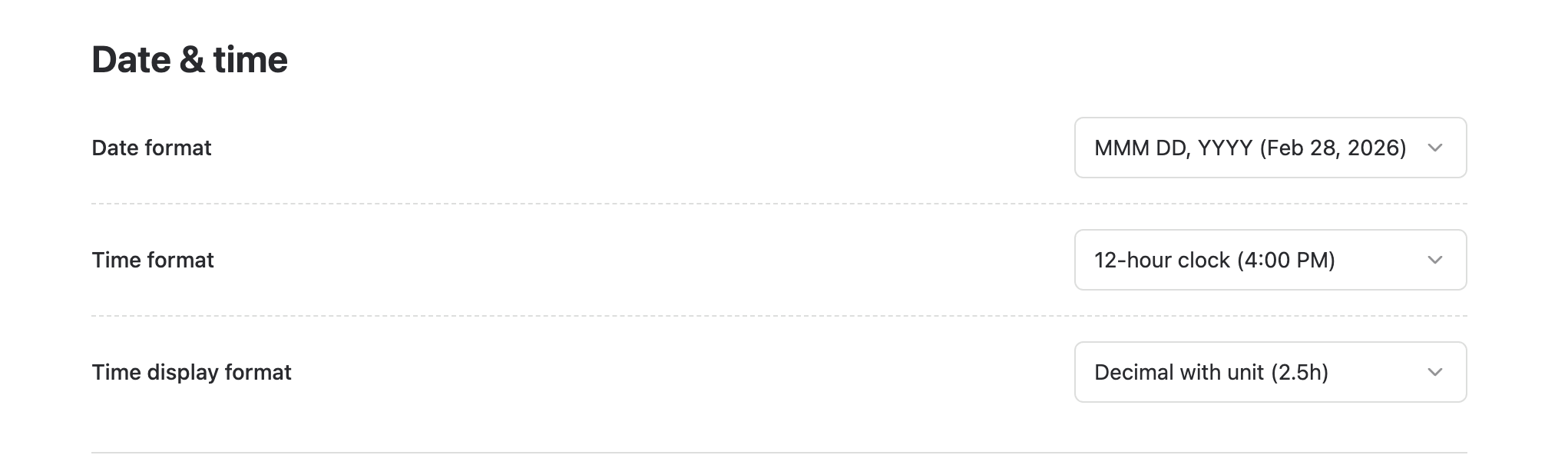
Setting Up Global Date and Time Formats
To configure global formatting:
-
Go to Settings → UI Preferences.
-
Use the dropdown menus to configure the following options:
Date Format
Select your preferred date format. Supported formats include:
-
DD/MM/YYYY -
MM/DD/YYYY -
YYYY-MM-DD -
MMM DD, YYYY
Time Format
Choose how time is displayed:
-
12-hour clock (
04:52 PM) -
24-hour clock (
16:52).
Duration Format
Select how duration values are displayed across the app:
-
Decimal with unit (
3.25h) -
Readable time (
3h 15m) -
Days (
3d)
-
Click Save changes in the upper-right corner to apply your changes.
Once saved, these settings will be applied globally to all users in PlanCore.
Visibility
In the Visibility settings, Hide Overtime Metrics allows administrators to disable overtime calculations and hide overtime-related information across PlanCore.

When enabled, overtime metrics will not be calculated or displayed in several areas of the application.
Affected areas include:
-
Dashboard – Overall Chart
-
Dashboard – Overtime Chart
-
Dashboard – Drag & Drop Components
-
My Profile – Overview tab
-
Reports – General Report
-
Reports – Exported General Report files
This setting is useful for organizations that do not track overtime and want to simplify dashboards and reports by removing overtime-related metrics.