
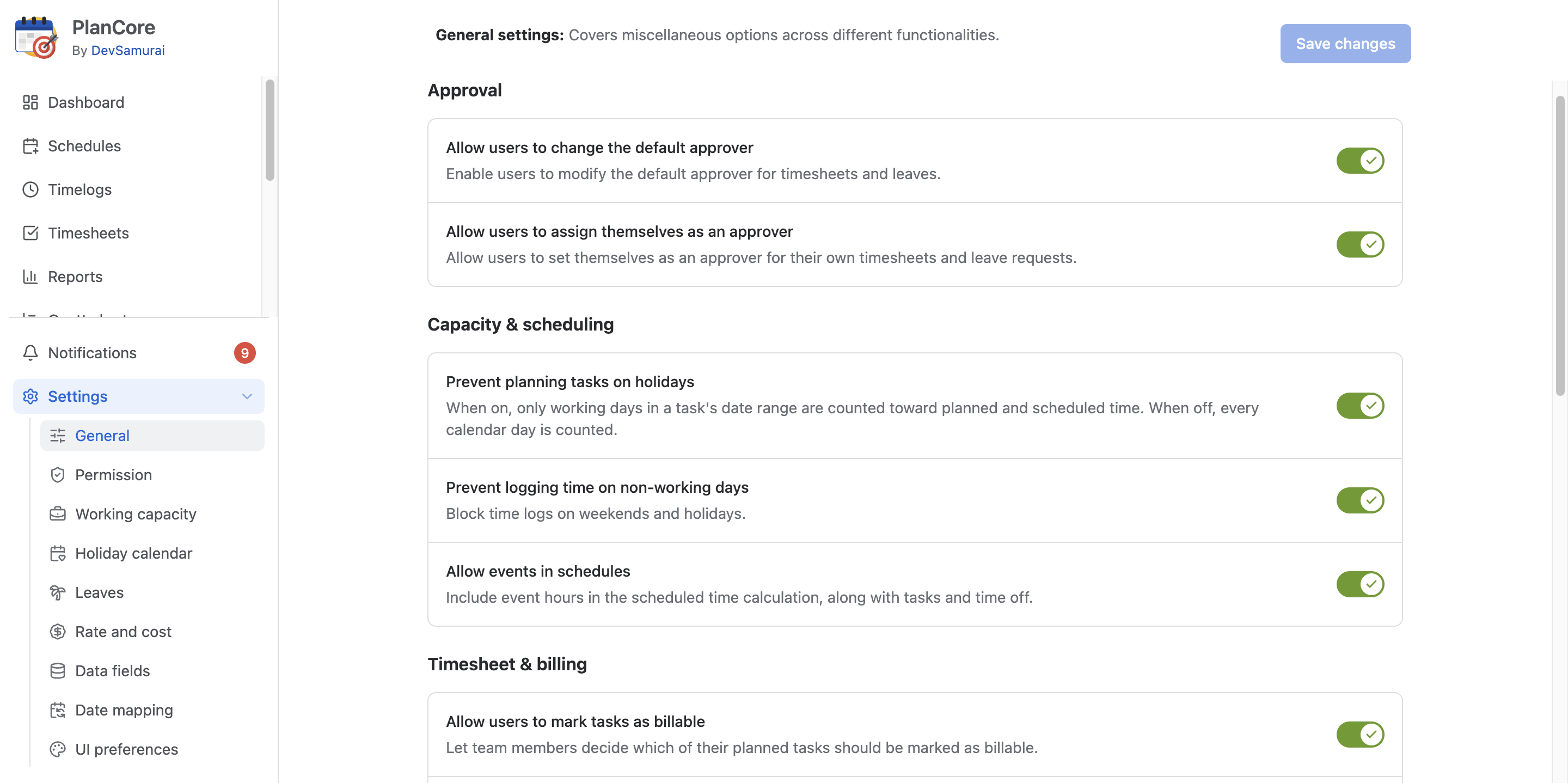
PlanCore’s General settings give app administrators control over approval preferences, scheduling, time tracking, billing, and Jira synchronization. Only users with the App Admin role can change these settings.
To open them, select Settings in the left navigation, then choose General.
Note: This guide is adapted from the corresponding TimePlanner settings. Check the names and availability of options in your PlanCore instance before changing a workflow.
General settings reference
|
Category |
Setting |
What it controls |
|---|---|---|
|
Approval |
Let users update their default approver |
When enabled, users can change the default approver for their timesheets and leave requests in Personal Settings. When disabled, they cannot change it themselves. |
|
Allow self-approval assignment |
When enabled, eligible users with timesheet or vacation approval permissions can assign themselves as approver in Personal Settings. Disable it to prevent self-assignment. |
|
|
Capacity and scheduling
|
Let users edit their working capacity |
Allow people to adjust their own working hours or capacity in Personal Settings. If disabled, they cannot make those changes themselves. |
|
Let users choose a holiday calendar |
Allow users to select or update their holiday scheme in Personal Settings. Otherwise, the default holiday calendar applies. |
|
|
Exclude holidays from task planning |
When enabled, tasks placed on holidays do not count toward the schedule calculation. When disabled, they remain included. |
|
|
Exclude non-working days from time-planning calculations |
When enabled, scheduled tasks on non-working days, including holidays and leave, are not counted. When disabled, they remain included. If your instance calls this setting Prevent logging time on non-working days, verify its effect before treating it as a restriction on the time-entry form. |
|
|
Include events in schedules |
Enable to include events in workload calculations; disable to calculate workload without them. |
|
|
Timesheets and billing
|
Allow users to mark tasks billable |
Controls whether users can set a task’s Billable status for cost tracking based on worked hours. Confirm the behavior when disabled in your instance before changing an existing billing workflow. |
|
Make new tasks billable by default |
When enabled, new tasks start as billable; users with permission can change their status. When disabled, new tasks start as non-billable until an authorized user changes them. |
|
|
Calculate daily overtime and undertime |
Compare each day’s logged time against that user’s daily capacity and show the resulting undertime calculation in reports and dashboards. Disable to omit this calculation. For an eight-hour daily capacity, logging 8, 6, and 4 hours across three days yields 0, 2, and 4 hours of undertime respectively: 6 hours total. |
|
|
Jira integration and synchronization
|
Synchronize Jira worklogs |
PlanCore normally syncs Jira worklogs automatically. Use the manual synchronization action to import older worklogs, such as those entered before the app was installed. Choose a date range and users, then start the sync. |
|
Sync Jira estimate fields |
Enable synchronization of scheduling information with Jira’s Original Estimate and Time Remaining fields. |
|
|
Plan from Original Estimate |
With Date Mapping active, distribute a task’s Jira Original Estimate across its scheduled duration to determine planned hours per day. A 10-hour estimate over two days produces 5 planned hours per day. Changing the start or end date does not itself change the Original Estimate; when this option is off, planned daily hours are not derived from that estimate automatically. |
|
|
Time logging |
Maximum hours per user per day |
Set a daily cap on the hours one person may log. Once they reach it, they cannot add more time for that day. Choose Unlimited if no cap is needed. |