
1. AgileTest MCP Overview
AgileTest MCP (Model Context Protocol) Server connects AI assistants and agents with AgileTest's test management data in Jira. This includes Atlassian's native AI tools, such as Rovo agents, as well as compatible external AI assistants, such as Claude Code, Cursor, and Codex.
The integration helps QA engineers, developers, and project managers access testing information without having to manually navigate multiple testing pages or compile data from different sources.
2. What Can You Do with AgileTest MCP?
AgileTest MCP currently supports six read-only tools that allow AI assistants to retrieve testing information through two main types of actions:
-
List: Retrieve a collection of items within a project, with filtering options where supported.
-
Get: Retrieve detailed information about a specific item using its Jira work item key.
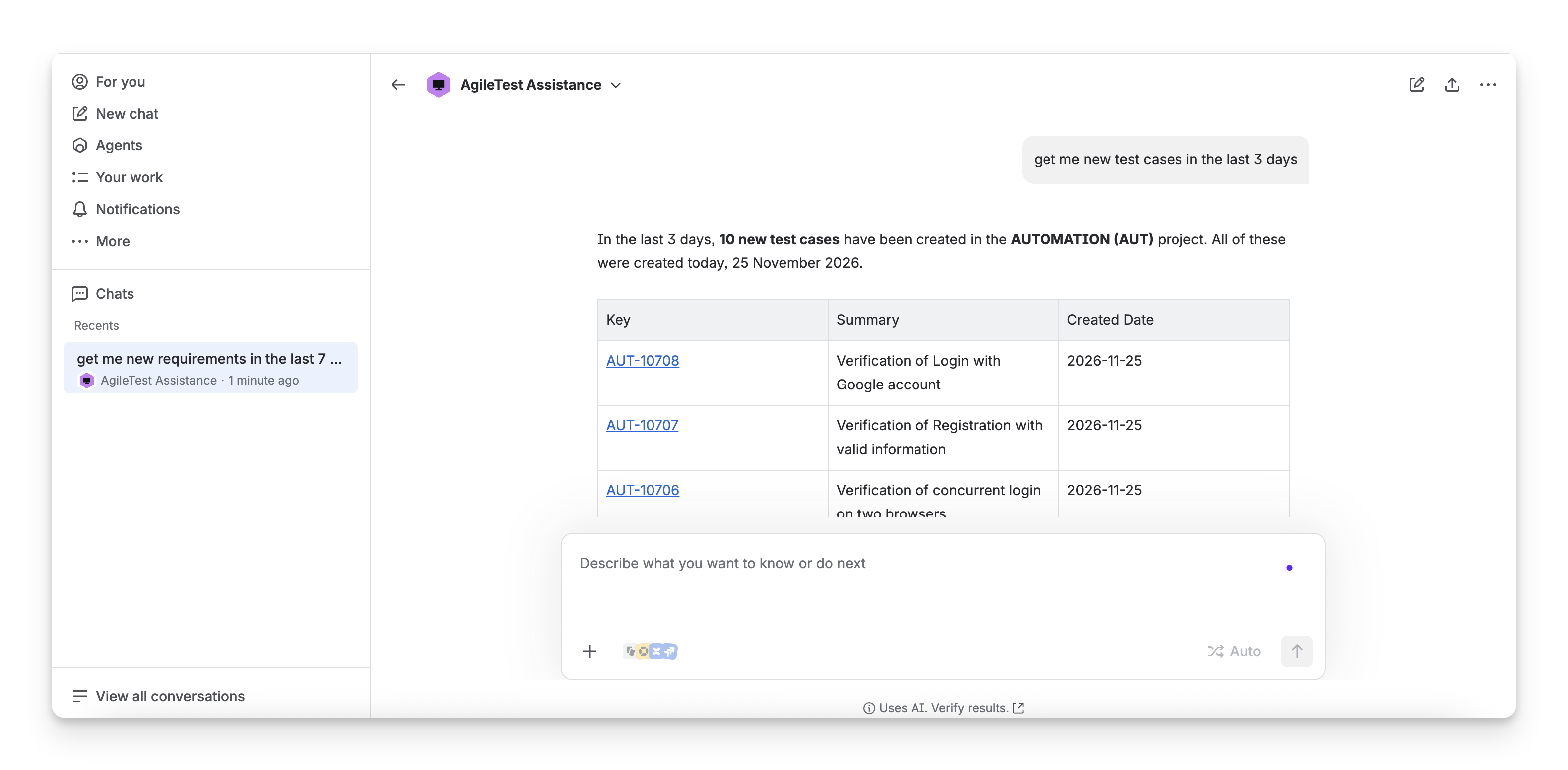
These actions cover four main AgileTest work types: Test Cases, Requirements, Test Executions, and Test Plans.
|
Key item |
Supported action |
What you can do |
Example prompt |
|---|---|---|---|
|
Test Cases |
List |
Retrieve Test Cases by keywords, labels, Jira statuses, or folders. Subfolders are not included, so name the exact folder you want. |
List all Test Cases in the Regression/Login folder of project A. |
|
Get |
Retrieve Test Case details, including test steps or test scenario, preconditions, and the last 10 test results. |
Show me the details and recent test results of ticket A-01. |
|
|
Requirements |
List |
Retrieve requirements with their Jira status and test coverage status. |
List all uncovered requirements in project A. |
|
Test Executions |
List |
Retrieve Test Executions by Jira status, Jira Fix Version, Test Plan, or AgileTest milestone. |
List all Test Executions for Fix Version 2026.11. |
|
Get |
Retrieve execution details, testing progress, individual test results, executors, and the defects found in the execution. |
Show me the failed tests and the defects in ticket A-04. |
|
|
Test Plans |
Get |
Retrieve Test Plan details, overall Test Case progress, and up to 50 of its latest Test Executions. |
Show me the testing progress of Test Plan A-02. |
Warning:
Currently, the MCP server has not yet supported:
-
Listing Test Plans (you need the Test Plan key)
-
Test Scripts and Test Sessions
-
Creating or changing data (all tools are read-only)
3. Configure Your Own Agents
With AgileTest MCP, you can create and configure your own AI agents using Atlassian's Rovo Studio or connect AgileTest to compatible external AI assistants through MCP.
This allows you to customize how your AI agents retrieve, analyze, and present testing information based on your team's needs.
Create a Custom Agent in Rovo Studio
Rovo Studio allows you to build custom agents and equip them with AgileTest tools. You can define the agent's purpose, provide instructions, and select which AgileTest capabilities it can use.
Note:
Before using AgileTest MCP with Rovo, make sure you meet the following requirements:
-
Jira subscription: You must have a Jira Cloud Standard plan or above to access Rovo Chat and Rovo Studio.
-
Jira permissions: You only see work items you have permission to view in Jira.
-
AgileTest: AgileTest must be installed and have an active license on your Jira site.
-
Project setup: AgileTest must be enabled in the project you ask about.
-
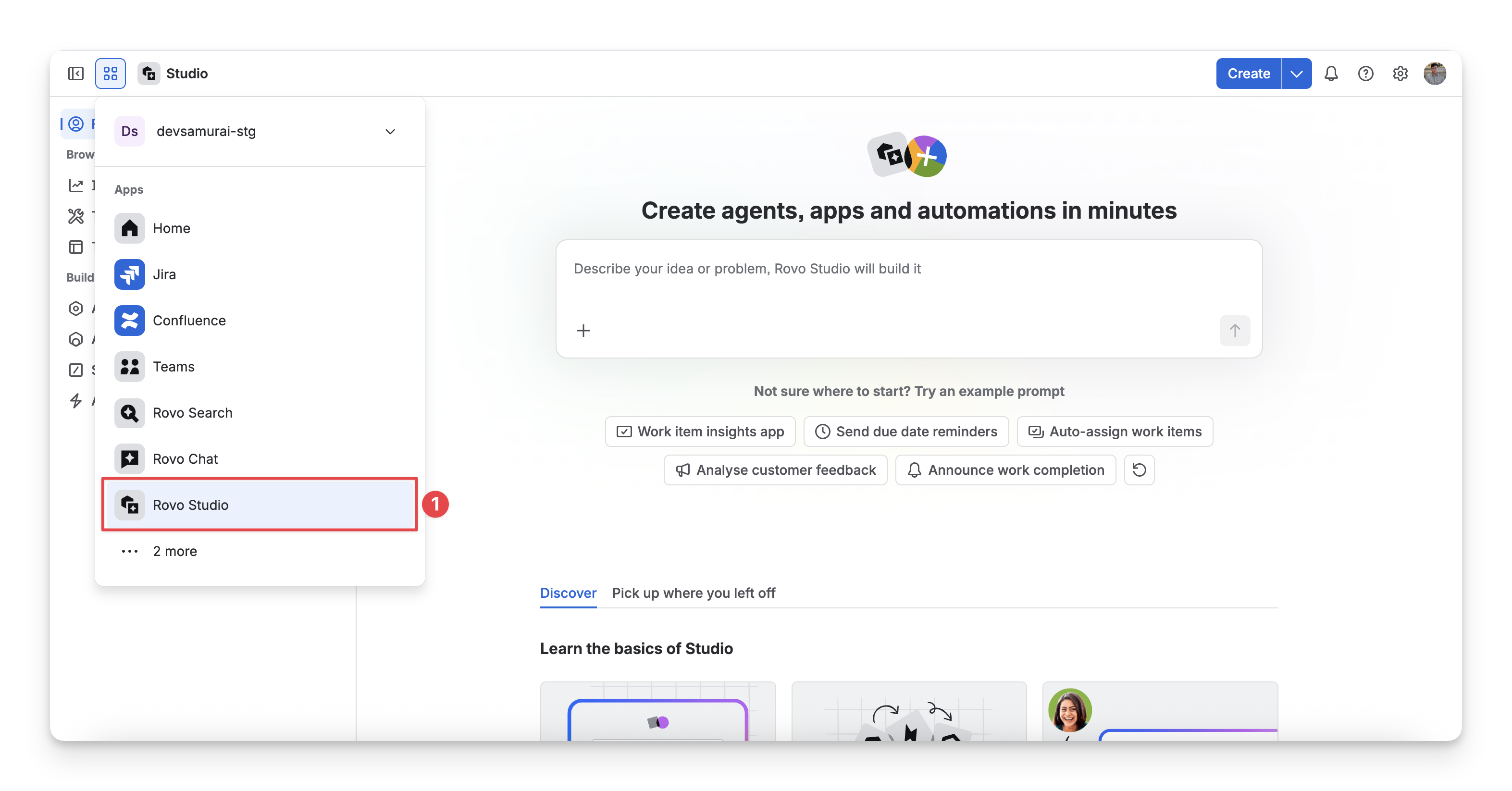
In your Atlassian account → Access Rovo Studio.
-
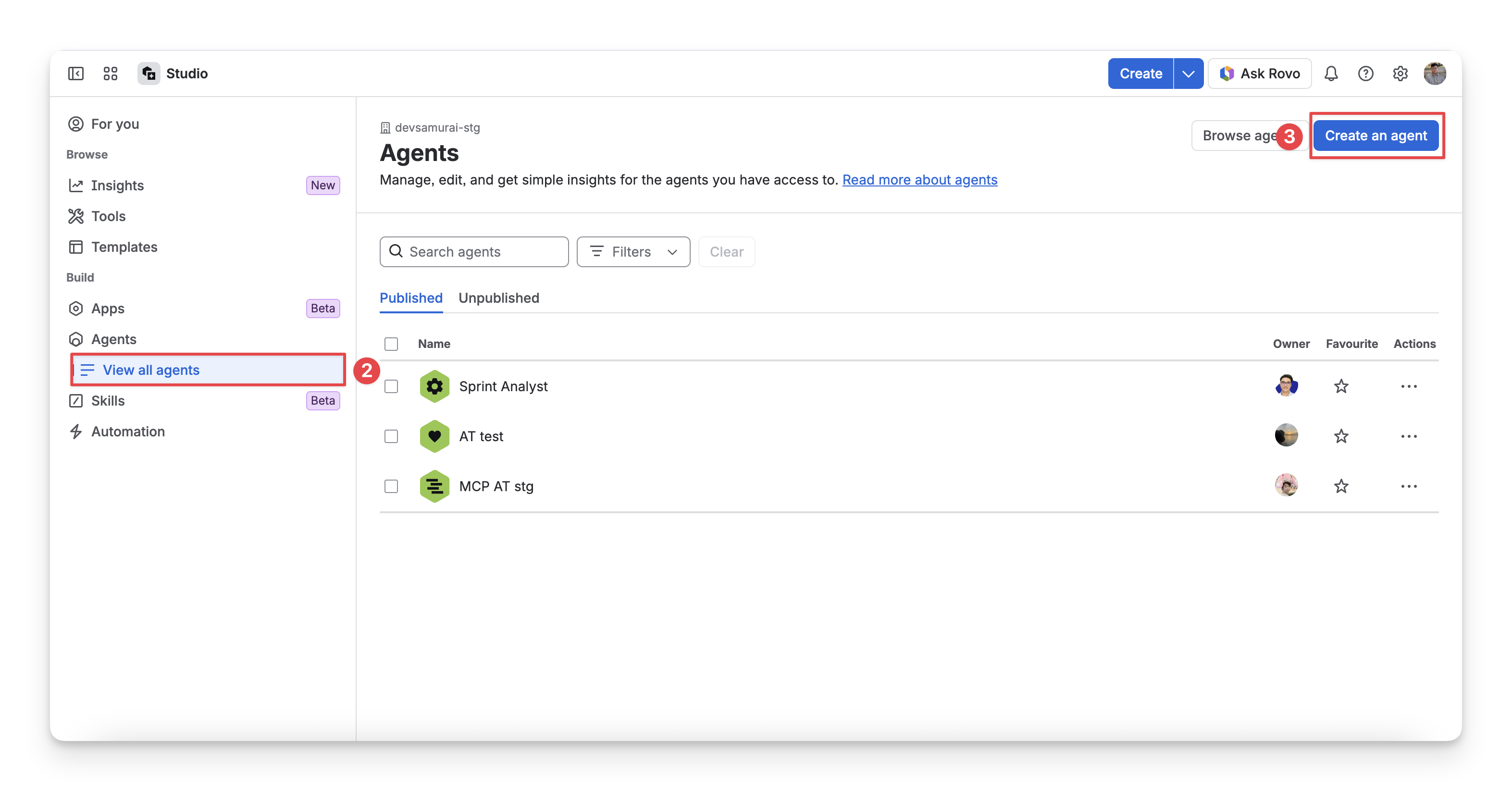
Go to Agents → View all agents.
-
Select “Create an agent”.
-
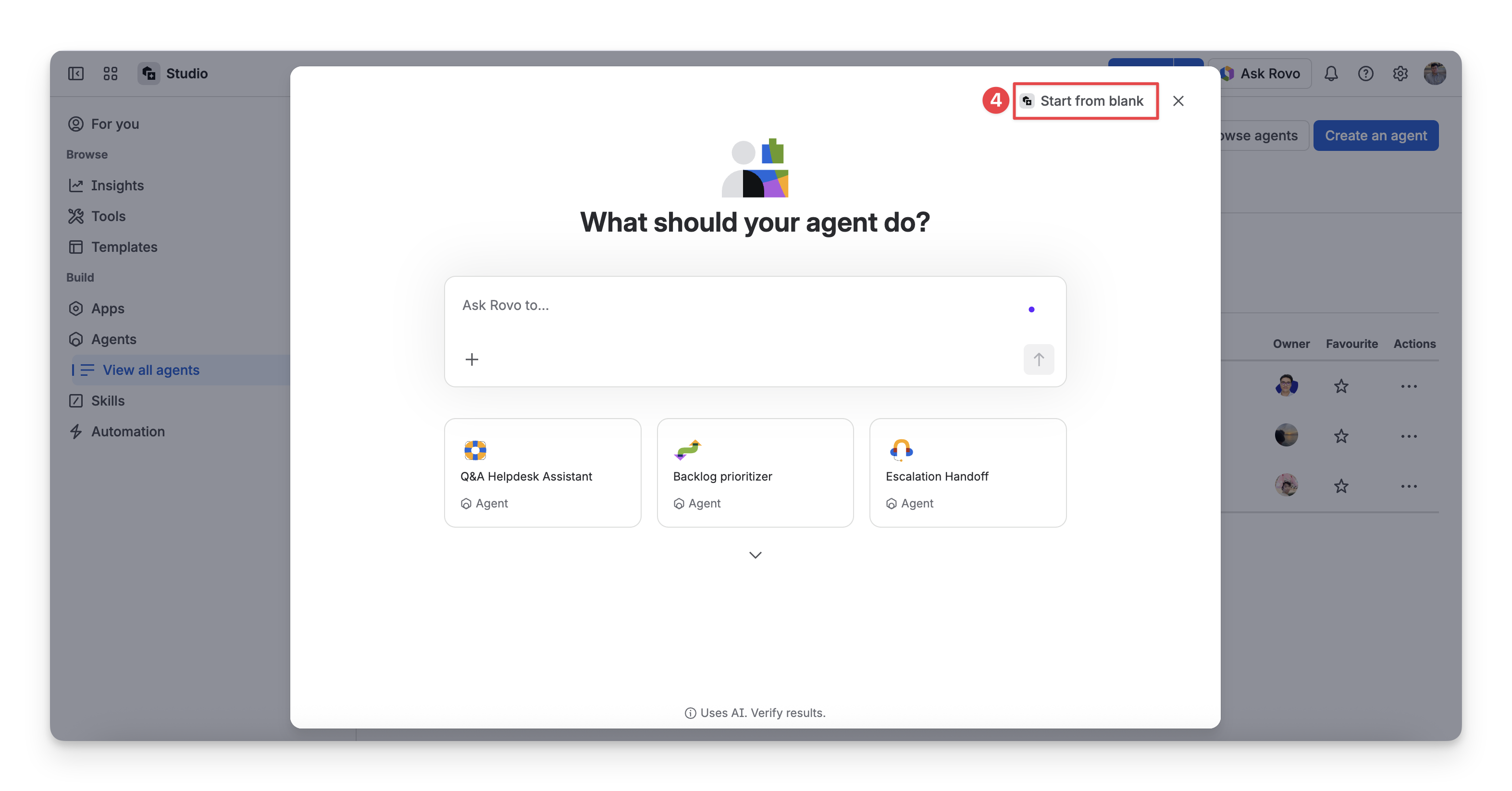
Select “Start From Blank”.
-
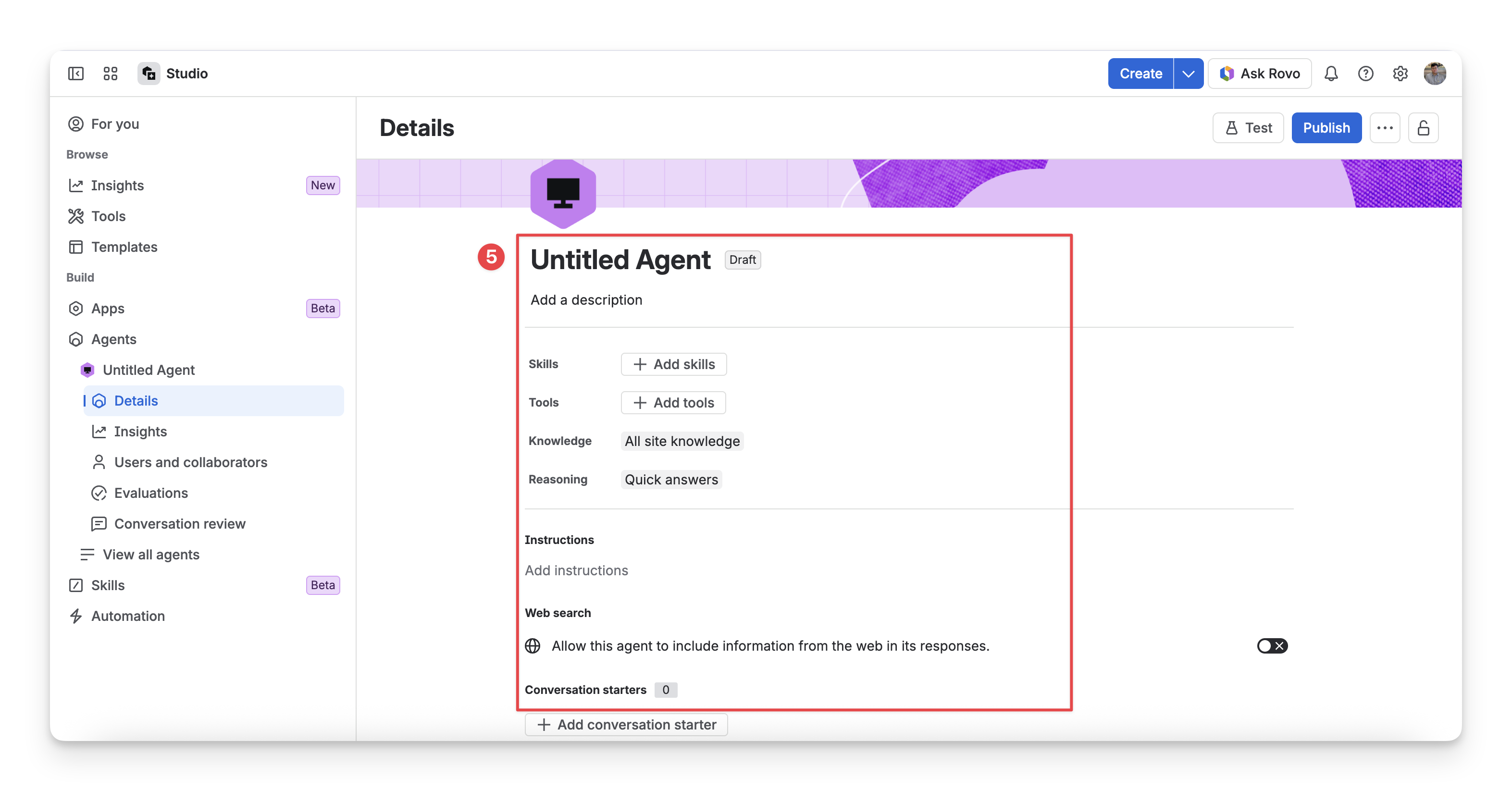
Add basic information for your new agent.
-
Name: Give your agent a name that reflects its purpose.
-
Description: Briefly describe what the agent does and how it can help users.
-
Tools: Select the tools your agent can use, including AgileTest MCP tools.
-
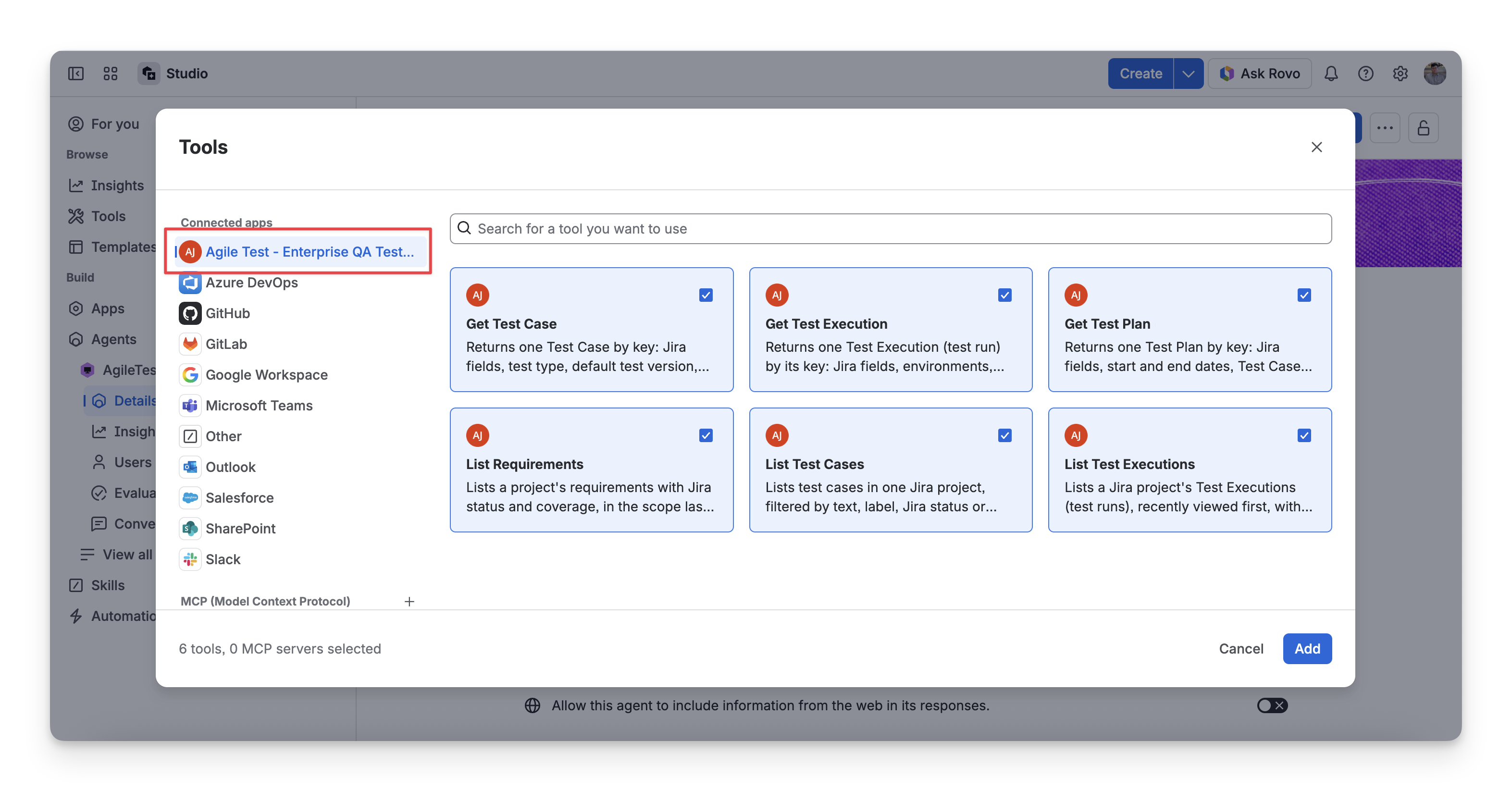
Under Connected apps in the left sidebar, find and select AgileTest to view all available AgileTest MCP tools.
-
Select the tools that match your agent's purpose, then click Add to include them in your agent's configuration.
-
-
Knowledge: Define the knowledge sources your agent can reference when answering questions.
-
All site knowledge: Allow the agent to reference available knowledge across your site, subject to access permissions. (Default)
-
Custom knowledge: Limit the agent's knowledge to selected sources relevant to its purpose.
-
No knowledge: Do not provide the agent with additional site knowledge.
-
-
Reasoning: Choose how deeply your agent processes requests before generating responses.
-
Quick answers: Best for simple requests, such as listing Test Cases or retrieving a specific Test Execution. (Default)
-
Think deeper: Best for complex requests that require multiple steps, such as analyzing test coverage and identifying release testing risks.
-
-
Instructions: Define the agent's role, responsibilities, expected behavior, and how it should use the available tools and present responses.
-
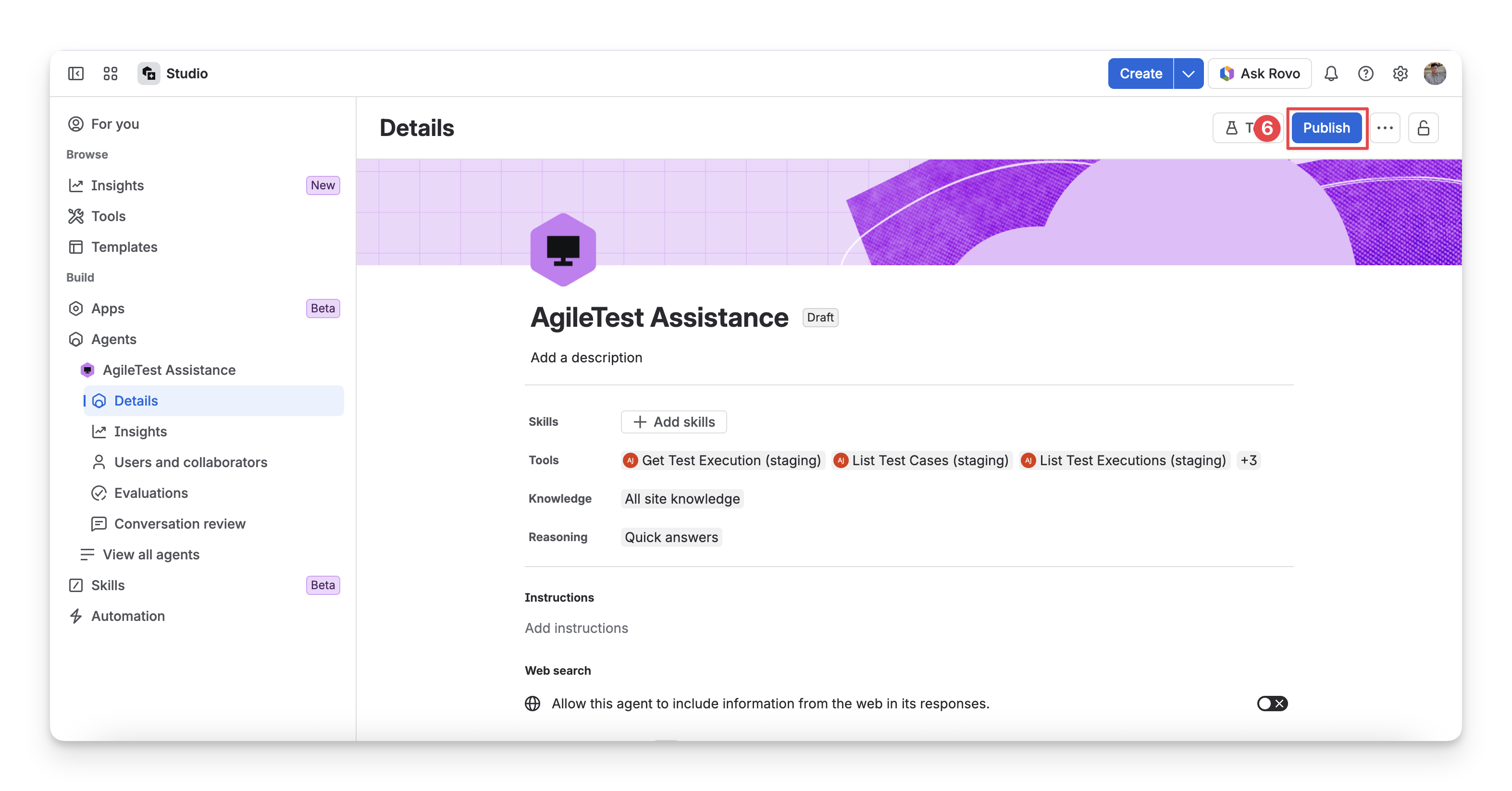
Once you have finished configuring all the settings, click Publish to make your agent available for use.
-
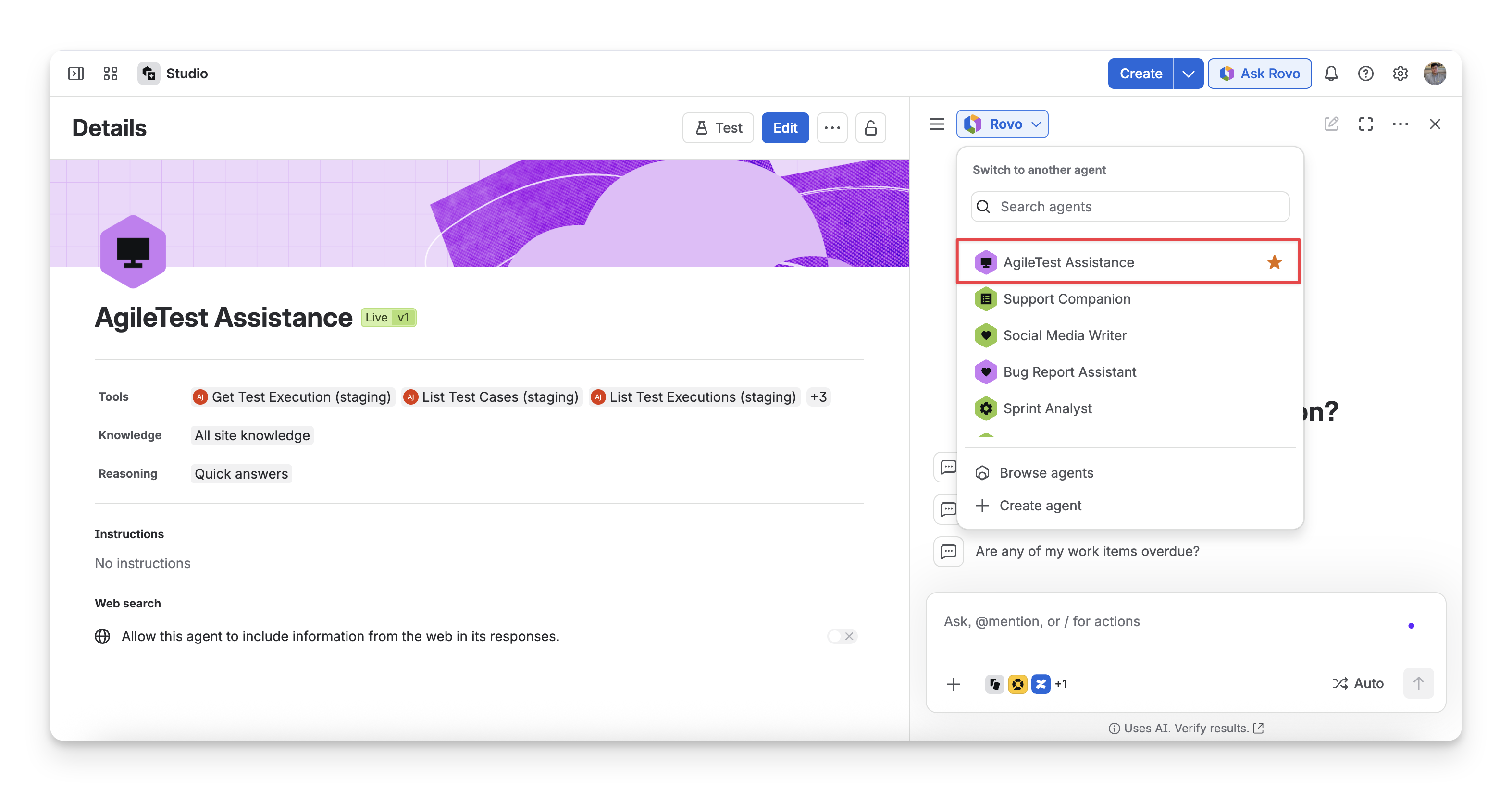
After publishing, click Ask Rovo in the top-right corner and find your newly created agent in the agent list. You can now start interacting with it using natural language prompts. Your published agent can also be shared with other members of your Jira instance, depending on its configured access and sharing settings.
Connect AgileTest MCP With External Agents
AgileTest MCP will support connections with external AI assistants, allowing you to access AgileTest testing data directly from compatible tools such as Claude Code, Codex, and Cursor. Detailed connection instructions will be available soon.
Should you need any assistance or have further AgileTest inquiries, contact our 24/7 Support Desk!