.png)
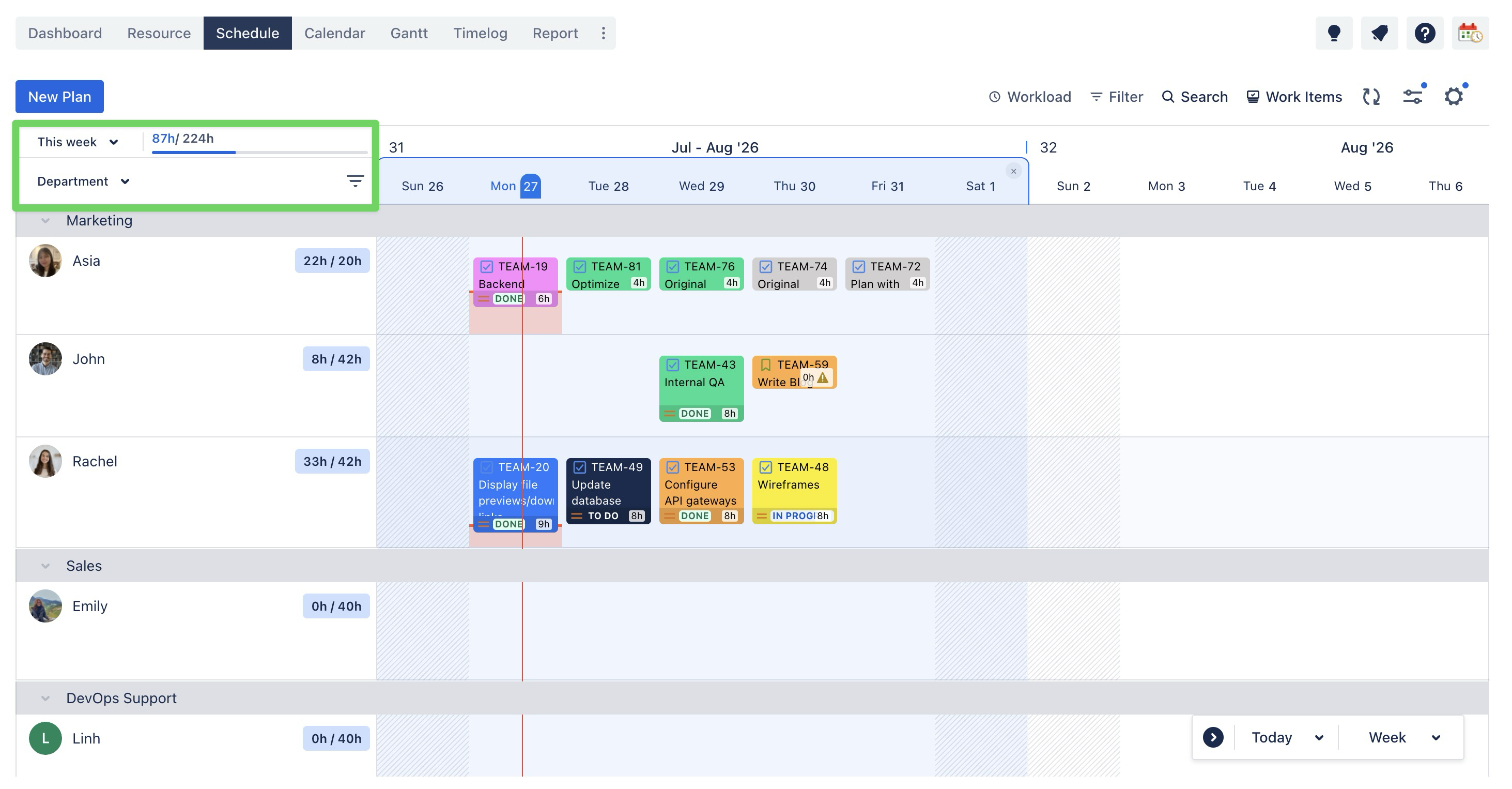
The Member Utilization feature helps you understand how much work has been assigned to each team member compared with their available capacity for a selected period.
When enabled, ProScheduler displays each member's scheduled hours alongside their total capacity directly on the Schedule board, making it easy to identify available, fully booked, or overloaded team members while planning work.
How to enable member utilization
To display member utilization:
-
Open the Schedule board.
-
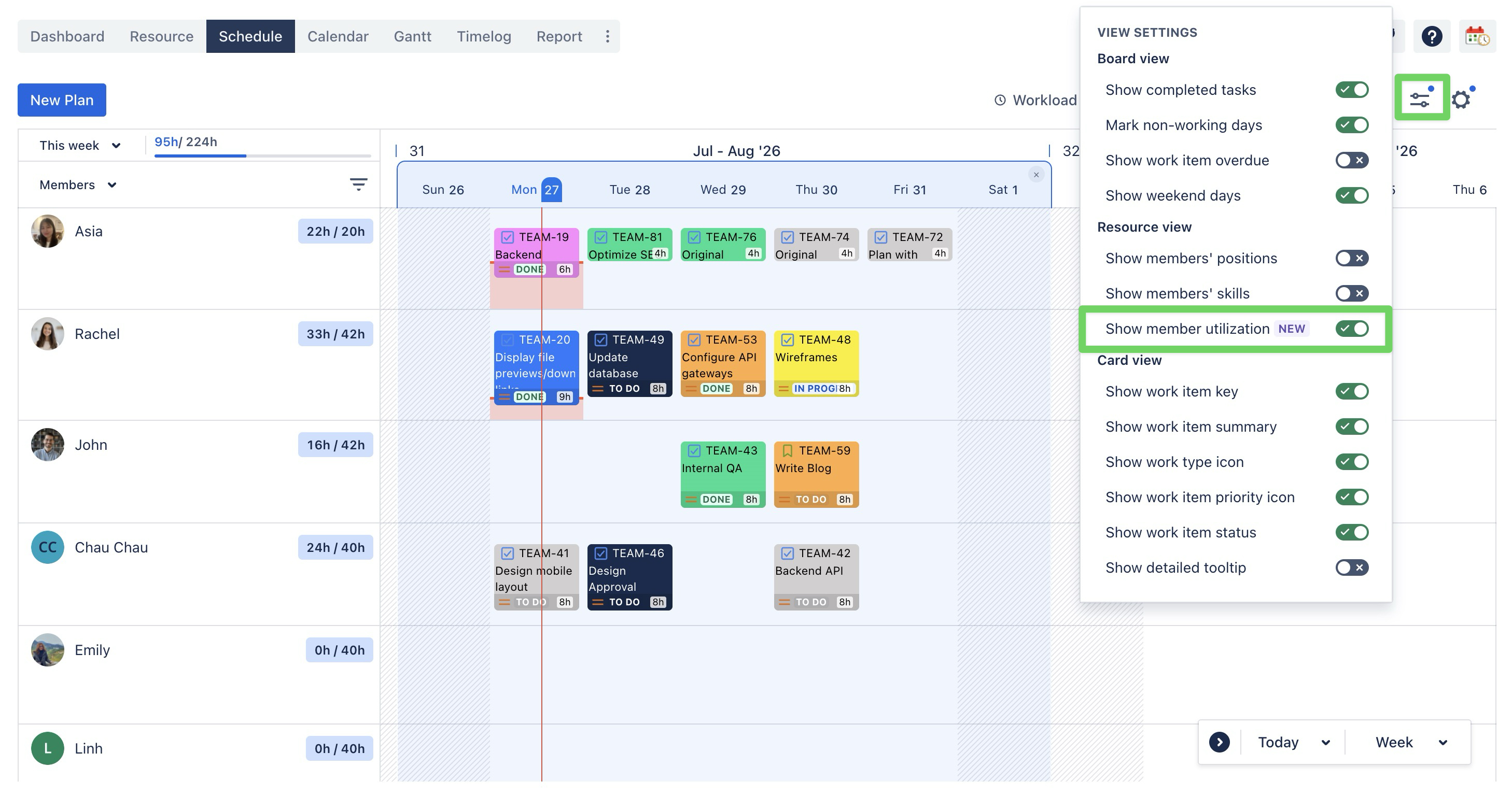
Click View settings

-
Under Resource view, enable Show member utilization.
The utilization indicator is displayed beside each member's name.
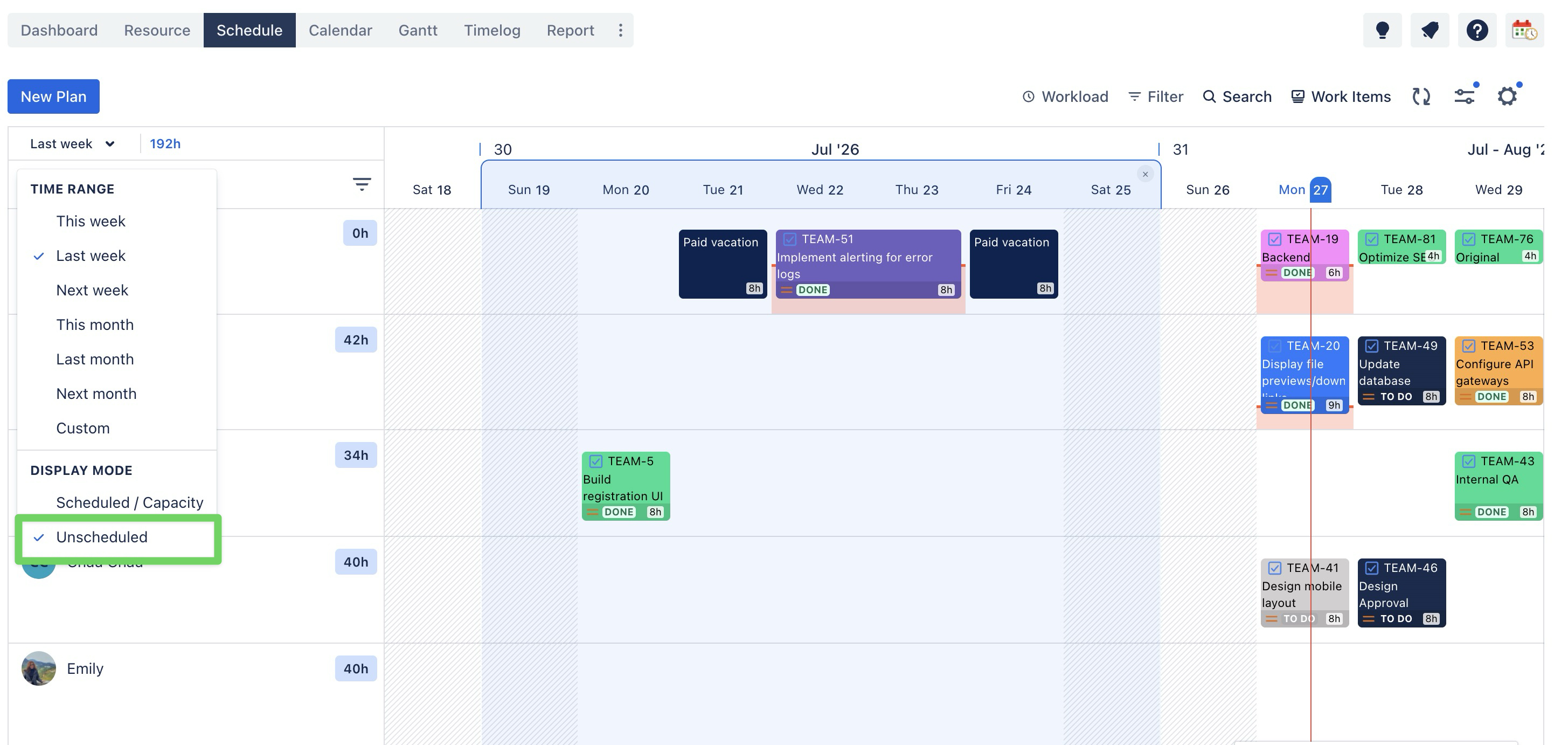
Changing a time range
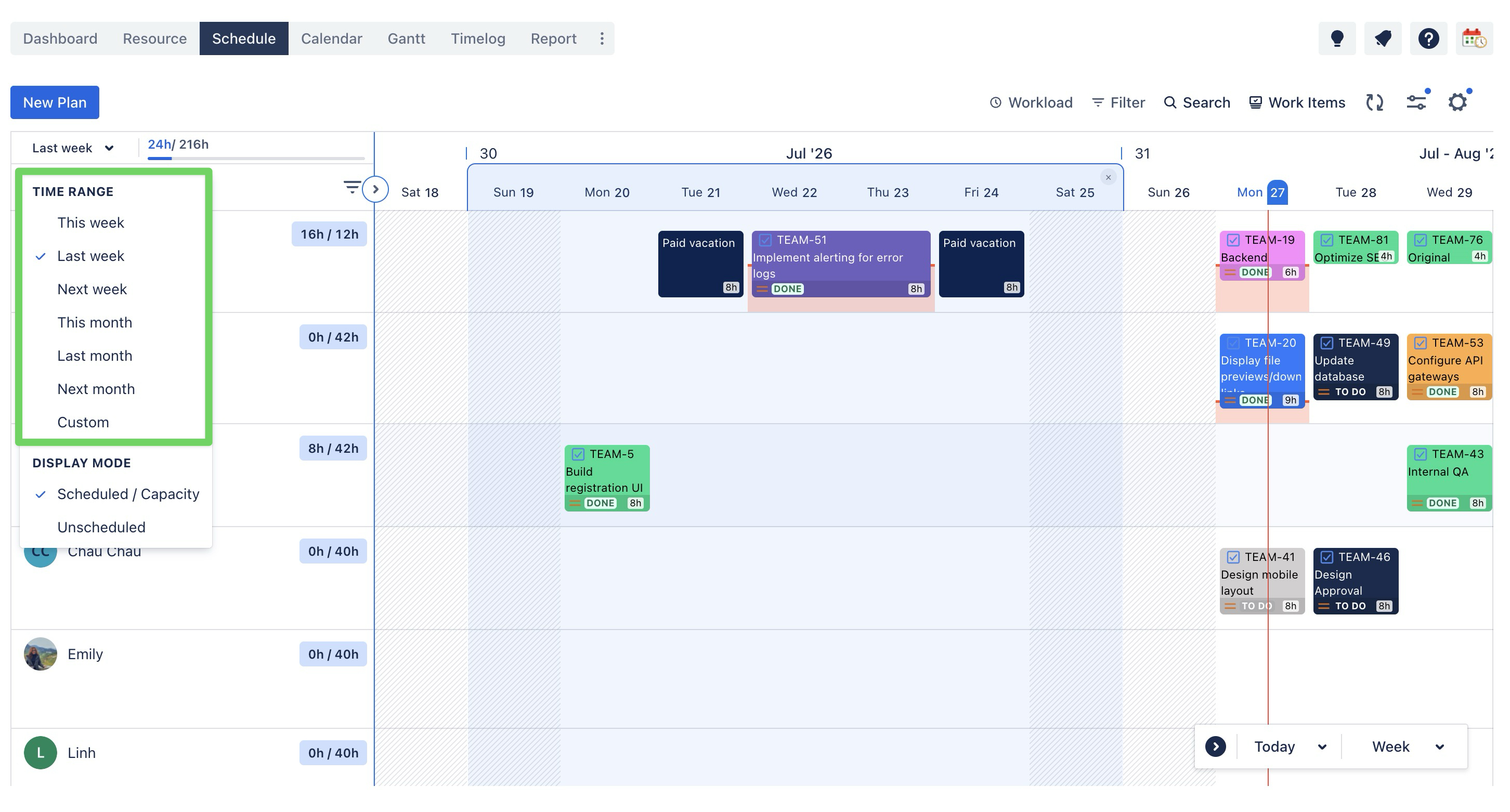
Click the time range dropdown (defaults to This week) to choose the period utilization is calculated for:
-
This week / Last week / Next week
-
This month / Last month / Next month
-
Custom — pick any specific date range
Changing the time range recalculates scheduled hours, capacity, and remaining capacity for every member immediately, and shifts the highlighted band on the calendar to match.
Choosing a display mode
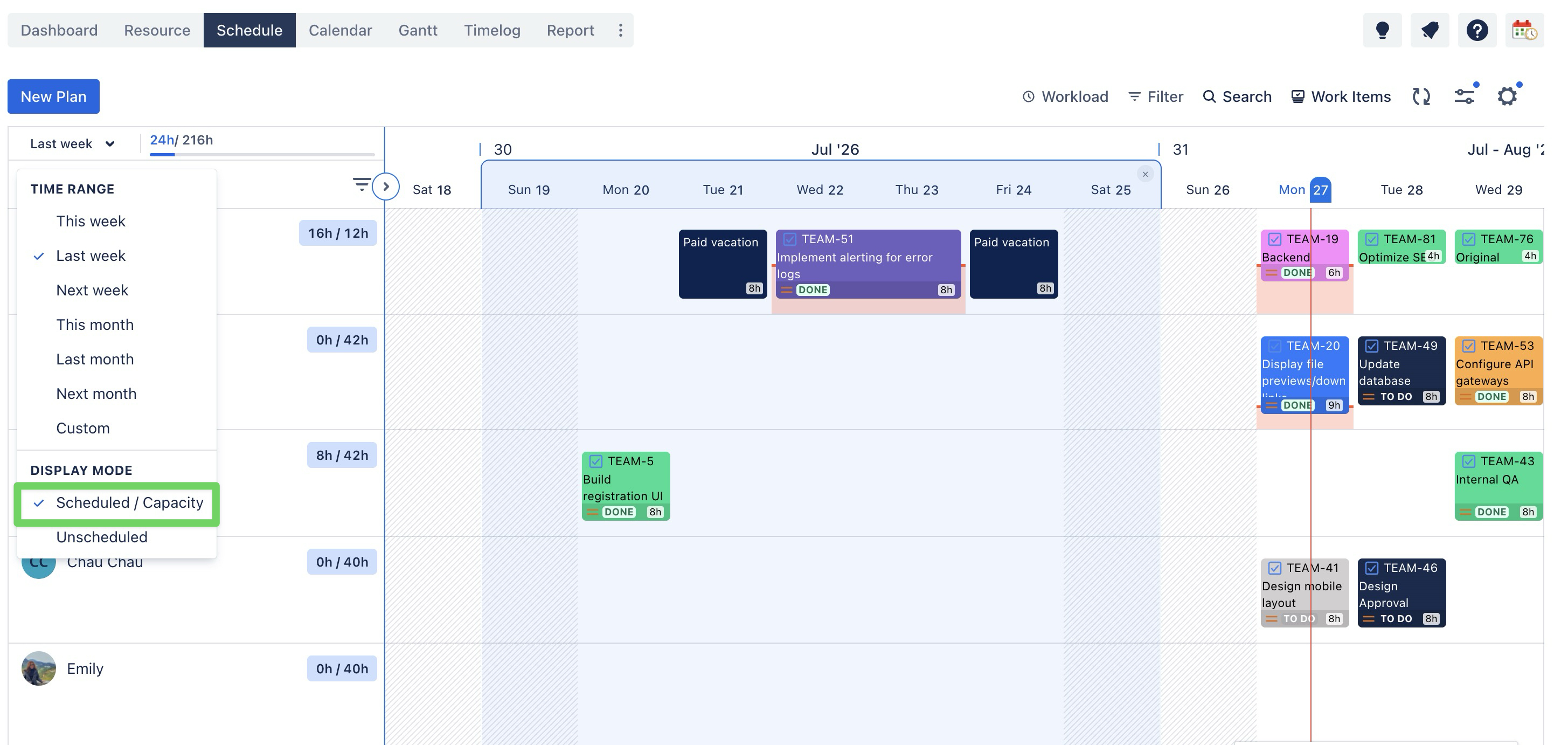
In the same dropdown, under Display mode, choose how the figures are shown:
-
Scheduled / Capacity — Displays each member's scheduled workload compared with their available capacity.
Example: 22h / 40h
-
22h = Scheduled hours
-
40h = Total capacity
-
Remaining capacity — Displays each member's remaining available capacity, which is useful when you mainly want to know who still has room available.
Tip
You can also view total team utilization for a specific set of members by filtering the Schedule board by Member, Group, Department, or Position—the summary updates automatically to reflect the filtered results.