.png)
In addition to using the TimePlanner boards, you can schedule work and log time directly from a Jira work item without opening the TimePlanner app.
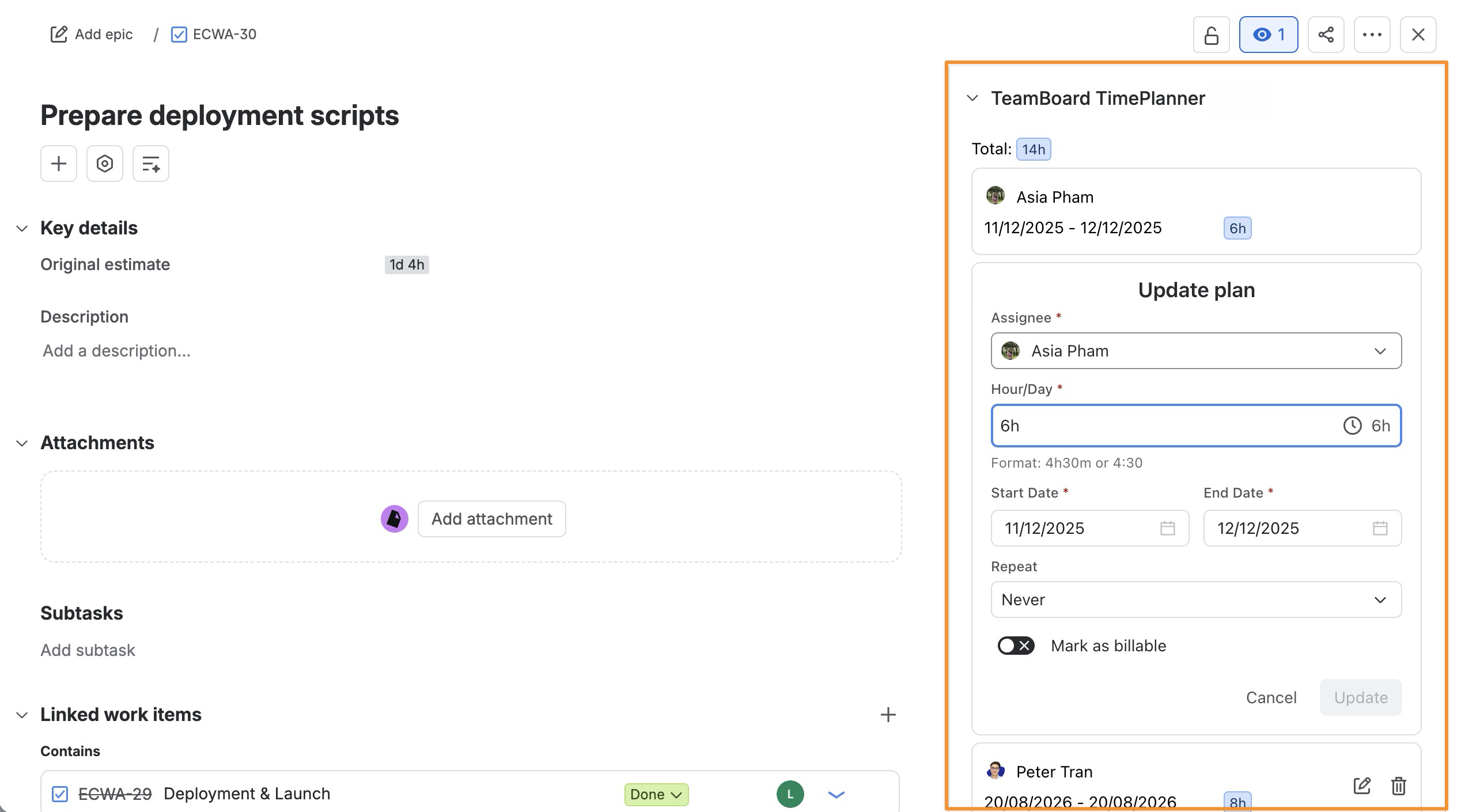
From the TeamBoard TimePlanner Panel
-
Open the Jira work item you want to manage.
-
In the right-hand panel, expand TeamBoard TimePlanner.
-
From the TimePlanner panel, you can:
-
-
View total scheduled hours for the Jira work item.
-
Review existing plans, including the assignee, scheduled date range, and planned hours.
-
Edit a plan by updating:
-
Assignee
-
Hour/Day
-
Start Date
-
End Date
-
Repeat
-
Mark as billable
-
-
Click Update to save changes to the plan.
-
Click the Delete icon to remove an existing plan from TimePlanner.
-
Logging Time from Jira Work Item Details
If you replace Jira’s built-in Time Tracking Provider with TimePlanner, you can also log time through the TimePlanner Timelog option directly from the Jira work item detail screen.
You can log and review time directly from a Jira work item without opening the TimePlanner app.
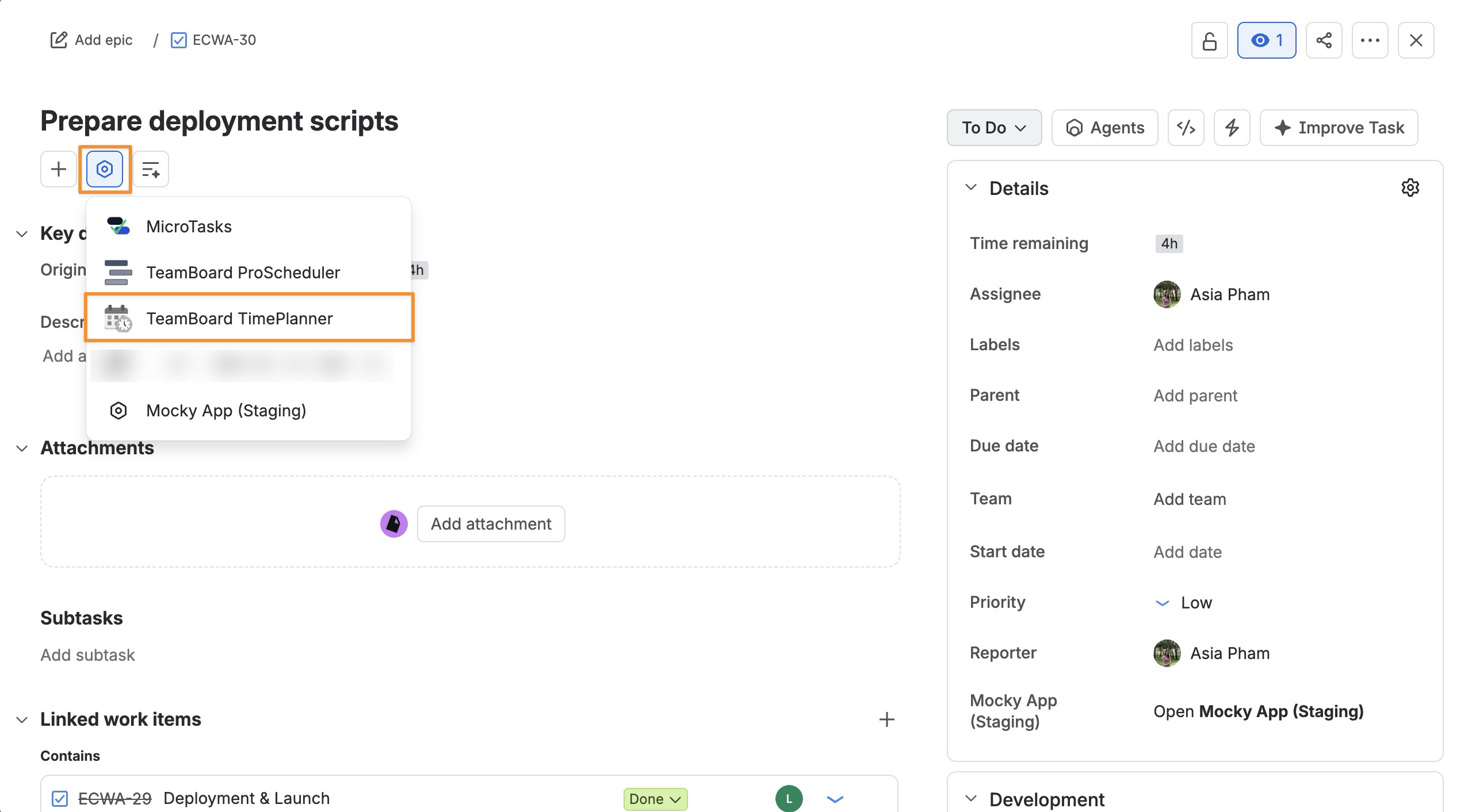
Step 1: Open the TimePlanner Timelog Panel
-
Open the Jira work item.
-
Click the Apps button in the work item toolbar.
-
Select TeamBoard TimePlanner.
The TeamBoard TimePlanner timelog panel appears in the work item.
Step 2: Review existing Timelogs
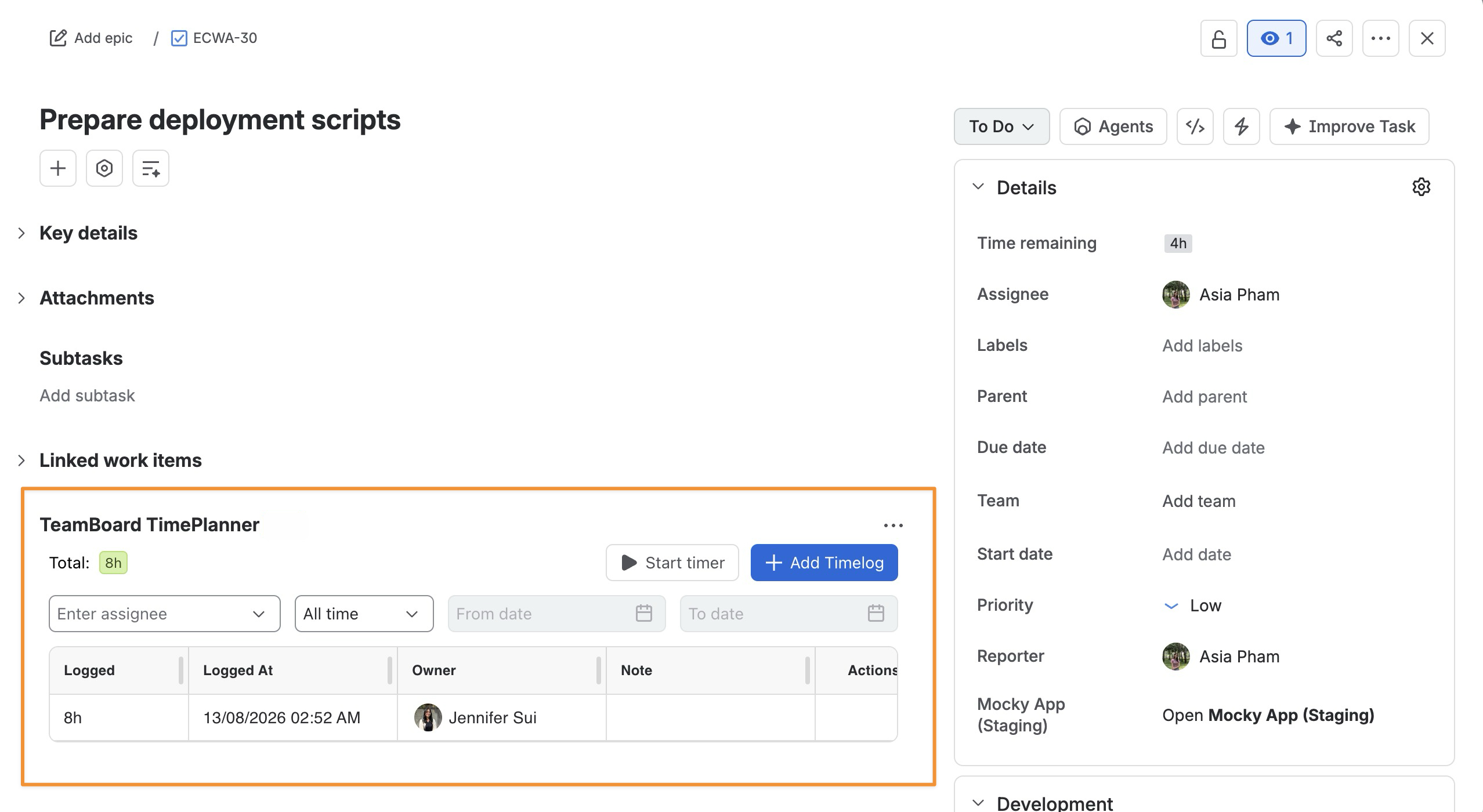
From the panel, you can review the time already logged for the work item:
-
Total: Shows the total logged time.
-
Logged: Shows the duration of each timelog.
-
Logged At: Shows when the time was logged.
-
Owner: Shows the member who logged the time.
-
Note: Shows any notes added to the timelog.
-
Actions: Provides available actions for each timelog.
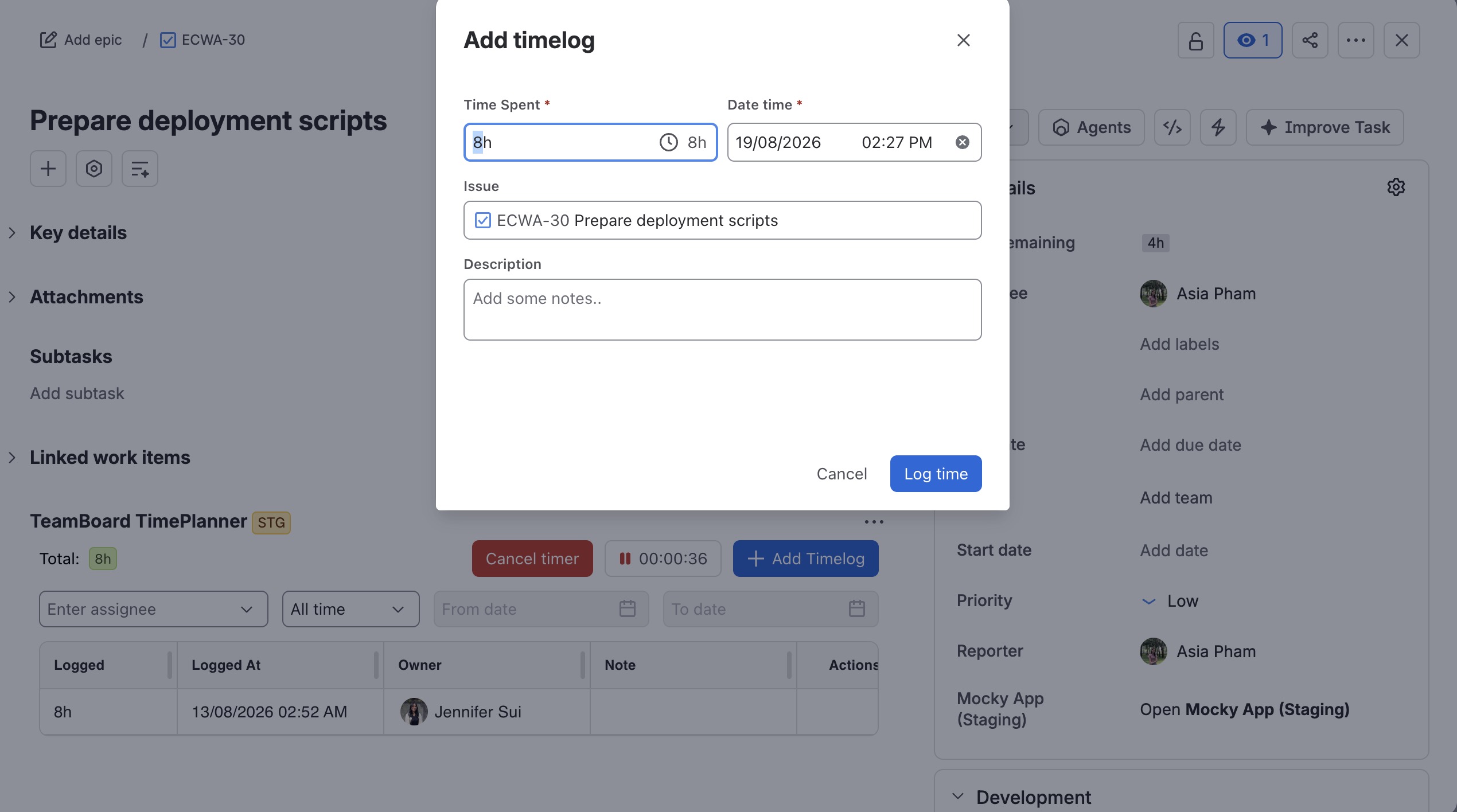
Step 3: Add a Timelog
You can record time in two ways:
-
Click

-
Click