.png)
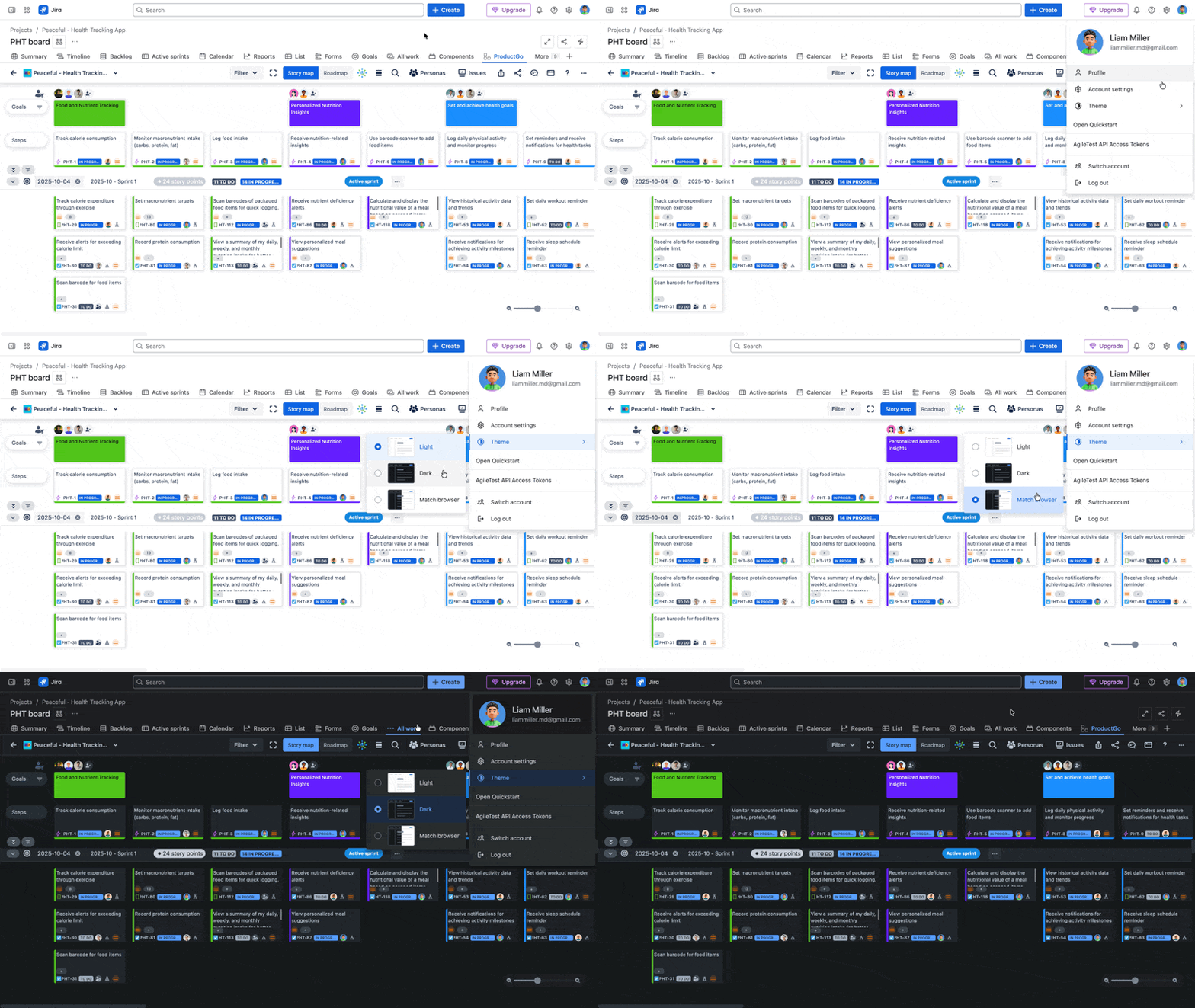
ProductGo now supports dark theme mode by automatically matching the current theme of your Jira instance.
Whether you use Jira’s light or dark mode, your story maps will seamlessly adapt for a consistent, comfortable viewing experience.
Dark theme mode is currently available for Jira Cloud only.
How to Enable Dark Mode in Jira
To enable dark mode in Jira and see ProductGo story maps in dark theme, follow these simple steps:
-
Click your profile avatar at the top right corner of the Jira interface.
-
Select Theme from the dropdown menu.
-
Choose Dark to enable dark mode, or select Match system to sync with your operating system’s theme.
Your Jira interface will instantly switch to dark mode, and ProductGo story maps will automatically adapt to the same theme for a seamless experience.
Why use Dark Mode?
-
Reduce eye strain during long planning sessions, especially in low-light environments.
-
Provide a visually consistent experience across Jira and ProductGo.
-
Enhance focus and comfort with a theme that suits your personal preference.
If you encounter any issues or want to switch back to light mode at any time, simply repeat the steps above and select your preferred theme.
For more help, visit our Support Center or contact our team.