.png)
When you navigate to the Script Test section, you can see 2 main areas:
-
Script Test Summary Charts: helps you quickly understand the overall testing status without reviewing each Script Test individually.
-
Script Test Detail Table: allows you to manage, track, and monitor individual Script Tests.
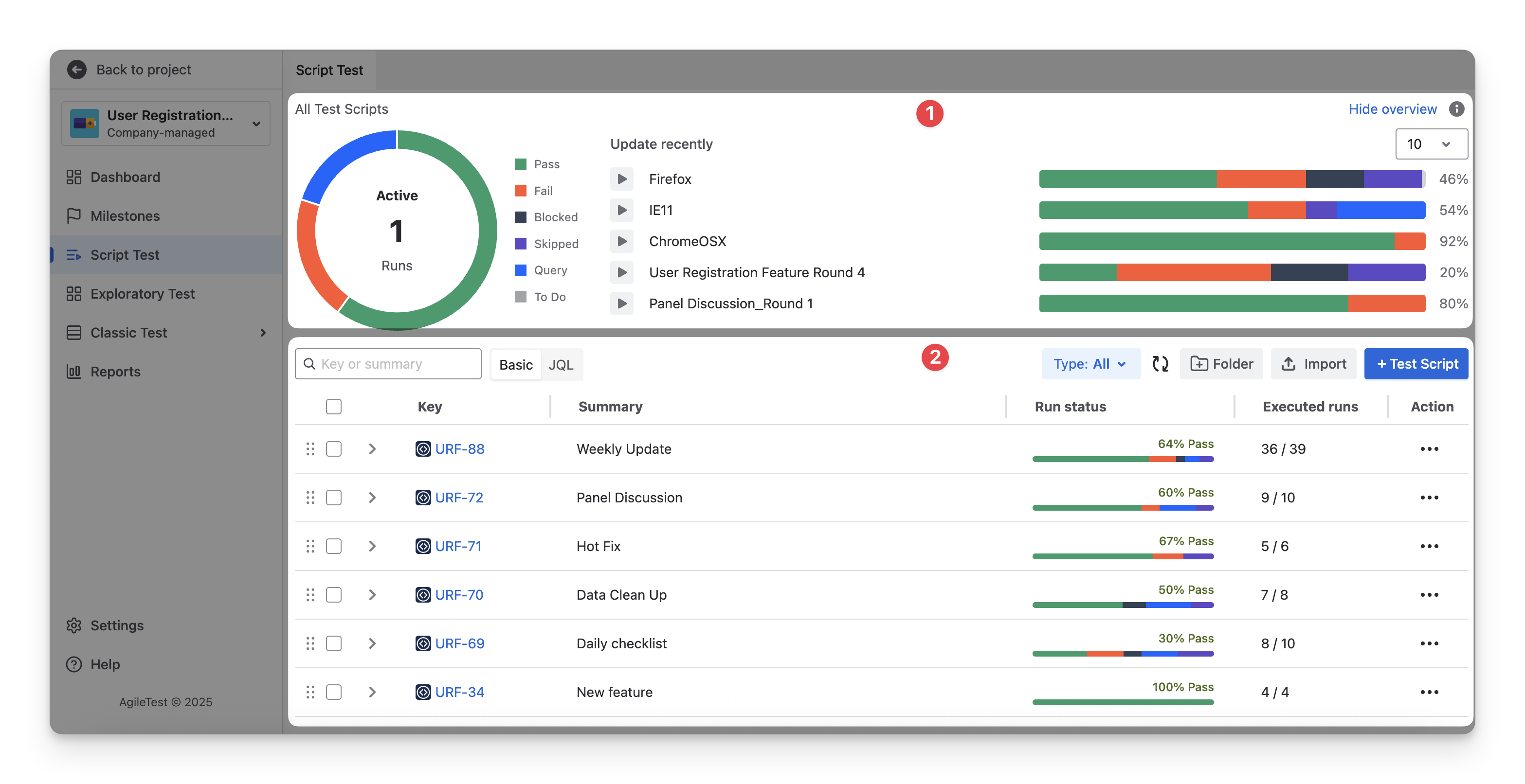
1. Script Test Summary Charts
The Script Test Summary Charts provide a visual overview of all Script Test activities within your project.
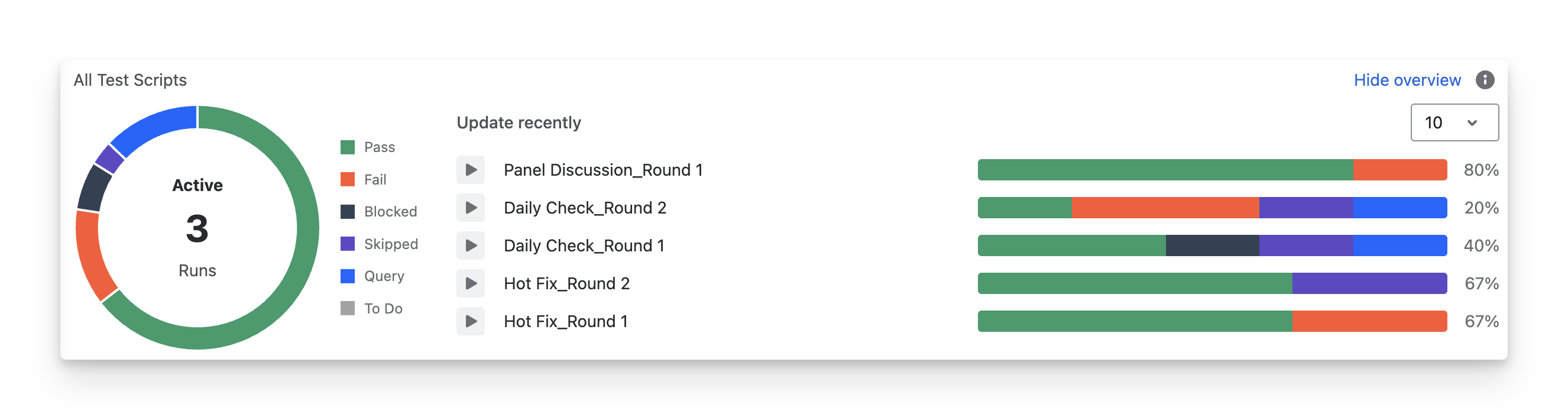
1.1 Active Test Runs Chart
A Script Test defines the checklist items, and a Test Run is an execution of a Script Test. With the Donut chart on the left-hand side, you can see the total number of Active Test Runs, along with their test run item statuses.
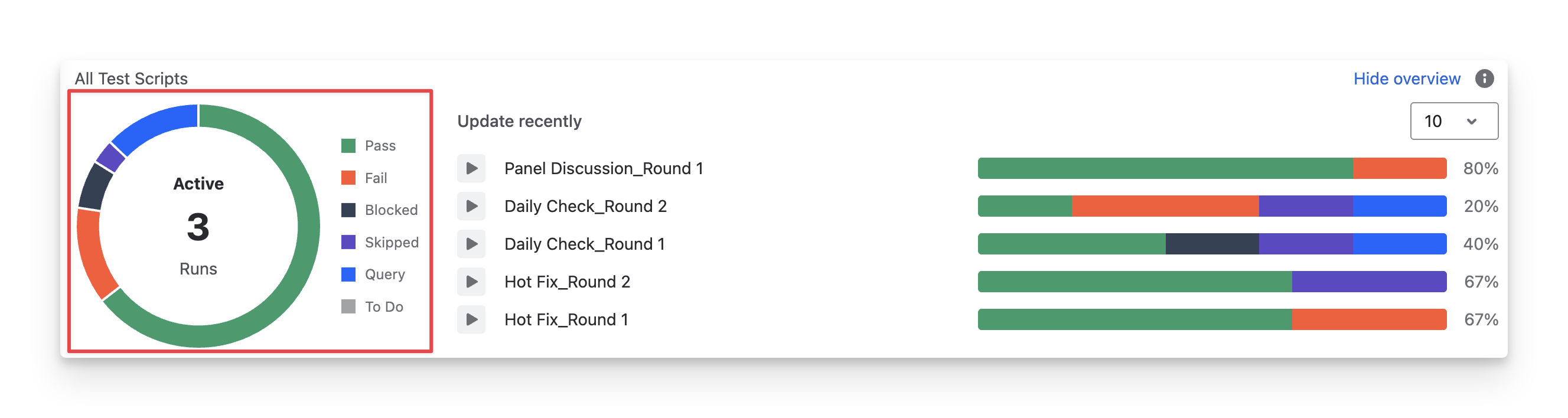
A Test Run will automatically be marked as Completed once all checklist items within that run have been assigned a result status ( Fail query blocked Skipped Pass ). If there are still items that have not been marked, the Test Run will remain in In-progress (Active) status. The Active Test Runs Chart displays only results from those active ones, across different script tests.
These Test Run Item statuses include:
-
-
-
-
-
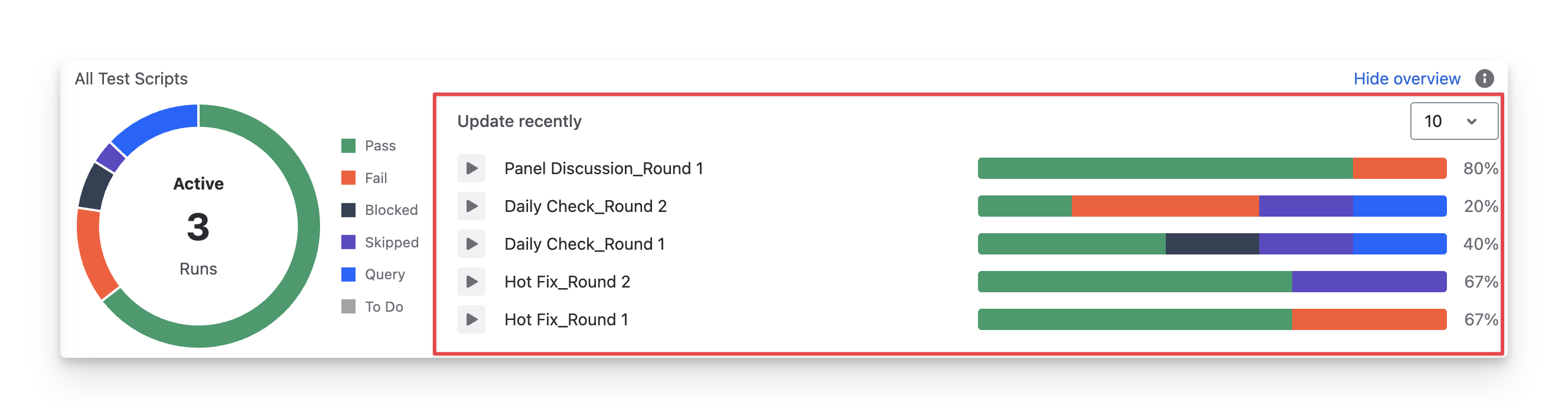
1.2 Recently Updated Test Runs chart
On the right-hand side, the Update recently section lists recently run or modified Script Tests with progress bars. You can see the status of each test run item accumulated in the progress bar and its pass rate as a percentage.
2. Script Test Detail Table
2.1 Script Test Detail Table Explanation
In the Script Test Detail Table, you can see a table with a list of script tests.
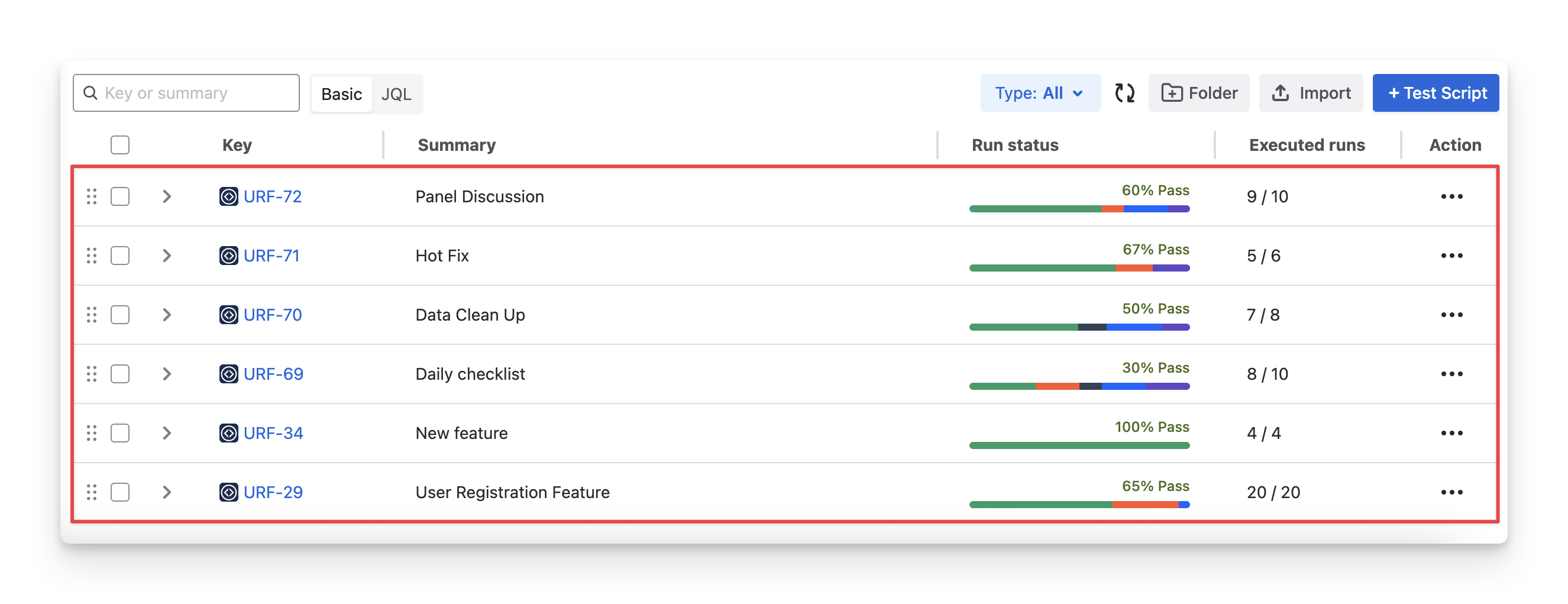
This list shows you detailed information about:
|
Types of Information |
Description |
|---|---|
|
Key |
A Jira unique identifier for the script test, used to track and link it. |
|
Summary |
A brief title describing the purpose or scenario of the script test. |
|
Run Status |
A progress bar that displays the status of each test run item accumulated in each test script. |
|
Executed Run |
The number of Test Run Items executed compared to the total number of Test Run Items created in each Script Test. |
2.2 Script Test Detail Table Actions
2.2.1 Manage Script Tests with Script Test Folders
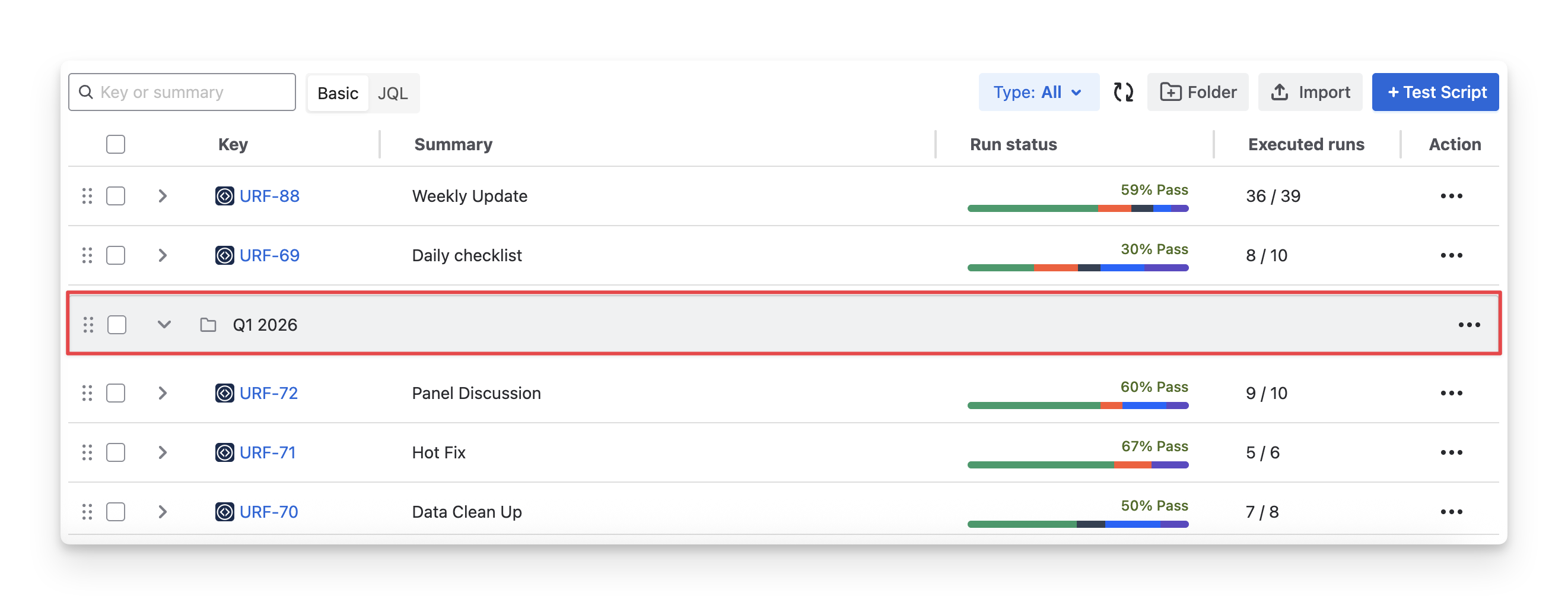
A Script Test Folder organizes Script Tests into logical groups. In the Script Test Detail Table, Script Test Folders are displayed in grey to distinguish them from individual Script Tests.
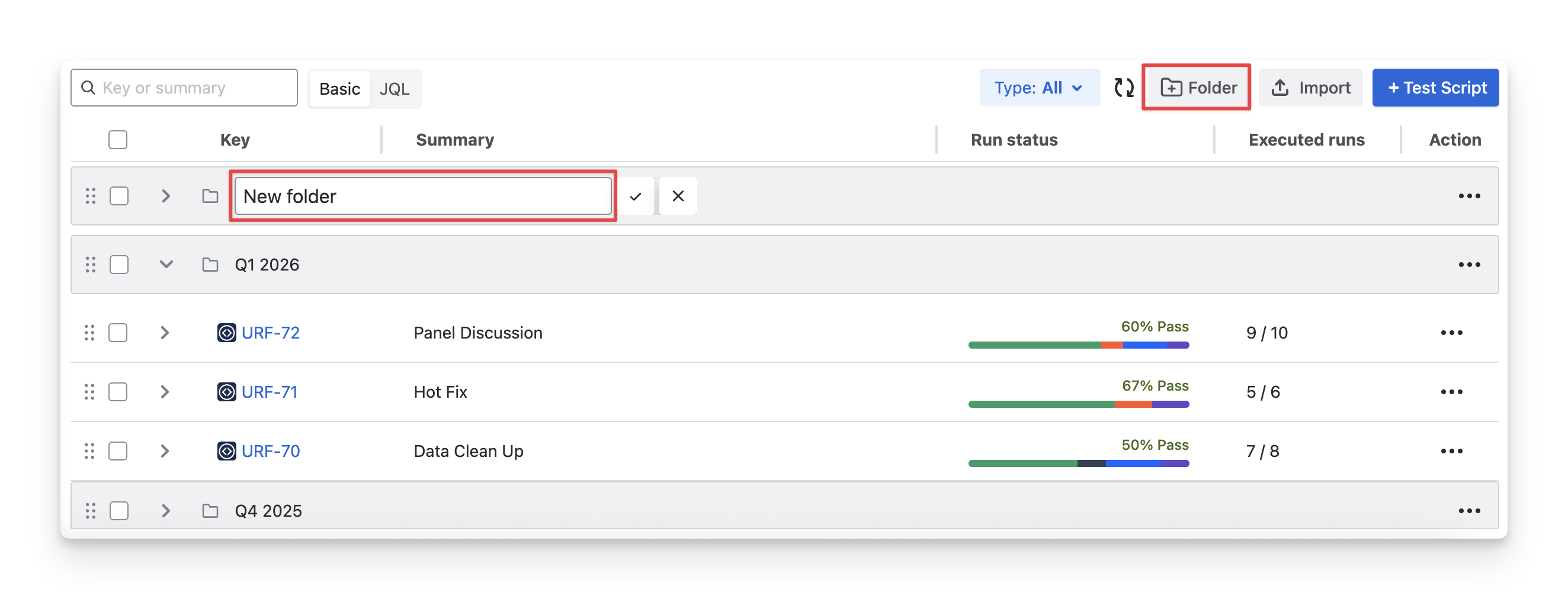
To create a new test script folder, click on the “+ Folder” button and rename it.
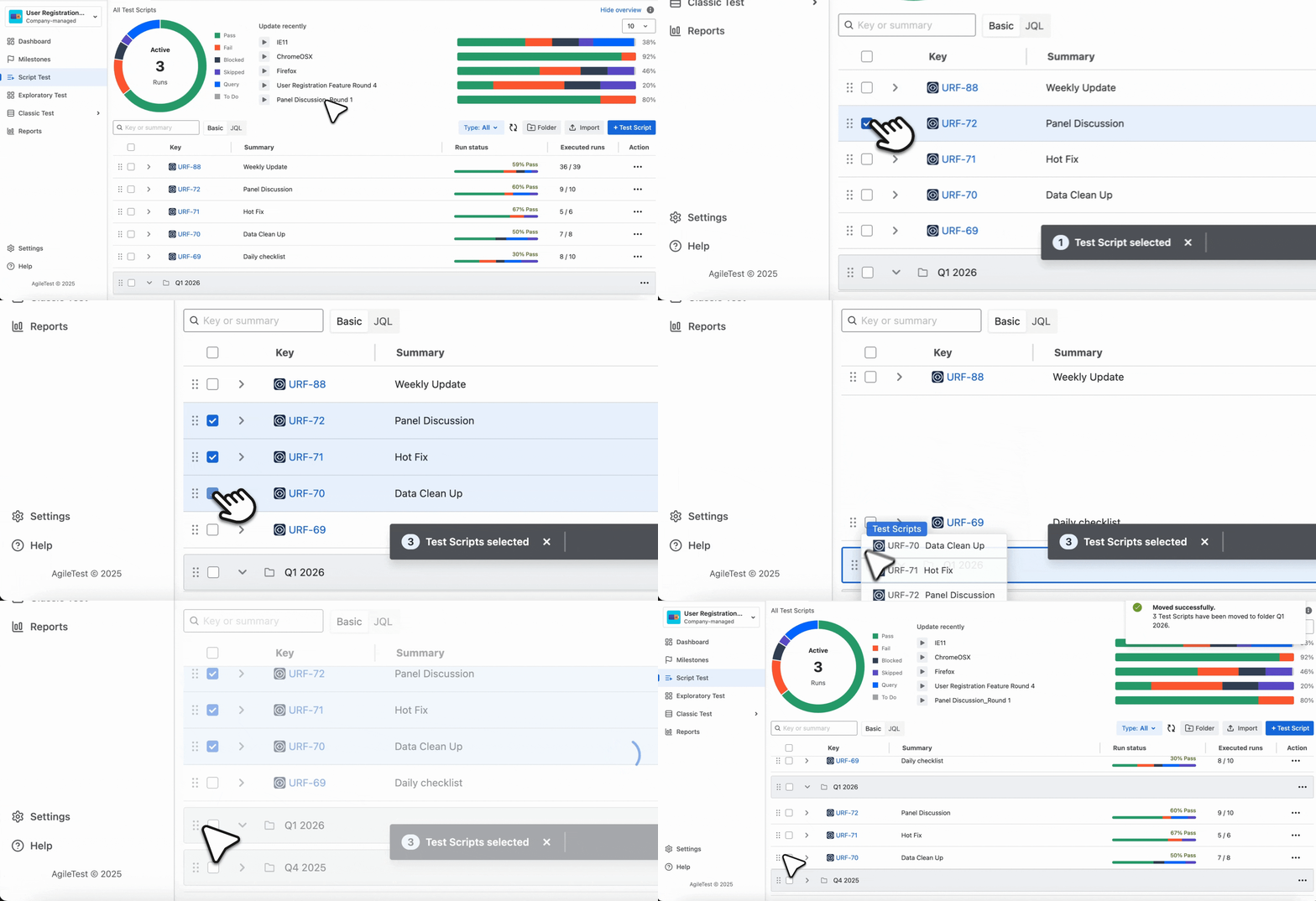
After creating script test folders, you can drag and drop script tests into suitable folders to categorize and structure them in a more manageable approach.
Here are some additional actions you can perform with the script test folders in the Action column:
-
Create sub-folder: Add a nested folder inside the current folder to build a hierarchical structure.
-
Copy link: Generate a direct link to the folder, allowing you to quickly share access with teammates.
-
Delete: Remove the folder from the project.
2.2.2 Filter Script Tests
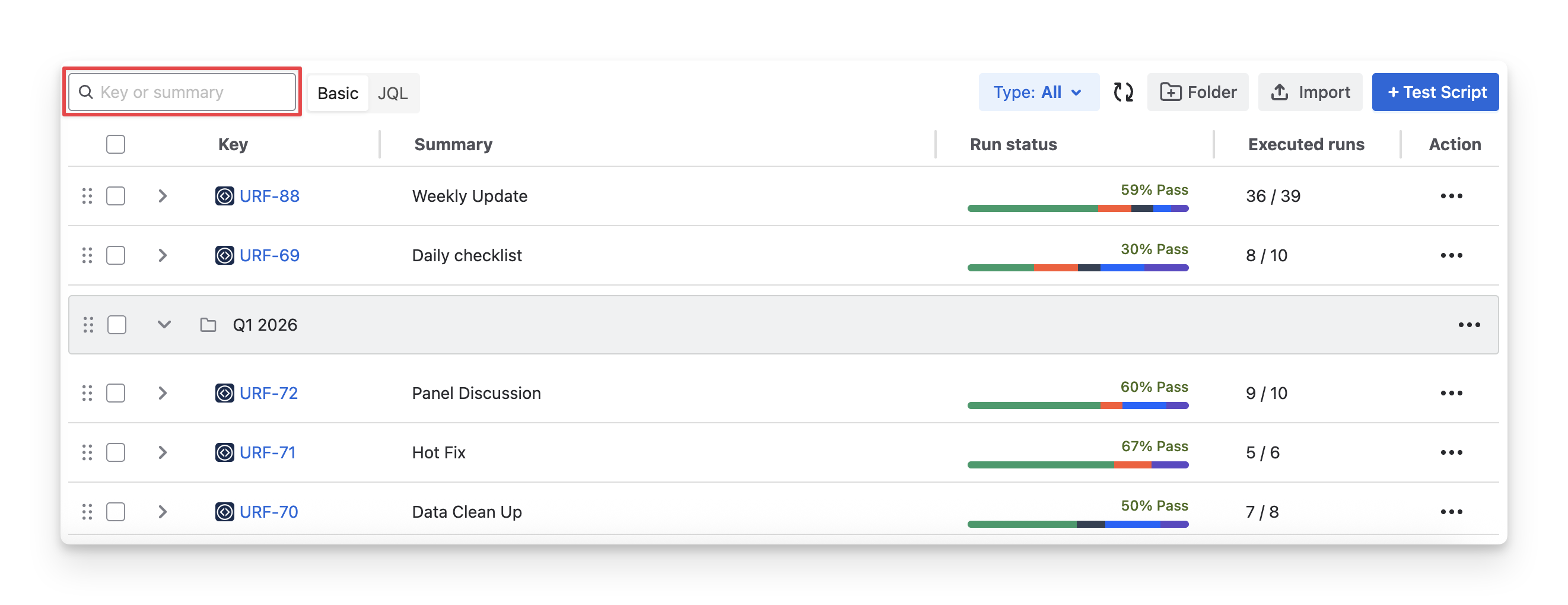
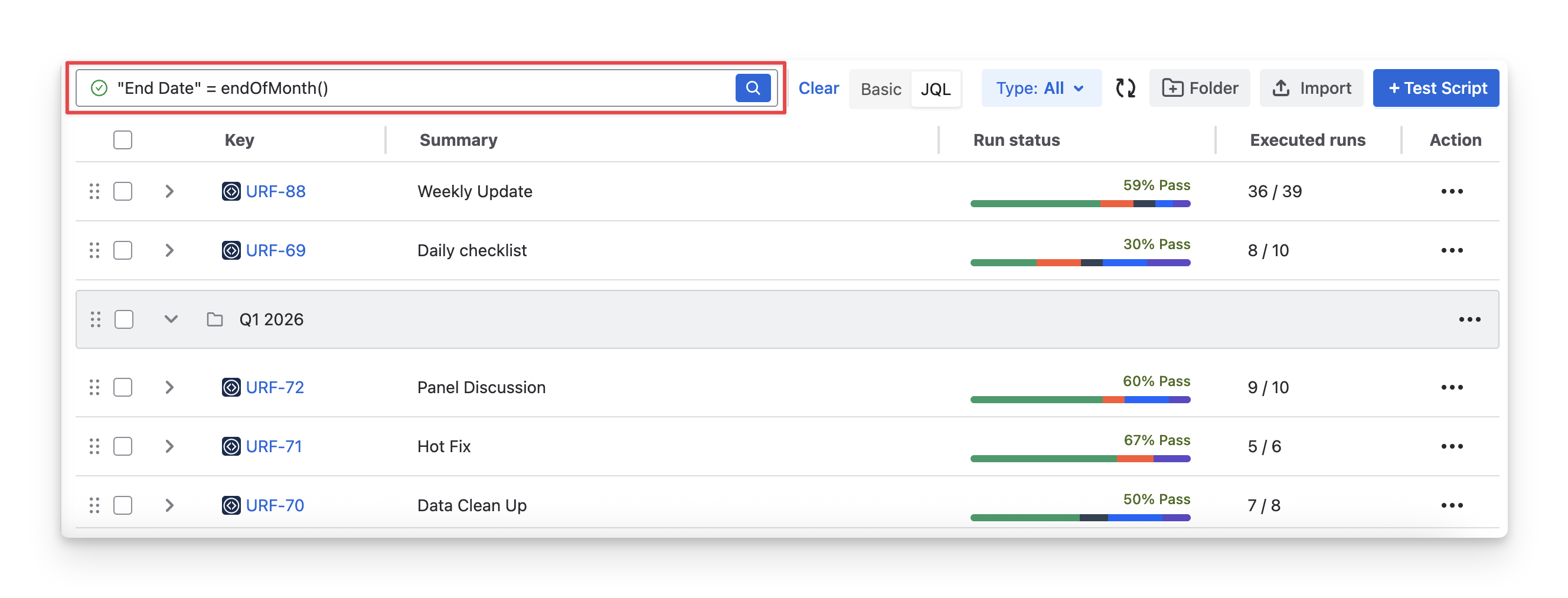
To quickly identify a specific script test, you can:
-
Provide the Jira Key ID or the Script Test Summary to find the exact test script.
-
Or switch to JQL and enter your custom search.
Should you need any assistance or further AgileTest inquiries, contact our 24/7 Support Desk!