.png)
When you click on any Exploratory Test key in the Exploratory Test table, you'll be redirected to the Exploratory Test Detail Screen.
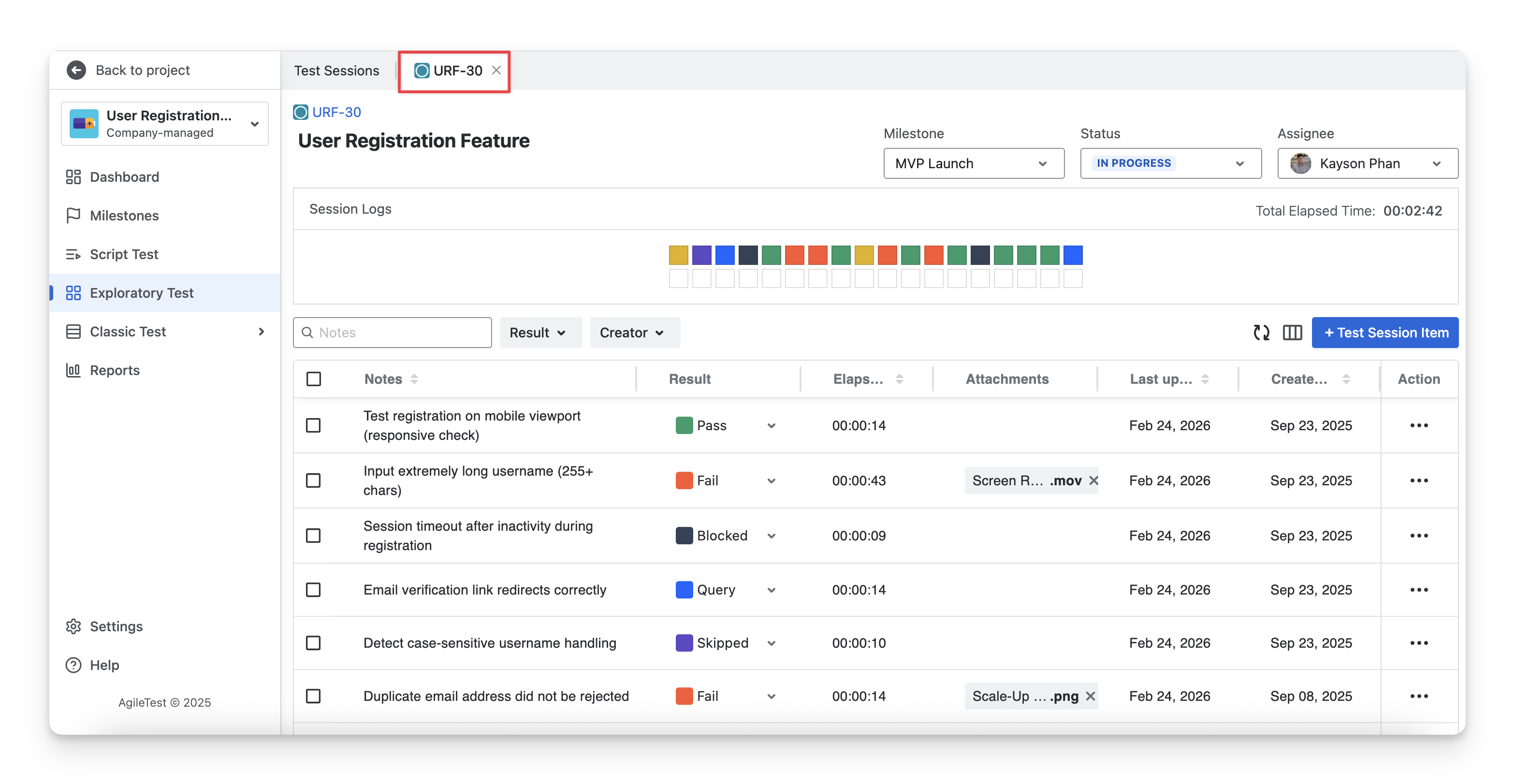
The Exploratory Test defines the testing scope. During execution, you conduct an exploratory session to record notes, results, elapsed time, and attachments. Each exploratory attempt is called a Test Session, which serves as the execution instance of the Exploratory Test.
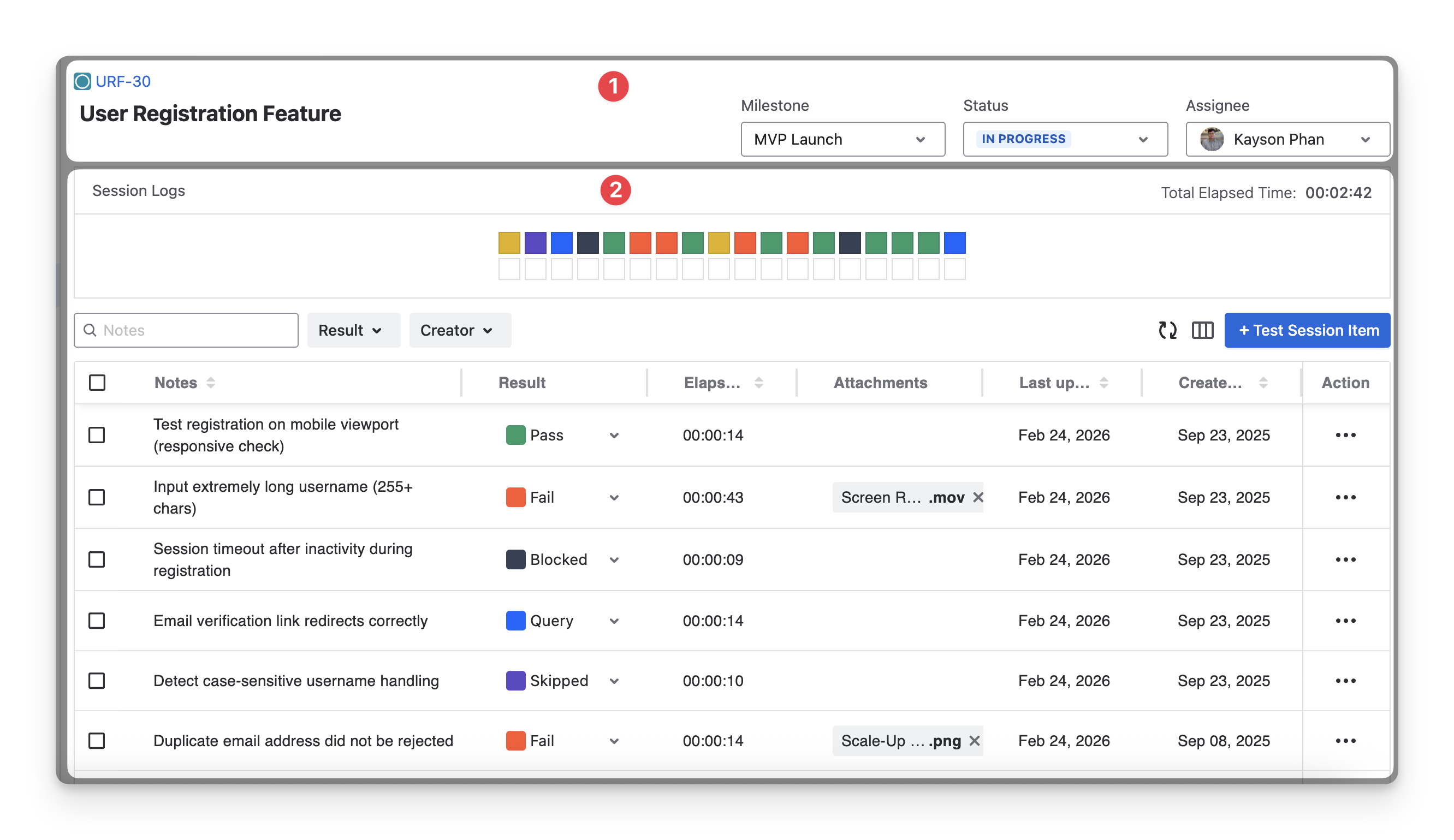
In the Exploratory Test Detail Screen, you can see 2 sections:
-
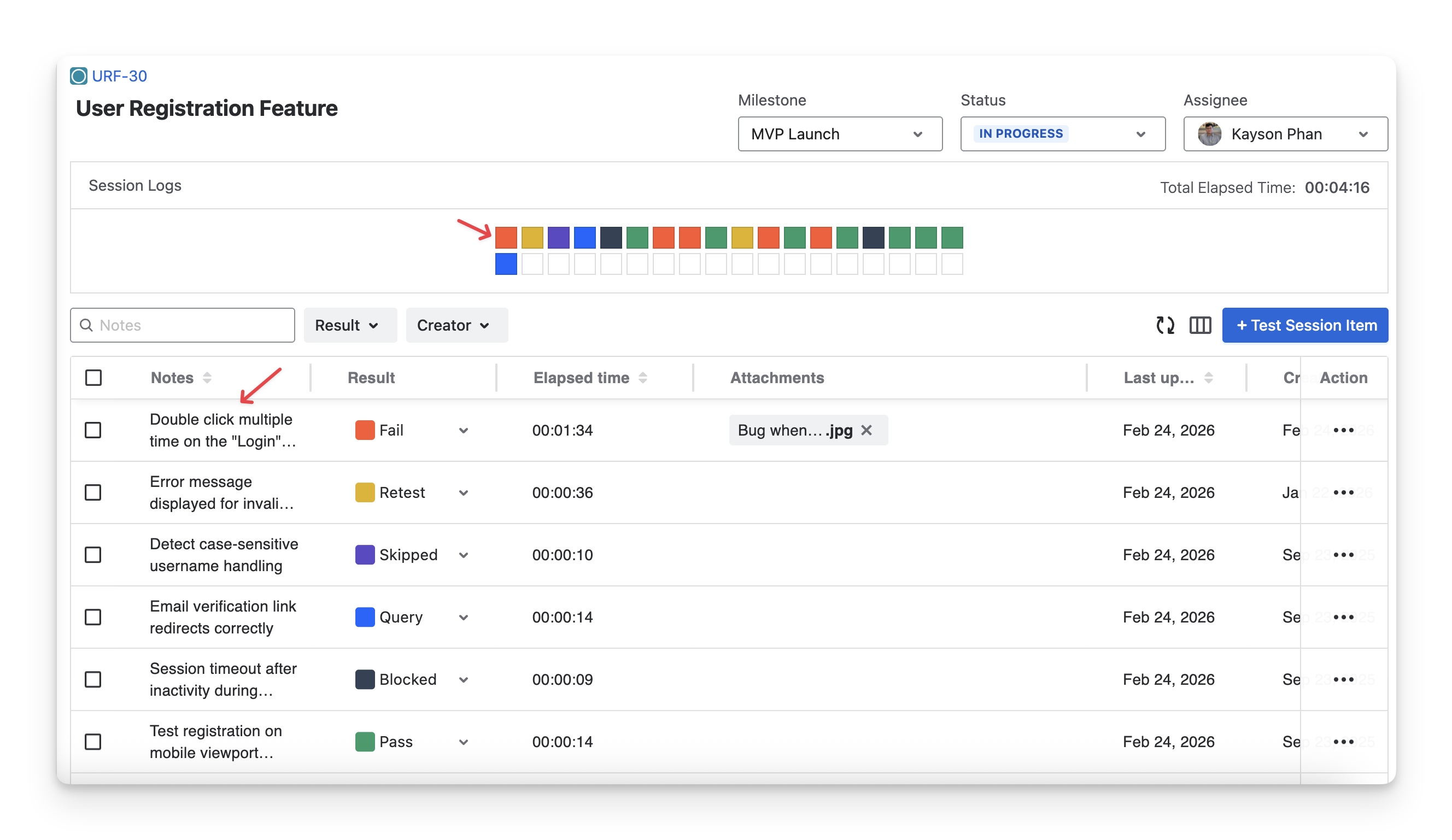
Test Session Basic Information: provides an overview of the session’s scope, ownership, and progress.
-
Test Session Item Results: summarize all activities performed during the exploratory session and display detailed information for each test session item.
1. Test Session Basic Information
1.1 Milestone
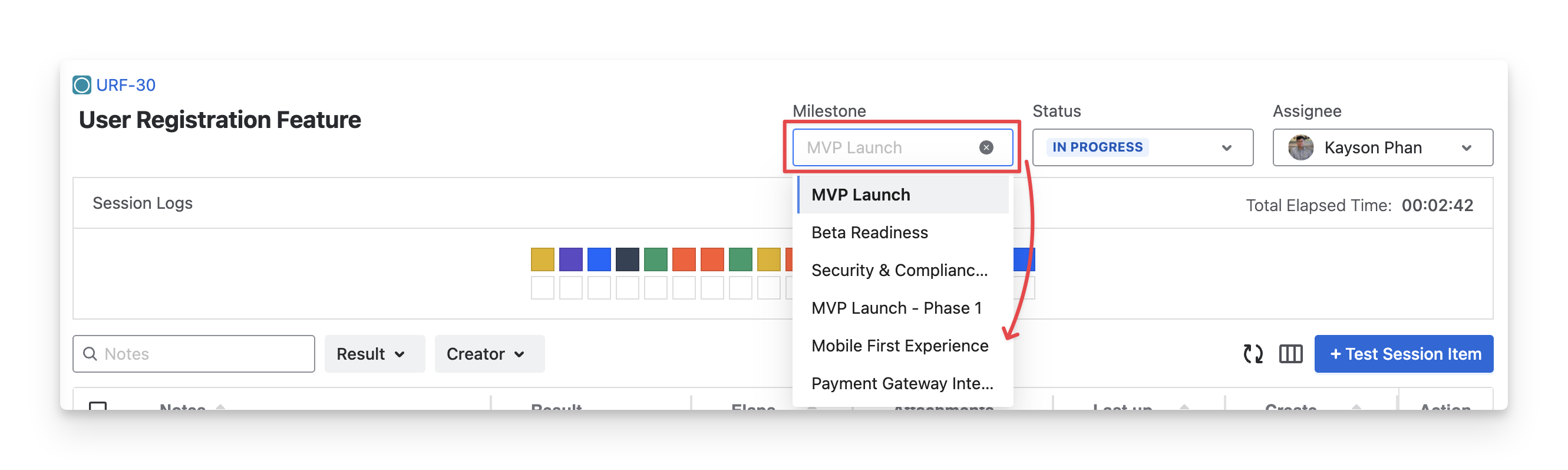
The Milestone box shows the milestone to which this exploratory test is linked. When you click on the dropdown and switch to another milestone, the test session, along with its results, will be reassigned to that milestone.
1.2 Jira Status
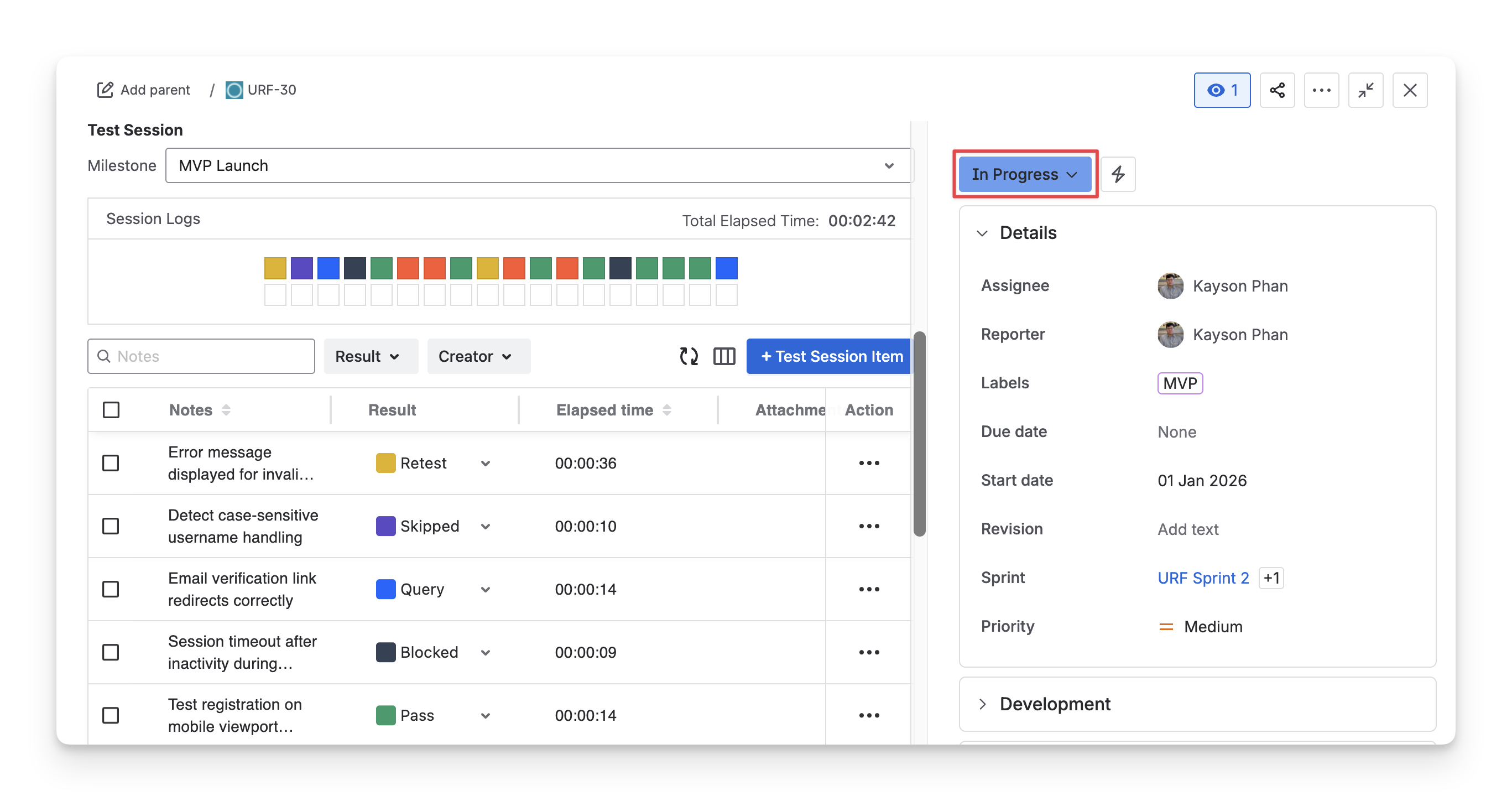
The Status box shows the Jira status of the test session ticket ( todo ; in progress ; done ). It reflects the progress of the exploratory session in your team's workflow on the Jira board.
To change this status to match your team’s testing process, click on the dropdown and select the right Jira status.
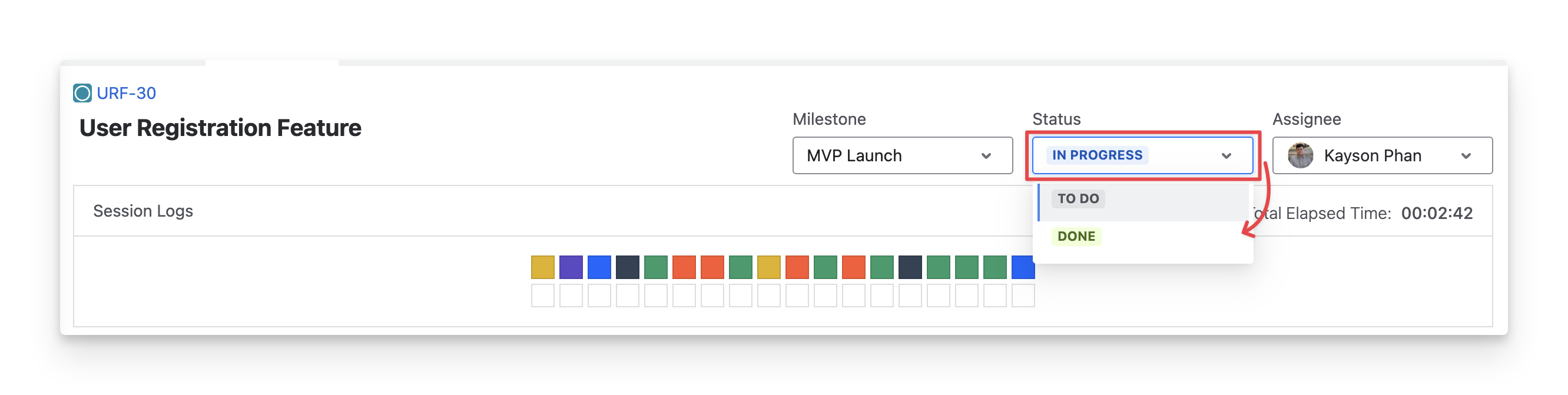
Updating the Jira status on the Exploratory Test Detail screen syncs it with the Jira ticket, and vice versa.
1.3 Assignee
The Assignee box shows who is responsible for this test session. To change the assignee, click the dropdown and select a team member.
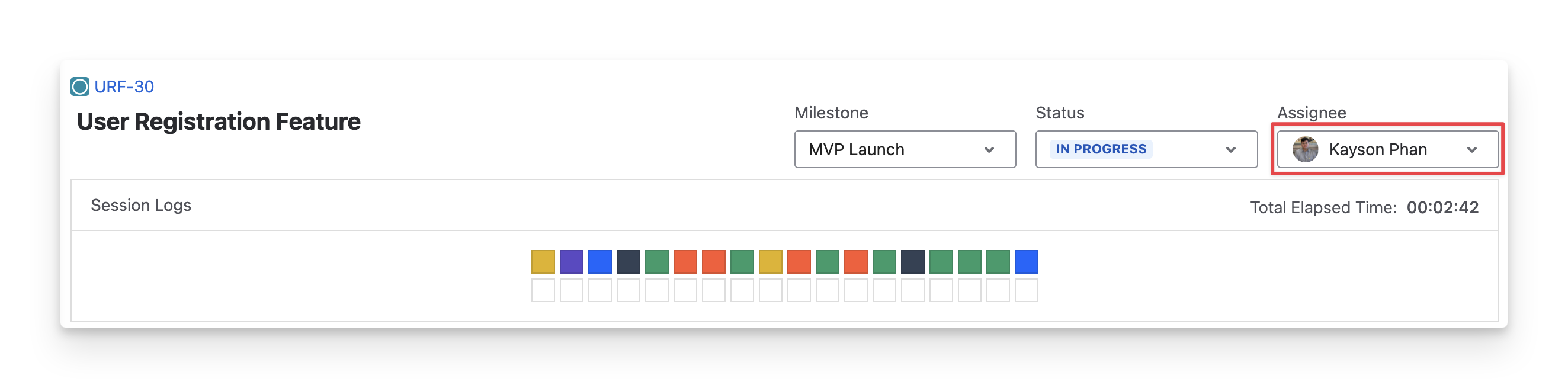
Updating the Assignee on the Exploratory Test Detail screen syncs it with the Jira ticket, and vice versa.
2. Test Session Item Results
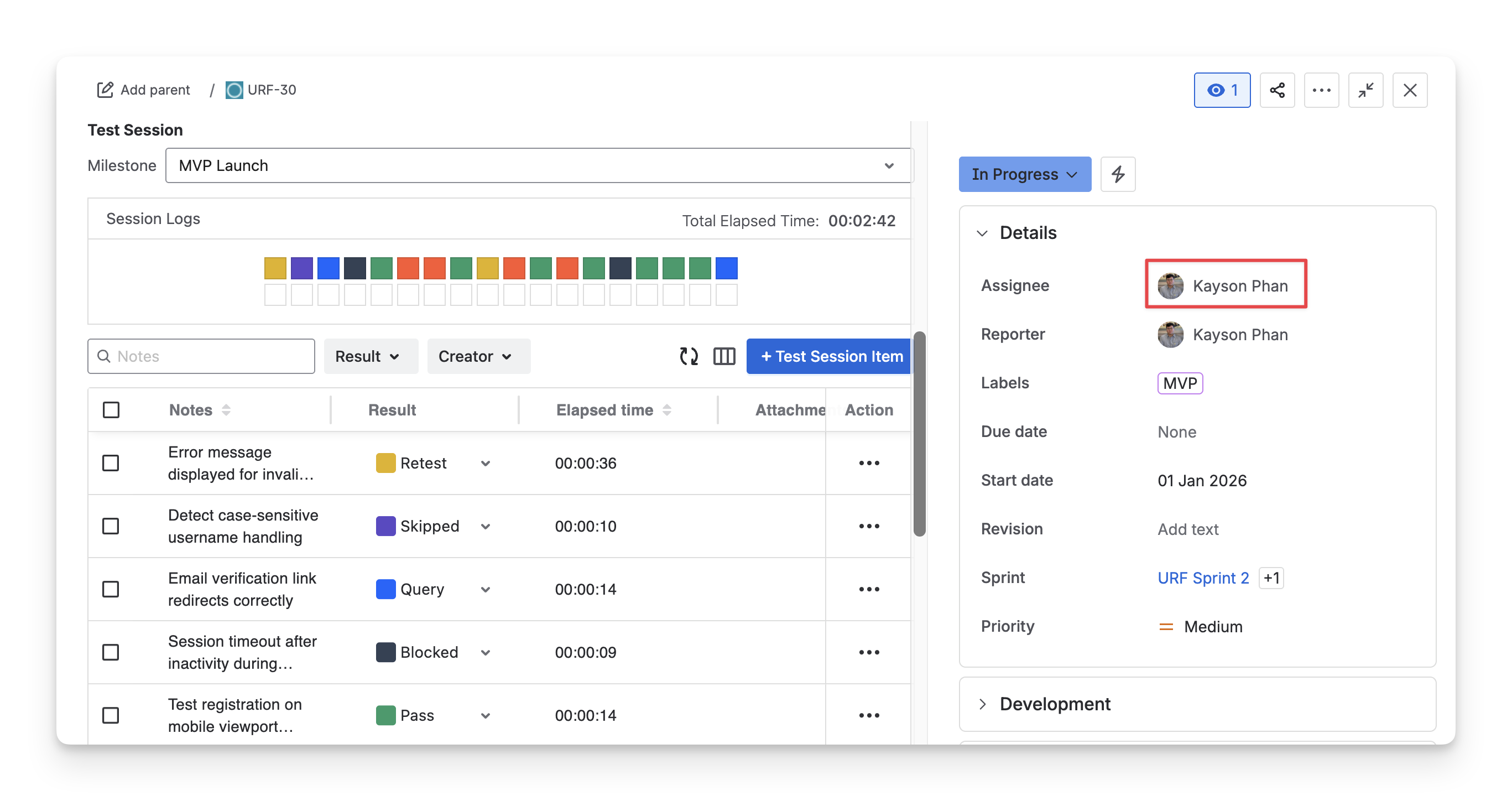
During an exploratory session, all the test session items created will be automatically captured and displayed in two areas: Session Logs and Test Session Item Board
2.1 Session Logs
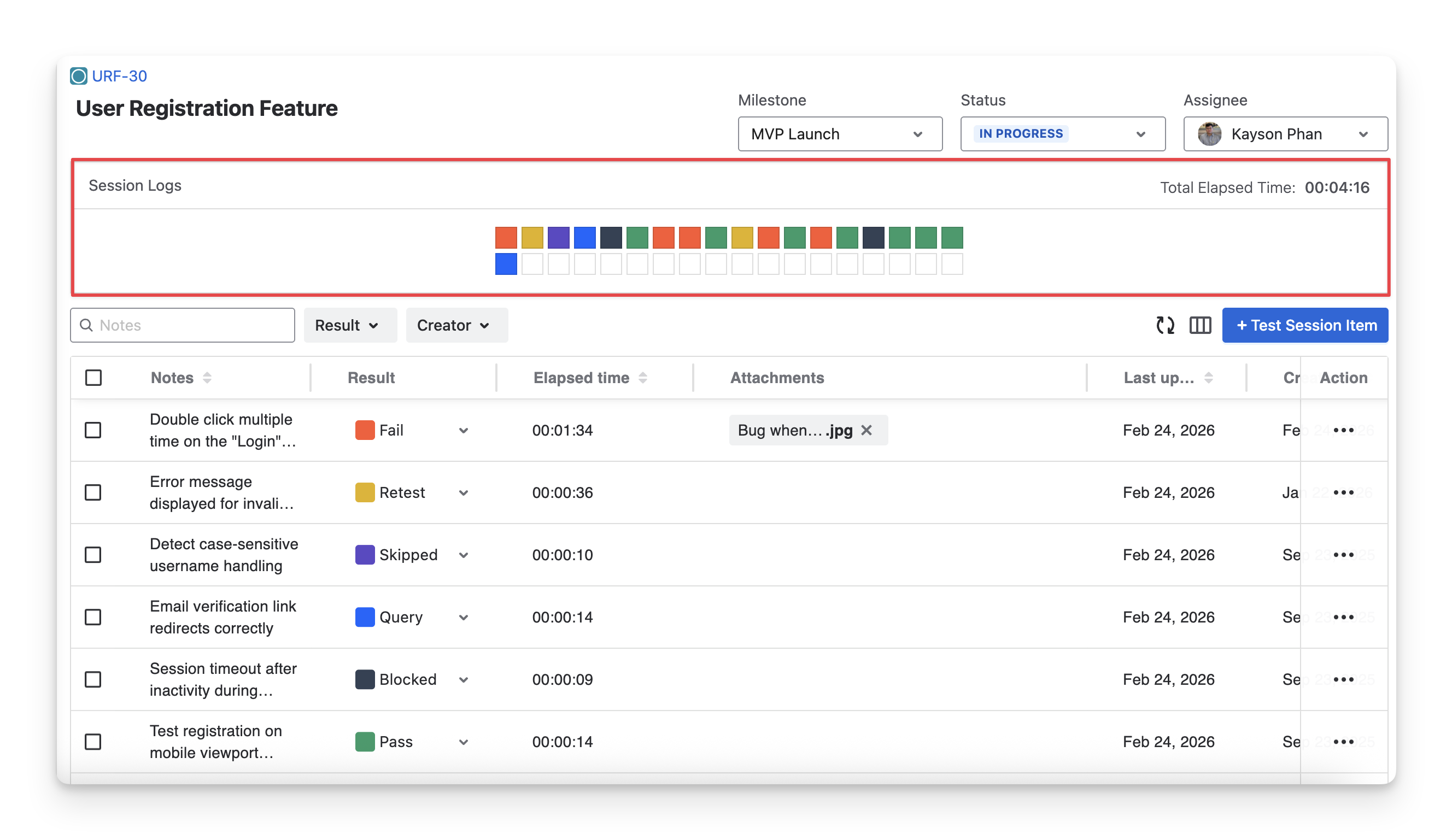
The Session Logs summarize all activities performed during the exploratory session.
-
Each block represents a recorded Test Session item and its result ( Fail , pass , Blocked , query , Skipped , Retest ).
-
The Total Elapsed Time sums the elapsed times of your test session items and can be used for tracking or comparison purposes.
2.2 Test Session Item Board
Test Session Item Board records and manages all findings during the exploratory session. Each Test Session Item represents one validation, observation, or issue discovered while testing. For every item, you can view its notes, status, attachments, etc. This allows you to structure exploratory findings while maintaining flexibility.
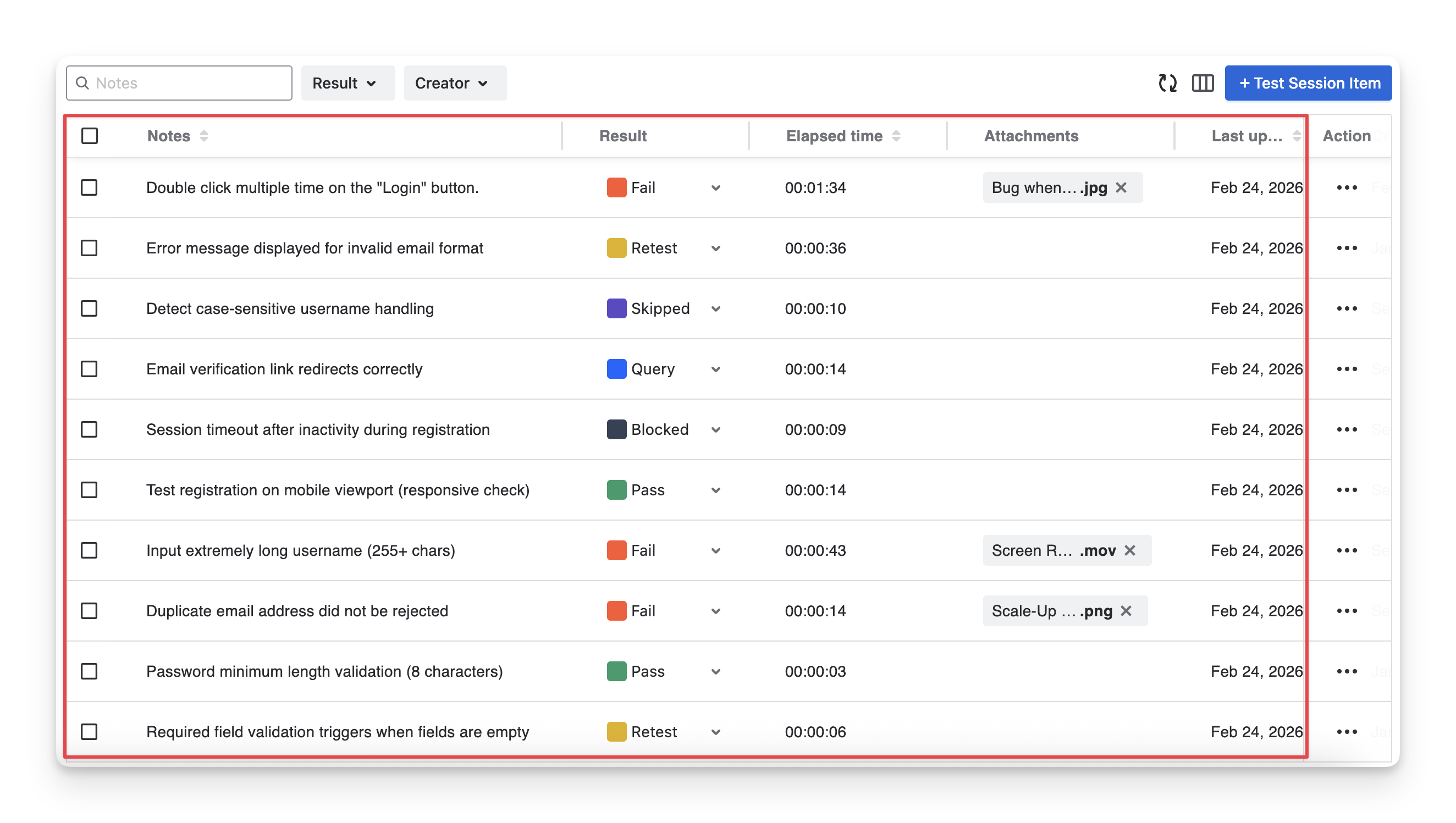
In this table, you can:
-
Change the display format by showing/hiding, or rearranging columns.
-
Filter test session items by Jira key or summary, test result, or creator.
2.3 Test Session Items
The data for Session Logs and Test Session Item Board is from your test session items.
To create a new test session item, click on the “+Test Session Item” button.
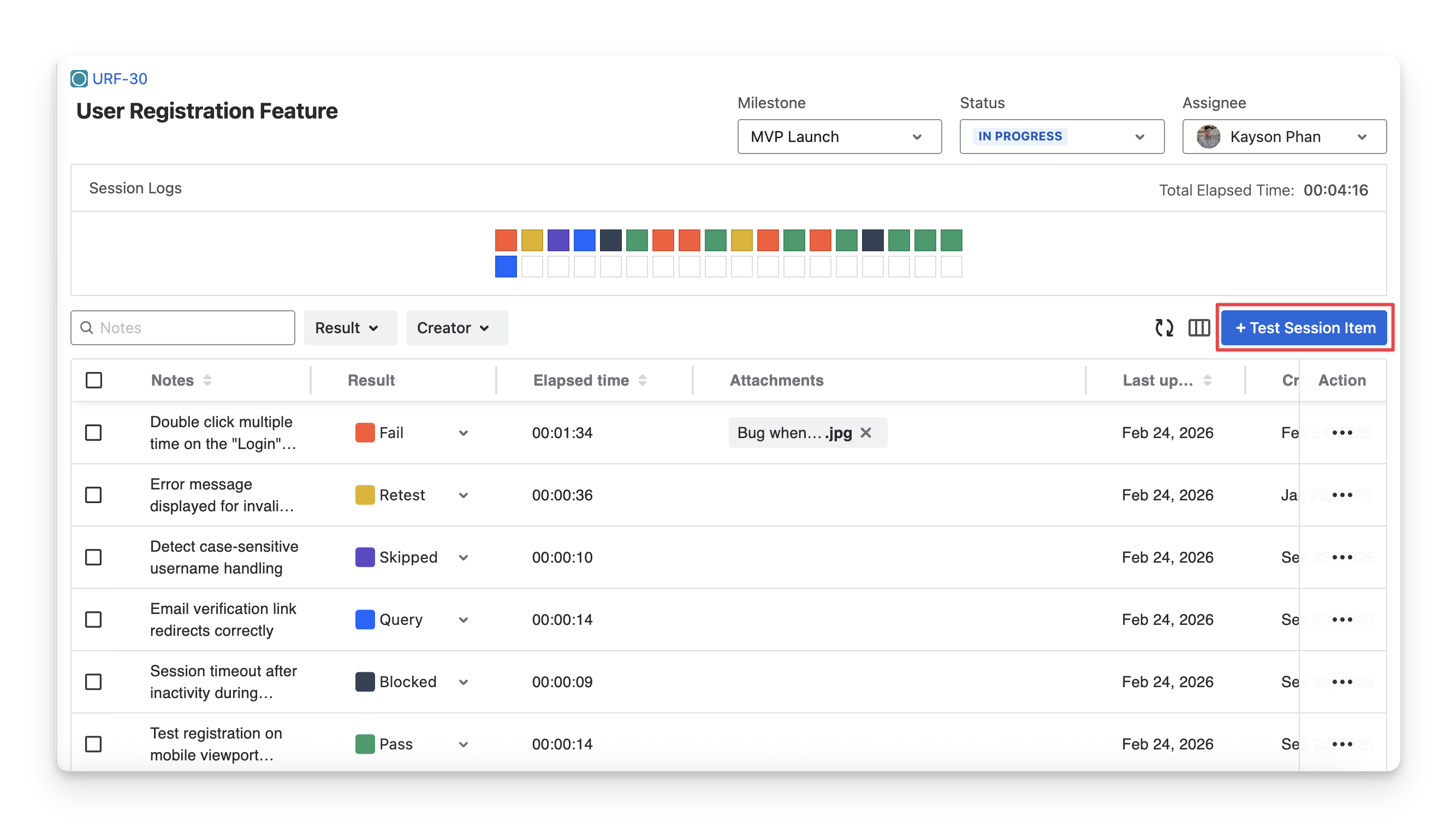
A panel will appear on your right-hand side. This is where you can create and record what you have tested during exploratory sessions.
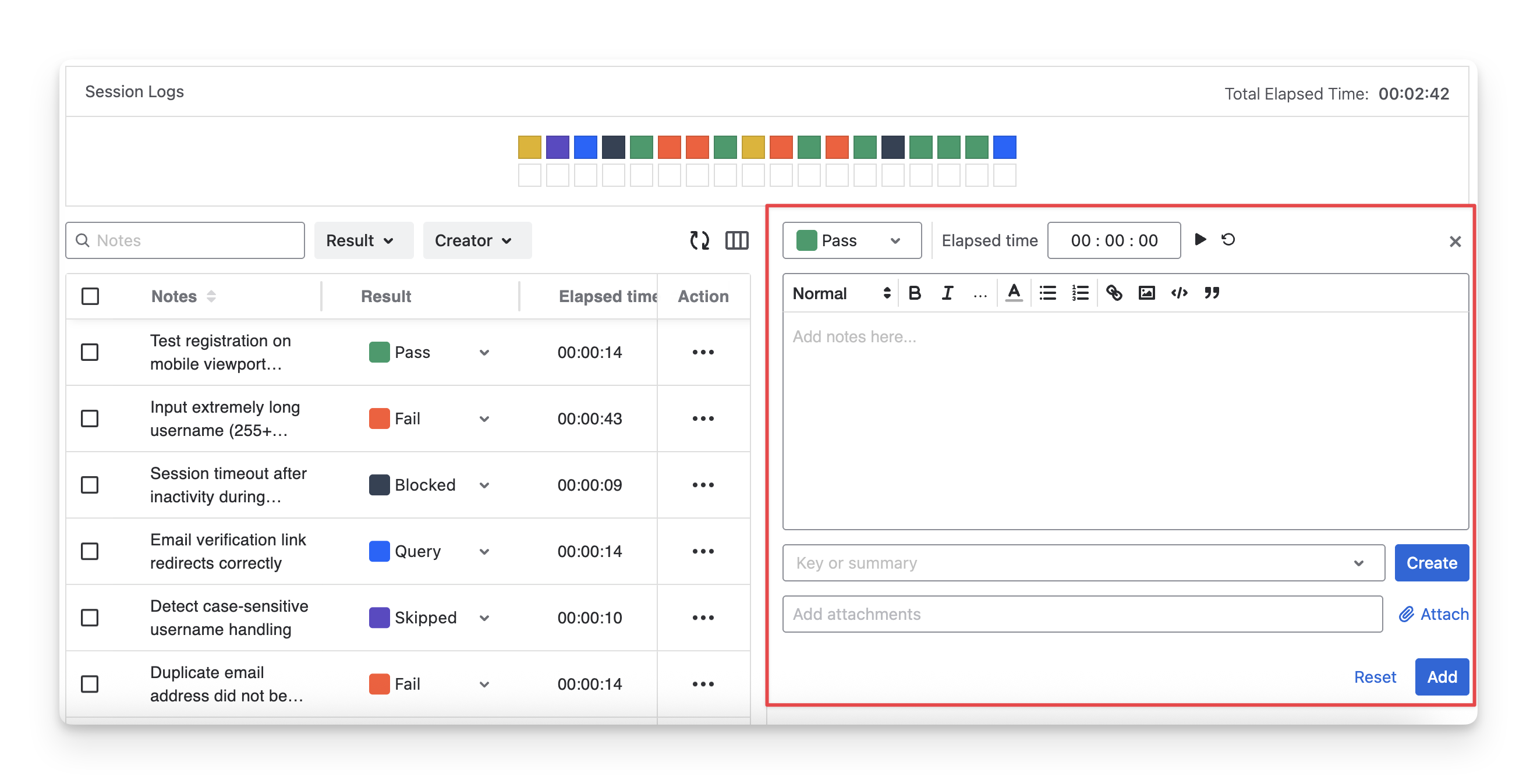
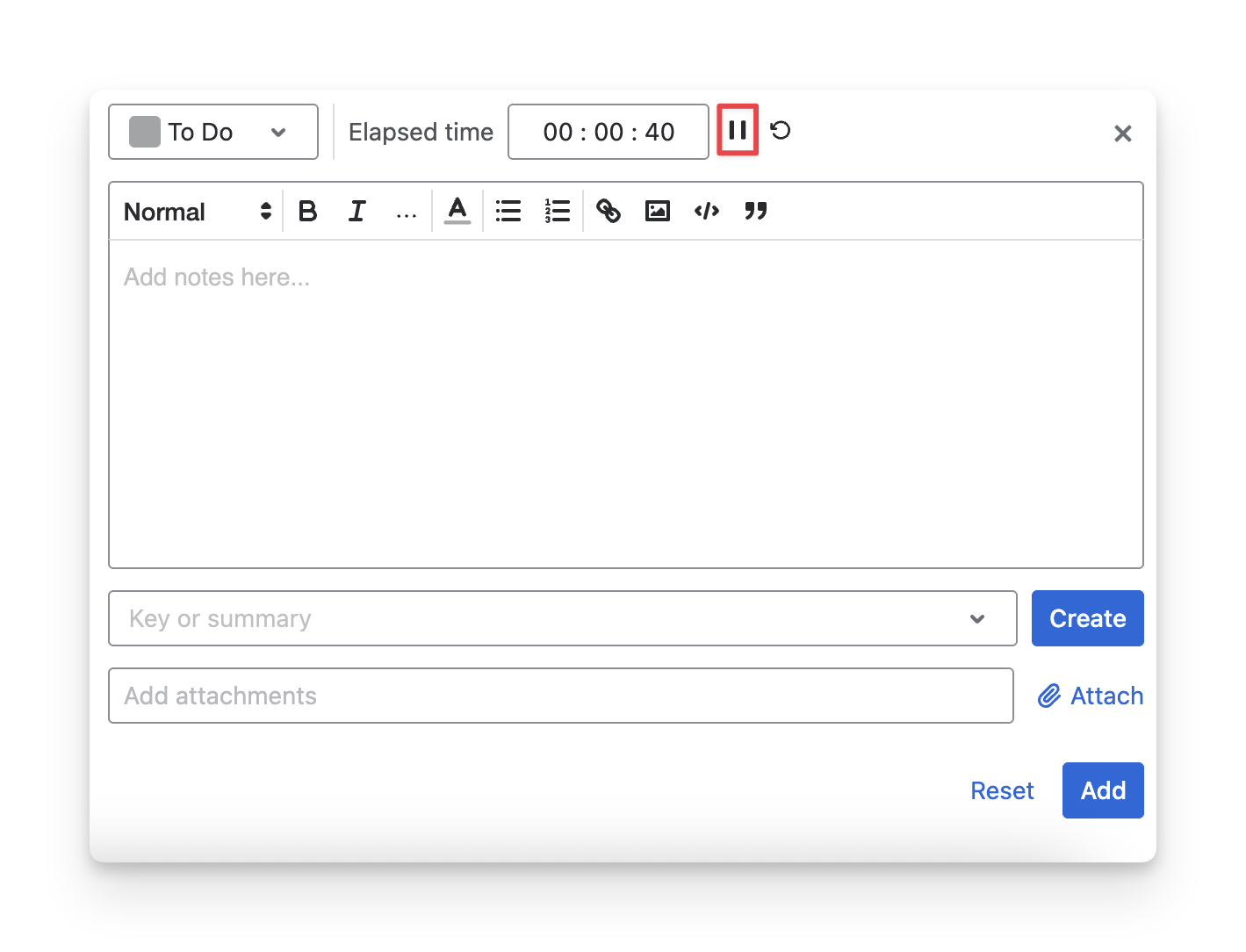
2.3.1 Record Executing Time
To track the execution time for each test session item, click the “Start” button in the Elapsed Time section when you begin testing, and click “Stop” once you have completed the verification to end the timer.
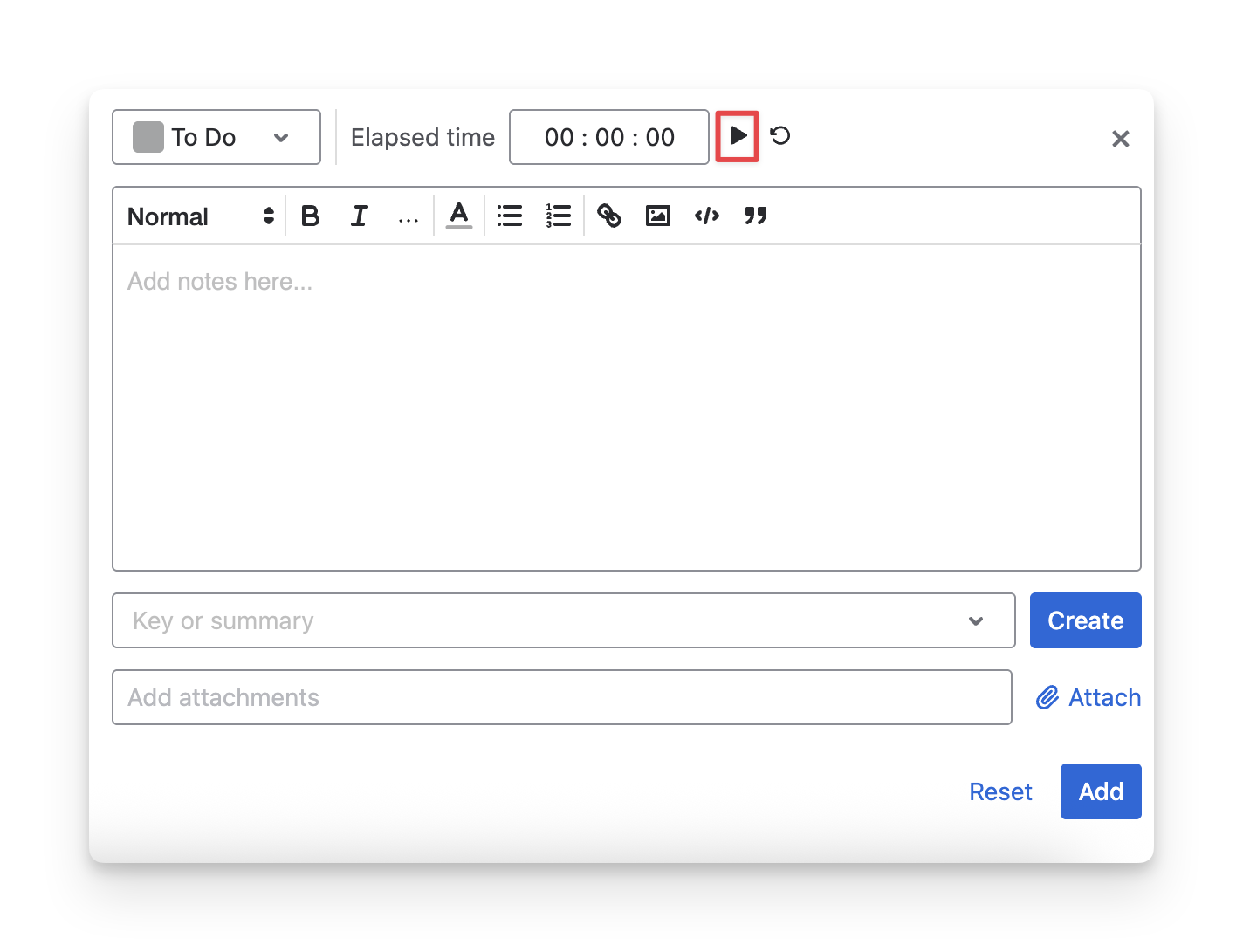
2.3.2 Add Notes and Attachments
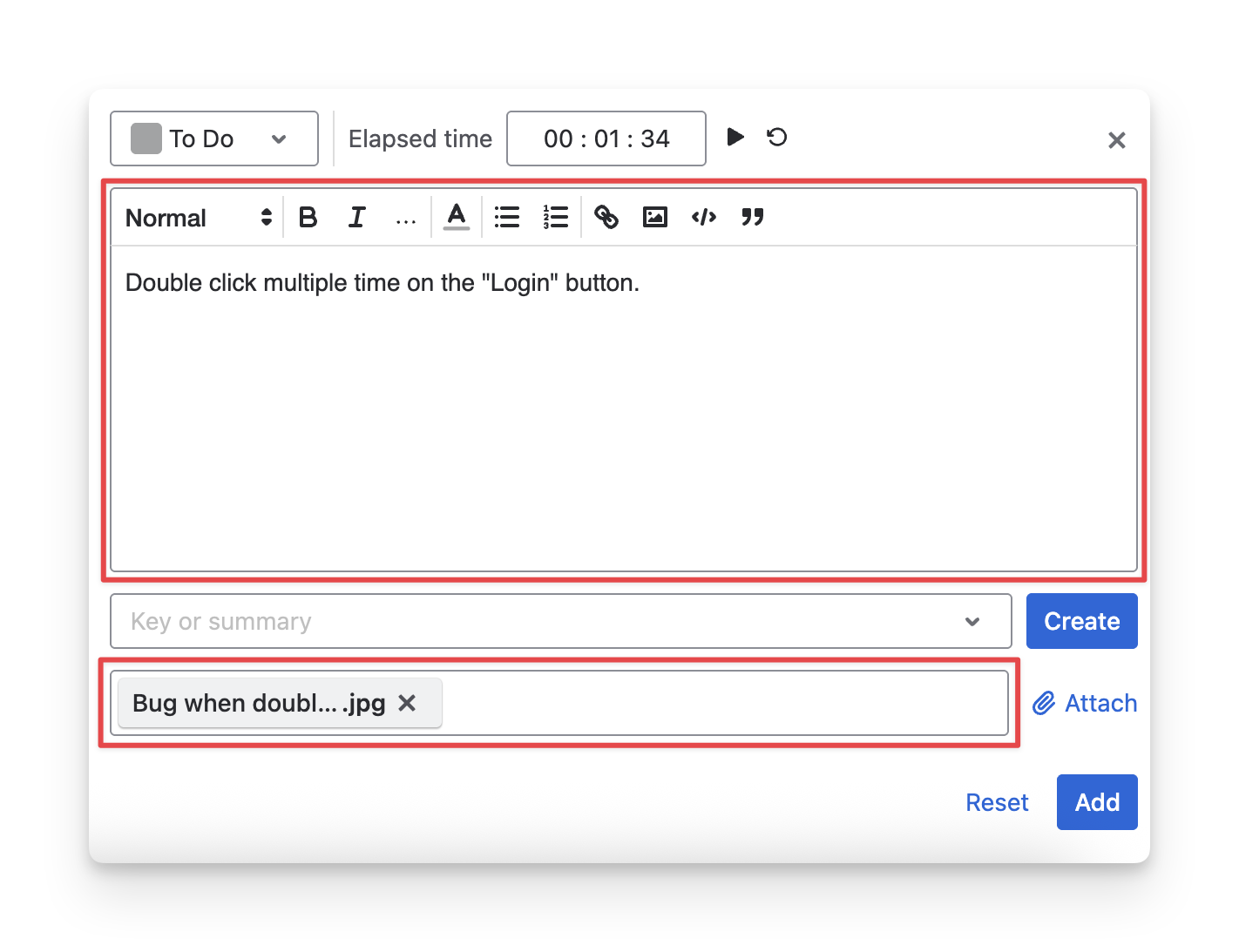
During execution, you can
-
Enter notes to illustrate what you have tested in the Notes sections.
-
Attach findings as evidence in the Attachments section.
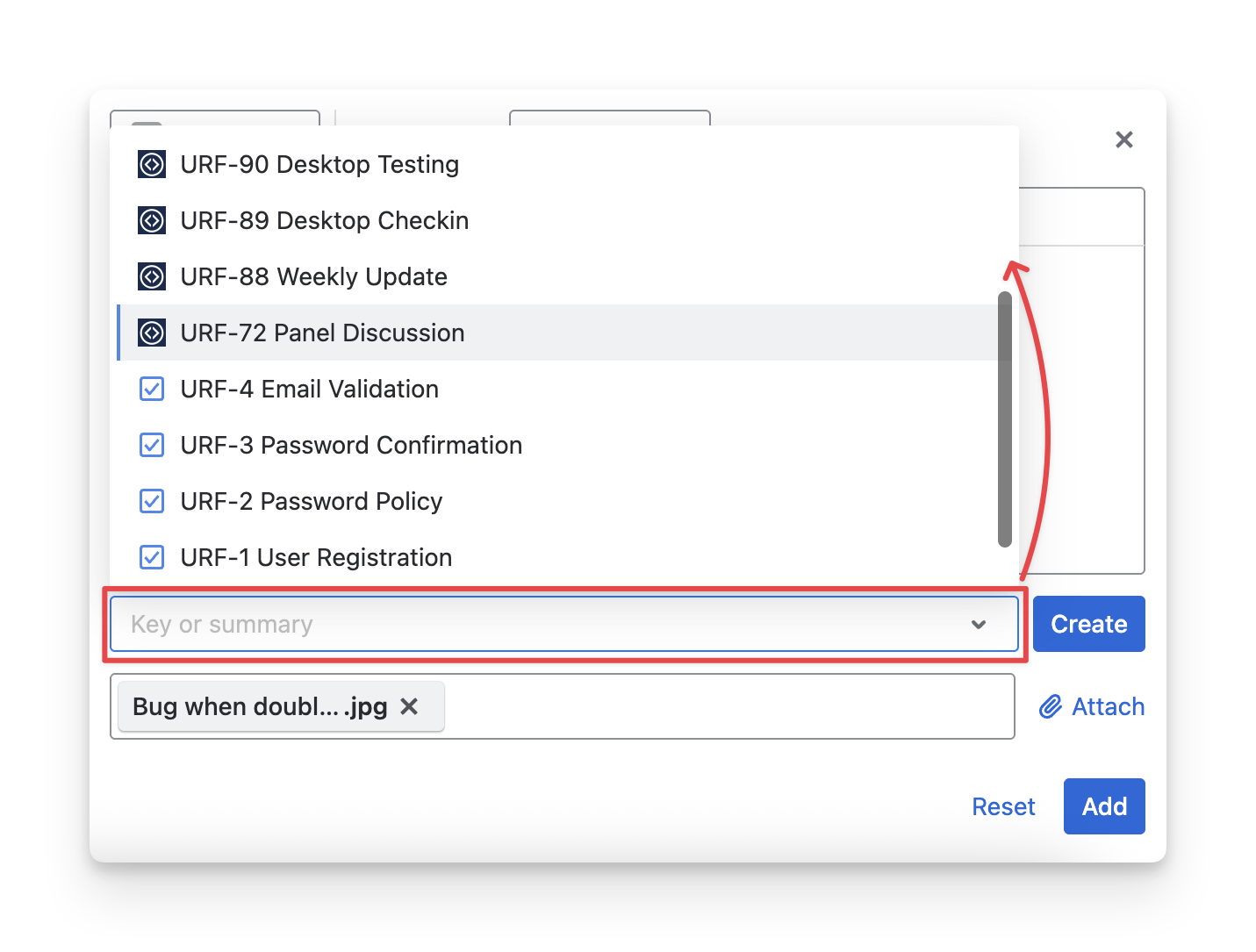
2.3.3 Track Work Items
To link the current test run item to a specific issue (requirement, exploratory test, etc), click the work item tracking dropdown to add it.
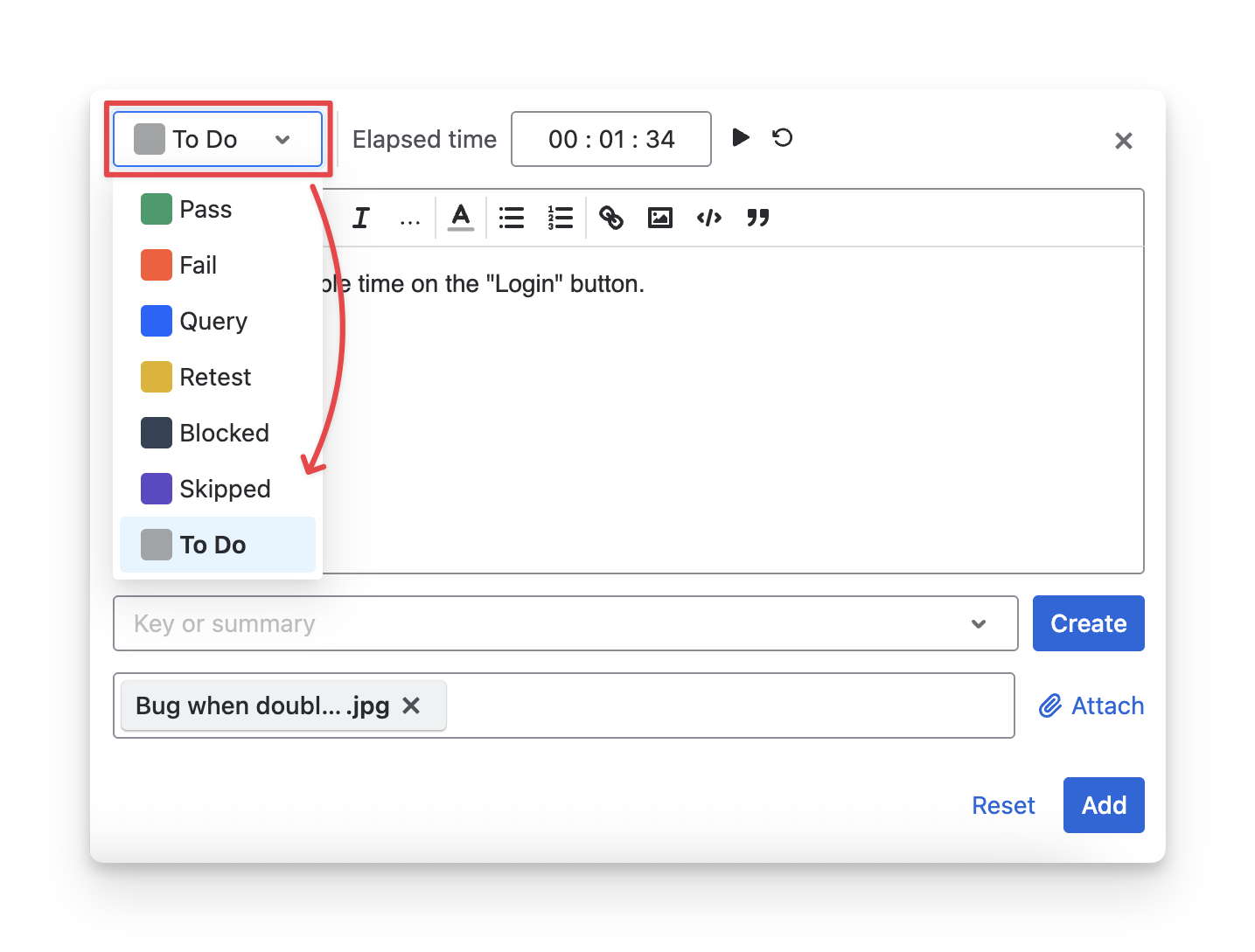
2.3.4 Assign Status To A Test Session Item
By default, each test run item is in todo status. You can mark it with one of six statuses: Fail query blocked Skipped Retest Pass to complete the testing round.
Once you're done with these updates, click the “Add” button.
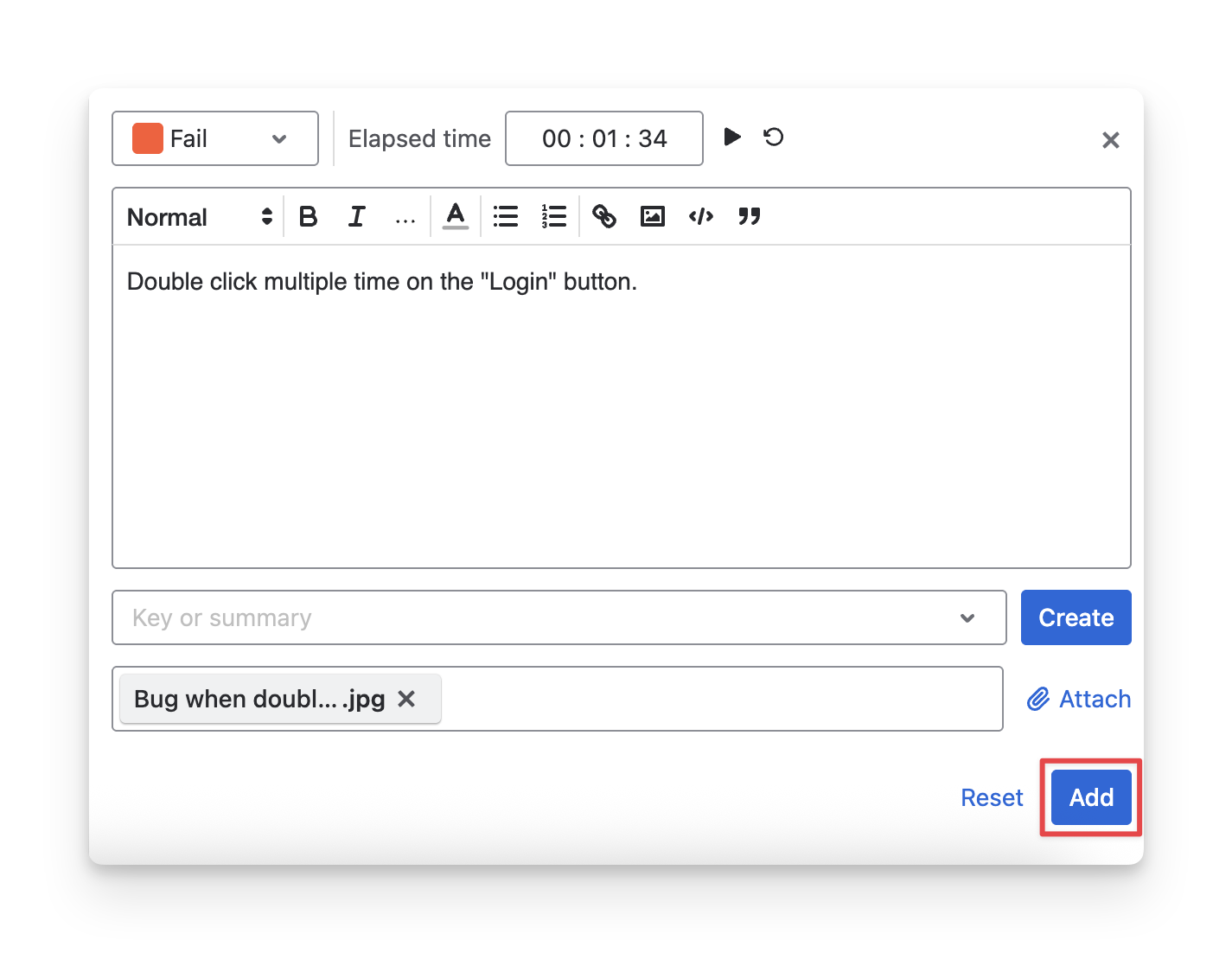
Your test session item will be added to the session logs and the exploratory test item board
Should you need any assistance or further AgileTest inquiries, contact our 24/7 Support Desk!