.png)
There are 02 ways to create new consumables: bulk import and manual set up .
Manual Set Up
On the top right of the Consumables page, click on 
-
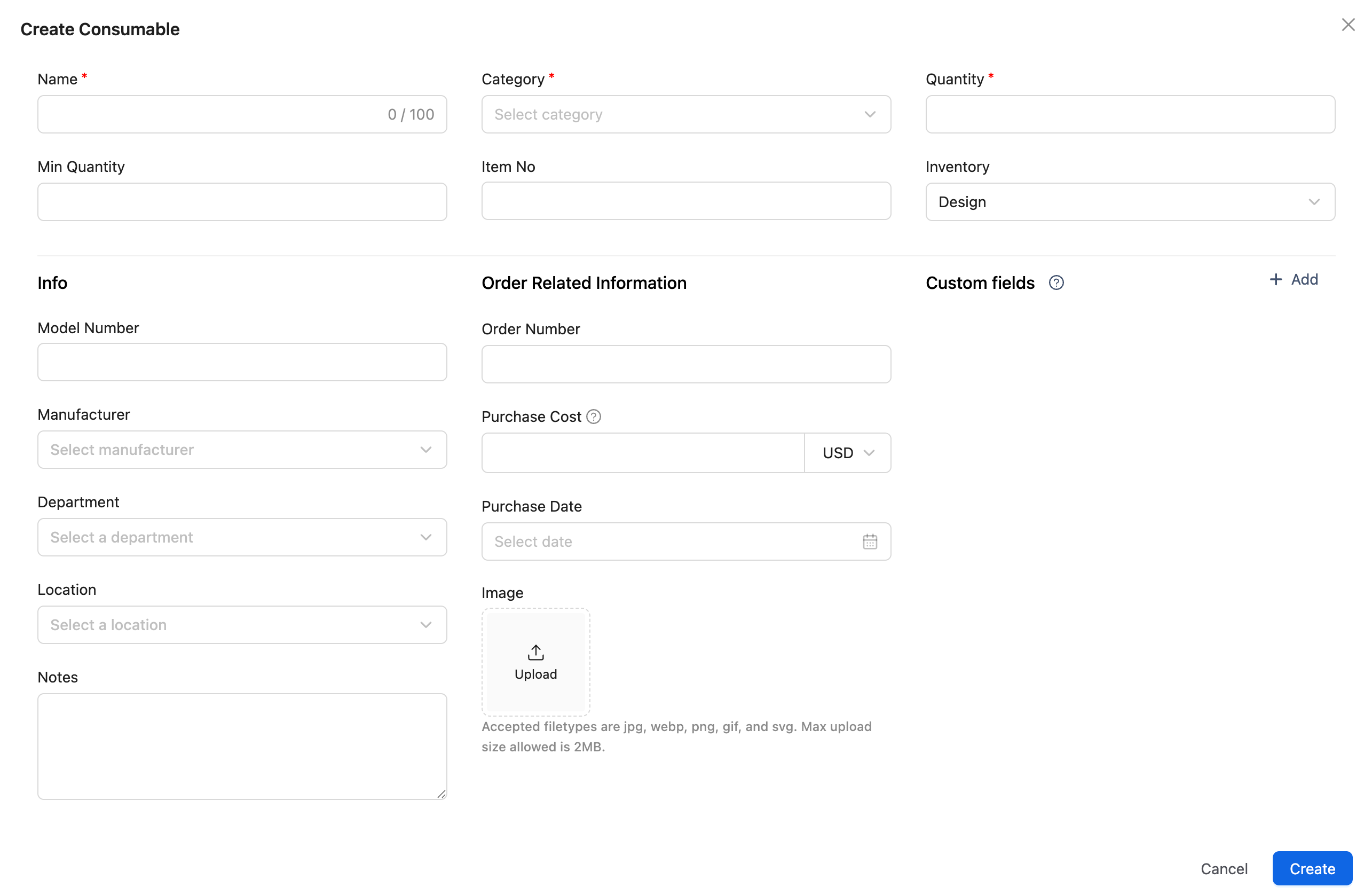
Fill in the Required Information:
-
Consumable Name: Enter a descriptive name for the consumable (e.g., "Printing paper," “EVGA BQ500W.”).
-
Category: Select the category that best fits the consumable type (e.g., "Paper," "Office Supplies"). Use the

-
Quantity: Enter the total quantity of this consumable available for tracking.
-
-
Additional Fields (Optional):
-
Manufacturer, Supplier, Department, Location, Inventory: Use these fields to add further details about the consumable, such as the manufacturer or supplier, or to specify which department or location the consumable is associated with.
-
Min Quantity: Set a minimum quantity level to trigger alerts when the stock is low, ensuring you can reorder before running out.
-
Notes: Add any additional information that may be useful.
-
Bulk Import
-
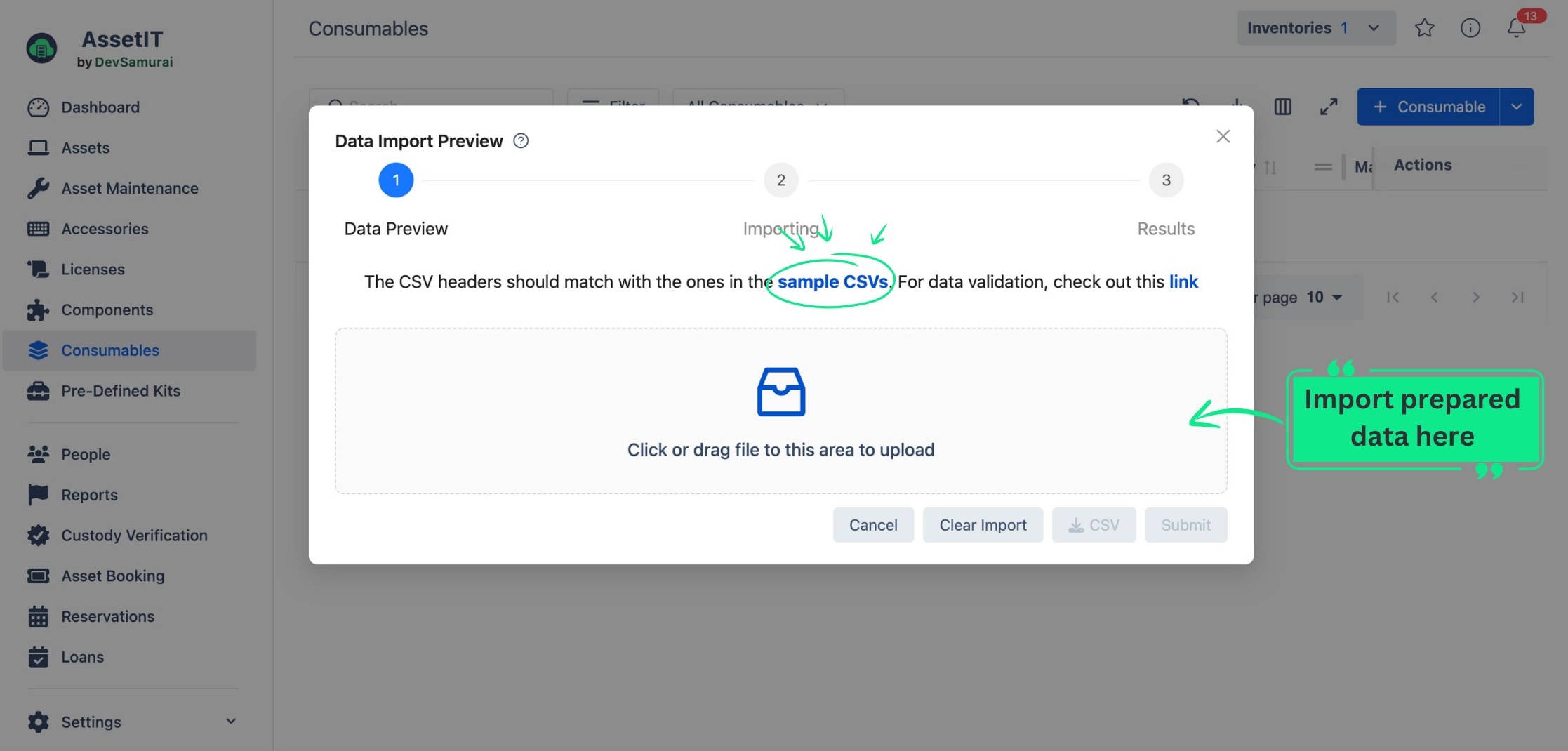
On the top right of the Consumables page, click on the dropdown of


-
You will see a table that instructs you to use the sample CSV file for data preparation.
-
Once you finish preparing your data, import it into the app. You will then be taken to the Data Preview stage.
-
In the Data Preview stage, the app will highlight any fields with errors, allowing you to make adjustments directly.
-
To modify data information, click on the Edit button.
-
To automatically generate missing data for Department , Inventory , Category , Location , Supplier , Manufacturer , depreciation , and Status Label , click on the “Generate Data” button.
-
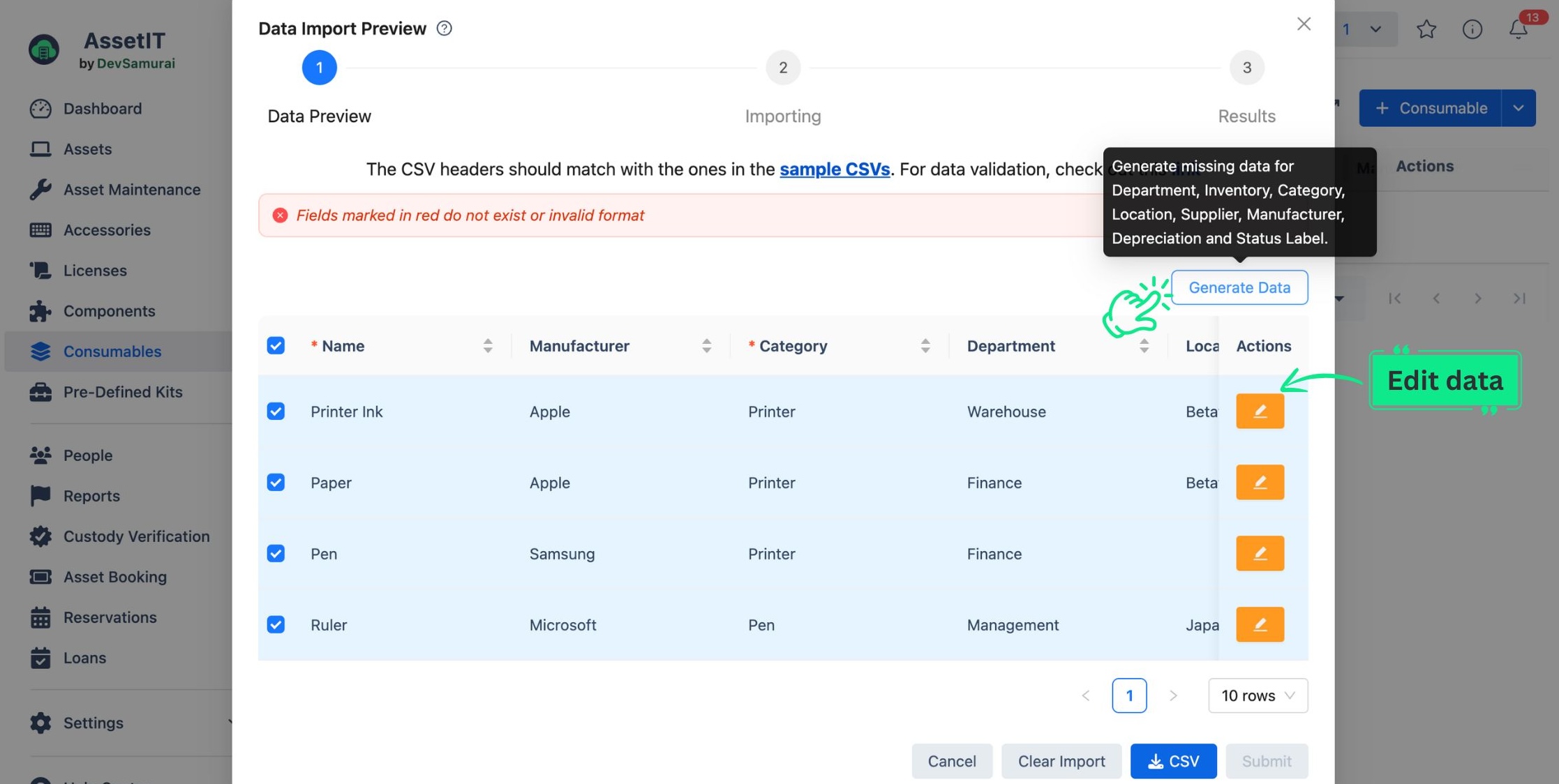
You can also download the most recently modified data into a CSV file for further customization by clicking the 
-
Click on Submit to finish importing your consumables.
-
You should now see a list of your consumables on the Consumables page.