.png)
Connect your Microsoft tenant to AssetIT Asset Importer to securely access and import device data from Microsoft Intune.
Before you begin
Prerequisite: Set up your AssetIT credentials before connecting to Intune. See Authorization and Connections for instructions.
Required Microsoft Intune roles
The connecting account must have all four roles below, and each role must be active:
-
Intune Administrator
-
Cloud Device Administrator
-
Application Administrator
-
IoT Device Administrator
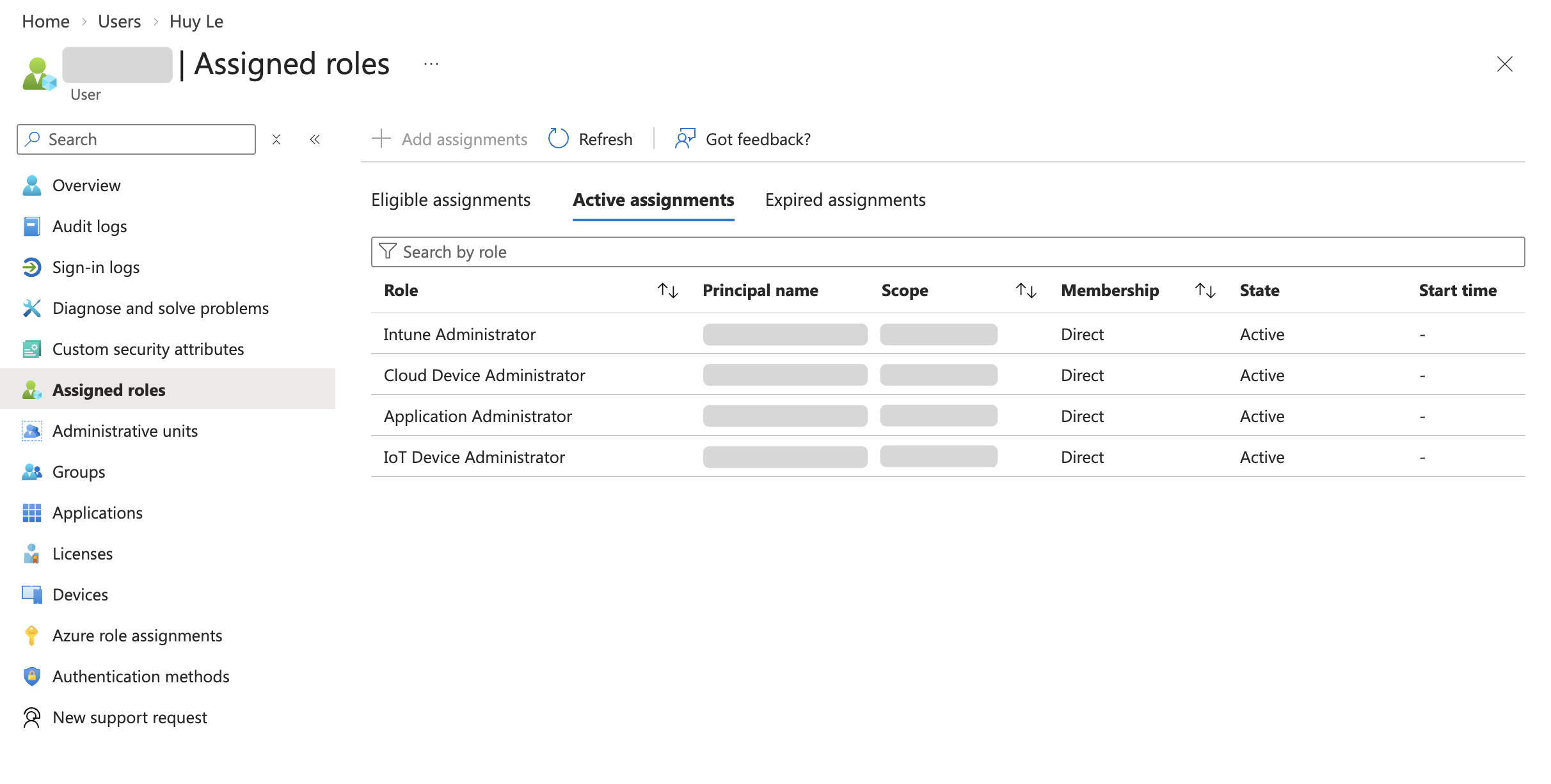
To verify the assigned roles:
-
In Microsoft Intune, go to Users.
-
Search for and select your account.
-
Open Assigned roles.
Connect your Microsoft tenant
AssetIT Asset Importer connects to Microsoft Intune through an Azure app registration (Learn more). This tenant-based connection allows AssetIT to securely read Intune device data and continue importing devices even when no user is signed in.
Before you connect, make sure the Azure app registration has the application permissions:
-
DeviceManagementManagedDevices -
Read.All
and that admin consent has been granted.
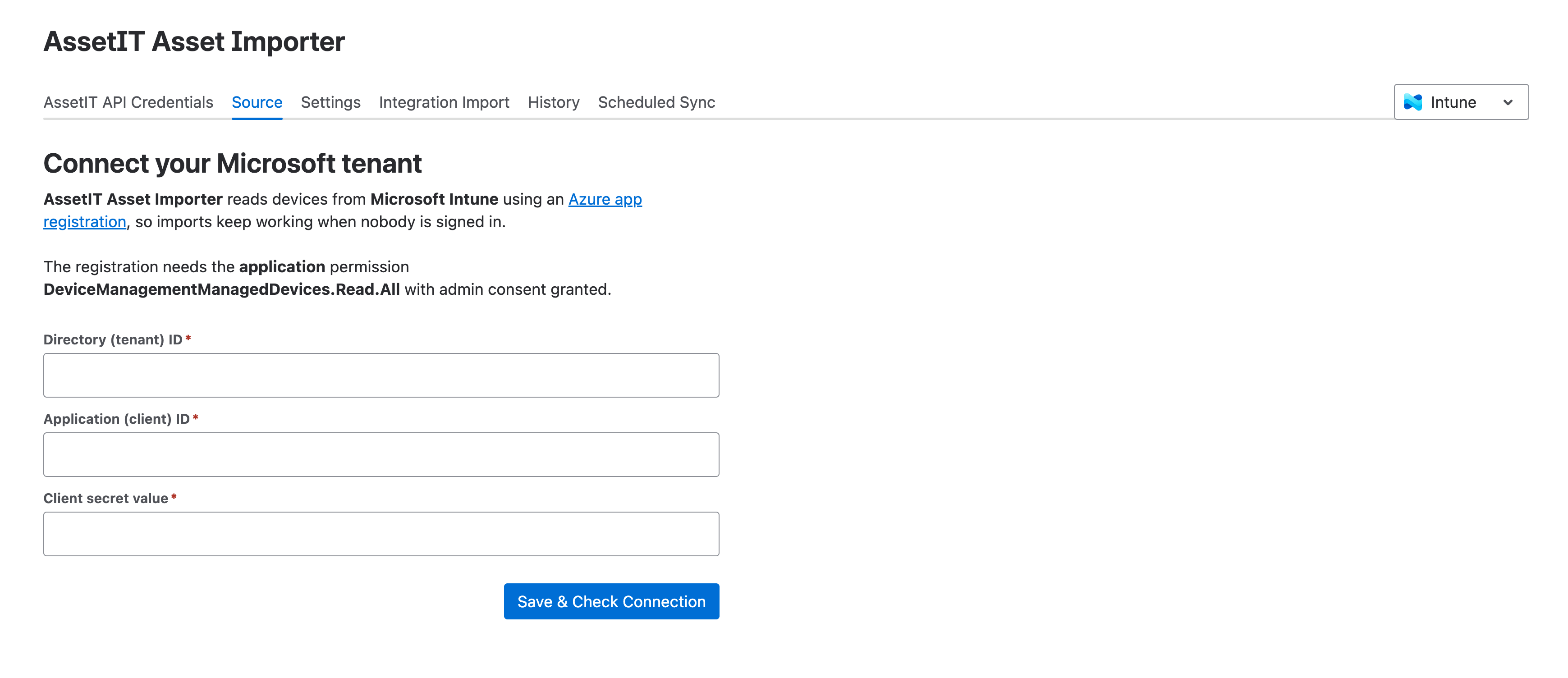
Make sure you select Intune as the connection source in AssetIT Asset Importer from the top right dropdown menu.
You will need the following values from Microsoft Entra ID:
-
Directory (tenant) ID
-
Application (client) ID
-
Client secret value
After you collect these values,, enter the values in the corresponding fields, and click Save & Check connection.
Step 1. Register AssetIT Asset Importer in Microsoft Entra ID
-
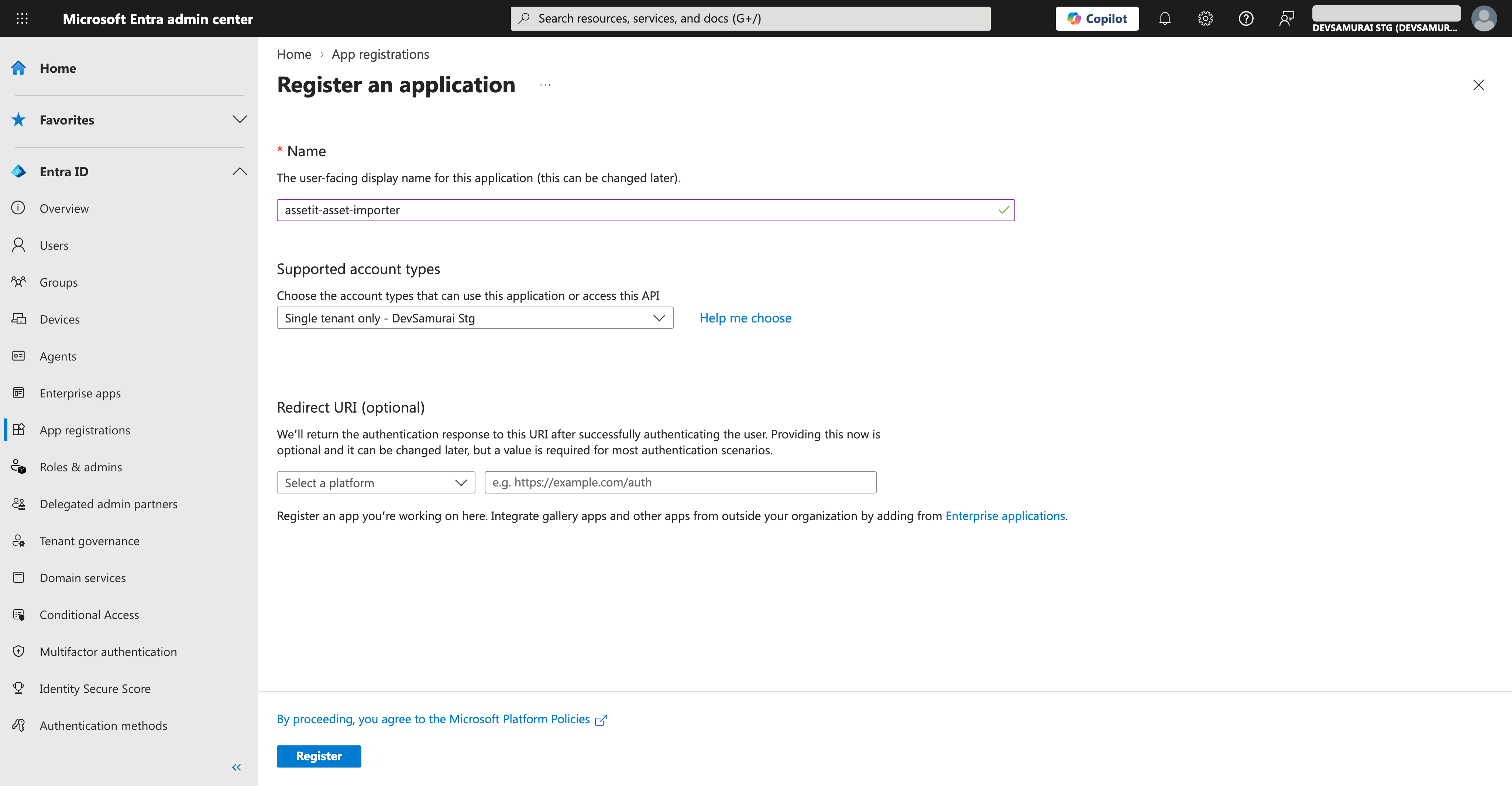
Sign in to the Microsoft Entra admin center with an account that has permission to register applications, such as the Application Developer role.
-
If you have access to multiple tenants, use the Settings icon in the top menu to switch to the tenant you want to connect.
-
Go to Entra ID > App registrations, then select New registration.
-
Enter a clear name for the app, such as
assetit-asset-importer. -
Under Supported account types, select who can use the application. For most organizations, choose Single tenant only - <your tenant>.
-
Select Register to create the app registration.
Step 2. Copy the Directory (tenant) and Application (client) IDs
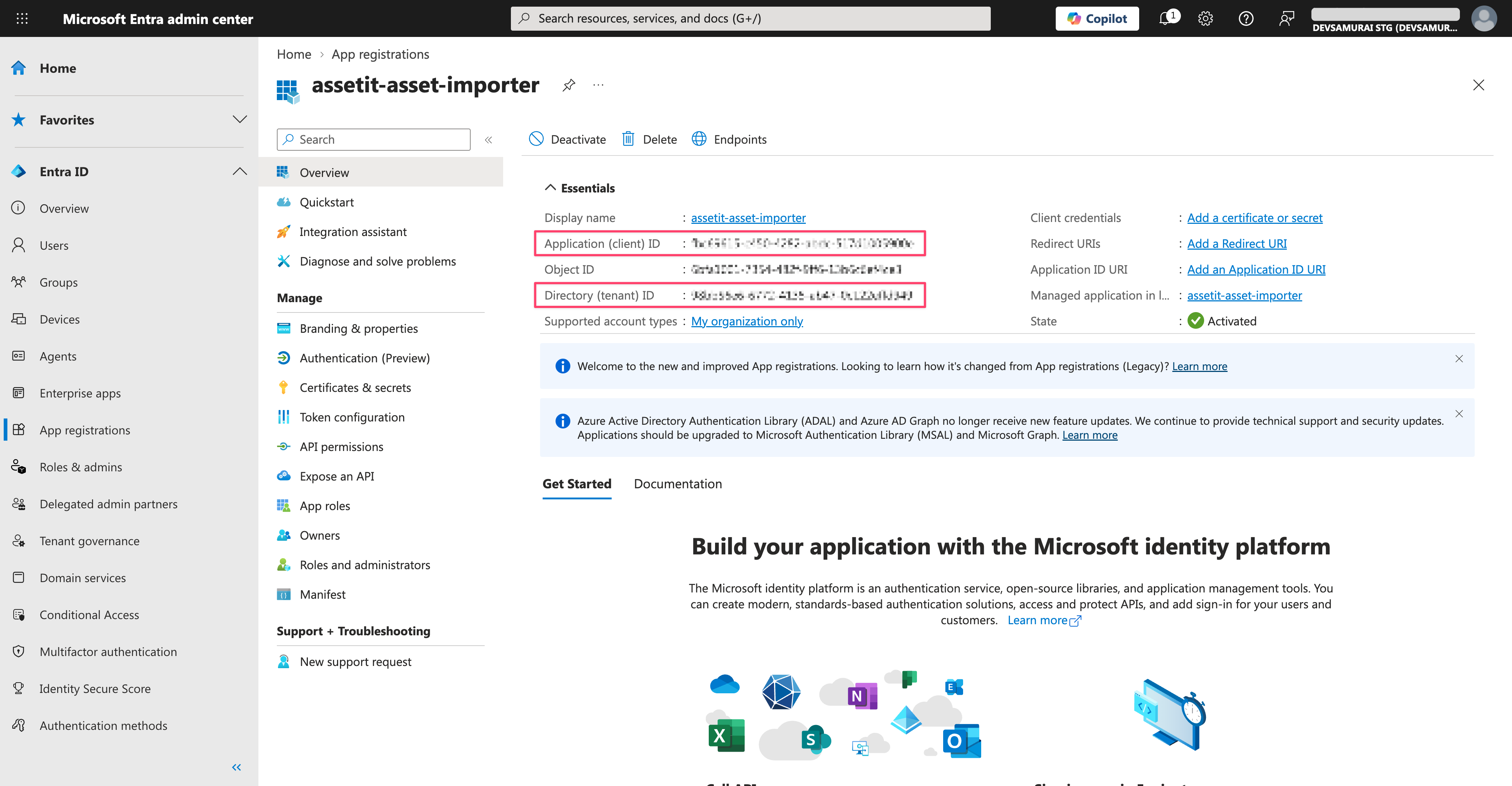
On the app registration Overview page, find the Essentials section and copy these values:
-
Directory (tenant) ID
-
Application (client) ID
Paste both values into the matching fields in AssetIT Asset Importer.
Make sure each value is copied into the correct field. Reversing the tenant ID and client ID will prevent the connection from being verified.
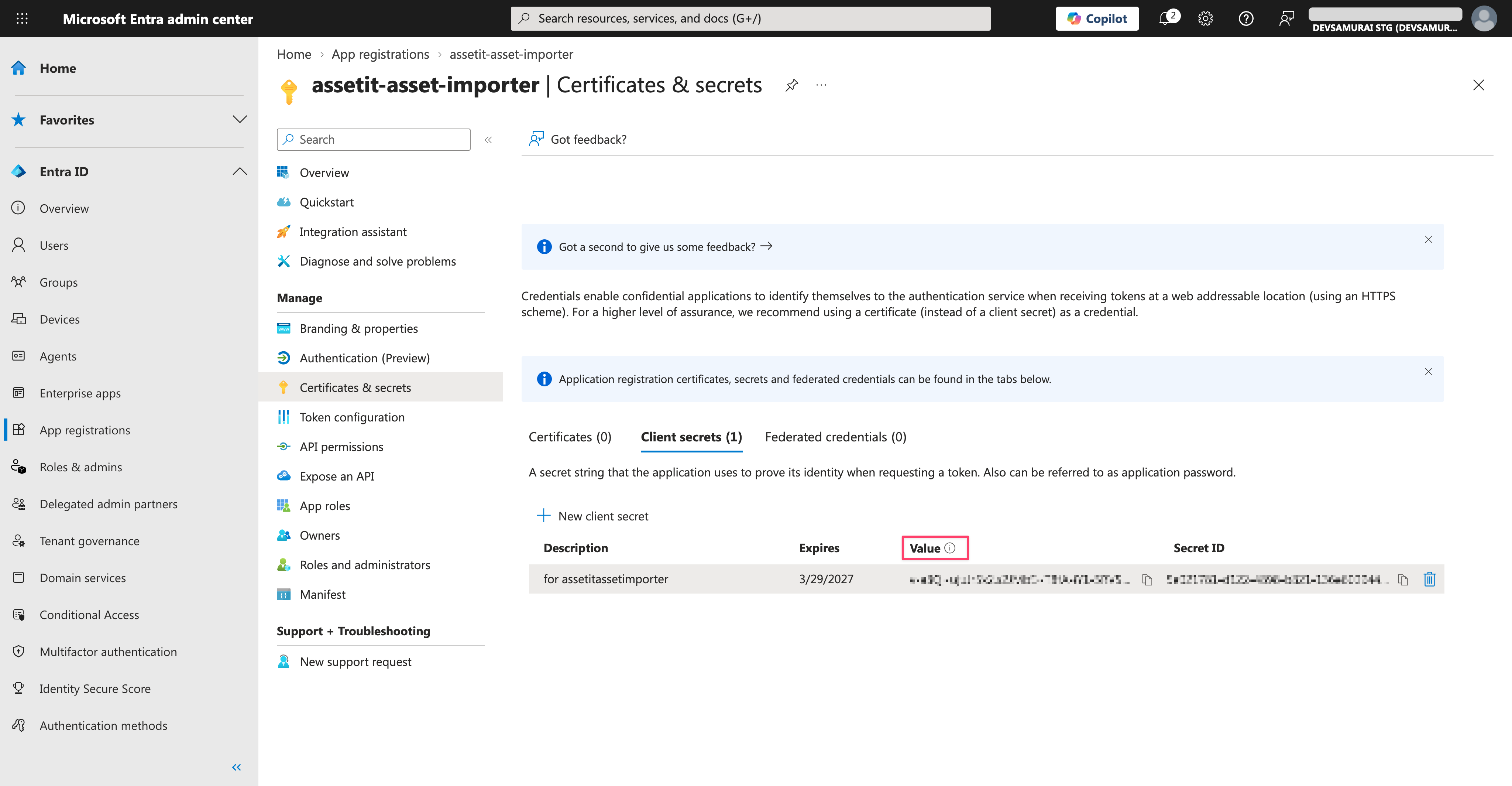
Step 3. Create and copy the client secret value
-
In the app registration, go to Certificates & secrets.
-
Open the Client secrets tab and select New client secret.
-
Add a description, choose an expiration period, and create the secret.
-
Copy the newly generated Value immediately. Microsoft only shows this value once.
Paste the client secret value into AssetIT Asset Importer.
Step 4. Save and verify the connection
After entering the Directory (tenant) ID, Application (client) ID, and Client secret value, click Save & Check connection. If the permission and credentials are valid, AssetIT confirms the connection and is ready to import device data from Microsoft Intune.
Next steps
-
Configure your import settings.
-
Start importing device data from Intune into AssetIT.