.png)
Connect Jamf Pro to AssetIT Asset Importer to import information about your computers and mobile devices. The integration uses a Jamf API role and API client, so you will need a Client ID and Client Secret.
Before you begin
Notes
-
Make sure you can sign in to your Jamf Pro instance and access Settings.
-
Confirm that AssetIT Asset Importer is installed and available in Jira.
-
Plan to grant only the required Jamf privileges:
Read Mobile DevicesandRead Computers.
Create Jamf API credentials
Complete the following steps in Jamf Pro to create the API role, API client, and credentials required by AssetIT Asset Importer.
Step 1. Create an API role
-
Log in to your Jamf Pro instance.
-
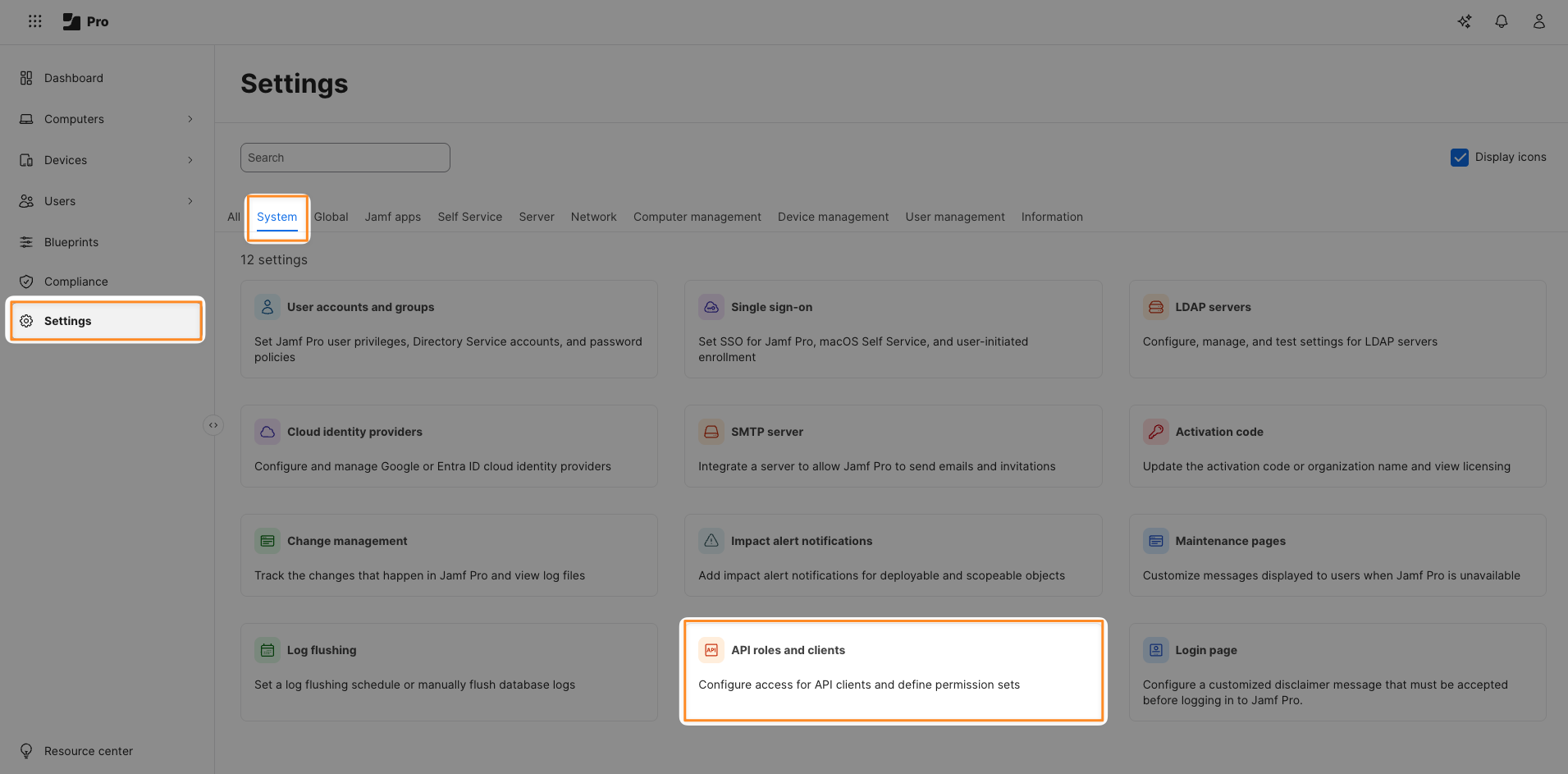
In the sidebar, click Settings → Systems → look for API Roles and Clients.
-
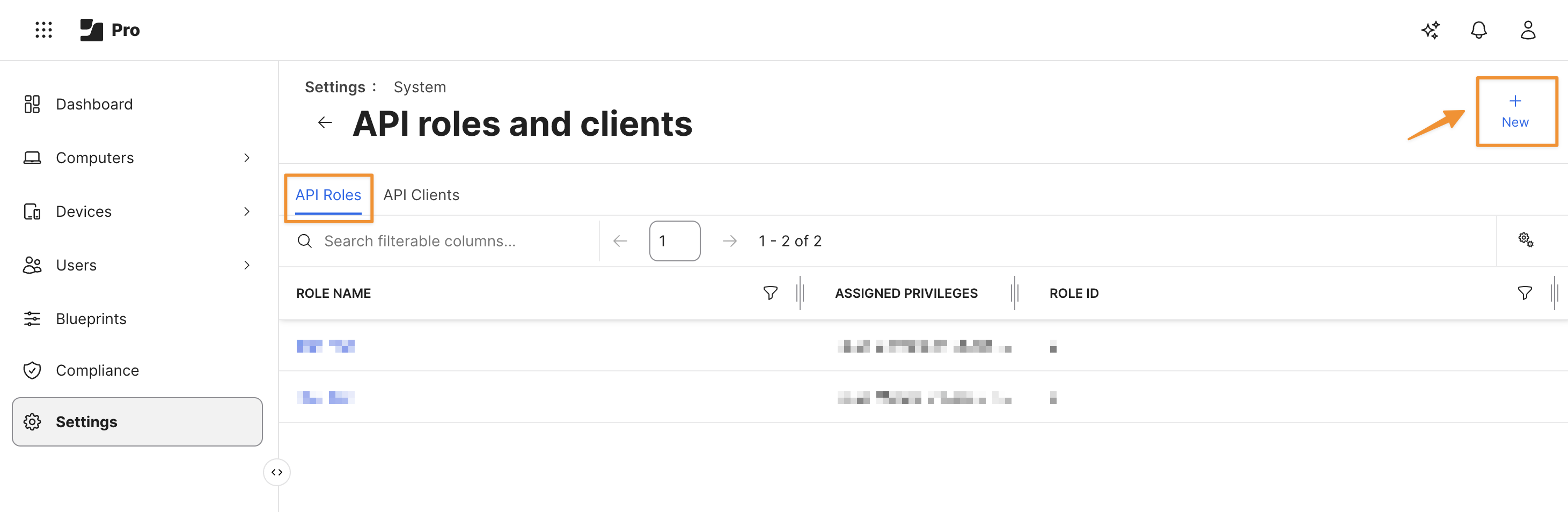
In the API Roles and Clients setup screen, locate the API Roles tab, then click New to create a new API role.
-
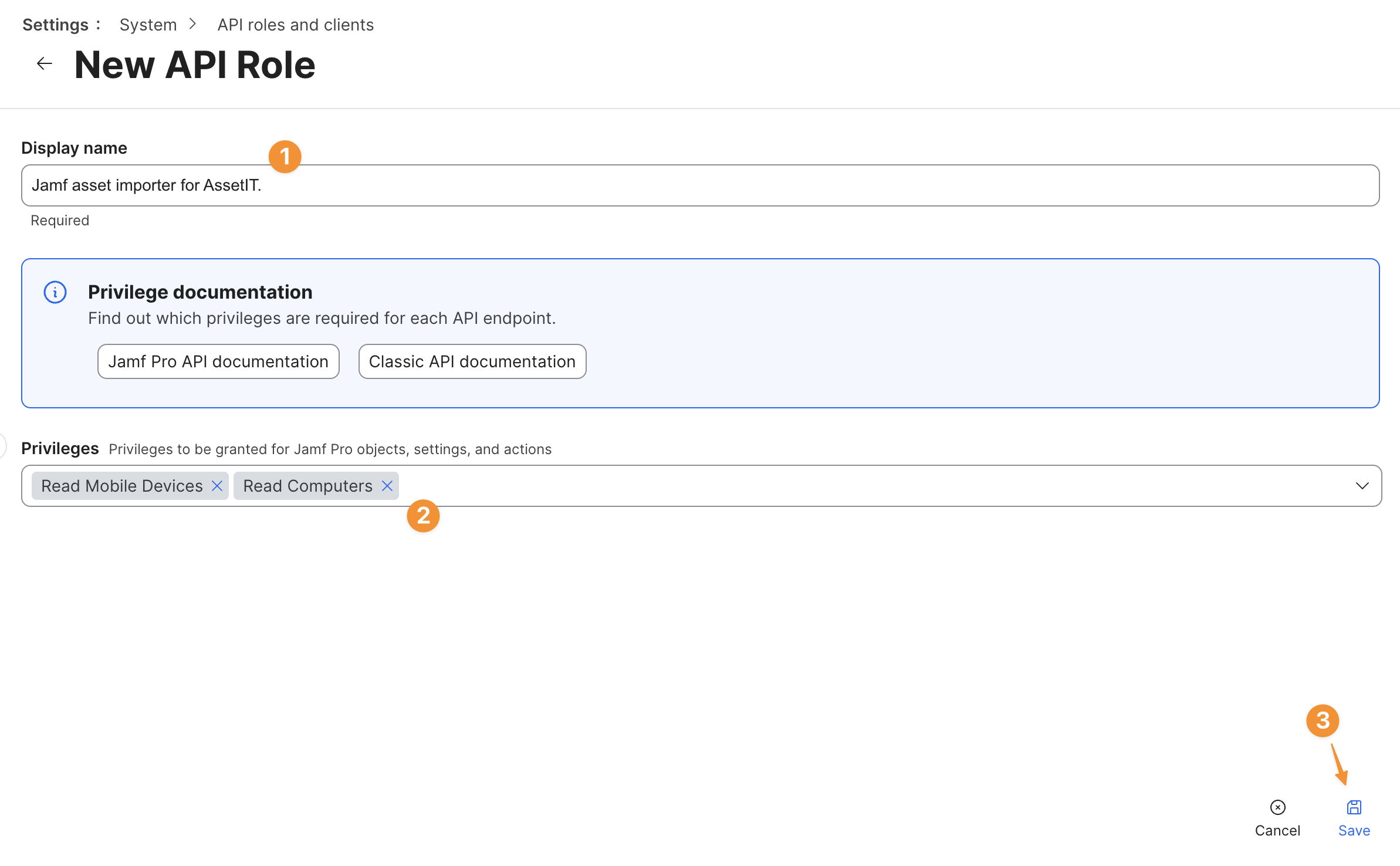
Fill in the required information:
-
Display Name: Enter a name for the role (e.g., Jamf Asset Importer for AssetIT).
-
Privileges: Select
Read Mobile DevicesandRead Computers.
-
-
Click Save at the bottom right to save the new API role.
Step 2. Create an API client
Once the API role is created with the appropriate privileges, follow these steps to create the API client:
-
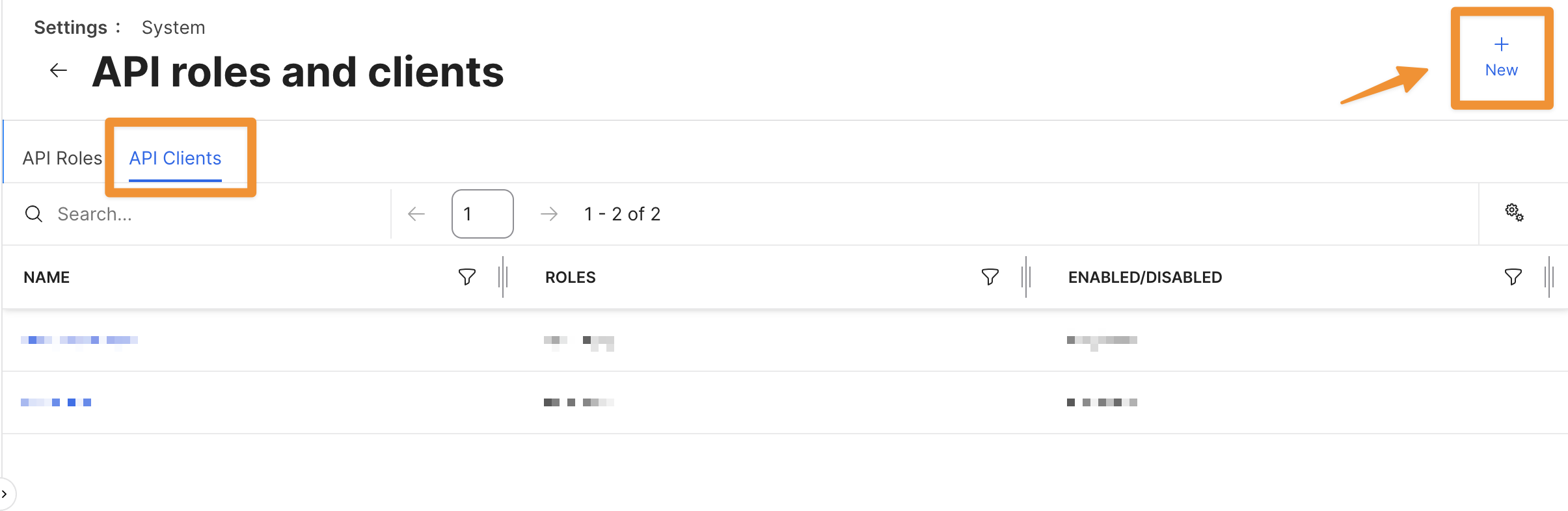
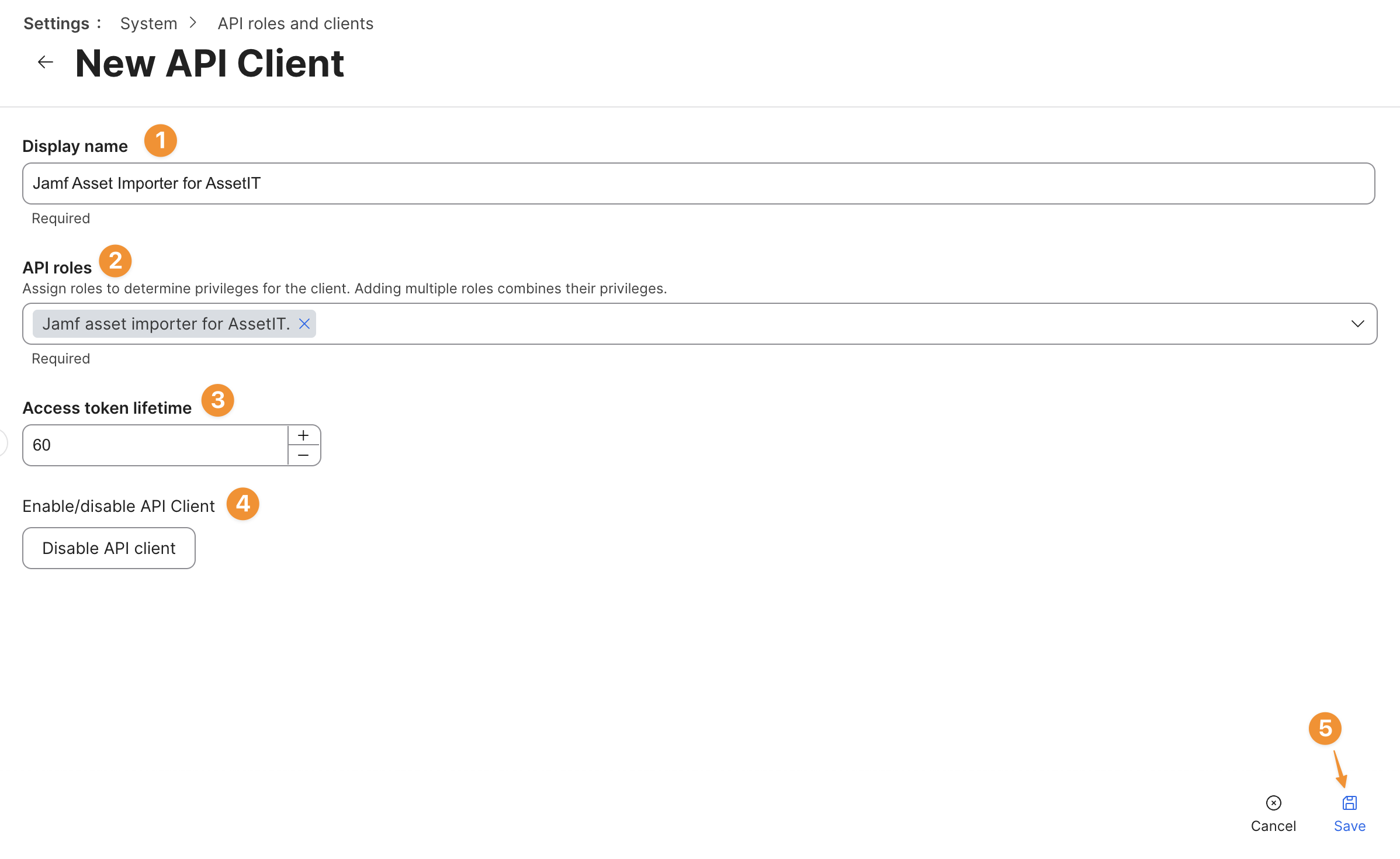
Navigate back to the API Roles and Clients screen. This time, click on the API Clients tab and click the New button to create a new API Client.
-
Fill in the information:
-
Set the Display Name for the API Client (e.g., Jamf Asset Importer for AssetIT).
-
Select the role you created earlier with the Read Mobile Devices and Read Computers privileges.
-
Configure the Access Token Lifetime in seconds (set the expiration time for the token).
-
Click Enable API Client.
-
Click Save to finish creating the API Client.
-
Step 3. Generate the client secret
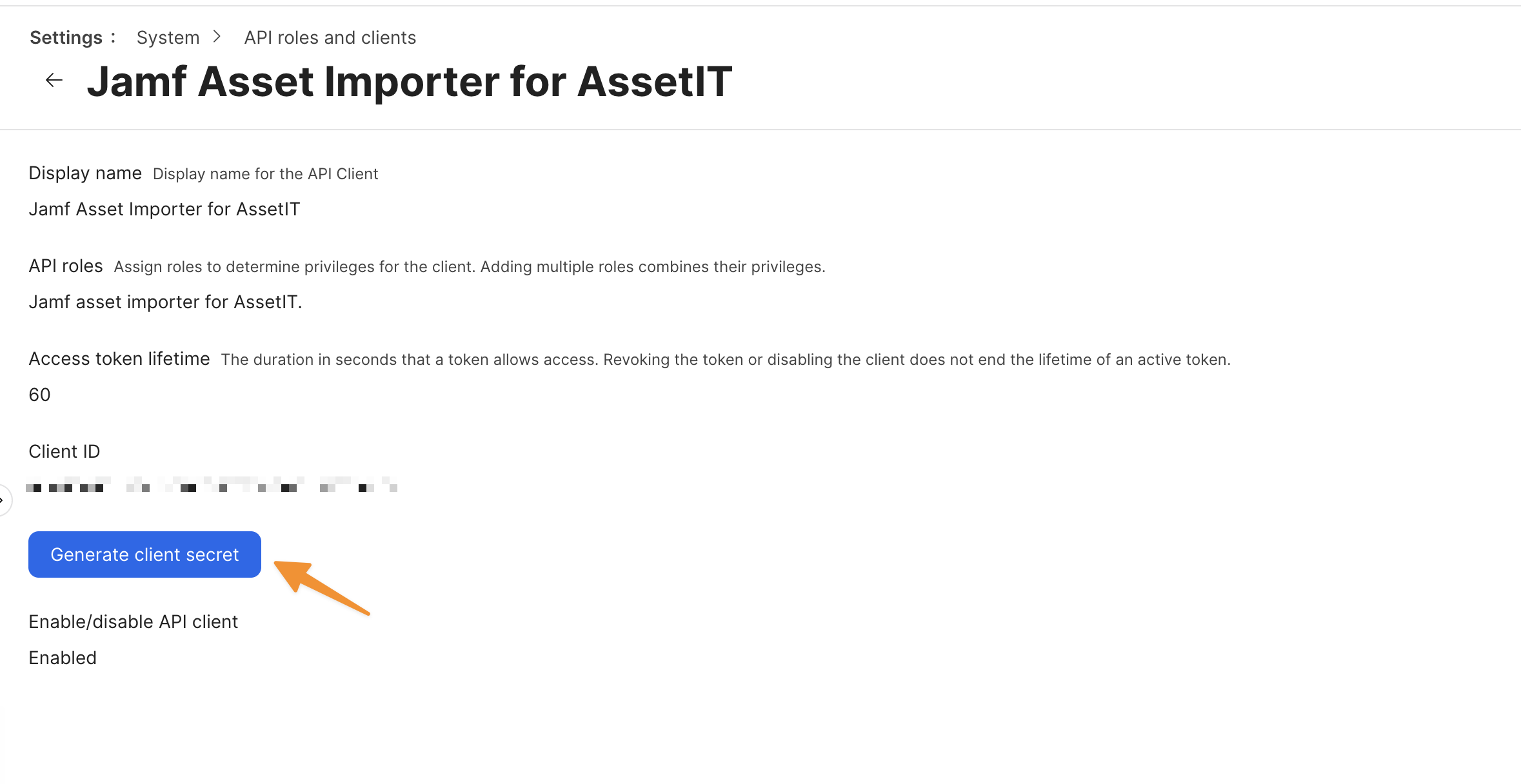
After creating the API client, generate the Client Secret.
-
On the API Clients screen, locate the client you just created.
-
Click Generate Client Secret to create the secret for this client.
-
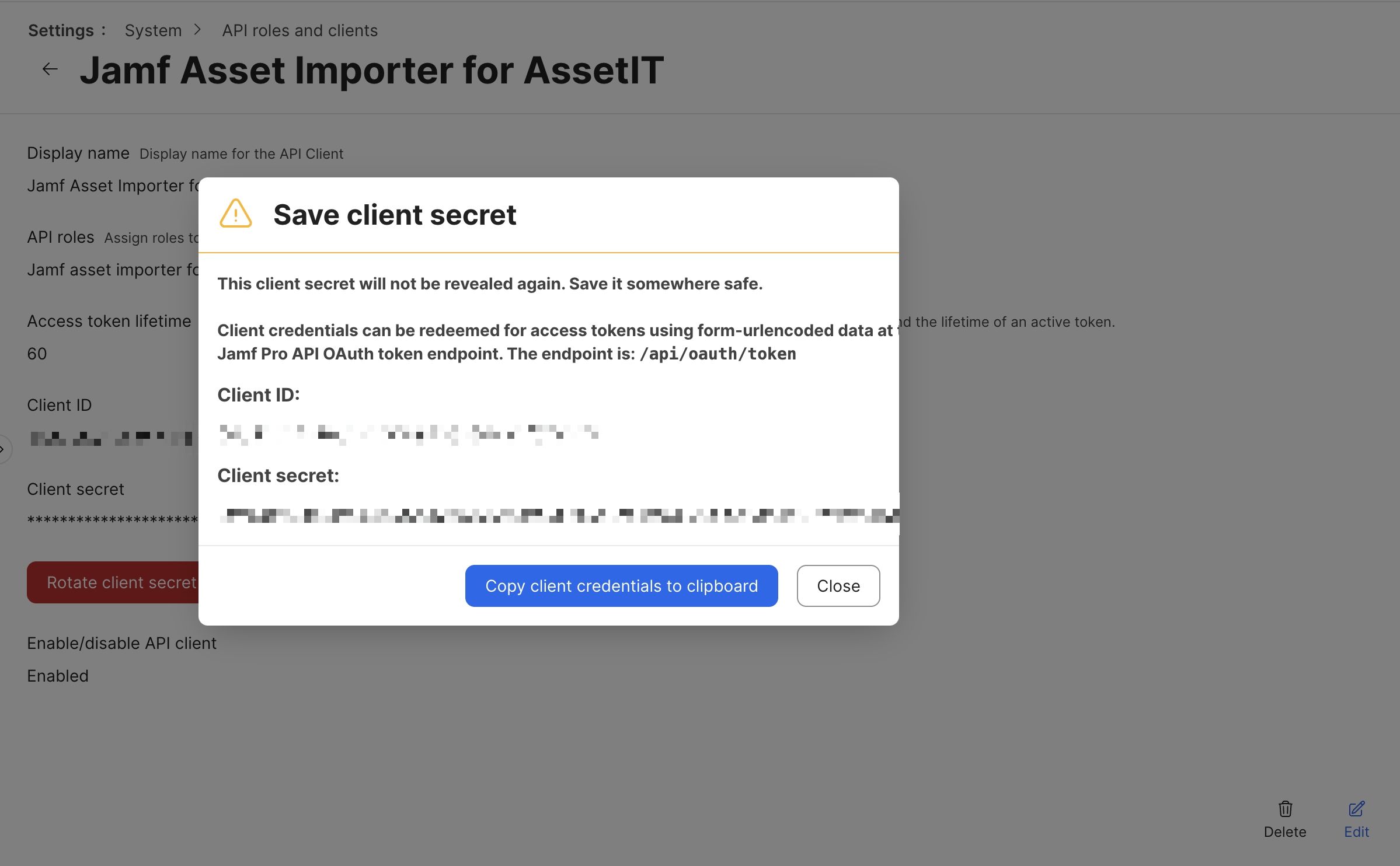
Copy the generated Client Secret and store it securely, as you will need it for the integration.
Connect Jamf Pro to AssetIT Asset Importer
Once you have the Client ID and Client Secret, proceed to the following steps:
-
Open AssetIT Asset Importer.
-
In the Source tab, select Jamf as the data source and enter the following connection details:
-
Your Jamf Pro URL (e.g.,
example.jamfcloud.com). -
Client ID (generated in Jamf).
-
Client Secret (generated in Jamf).
-
-
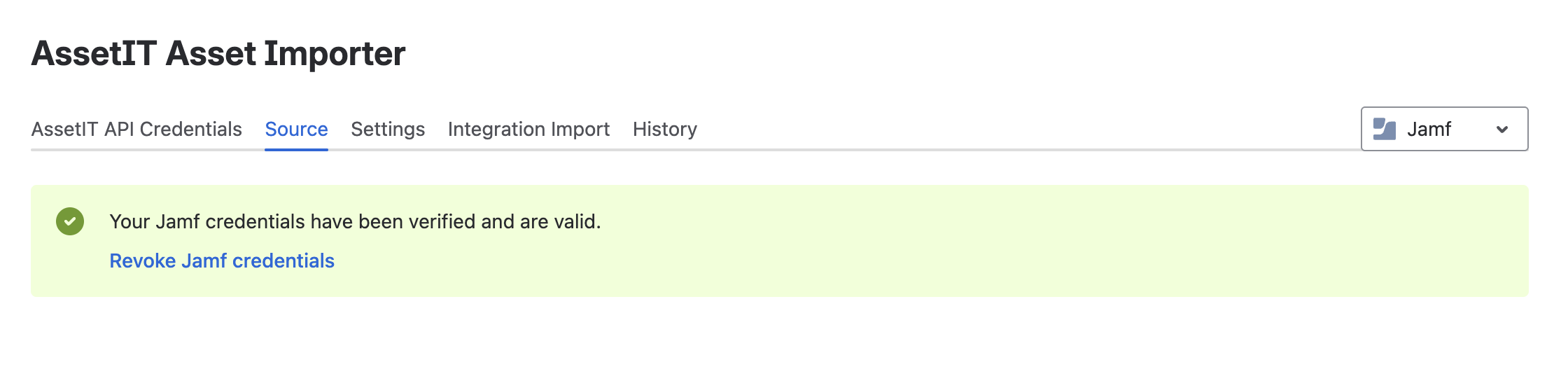
Click Save & Check Connection to verify the connection.
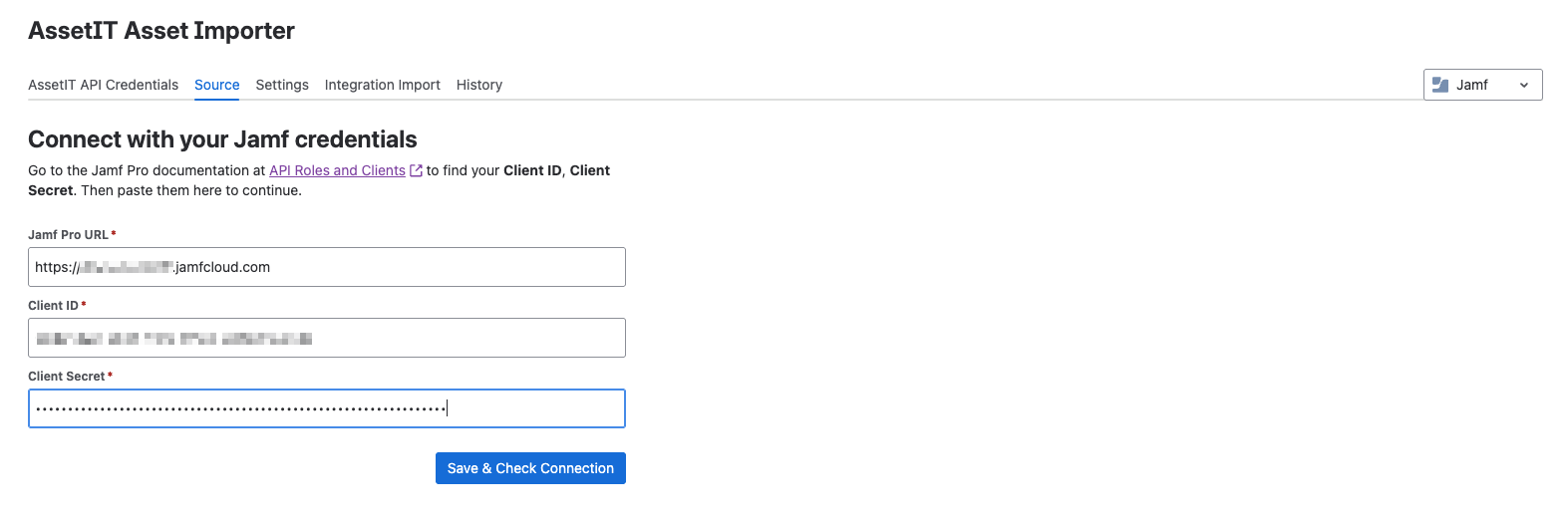
Once the connection is established, the status will update to Connected, confirming that AssetIT Asset Importer is successfully integrated with your Jamf Pro instance.
Next steps
After the connection is confirmed, configure the import settings and map Jamf fields to AssetIT fields before importing data.
-
Open the importer configuration and choose the Jamf data you want to import.
-
Review the field mapping and adjust it to match your AssetIT structure.
-
Run a test import and verify the imported records.
-
Start the full import when the results are correct.
Keep your credentials secure: Store the Client Secret securely and regenerate it in Jamf if it is exposed or no longer trusted.