.png)
Inventories in AssetIT allow organizations with multiple entities, such as different geographic locations or departments, to manage their IT assets separately but within the same application.
-
Creating an Inventory:
-
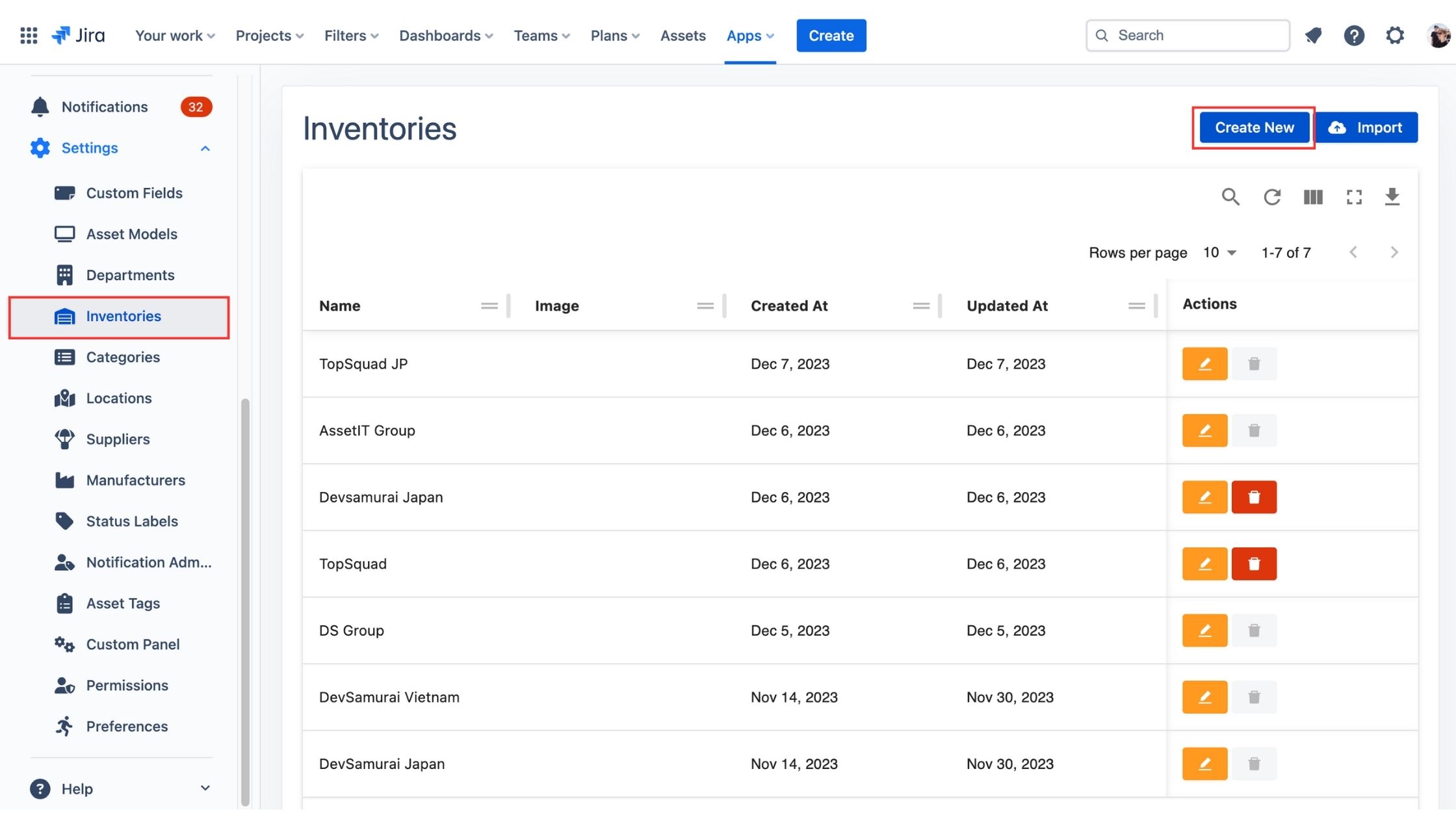
In the "Inventories" section, click on the “Create New” button.
-
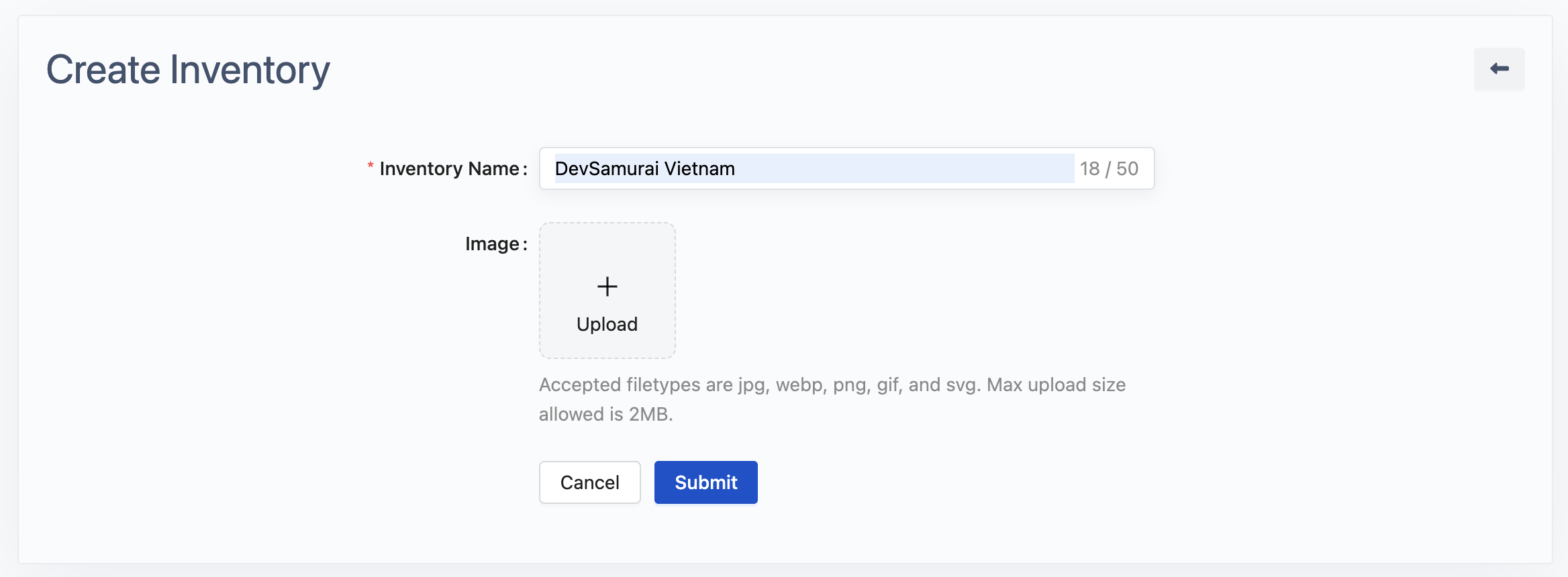
Enter the details of the new inventory (e.g., name: DevSamurai Vietnam).
-
Save the inventory to create a distinct profile.
-
Managing Entities:
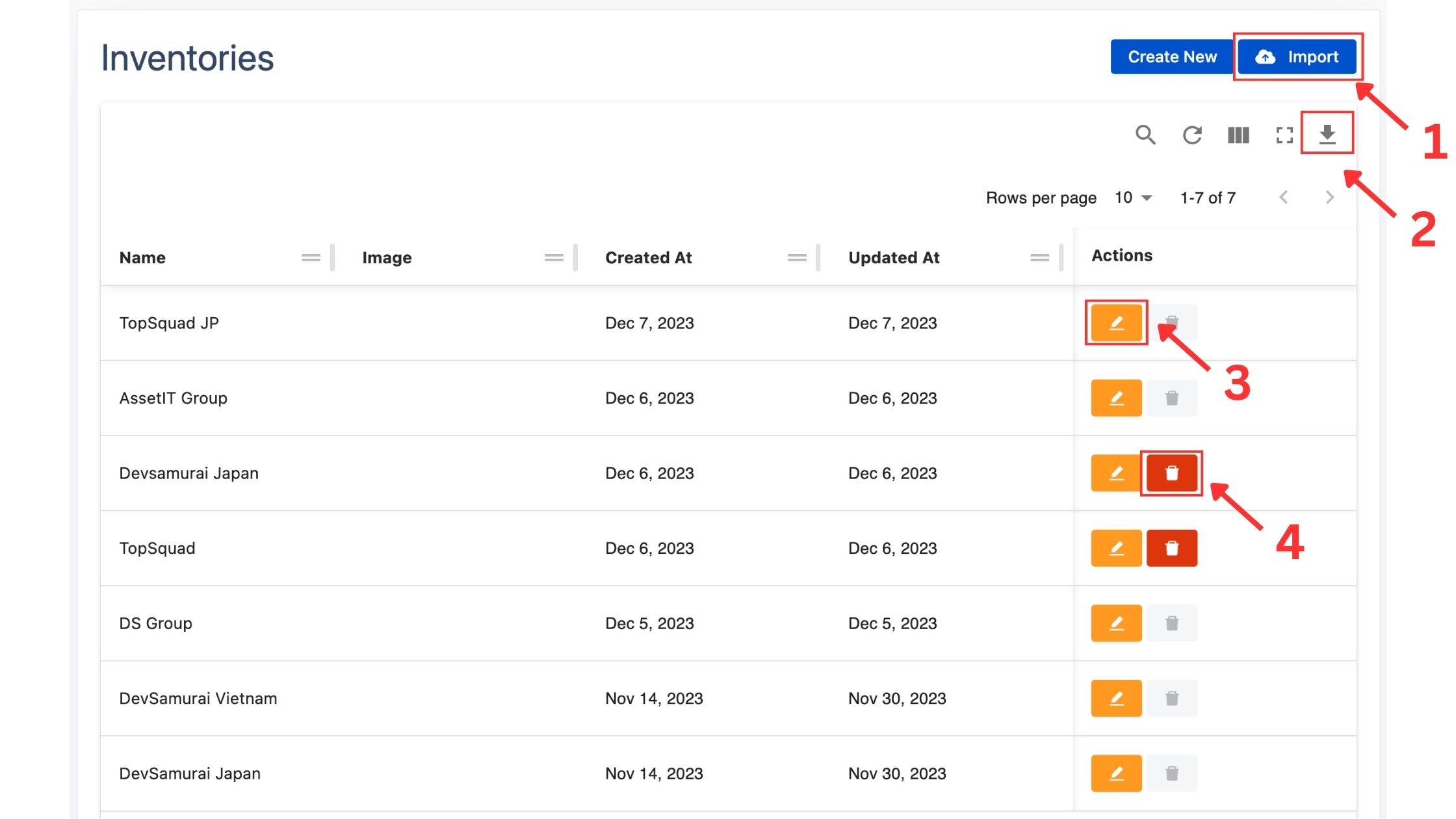
AssetIT provides flexible options for managing inventories, including importing (1), exporting (2), editing (3), and deleting (4) inventories. Before deleting an inventory, confirm that it does not contain any items.
Import Inventories:
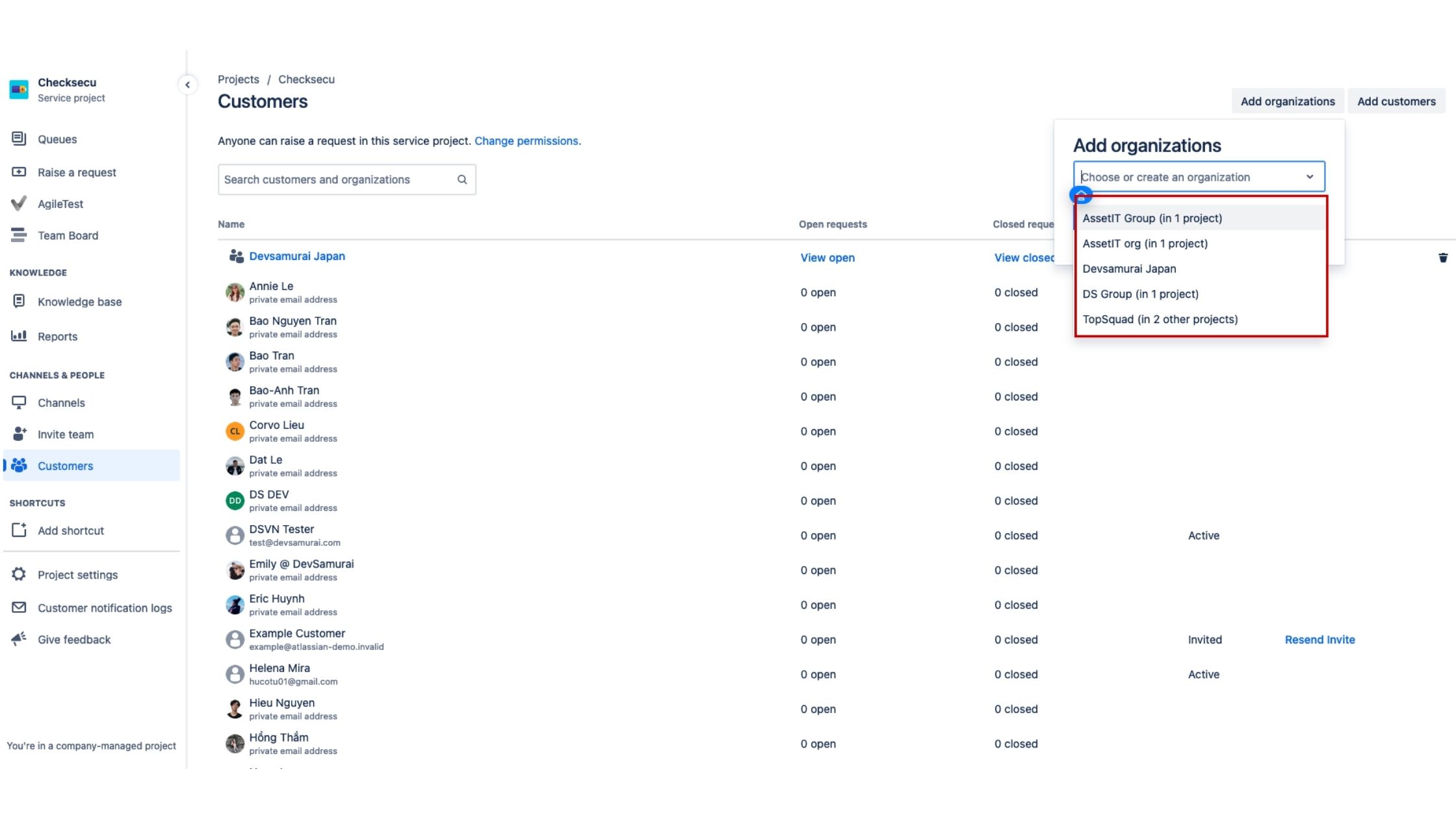
AssetIT enhances its integration capabilities by allowing you to import organizations directly from your Jira Service Management.
-
Navigate to “Import” Button
-
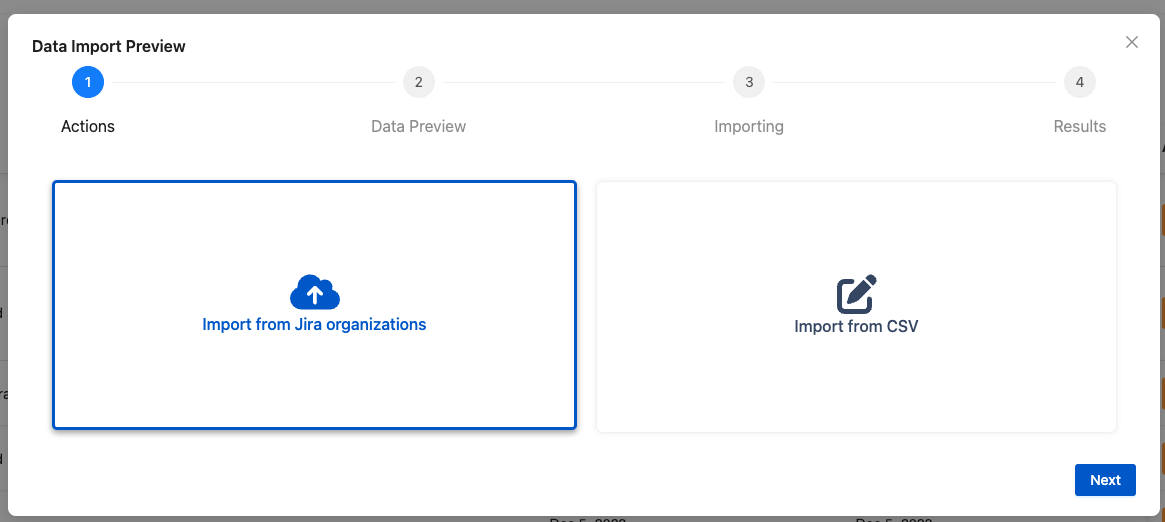
Choose “Import from Jira Organizations”, then click “Next”.
-
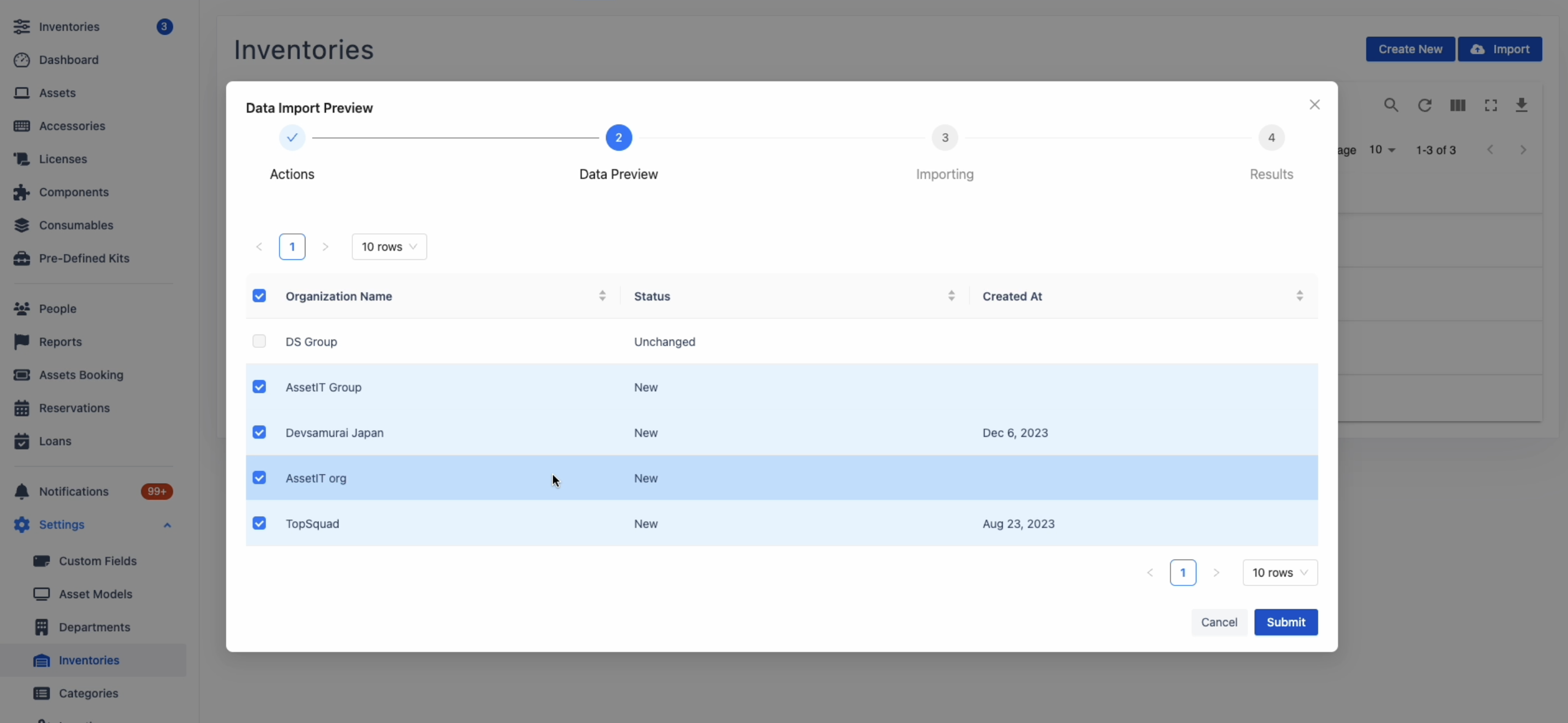
Choose organizations that you want to import to AssetIT as inventories. This selection enables AssetIT to pull data from your Jira Service Management account.
-
Click “Submit” to finish importing.