
Notes
-
Global resources can be reused across plans and work items in PlanCore.
-
Only users with the appropriate PlanCore administration permissions can configure or update global resources and their rates.
-
Use global resources when you need a shared resource profile and rate that can be applied consistently across multiple planning scenarios.
In PlanCore, a Global resource defines a reusable resource profile and its cost rate. Global resources help teams standardize planning costs and resource allocation across projects, plans, or scenarios.
Creating a Global resource
-
Navigate to Settings from the left sidebar.
-
Open the resource configuration area and select Global resource.
-
Click + Add rate in the upper-right corner.
-
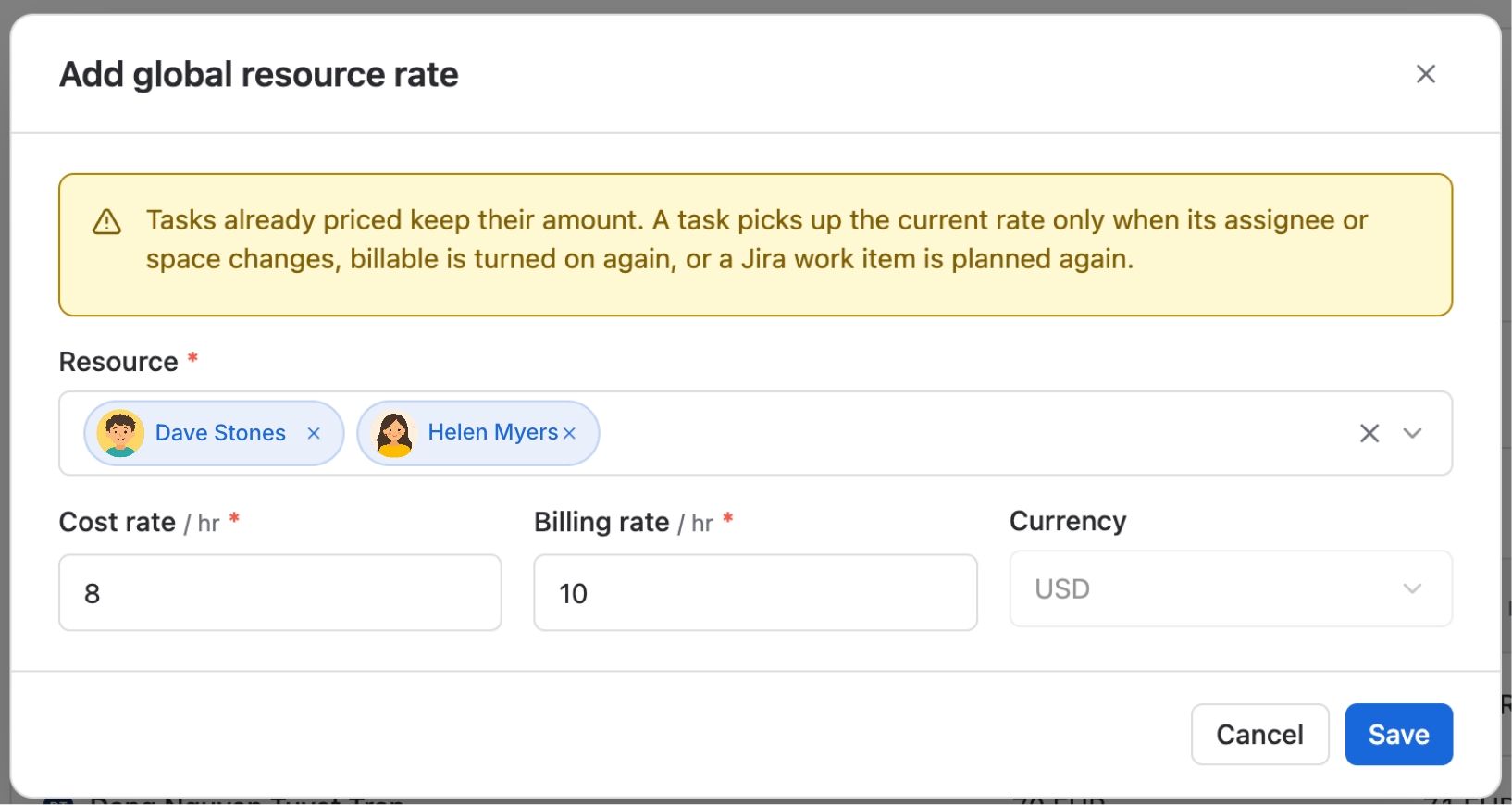
Fill in the fields in the pop-up or creation form:
-
-
Resource: Add members who are applicable for this global resource rate.
-
Cost rate: Enter the numerical cost value for the resource.
-
Billing rate: Enter the numerical value used for the global resource external rate charged to customers.
-
Currency: Select the currency used for the rate, such as USD, EUR, or SGD.
-
-
Click Save to create the new global resource.
Editing a Global resource
To edit an existing global resource, follow these steps:
-
From the Global resource page, locate the global resource you want to edit and click it.
-
In the pop-up window or edit screen, make the necessary changes to the fields:
-
Resource: Add or remove members from the global resource rate.
-
Cost rate: Adjust the rate if needed.
-
Billing rate: Adjust the rate if needed.
-
Currency: Choose a different currency if required.
-
-
Click Save or Apply to confirm your changes.
Deleting a Global resource
To delete a global resource, follow these steps:
-
From the Global resource page, find the global resource you want to delete.
-
Click the delete or more actions icon at the end of the row.
-
Confirm the deletion when prompted.
Note: Be cautious when deleting global resources. Deleting a global resource may remove it from associated plans, projects, or work items where it has been applied.