Set up a working capacity scheme in PlanCore
Working capacity schemes define the working hours available for resources on each day of the week. Use a custom scheme when a team member has a schedule that differs from the standard workweek, such as part-time hours or a different shift.
Before you start: Confirm the expected hours for each weekday and the resources who should follow the scheme. Resources without a custom assignment continue to use the default capacity scheme. The TimePlanner reference describes that default as 8 hours per day, Monday to Friday; verify the default shown in your PlanCore workspace before relying on it.
Open working capacity settings
-
Open PlanCore and go to Settings.
-
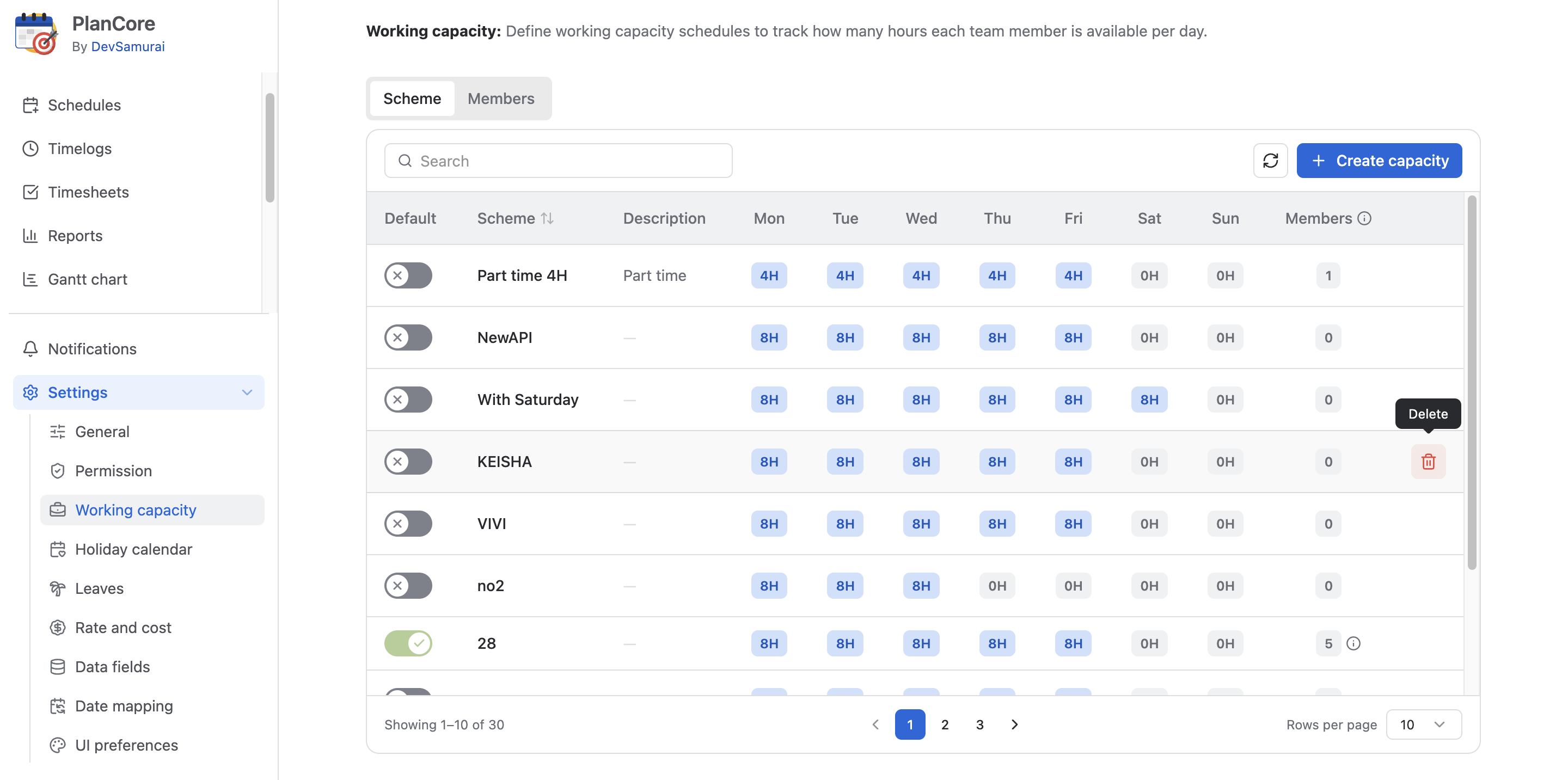
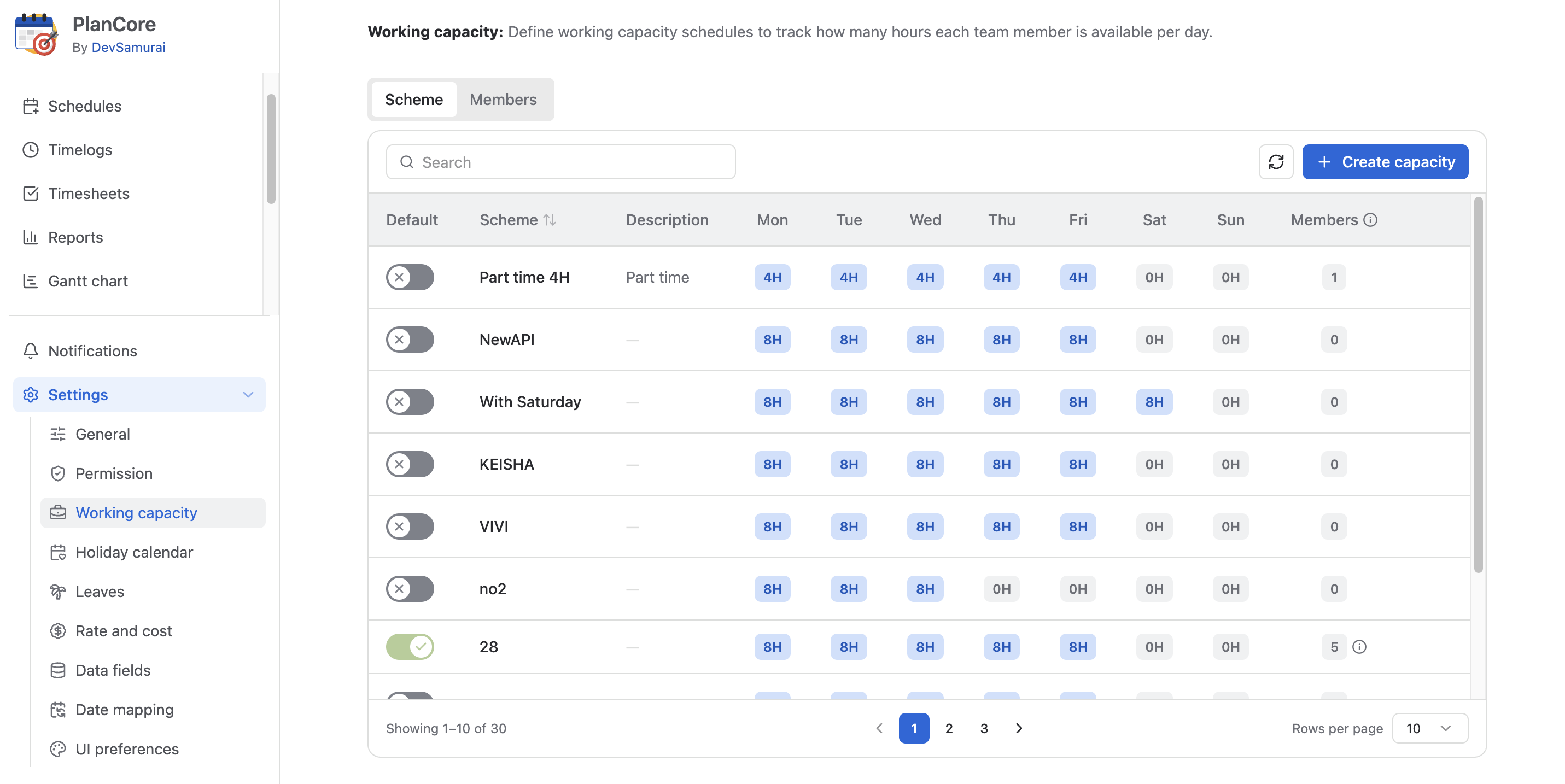
Open Working Capacity to view the available capacity schemes and the default schedule.
Create a custom scheme
-
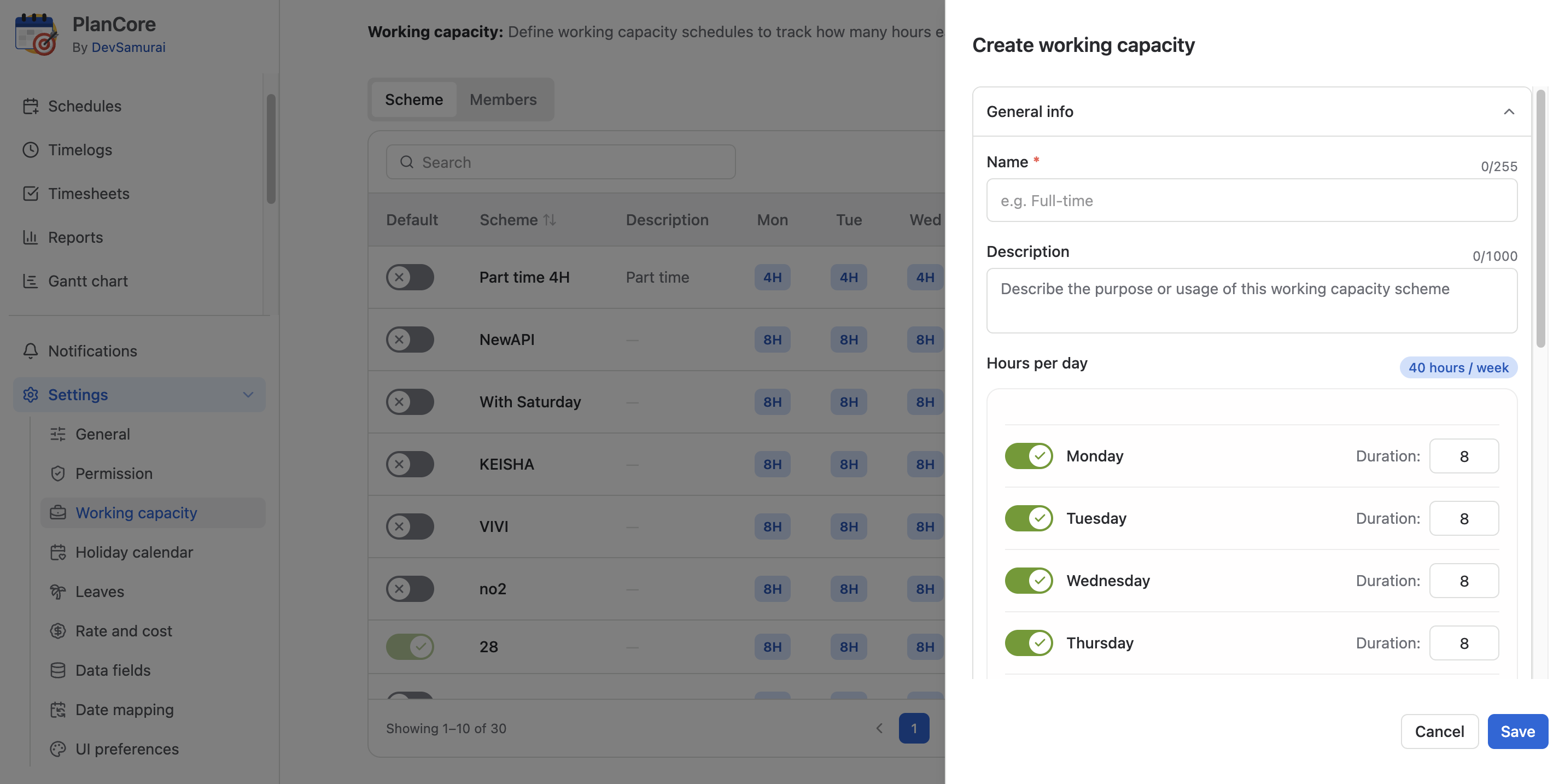
In Working Capacity, select the option to add a capacity scheme.
-
Enter a descriptive Name and Description so the schedule is easy to recognize.
-
Set the working hours for each day of the week. For a non-working day, toggle that day off to exclude it from the working capacity.
-
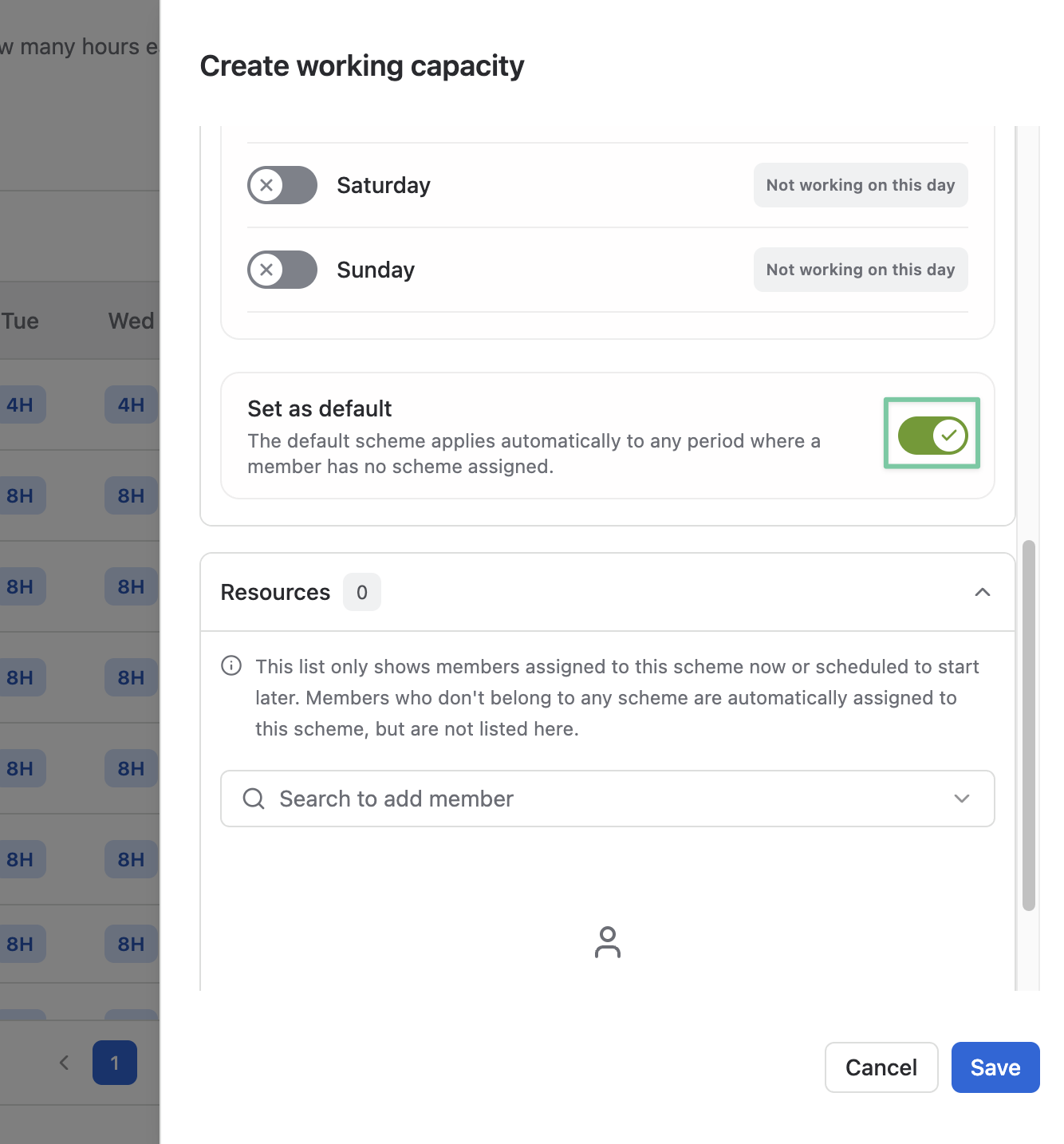
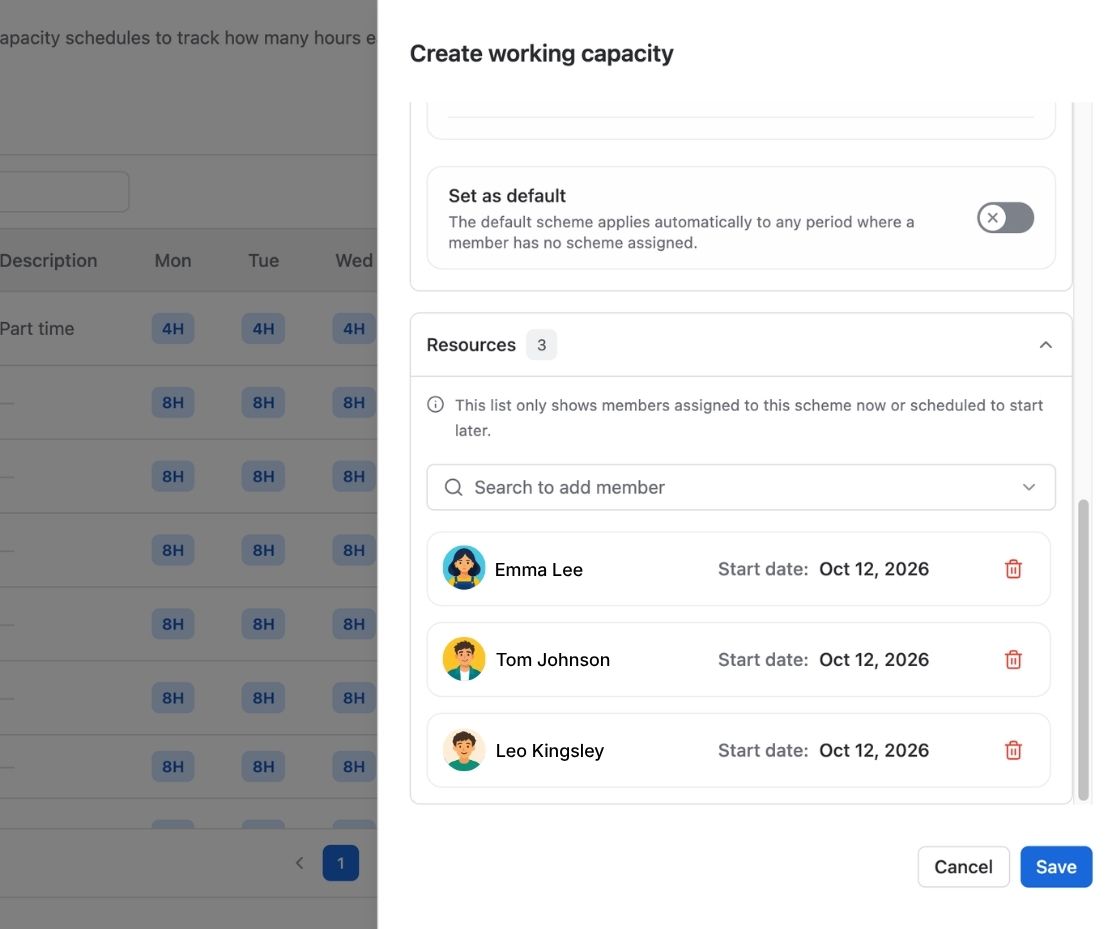
Set as default to automatically apply this new scheme to members with no scheme assigned.
-
Search for and add each resource who should follow this scheme.
-
Save the scheme and confirm it appears in the list.
For example, a part-time scheme might specify 4 hours from Monday to Friday and no hours on Saturday or Sunday. Enter the hours that reflect your team's actual schedule rather than assuming the example fits everyone.
Update or remove a scheme
Open an existing scheme from the list to revise its name, description, daily hours, or resource assignments.
If a scheme is no longer needed, use its delete action after checking which resources are assigned and what schedule they should use next.