.png)
There are four ways to edit a license in AssetIT. Choose the method that best suits your needs:
1. In-line Edit
-
At the License List view, double-click on the cell you wish to edit.
You can edit the following fields:
-
License Name
-
Total License Seat
-
Expiration Date
-
Termination Date
-
Reassignable
-
Serial Number
-
Licensed To Email
-
Licensed To Name
-
Depreciation
-
Manufacturer
-
Purchase Date
-
Purchase Cost
-
Purchase Order Number
-
Order Number
-
Department
-
Category
-
Supplier
-
Location
-
Inventory
-
Notes
Note: Custom fields cannot be edited using this method.
-
After making your changes, simply click outside the cell to save the updates automatically.
2. Edit via the 'More' Button
-
At the License List view, click the More button (

-
Select Edit from the options.
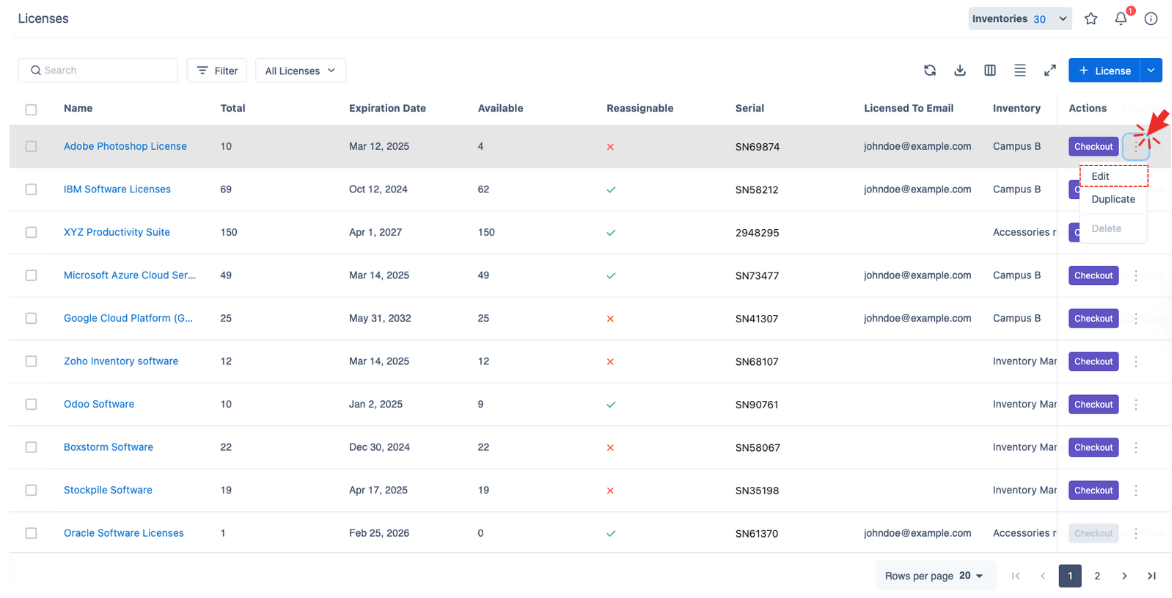
-
In the License Edit Page, you can update all fields, including custom fields.
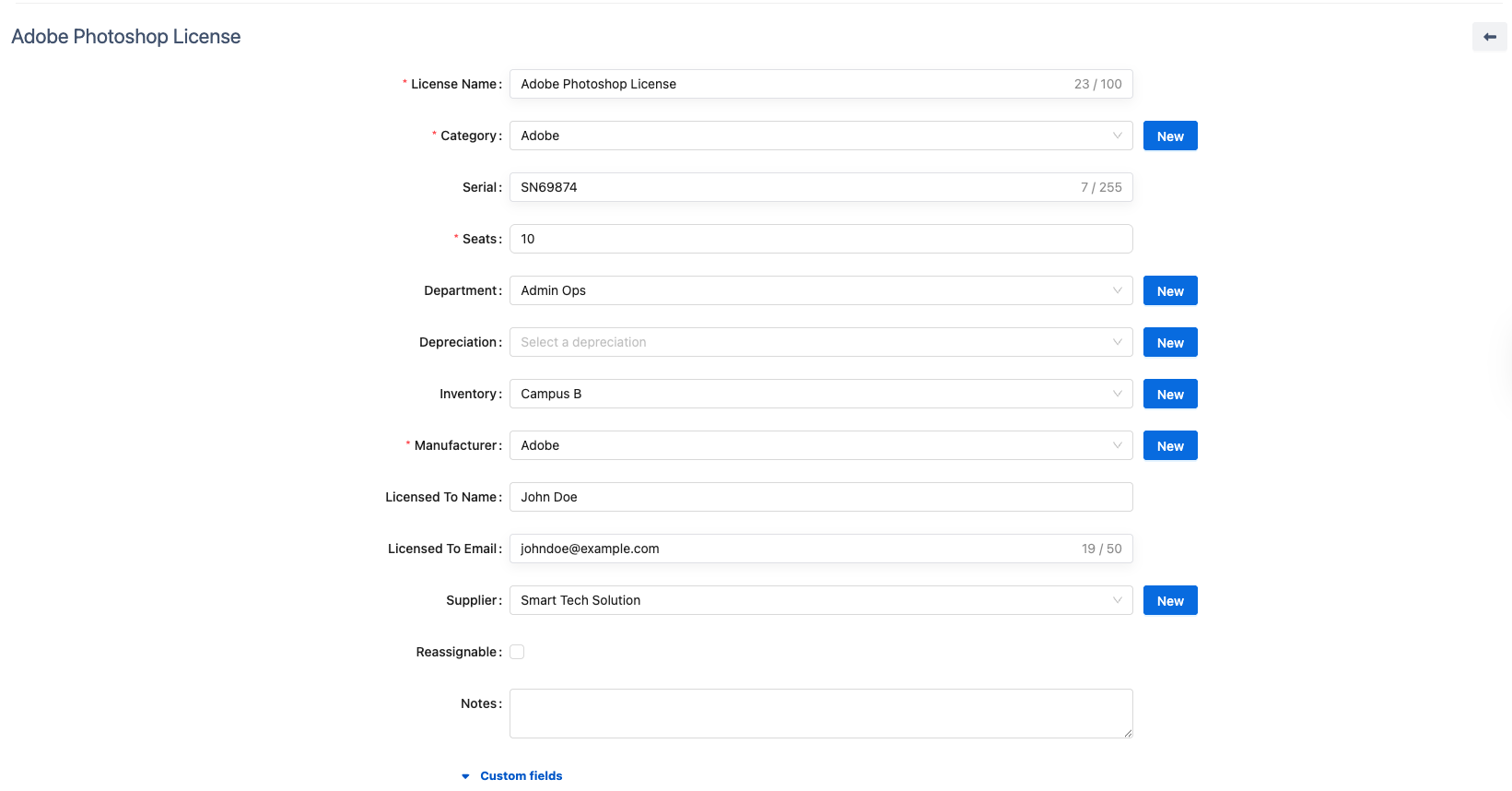
-
Once you have made the desired changes, click

3. Edit in License Detail Screen
-
In the License List, click the License Name to navigate to its detailed page.
-
On the License Detail page, click the

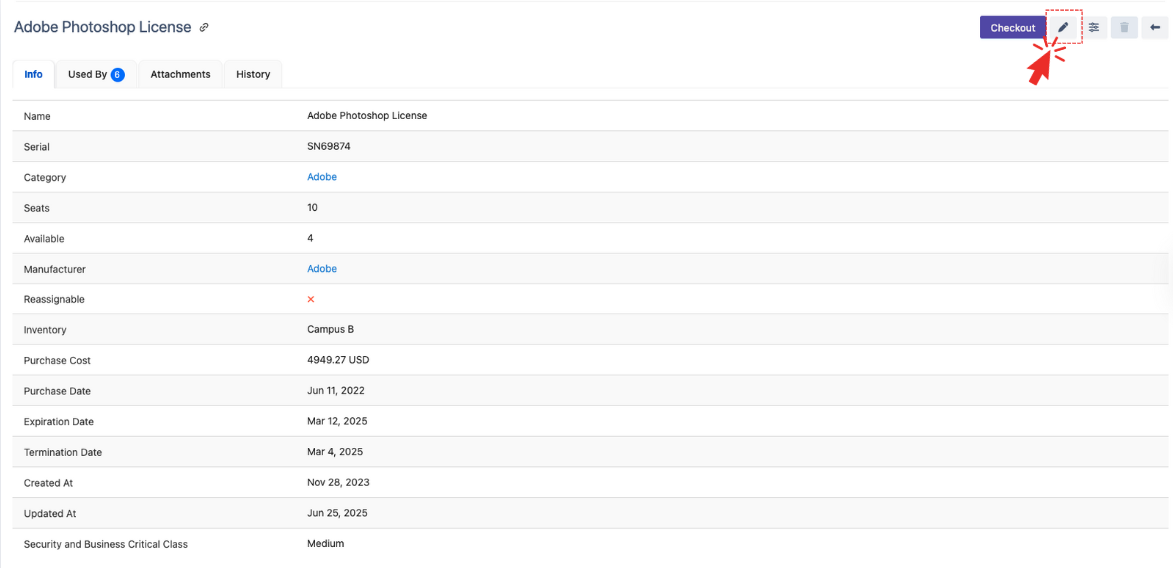
-
In the License Edit Page, you can update all fields, including custom fields.
-
After editing, click
4. Bulk Edit
-
Select multiple licenses from the license list that you want to edit.
-
Use the Bulk Edit function to apply changes across all selected licenses at once. → How to Bulk Edit Selected Licenses.