.png)
This guide applies to users verifying their own custody assignments.
Accessing the custody verification screen
For admins:
-
In the AssetIT sidebar, navigate to Custody Verification.
-
Select the My Verification tab.
For users:
-
In the AssetIT sidebar, navigate to Custody Verification.
-
Your pending custody verifications are displayed automatically.
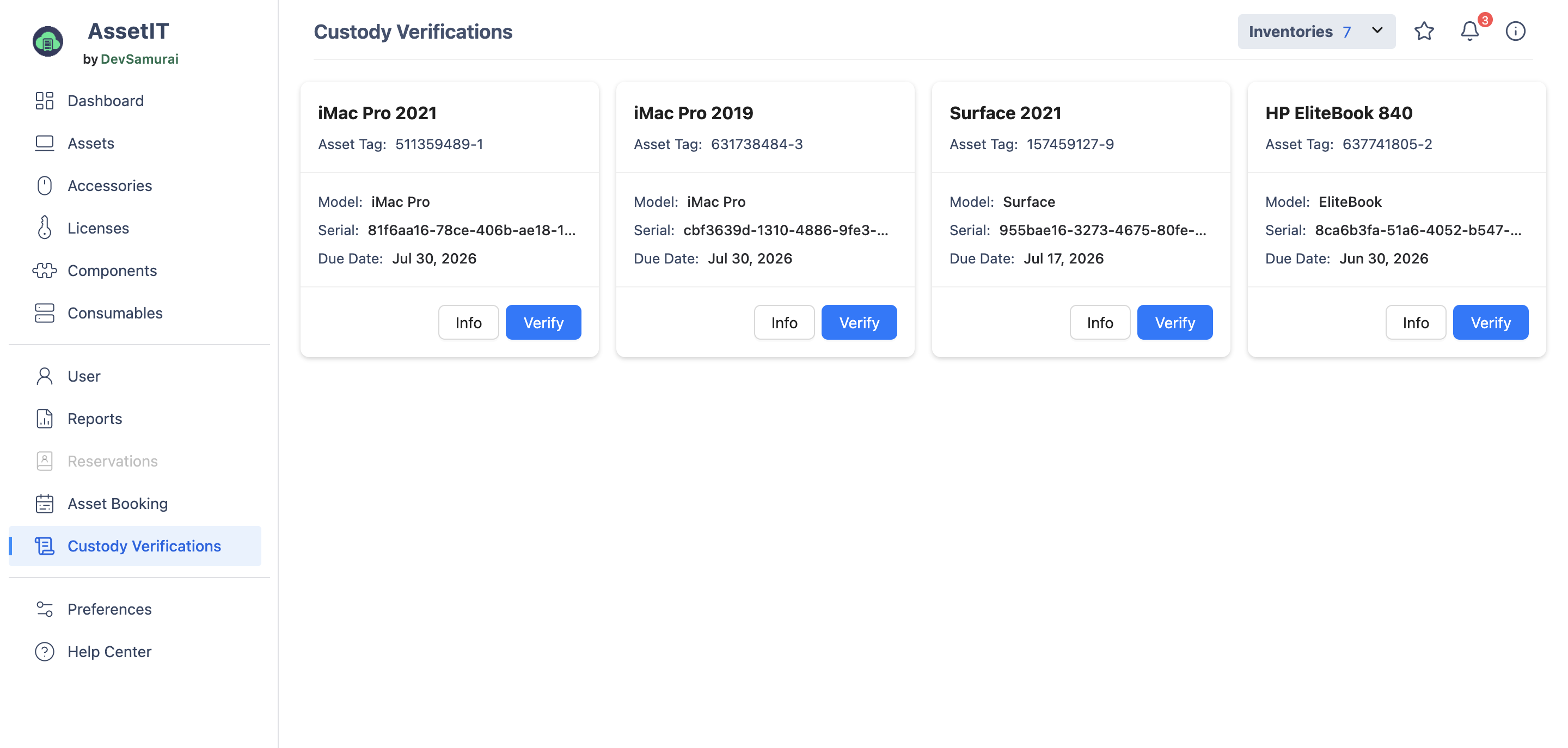
Custody verification email notification
If you have assets assigned to you, you may receive an email with a custody verification request like the one shown below:
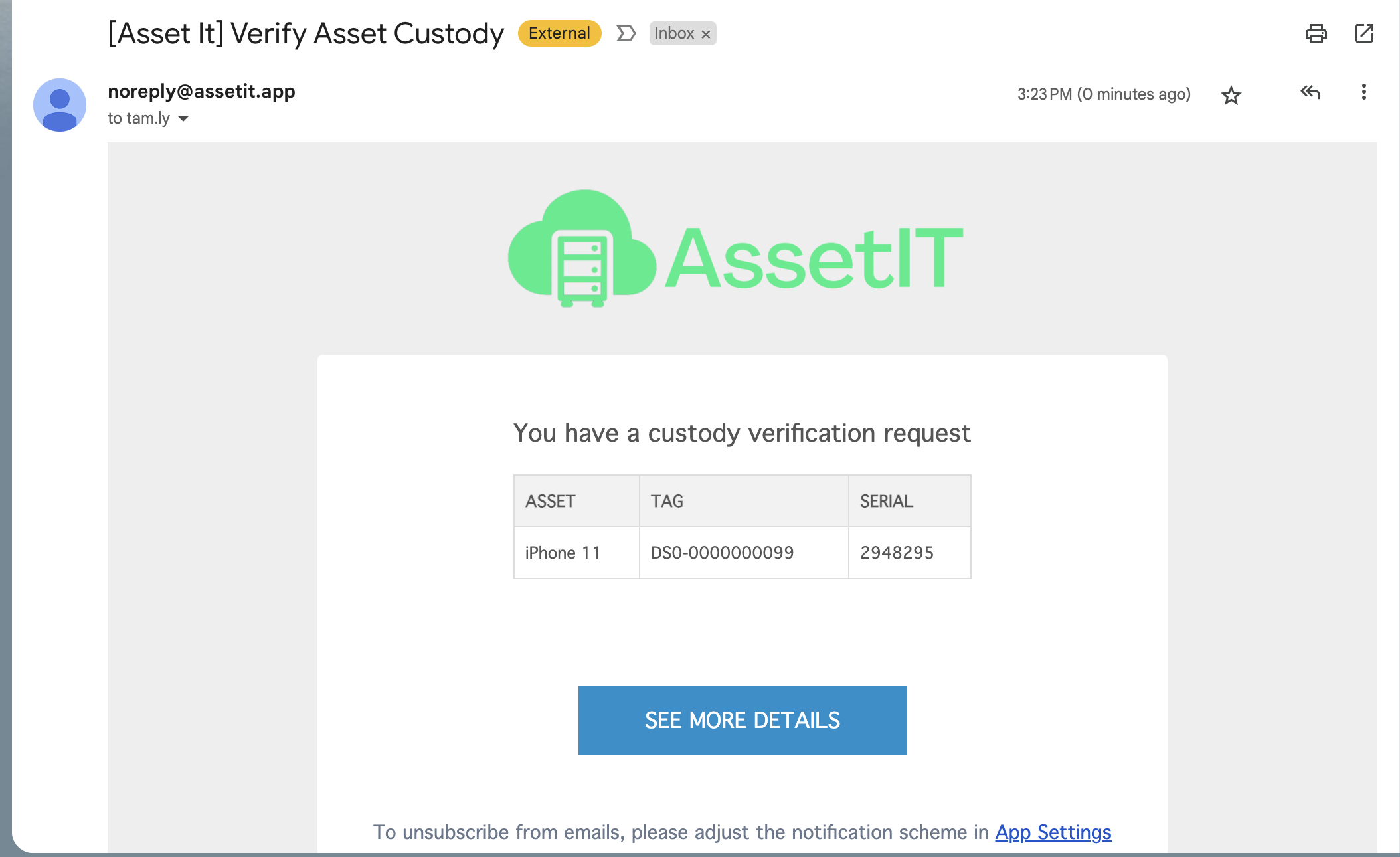
To learn more about the asset, select the Info button. Click Verify to open the Verify custody confirmation.
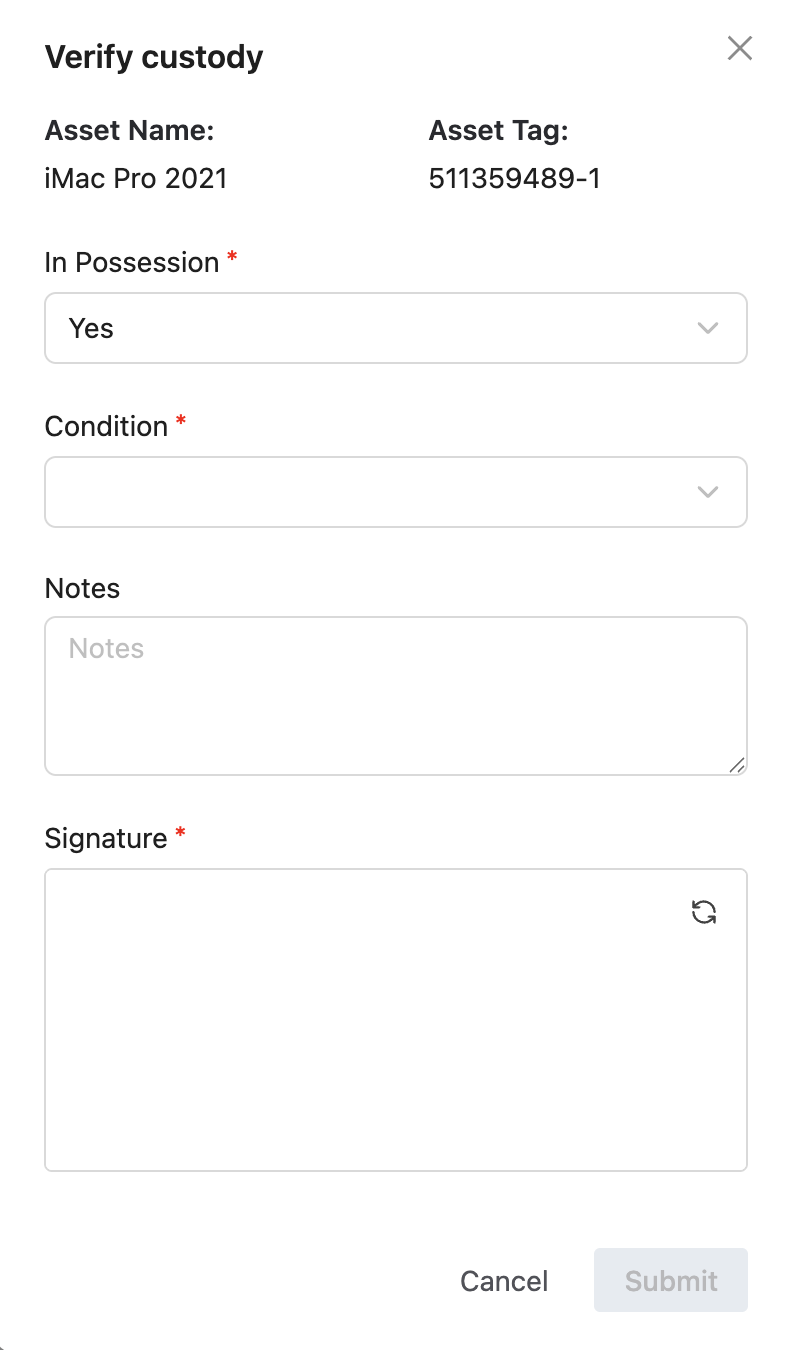
Possession confirmation
When verifying custody in AssetIT, the process depends on whether the asset is currently in your possession.
Yes — asset is in possession
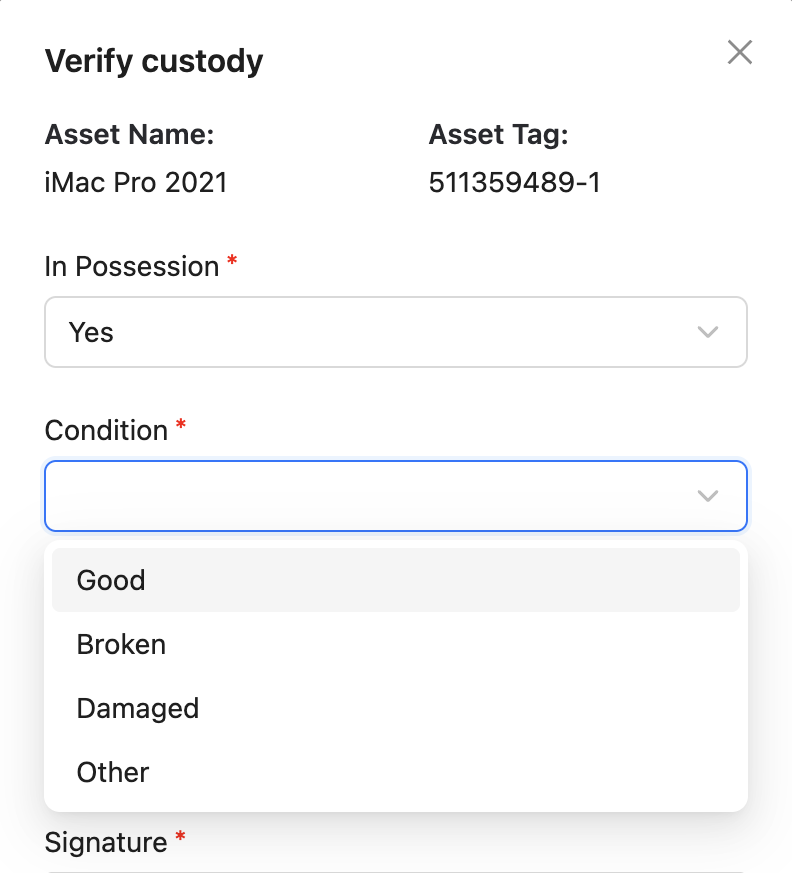
If you confirm the asset is in your possession, you are prompted to describe its condition:
|
Condition |
Description |
|---|---|
|
Good |
The asset is functioning as expected without any issues. |
|
Broken |
The asset is not functioning correctly due to operational or mechanical failure. |
|
Damaged |
The asset has sustained physical damage but may still be operational. |
|
Other |
Any condition not covered above. You may need to provide additional notes. |
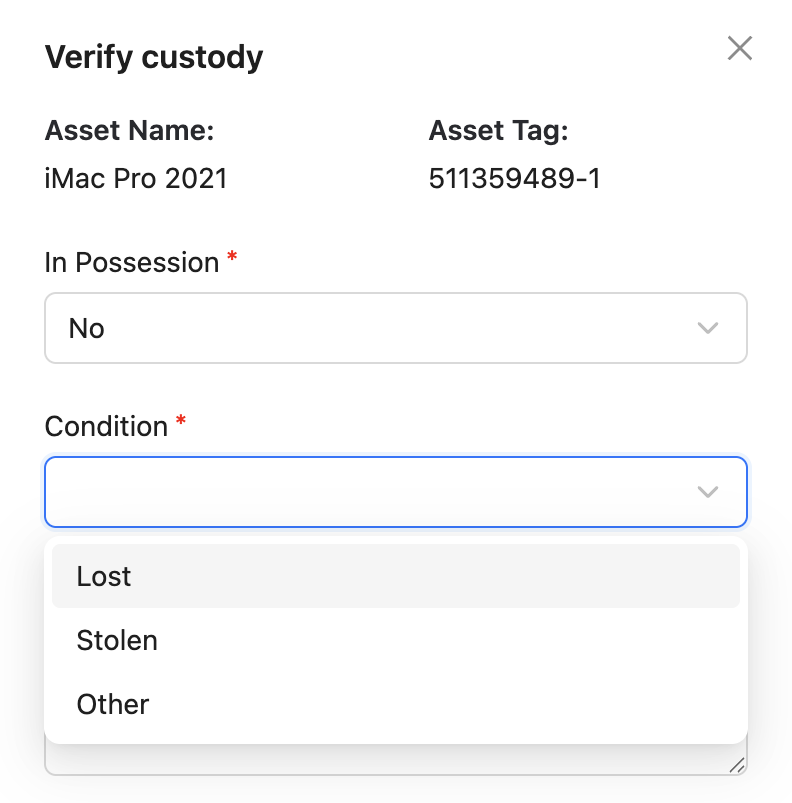
No — asset is not in possession
If the asset is not in your possession, you are prompted to specify the reason:
|
Condition |
Description |
|---|---|
|
Lost |
The asset has been misplaced or is missing. |
|
Stolen |
The asset has been taken without permission. |
|
Other |
Any condition not covered above. You may need to provide additional notes. |
Signature and Submission
-
Sign — After selecting the condition, sign in the designated Signature section to confirm that the information you provided is accurate.
-
Submit — Click Submit to complete the verification. This updates the asset's record in the database, ensuring all details are current and traceable.
Why detailed condition options matter
-
Clarity and precision — Enables precise tracking of asset status and facilitates appropriate follow-up actions.
-
Efficient asset management — Clear condition distinctions streamline processes from maintenance scheduling to loss prevention.
-
Enhanced accountability — Holds users accountable for assigned assets, ensuring responsible usage and reporting.