.png)
All users can manage Milestone, but only the Project and the Jira admins can delete it.
Completed milestones in AgileTest are milestones that have been finished or closed. They provide testing results as historical data for reference, reporting, and review purposes.
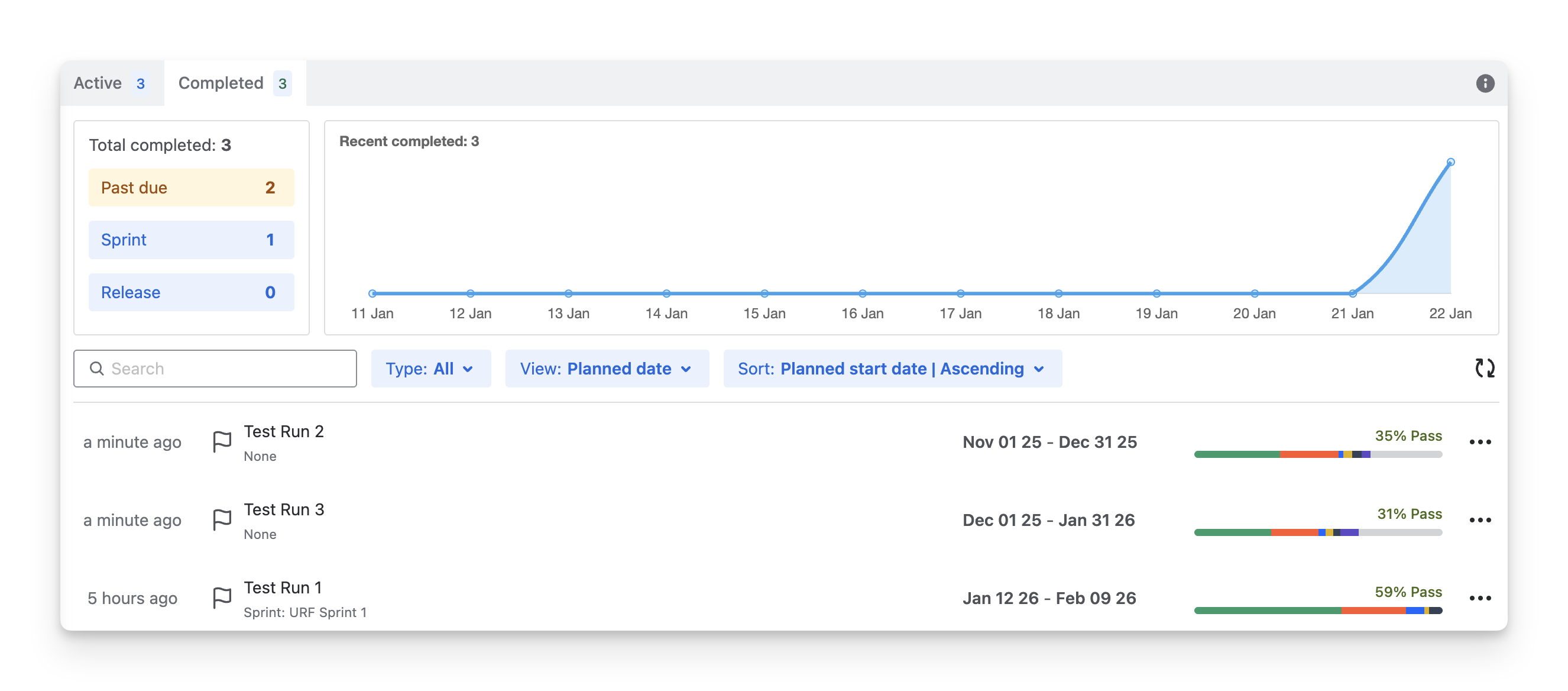
In the Completed Milestone Screen, you can view the overall information of the finished milestones.
-
Completion summary: Display the total number of completed milestones, whether on time or overdue, linked to Jira sprints or releases.
-
Completion trend chart: Visualize when milestones were completed over time, helping QA teams review progress patterns.
-
Milestone list: Show each completed milestone with its name, linked sprint or release (if any), planned date range, and overall execution status.
-
Completion time: Indicate when each milestone was completed, helping teams understand how recently milestones were finished
-
Execution status: Summarize results from all related test cases, test executions, and test sessions in each milestone.
In this tab, you can perform the following actions:
1. Filter Milestones
AgileTest supports you in filtering milestones by:
-
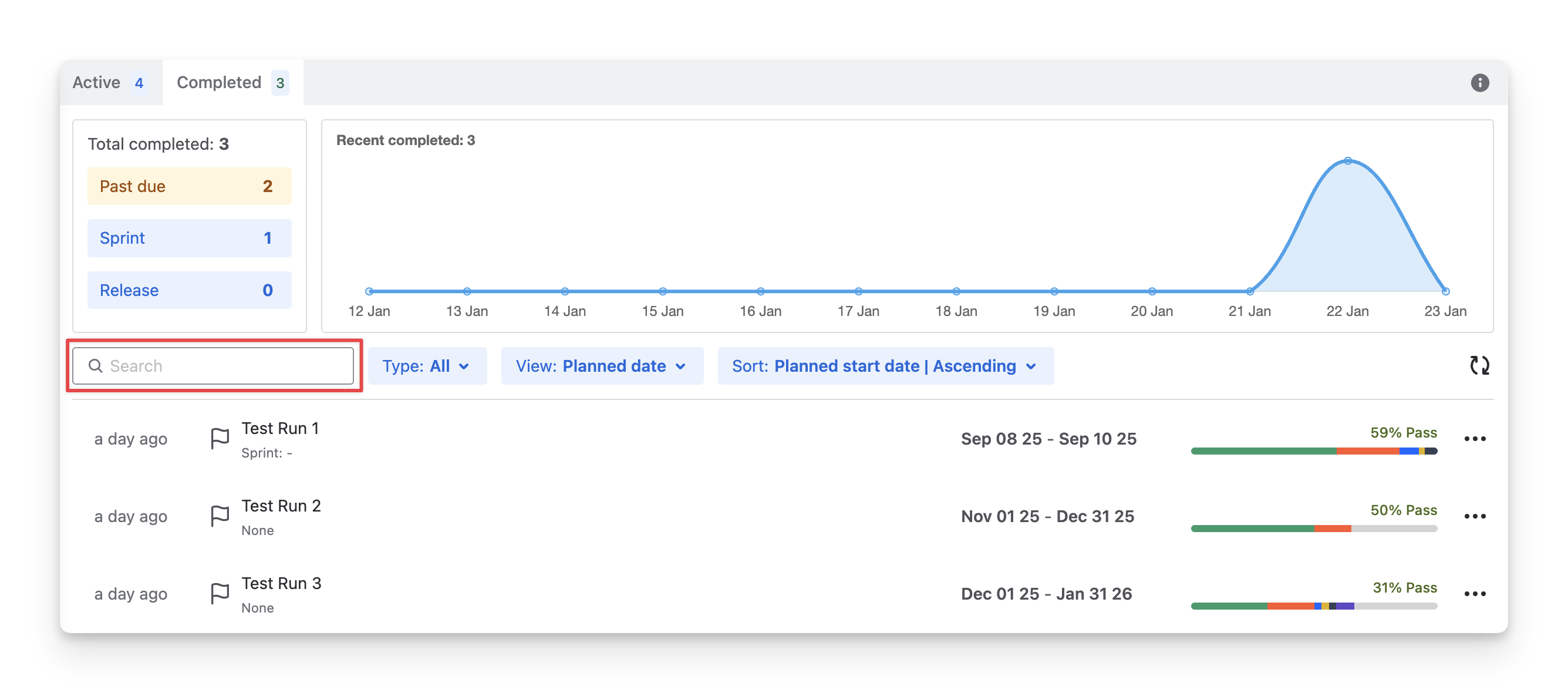
Name: Provide the Milestone Name to find the exact milestone.
-
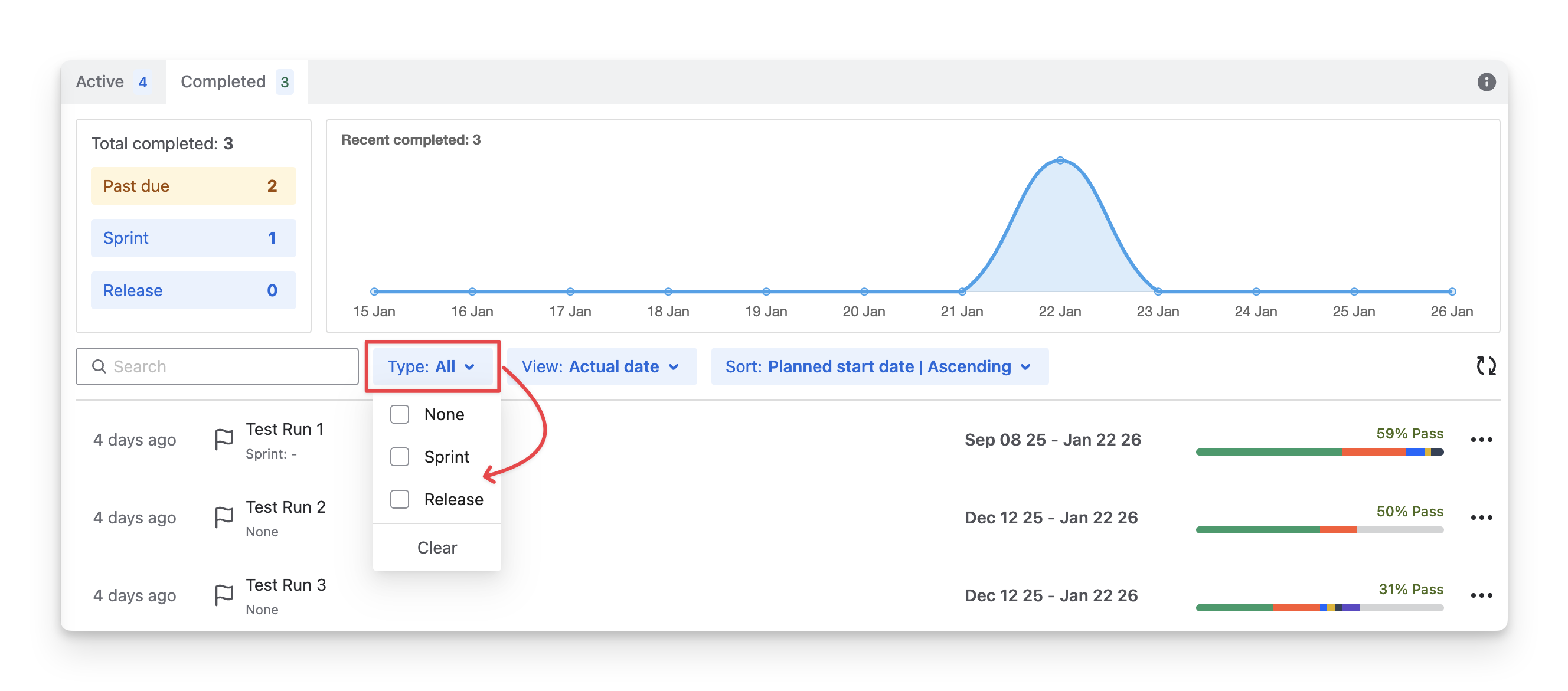
Type: Tick the check box to filter milestones by how they are linked
-
None: Standalone milestones not linked to a sprint or release
-
Sprint: Milestones linked to Jira sprints
-
Release: Milestones linked to Jira releases
-
2. Switch Date View
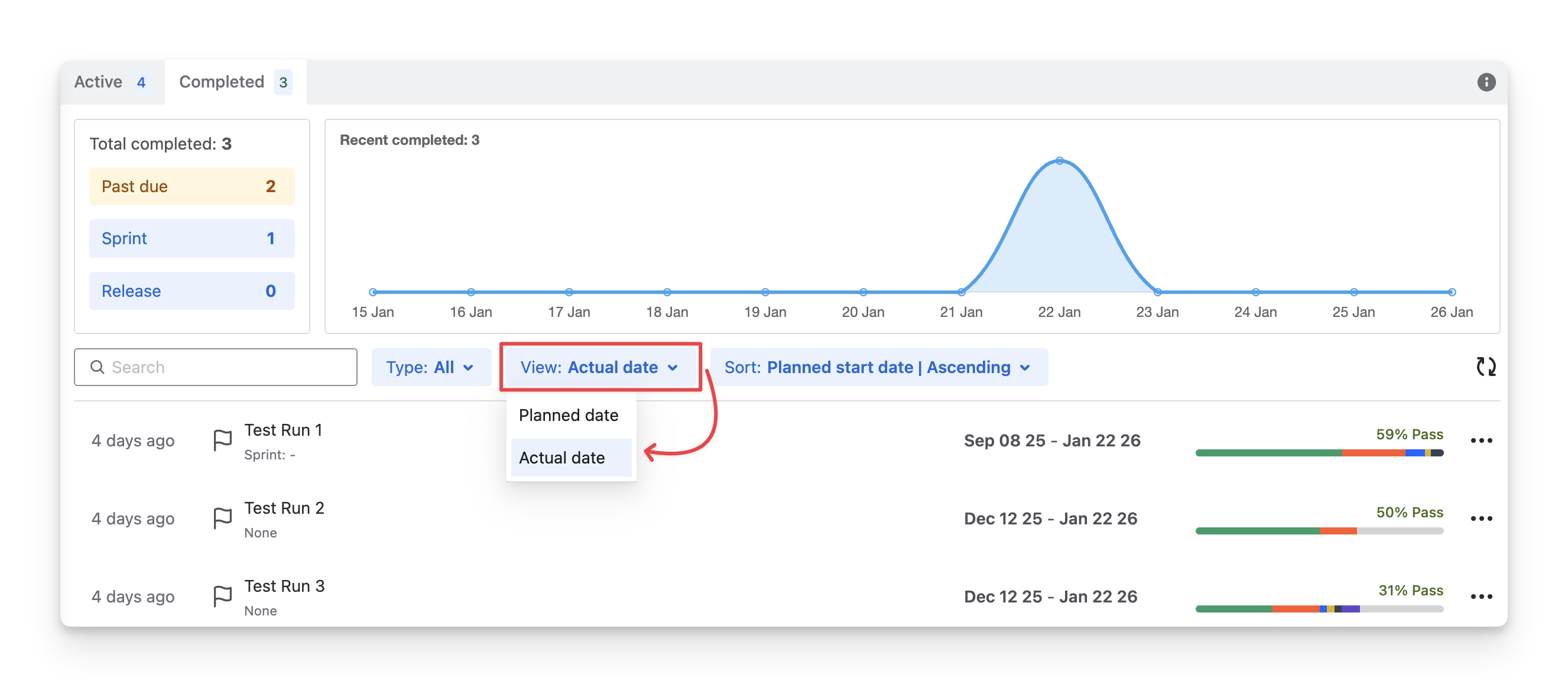
There are 2 timeline view modes for milestones:
-
Planned Dates: the start and end dates you set when planning a milestone. These dates represent when testing is expected to begin and finish.
-
Actual Dates: the start and end dates recorded by the system when you click Start and Complete on a milestone. These dates reflect when testing actually began and ended.
To switch views between these timelines, use the View dropdown option:
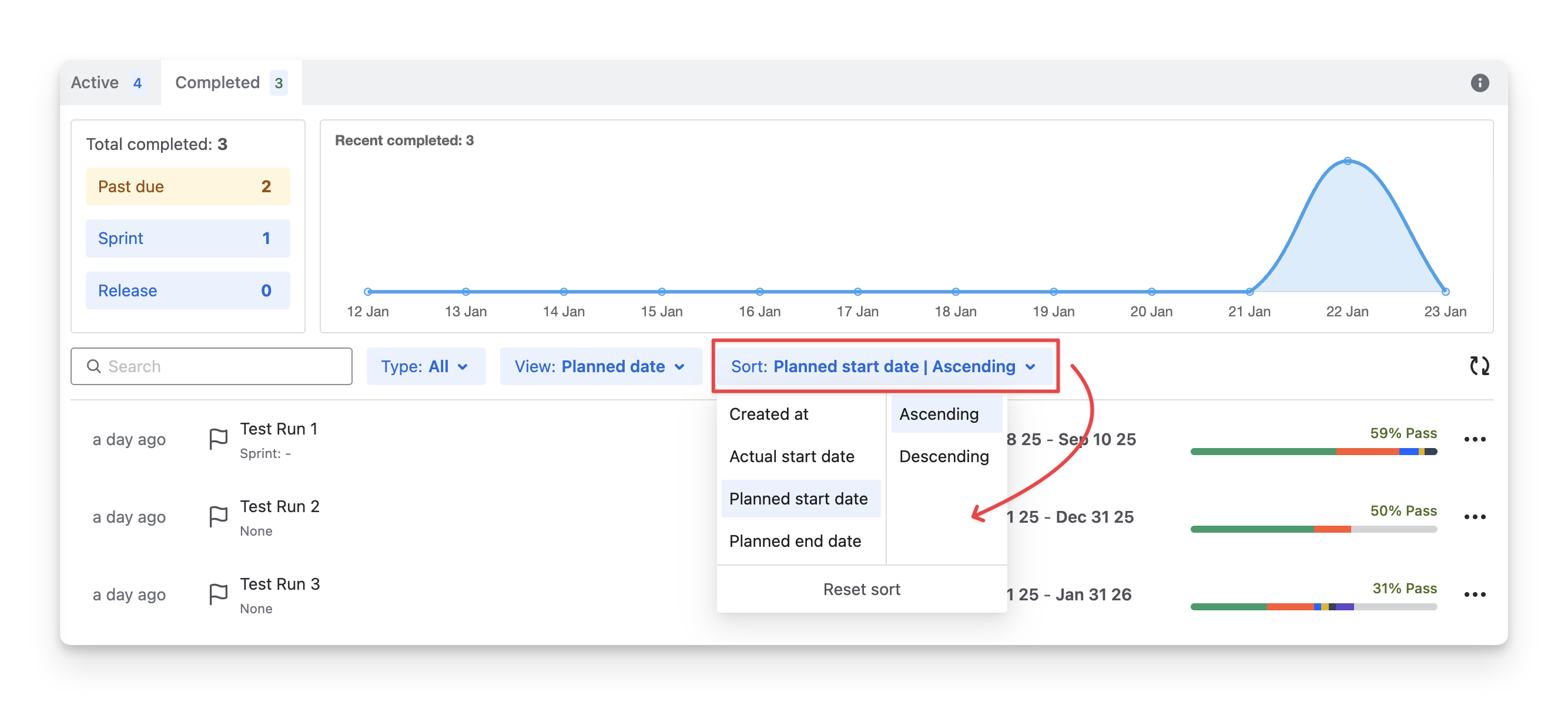
3. Sort Milestones
You can sort milestones by the following fields:
-
Created at: Sort milestones based on when they were created.
-
Actual start date: Sort by the date when the milestone actually started.
-
Planned start date: Sort by the planned start date of the milestone.
-
Planned end date: Sort by the planned completion date.
For each sorting option, you can choose:
-
Ascending: Oldest or earliest dates first.
-
Descending: Newest or latest dates first.
4. Copy Milestone IDs
You can copy the Milestone ID and use it in our API documentation to integrate with your internal systems. This allows you to perform supported actions programmatically, such as retrieving milestone data from AgileTest. To do this, follow these steps:
-
Navigate to the milestone you want to get the ID for. Click on the “
-
Select the “Copy ID” option.
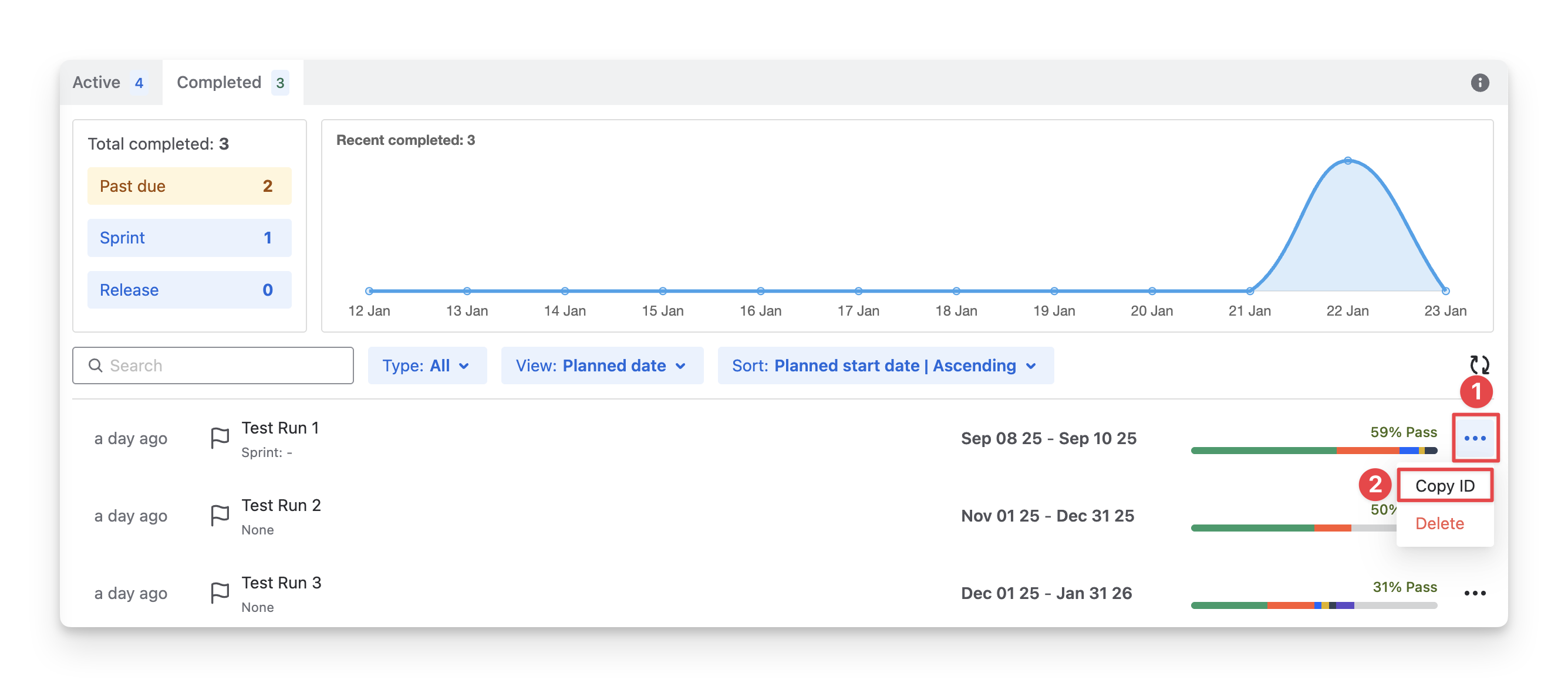
The milestone ID has been copied to your clipboard.
5. Delete Milestones
To delete milestones, follow these steps:
-
Navigate to the milestone you want to delete. Click on the “
-
Select the “Delete” option.
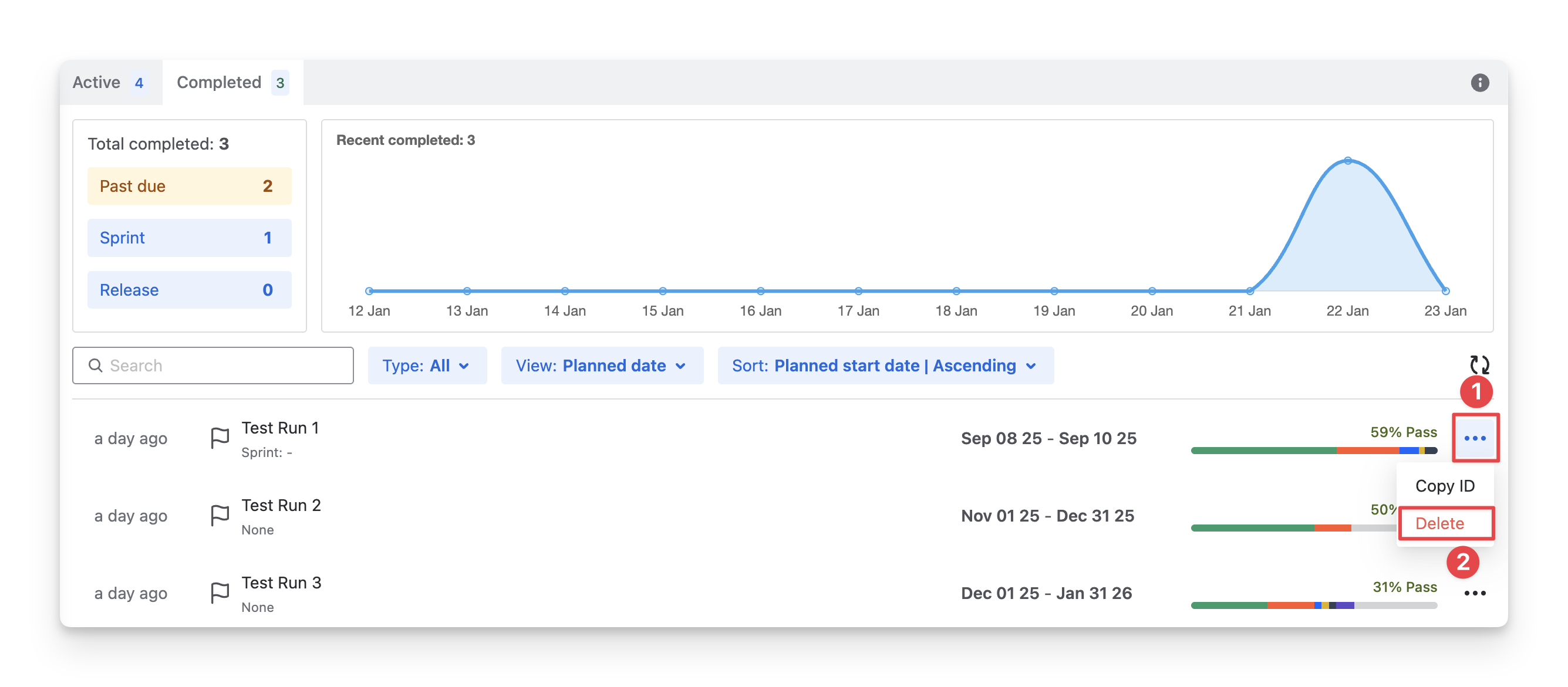
This deletion will clear all milestone data and cannot be undone.
Should you need any assistance or further AgileTest inquiries, contact our 24/7 Support Desk!