.png)
Only Jira Admins and App Admins can access and track the Audit Log.
The Audit Log in ProScheduler records configuration changes and data updates across the app. It captures who made a change, what was changed, and when it occurred. This detailed history helps administrators and project managers maintain transparency, troubleshoot issues, and support compliance requirements.
Accessing the Audit Log
To view the Audit Log:
-
Click on ⚙️ Settings from the sidebar.
-
Select

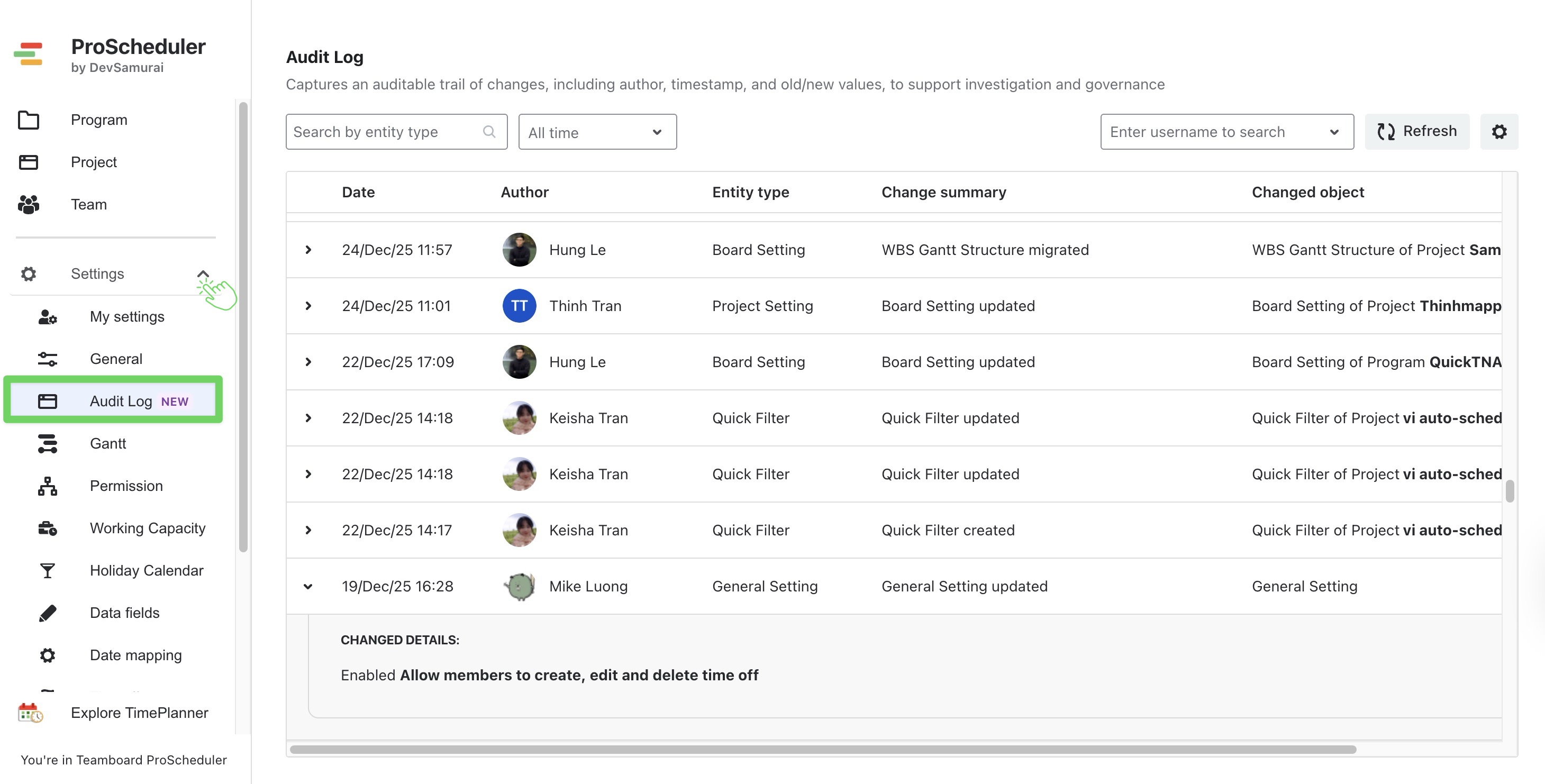
We released the audit log feature in January 2025. Events that occurred before this release may not be visible.
Tracked Events
The Audit Log is not intended to record all user activity in ProScheduler. It focuses on configuration changes and shared data updates that may impact users, projects, or programs.
Programs
|
Event |
Actions Tracked |
|---|---|
|
Create |
Create a new program |
|
Update |
Update a program name Add or remove projects |
|
Delete |
Delete a program |
Teams
|
Event |
Actions Tracked |
|---|---|
|
Create |
Create a new team |
|
Update |
Update a team name Add or remove team members |
|
Delete |
Delete a team |
Board Settings
|
Event |
Actions Tracked |
|---|---|
|
Create |
Create a new Quick Filter |
|
Update |
Date mapping updated Quick Filter updated Gantt settings updated Permission settings updated Program settings updated |
|
Delete |
Delete Quick Filters |
Gantt Settings
|
Event |
Actions Tracked |
|---|---|
|
Migrate |
Restructure WBS Gantt using the current hierarchy |
|
Migrate |
Readjust planned work item data |
App Settings
|
Event |
Actions Tracked |
|---|---|
|
Create |
Create a new capacity scheme Create a new holiday calendar Create a new department Create a new position Create a new skill Create a new leave type Create a new color scheme |
|
Update |
Update general settings Update Gantt settings Update permissions Update capacity scheme Update holiday calendar Update data fields (department, position, skill) Update leave types Update color schemes |
|
Delete |
Delete a department Delete a position Delete a skill Delete a leave type Delete a color scheme |
Audit Log Filters
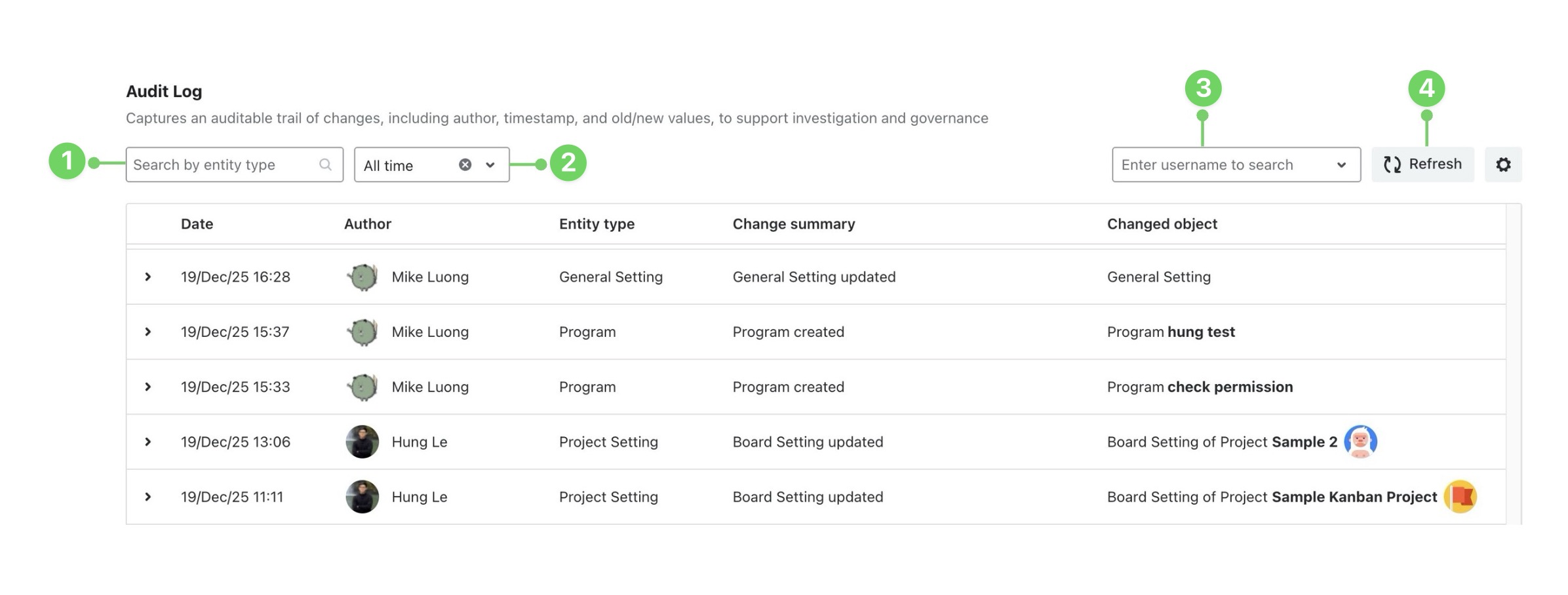
You can use filters at the top of the Audit Log page to quickly narrow down audit entries:
-
Search by entity type: Filter events by the type of object affected, such as Program, Team, Color Scheme, or Board Setting.
-
Date filter: Select a time range (for example, All time) to view changes within a specific period.
-
Search by username: Enter a username or choose from the listdown to view only the changes made by a specific user.
-
Refresh: Click Refresh to reload the log and display the most recent audit events
Audit Log Details
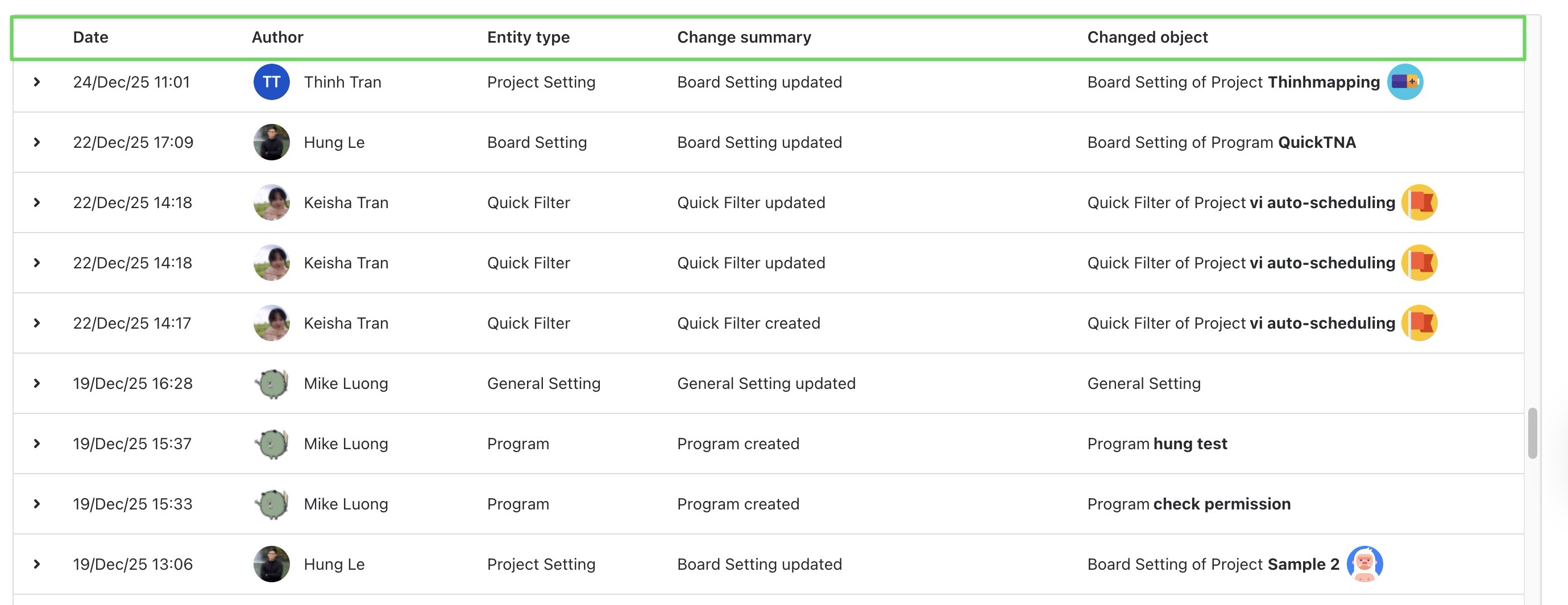
Each entry in the Audit Log represents a single recorded change and includes the following information:
-
Date: The exact date and time when the change occurred.
-
Author: The user who performed the action.
-
Entity Type: The type of object that was affected.
-
Change Summary: A brief description of the action (for example, created, updated, deleted, or migrated).
-
Changed Object: The specific item that was modified, such as a program name, team, or configuration value.
Note: You can't sort the Audit log.
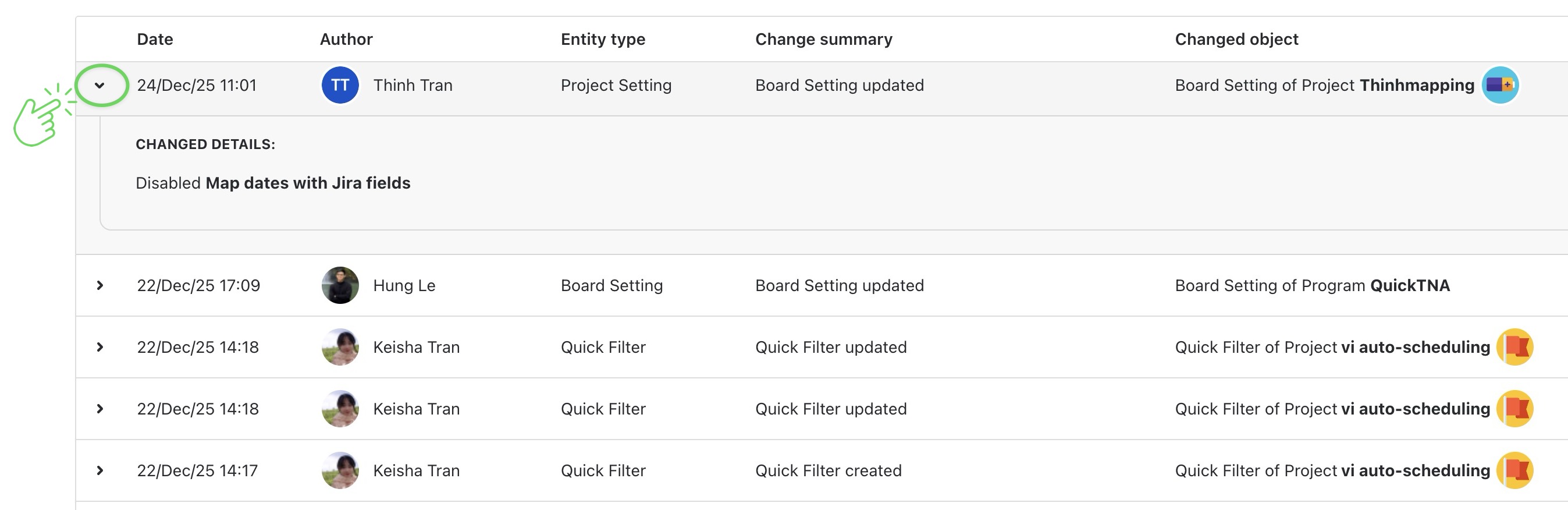
Viewing Change Details
You can see more details about each change by clicking the expand arrow ( 
Editing audit log settings
You can configure how long audit events are retained before they are automatically deleted.
-
Select

-
Select the desired retention period: Choose from the available options (1 month, 3 months, or 6 months).
-
Click

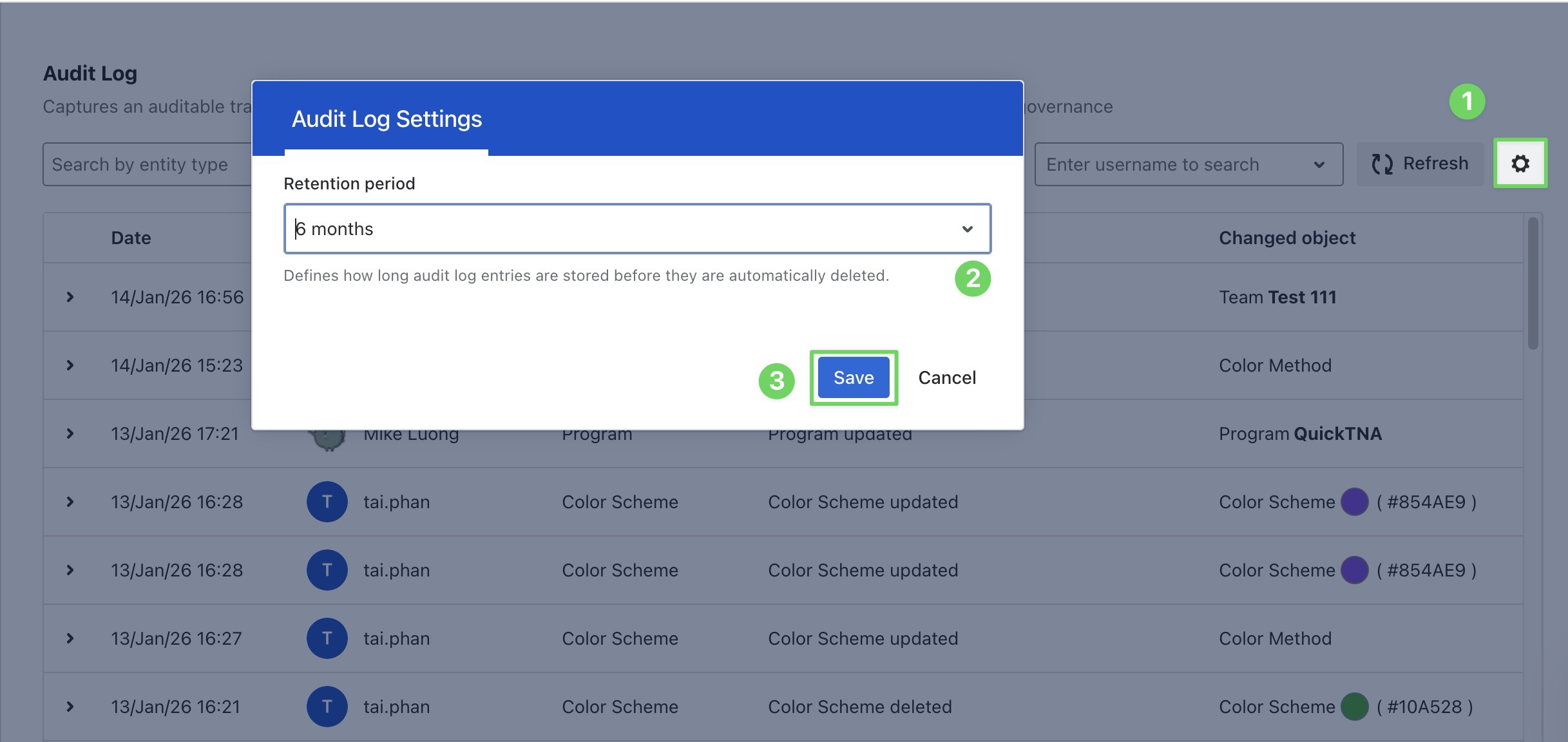
Note: Audit events older than the selected retention period are automatically removed.