.png)
Only users with App Admin permissions can open or close time periods.
To ensure the Period Management feature functions correctly in Jira, you must set TeamBoard TimePlanner as your active time-tracking provider. Learn how to change Time tracking provider
What is Period Management?
The Period Management feature in ProScheduler allows administrators to set up and manage time tracking periods, typically on a weekly basis.
Administrators can open or lock each period:
-
When a period is open, users can add, edit, or delete time entries.
-
When a period is locked, users can no longer add, edit, or delete time entries within that period.
Locking periods helps ensure the accuracy and integrity of time log data, which is essential for time tracking management and reporting. If necessary, administrators can reopen a locked period to make adjustments.
How to Open or Close a Period
To open or close a period in TimePlanner:
-
From the left-hand menu, navigate to ⚙️ Settings.
-
Click on
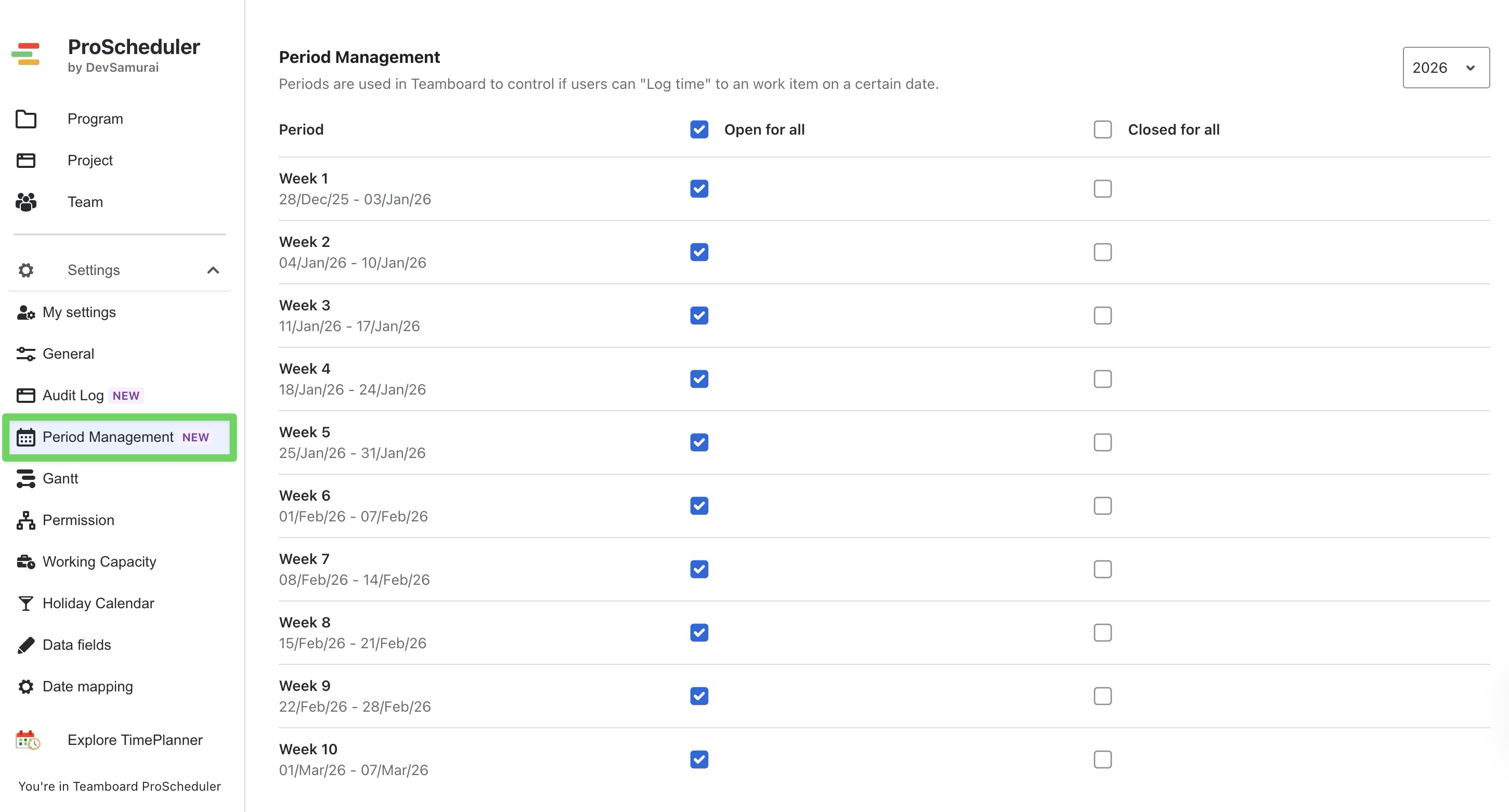
-
Select Time Range:
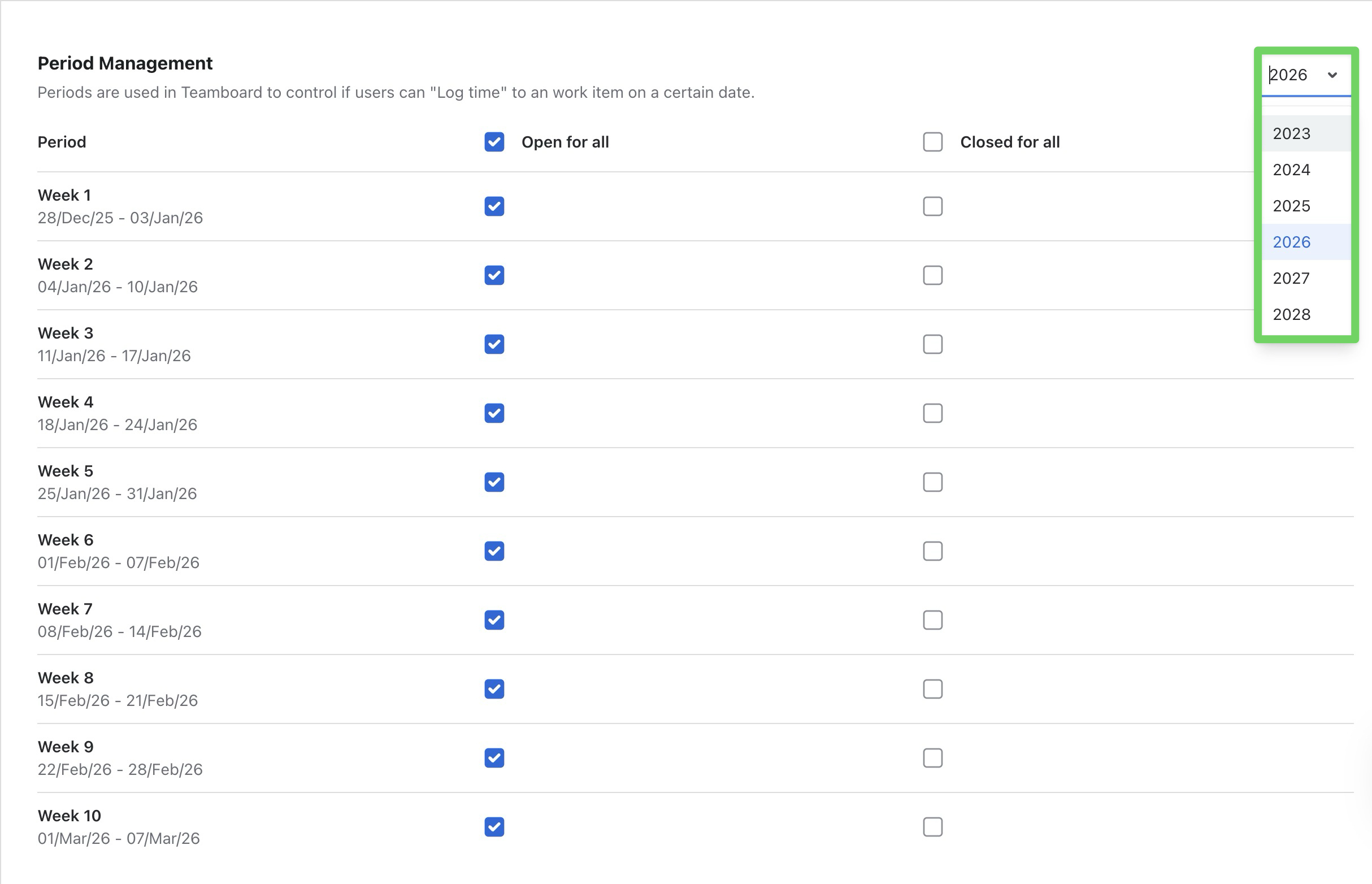
By default, all periods for the current year are listed. You can select a different year using the dropdown in the top-right corner. Once a year is selected, all periods (e.g., Week 1, Week 2, etc.) for that year will be displayed in a table format.
-
Select a Status for the Period
For each period, you have two status options that define user access and whether time logging is allowed:
-
Open for all (Default):
Allows all users to log, edit, or delete their worklogs for the selected period. This status is typically used for active or future periods and is the default setting for new periods. -
Closed for all:
Time logging is fully locked for the period, meaning no one, including admins, can log or modify worklogs. This status locks the period entirely, preventing any changes after the period closes.
-
Saving Changes
After selecting the desired status for each period, your changes will automatically save.