.png)
There are several ways to set recurring tasks, depending on the method you choose for creating your tasks:
Via the Planning Dialog
You can set a recurring task for an existing task or a new task via the Planning Dialog. Follow these steps:
STEP 1 Open the Planning Dialog
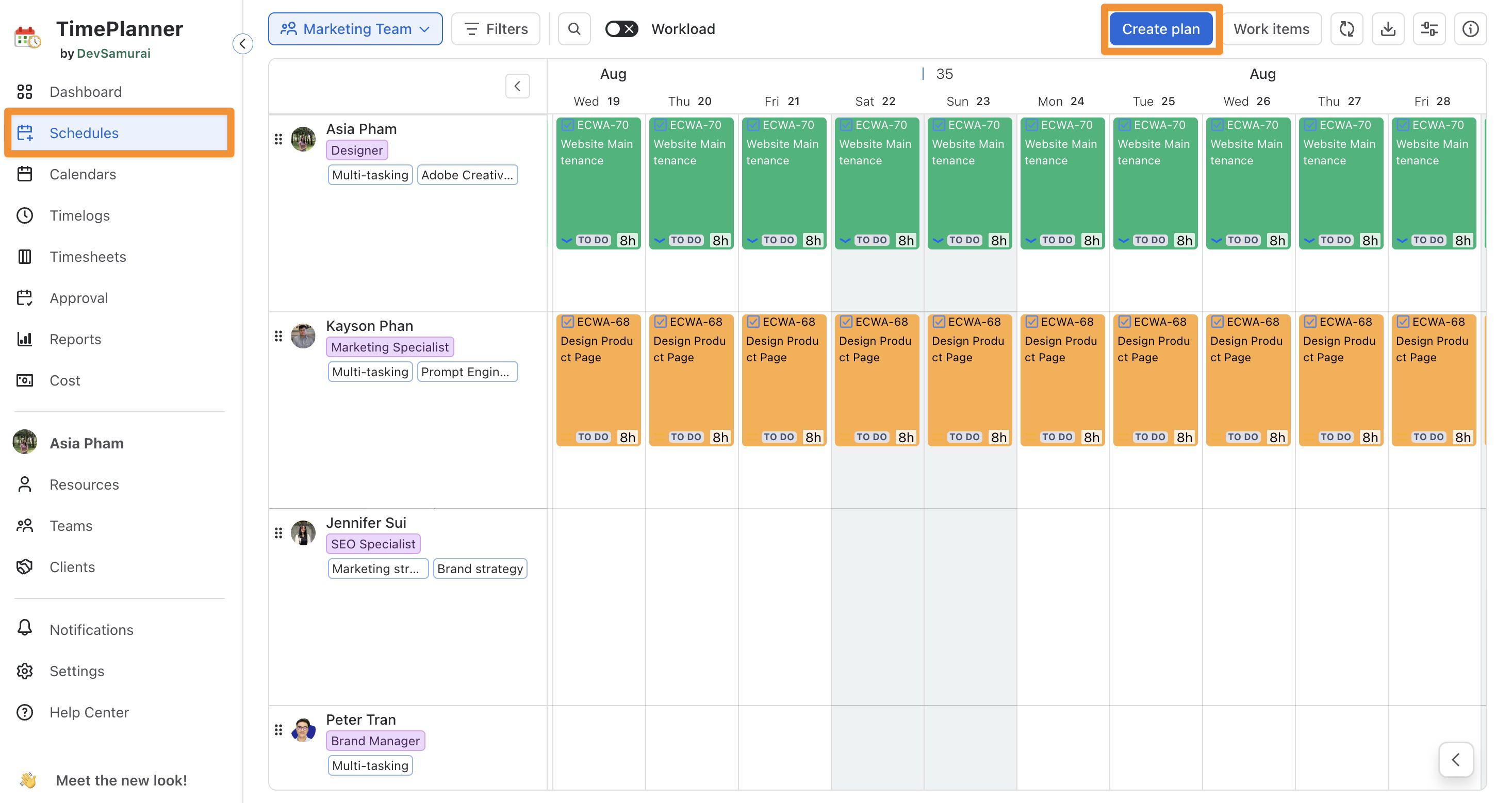
You can open the Planning Dialog in two ways from the Schedule Board:
-
Click

-
Or, click a specific date or drag across a date range on the Schedule Board.
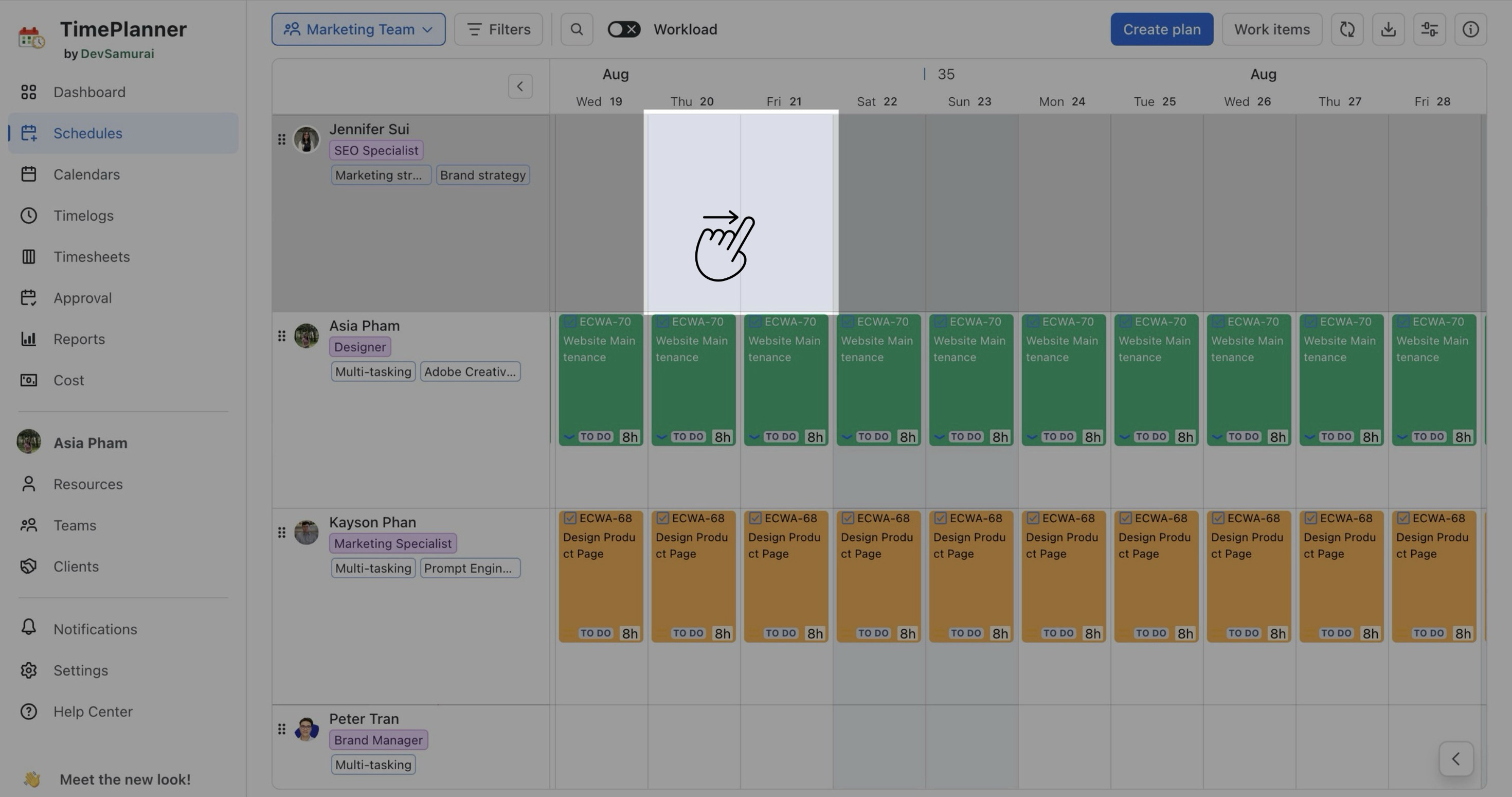
You can also open the Planning Dialog from the Calendar Board.
STEP 2 Choose a task
In the Planning Dialog, you can:
-
Search for an existing work item by entering the summary or work item key in the search bar.
-
Create a new work item by clicking the

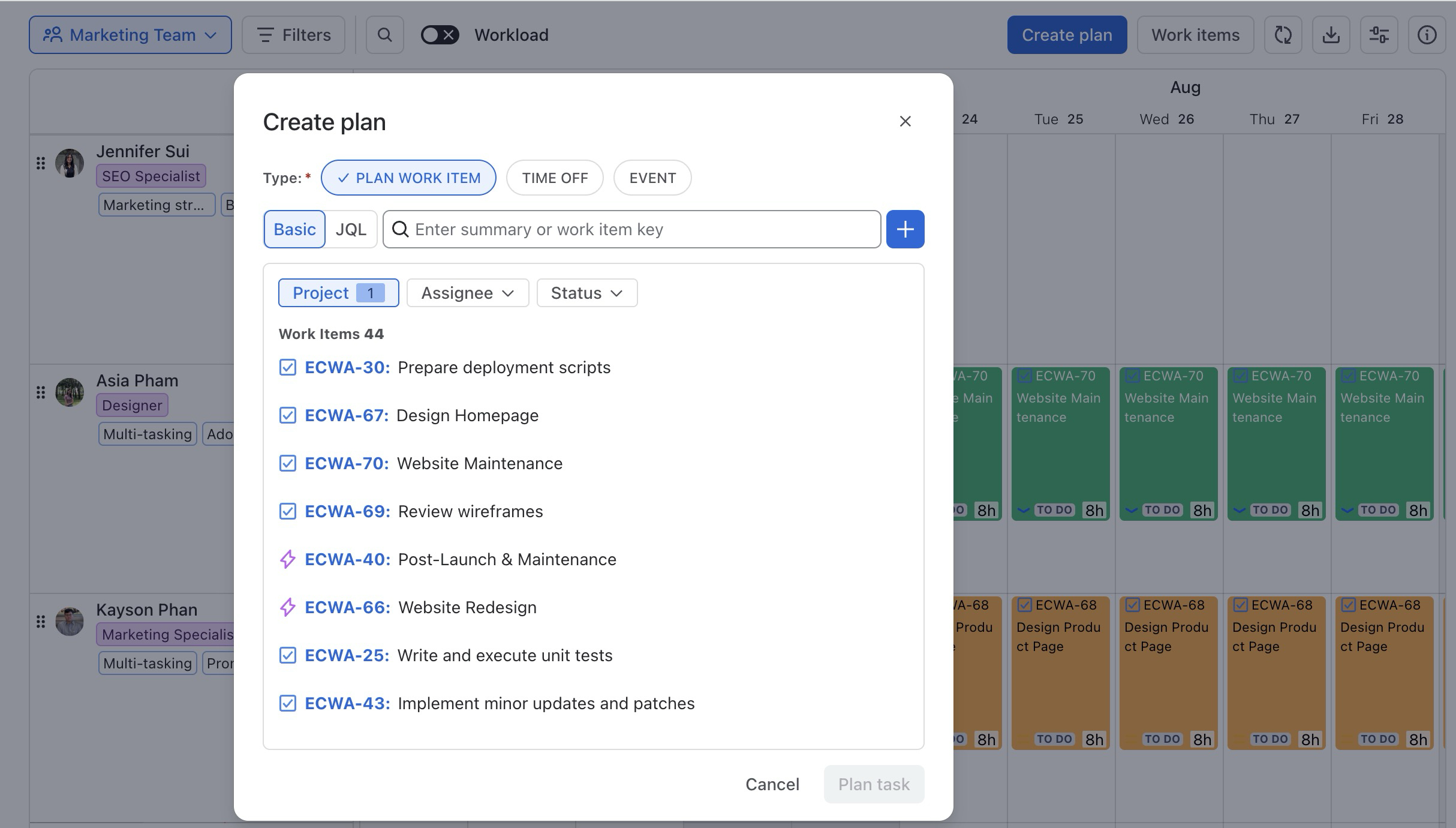
Tip: Use the Basic Filter (Project, Assignee, Status) or the JQL Filter for advanced search to quickly locate the issue you want to plan.
STEP 3 Enter the planning details
Complete the required planning fields, including:
-
Assignee: Select the member who will work on the task.
-
Start Date – End Date: Set the period when the task is planned.
-
Time spent: Enter the planned hours, then choose how they are allocated:
-
Per day: Apply the entered hours to each working day in the selected period.
-
Total: Distribute the entered hours across the selected period.
-
STEP 4 Set the Recurrence
In the Recurrence section, configure the following:
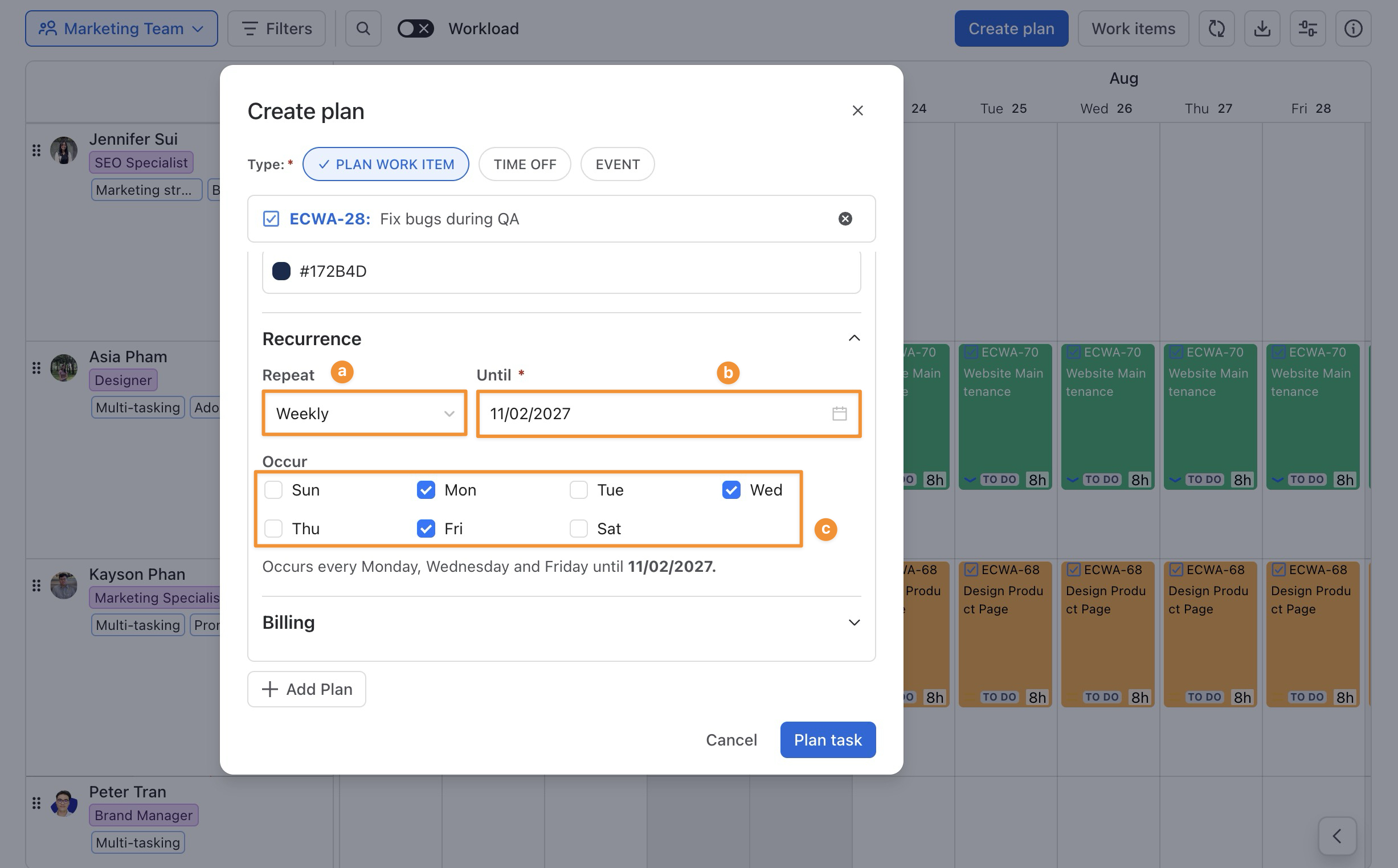
a. Specify how often the task should repeat:
-
Daily: The task repeats every day.
-
Weekly: The task repeats once a week, typically on the same day of the week.
-
Bi-weekly: The task repeats every two weeks, typically on the same day of the week every other week.
-
Monthly: The task repeats once a month, typically on the same day of the month.
-
Quarterly: The task repeats once every three months.
-
Yearly: The task repeats once a year.
b. Set the “Until” date to define when the recurrence stops. (The ‘Until’ date must be the same as or later than the task’s end date).
c. You're also selecting the days of the week that the task should repeat on
STEP 5 Click 
Via Jira Work Item Detail panel
You can also set recurrence for an existing Jira work item directly from the Work Item Detail panel without opening TimePlanner separately.
-
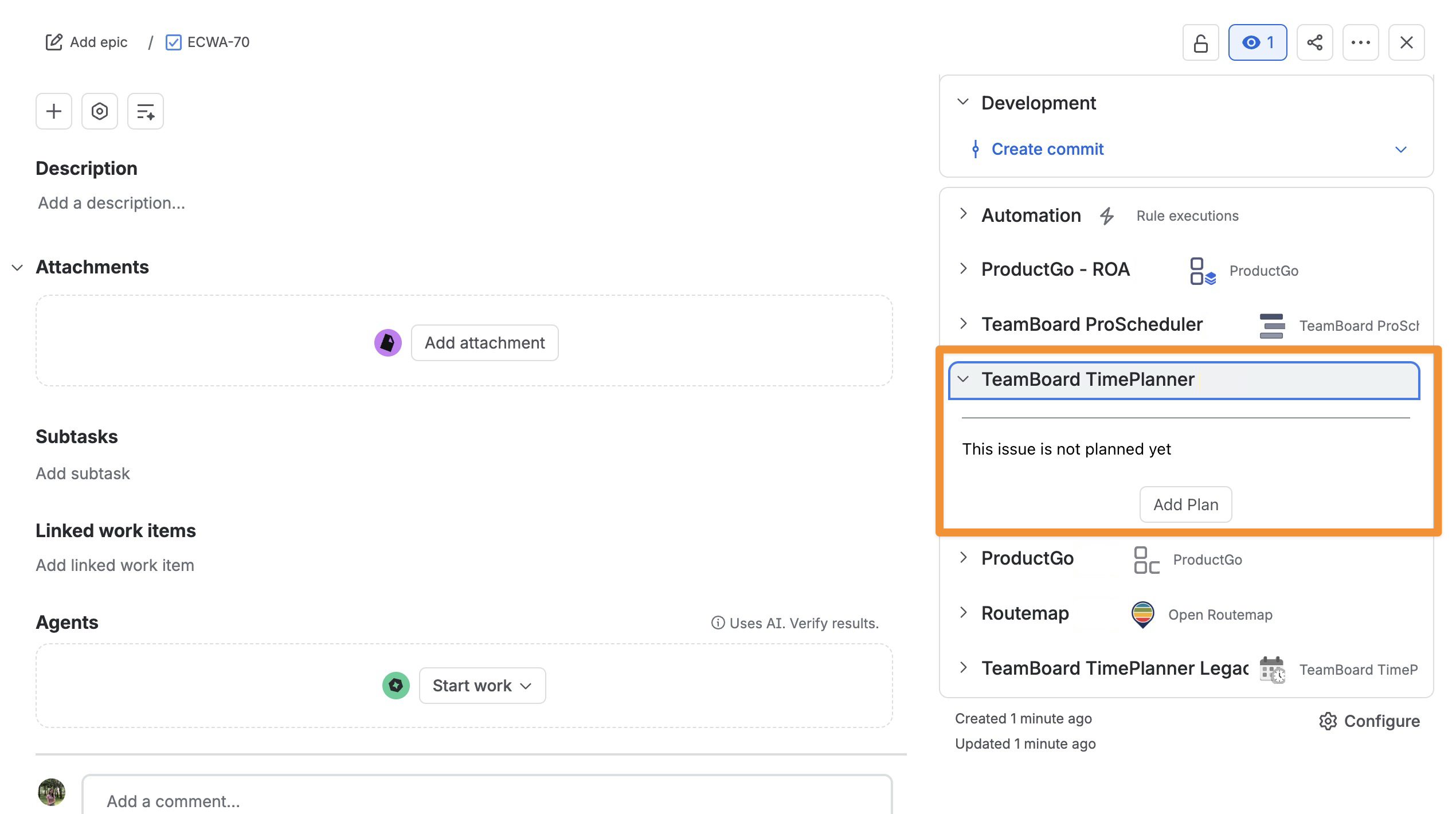
Open the Jira work item for the task you want to make recurring.
-
In the right-hand panel, click Open TeamBoard TimePlanner. This will open the planning section for the selected task.
-
In the planning section, click

-
Complete the required planning fields, including:
-
Assignee
-
Hour/Day
-
Start Date – End Date
-
-
Set the Recurrence
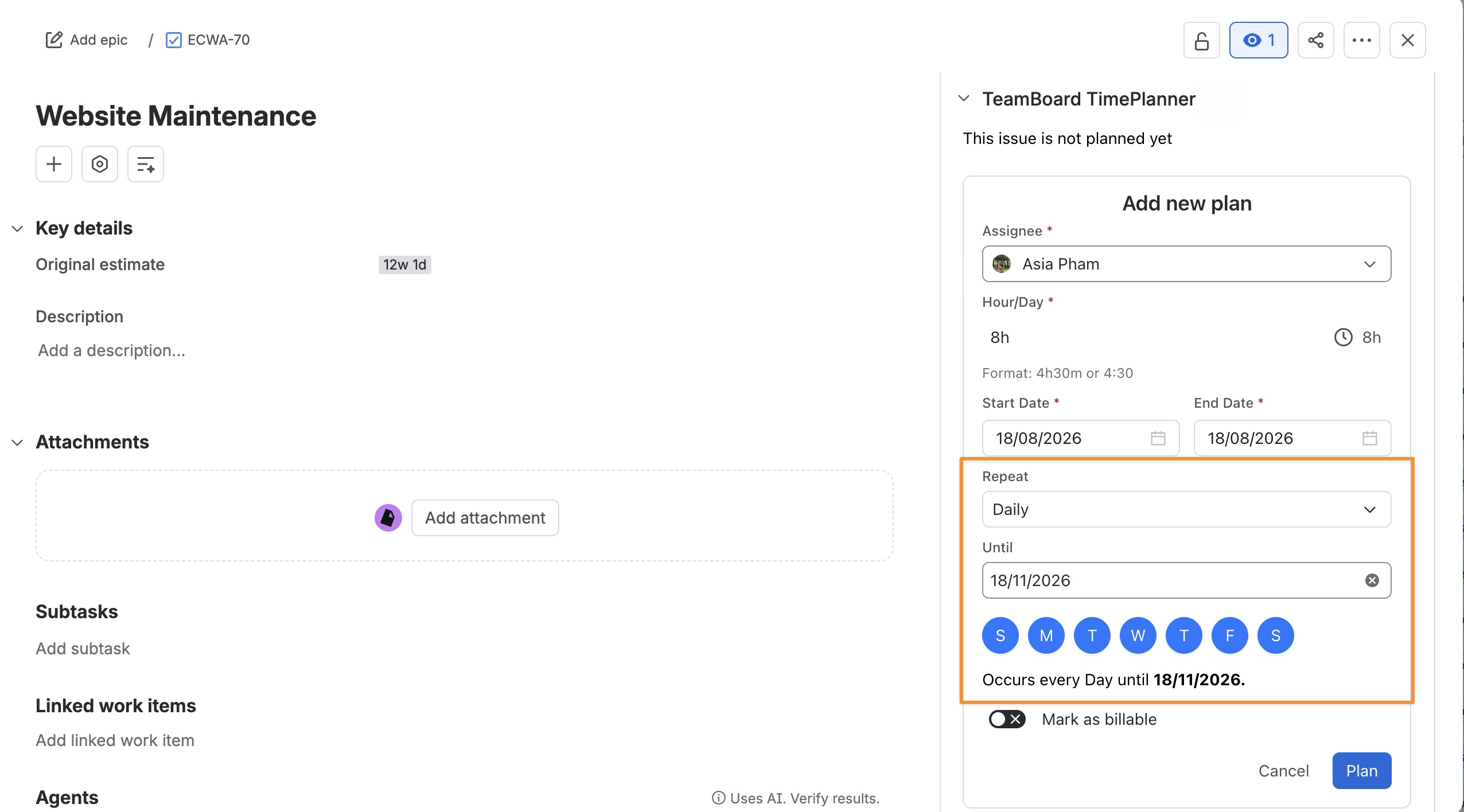
In the Repeat field, choose how often the task should repeat:
-
Daily: Repeats every day.
-
Weekly: Repeats every week.
-
Bi-weekly: Repeats every two weeks.
-
Monthly: Repeats every month.
-
Quarterly: Repeats every three months.
-
Yearly: Repeats every year.
Then:
-
Select the applicable days of the week.
-
Set the Until date to determine when the recurrence ends.
-
Click

Via the Planning Detail panel
You can set a recurring task for an existing task via the Planning Detail panel. Follow these steps:
STEP 1 Open the Planning Detail Panel
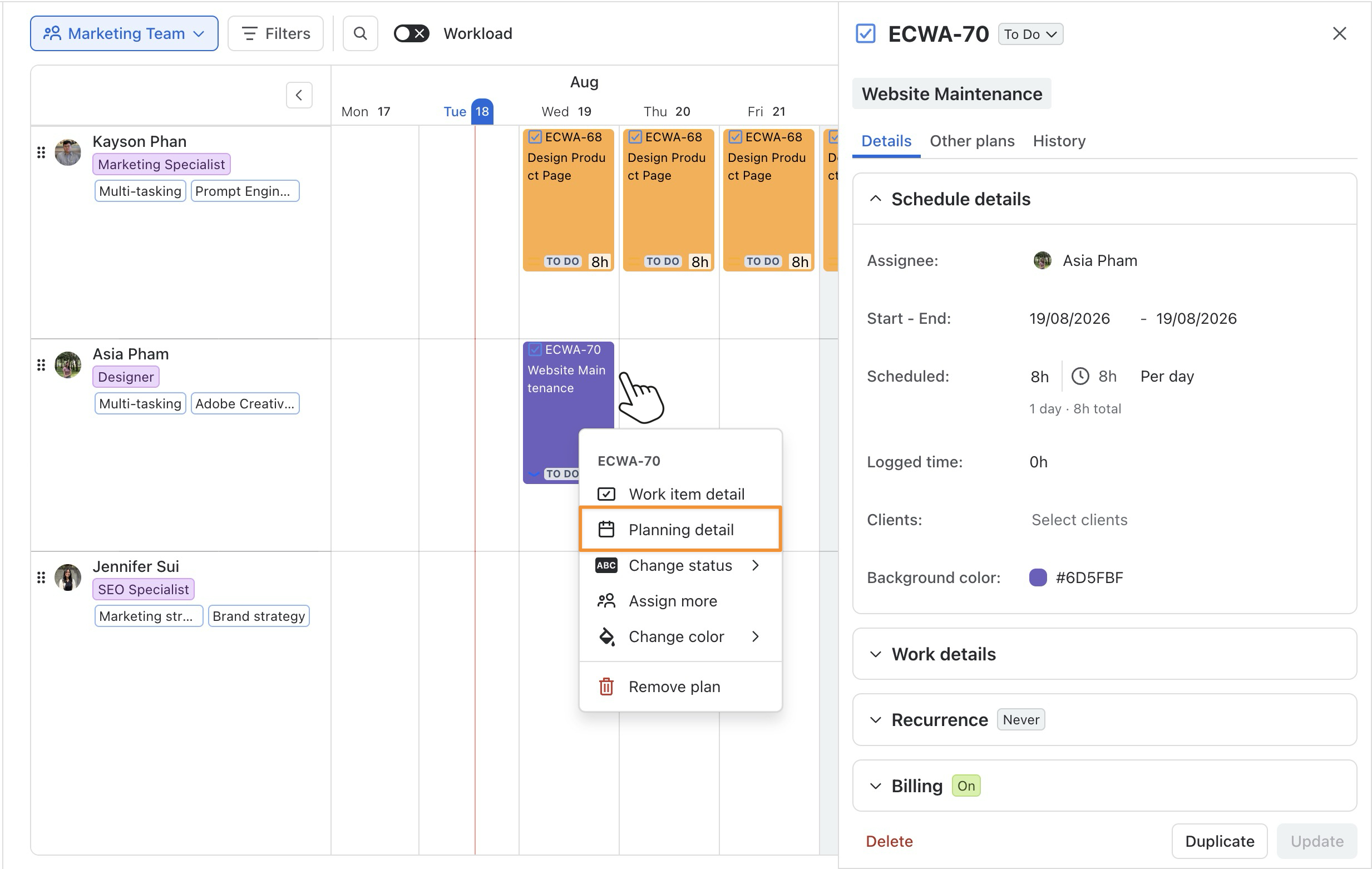
From the Scheduler Board, you can open the Planning Detail panel in one of two ways:
-
Right-click on the task card and select

-
Simply click directly on the task card to open the Planning Detail panel.
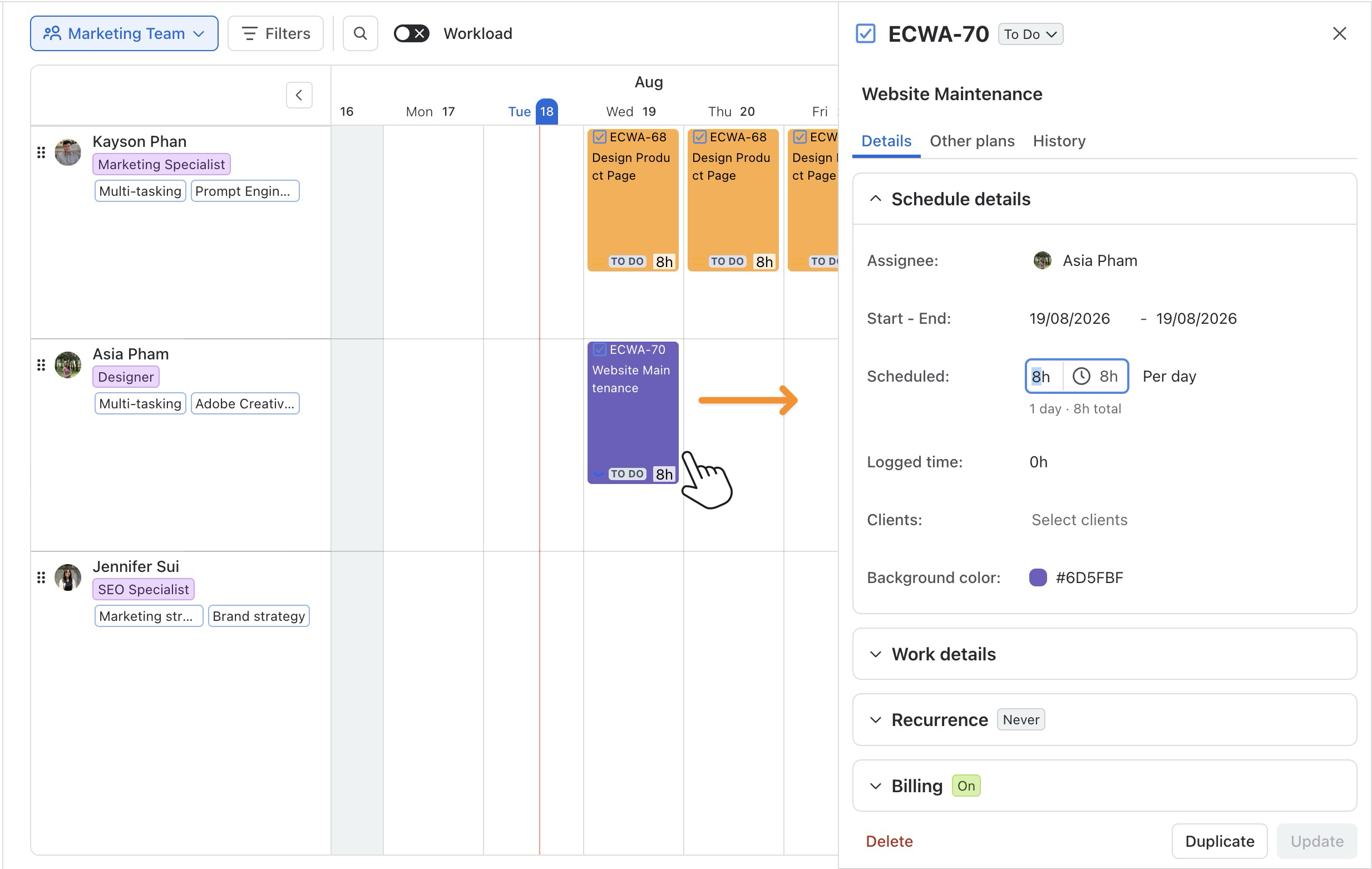
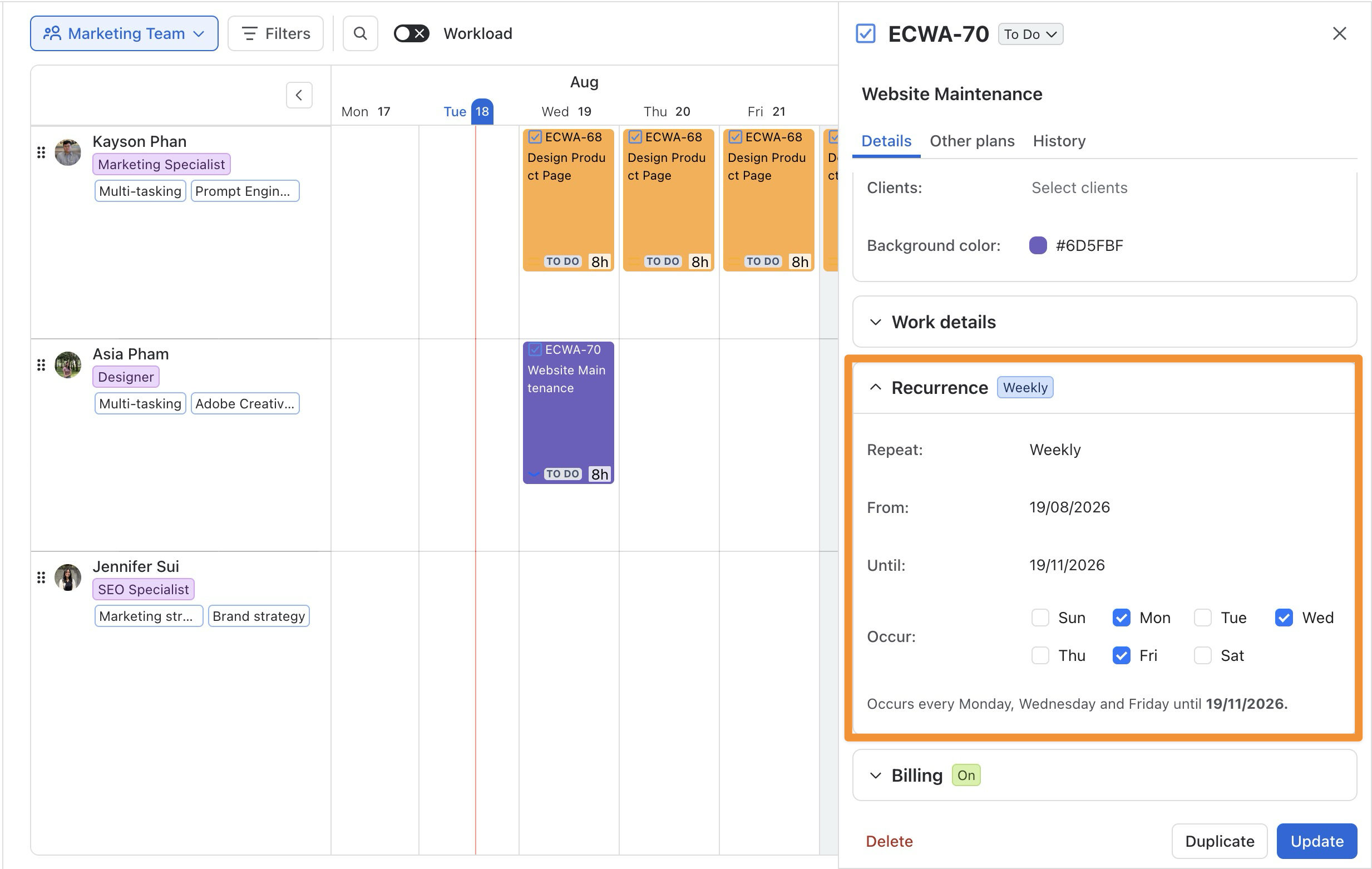
You can also use the Planning Detail from the Calendar Board and follow the same steps as on the Schedule Board.
STEP 2 Set the Recurrence
In the Repeat field, choose how often the task should repeat:
-
Daily: Repeats every day.
-
Weekly: Repeats every week.
-
Bi-weekly: Repeats every two weeks.
-
Monthly: Repeats every month.
-
Quarterly: Repeats every three months.
-
Yearly: Repeats every year.
Then:
-
Select the applicable days of the week.
-
Set the Until date to determine when the recurrence ends.
step 3 Click