.png)
You can view who is on which capacity and re-assign one or multiple members to a new scheme.
-
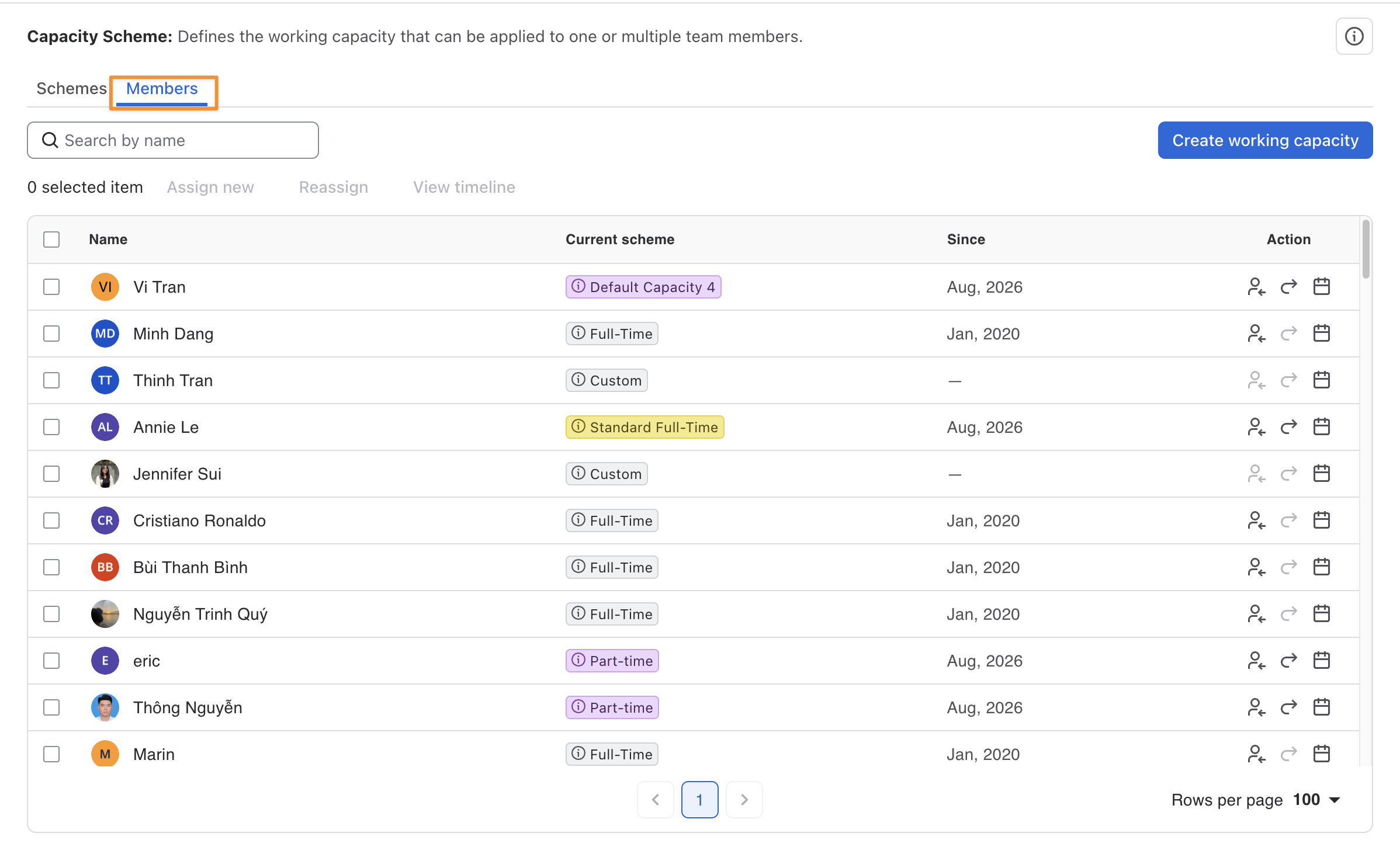
Click on the Members tab.
-
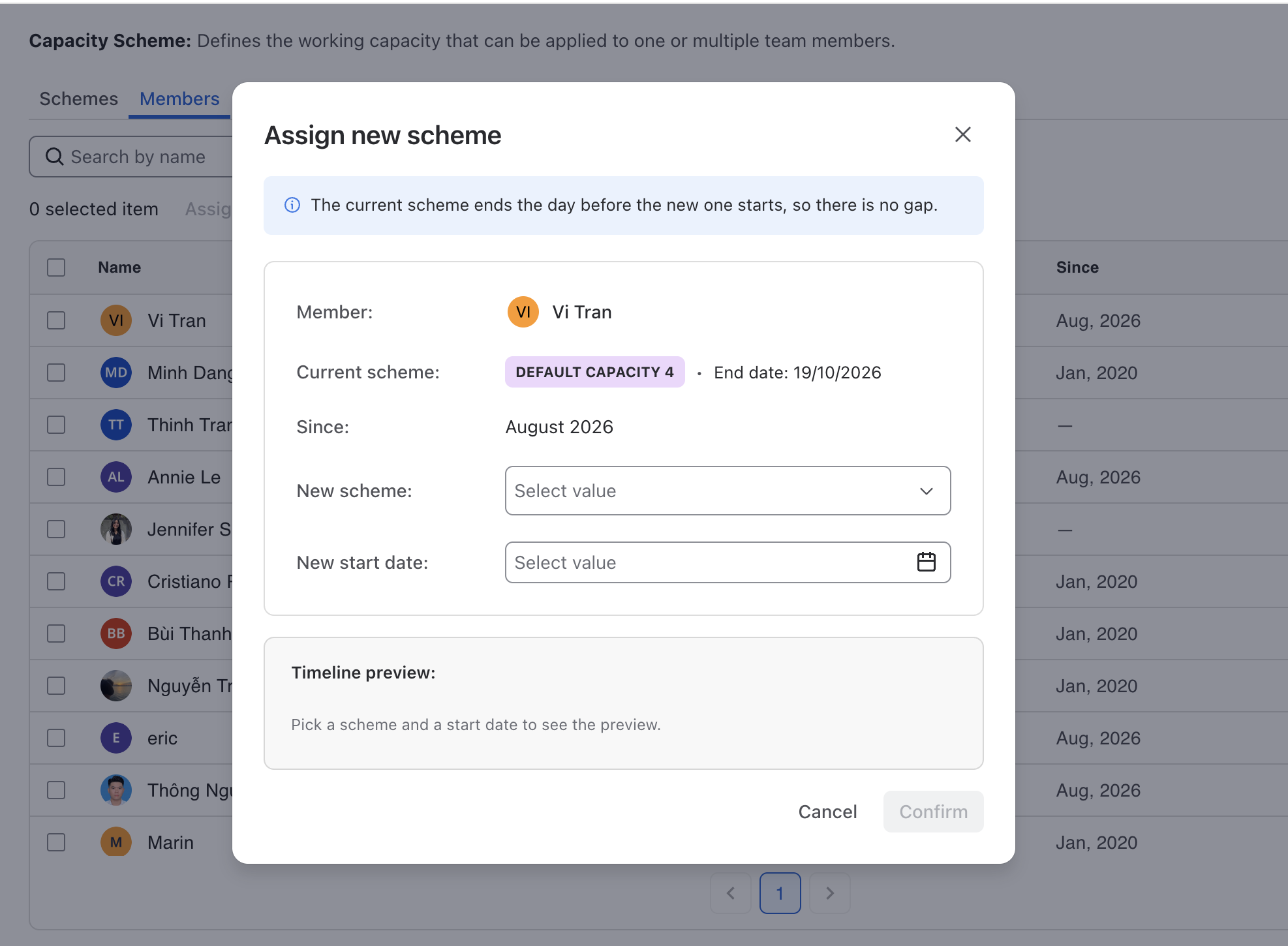
Locate the member you want to assign a new capacity scheme and click

-
Choose the new capacity for this member and decide when this scheme will take effect by selecting New start date.
You can bulk assign a new scheme for multiple members by selecting them and choose Assign new.
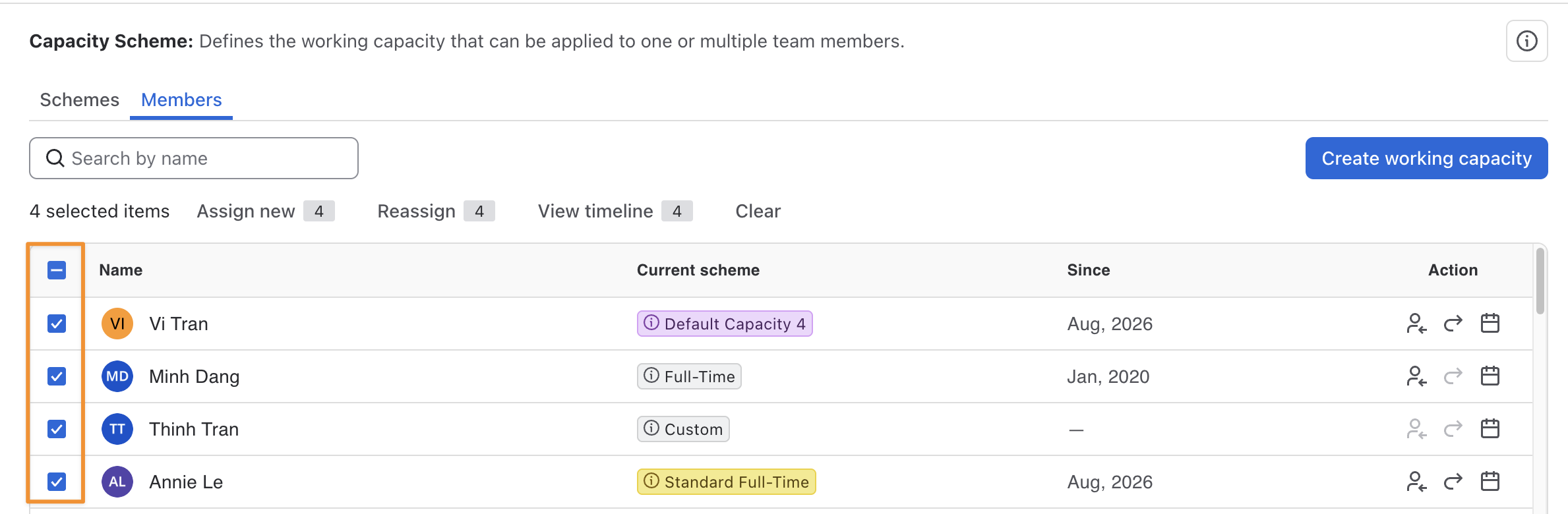
When selecting multiple users:
-
You can Reassign with another capacity scheme in bulk for all of them.
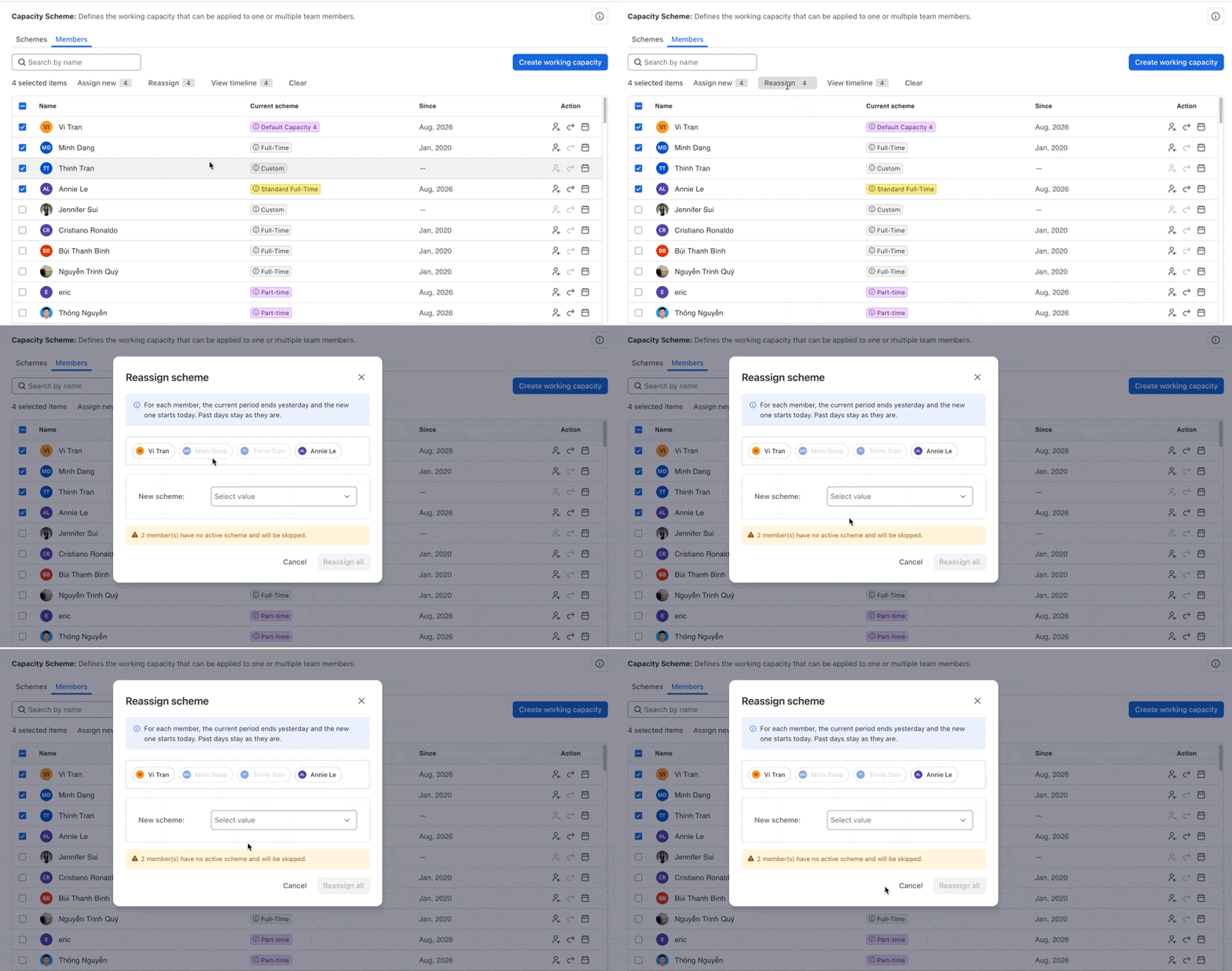
-
View the timeline of each selected member to see their previous schemes and timelines.
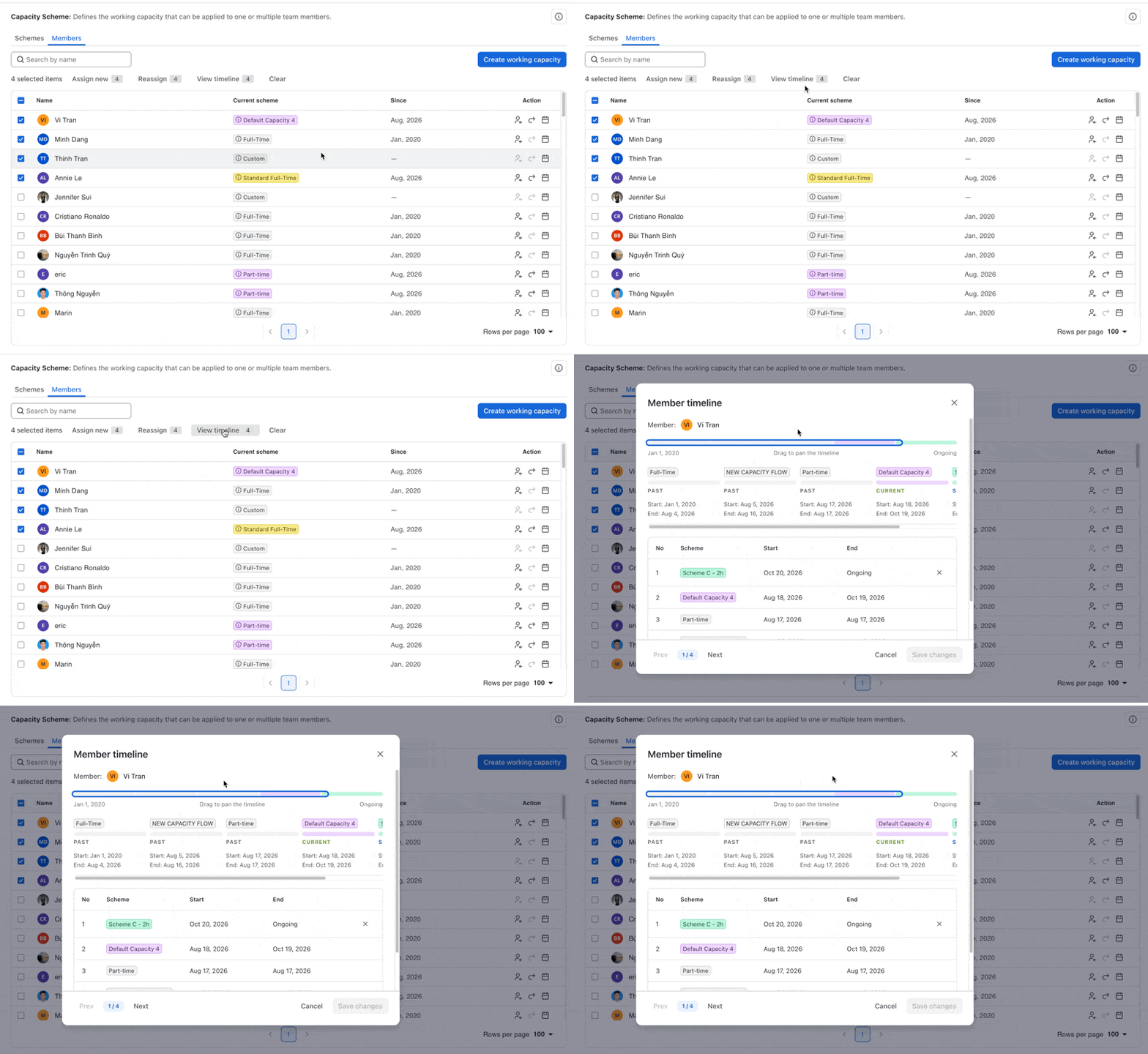
-
Switch among members' timelines.
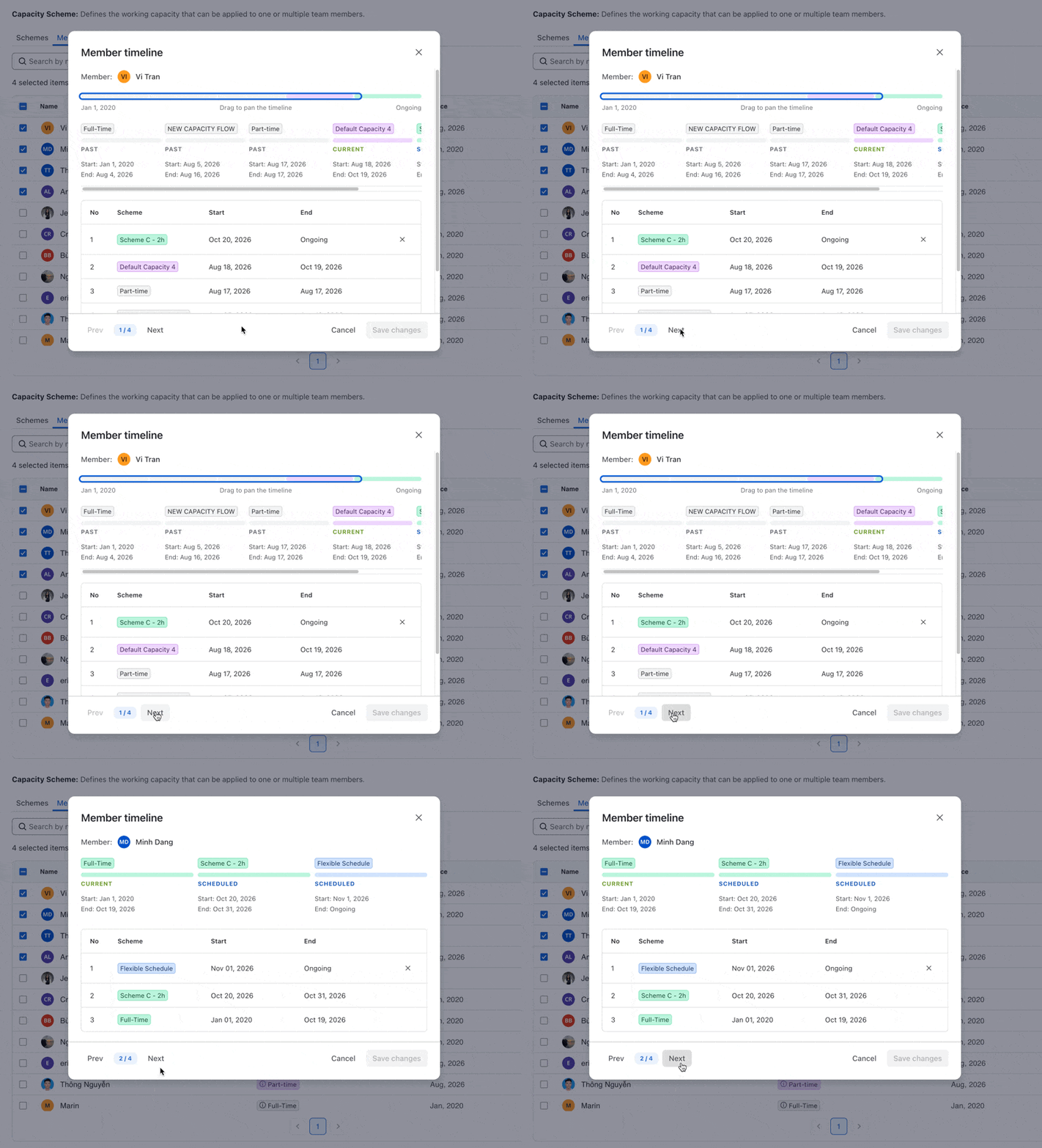
-
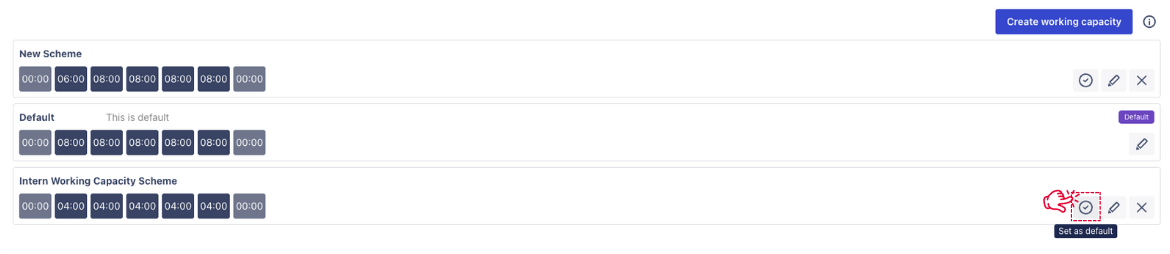
Default Capacity Scheme
The default working capacity scheme will be applied to all resources that are not assigned to any working capacity schemes. There is only one default scheme overall the app.
To mark a scheme as default, click on the Set as default