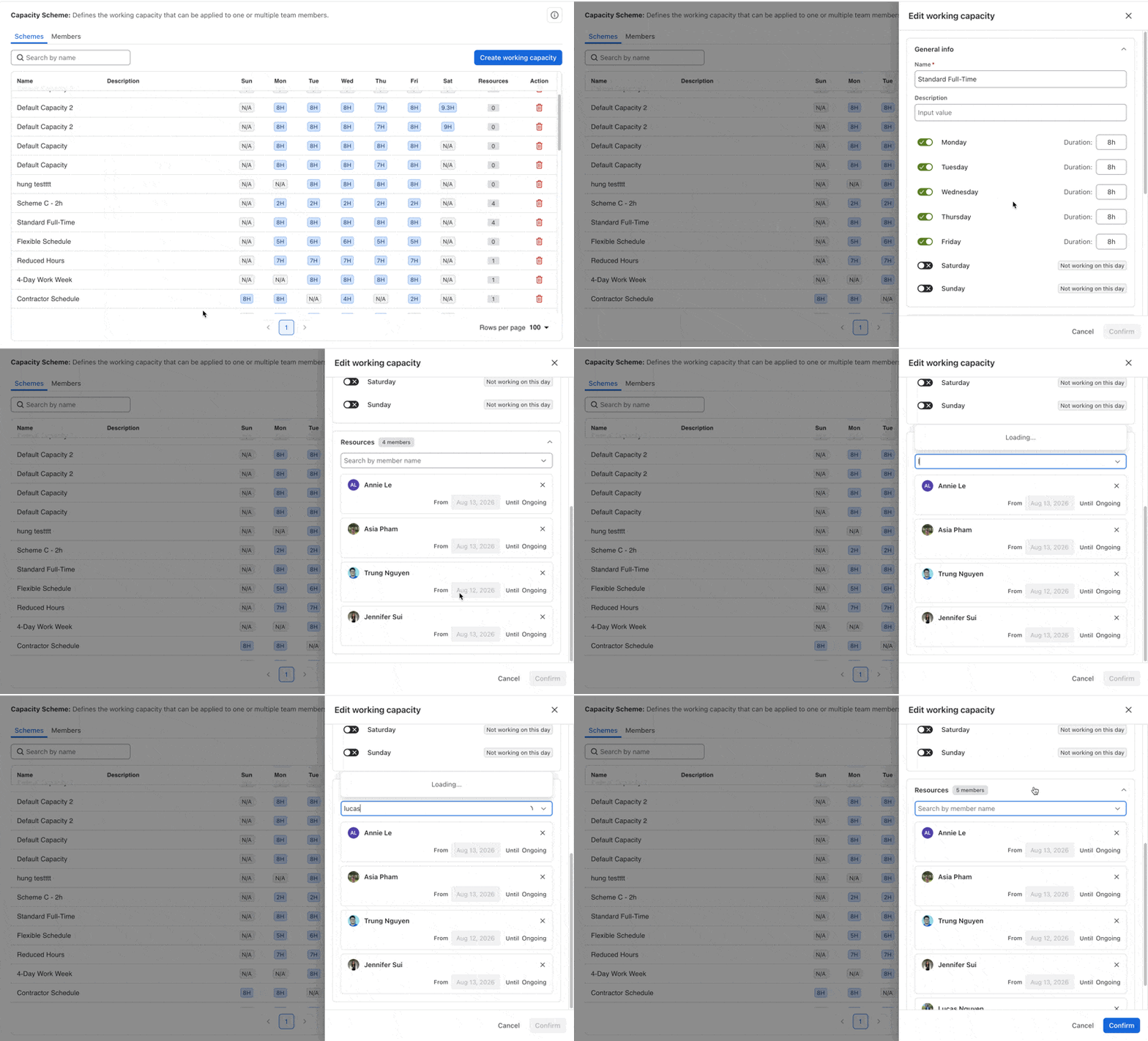
.png)
Working Capacity in TimePlanner is managed through Capacity Schemes.
A Capacity Scheme is a rule that specifies working hours for one or more team members.
Each scheme can be customized based on different work schedules (e.g., part-time, full-time, different shifts).
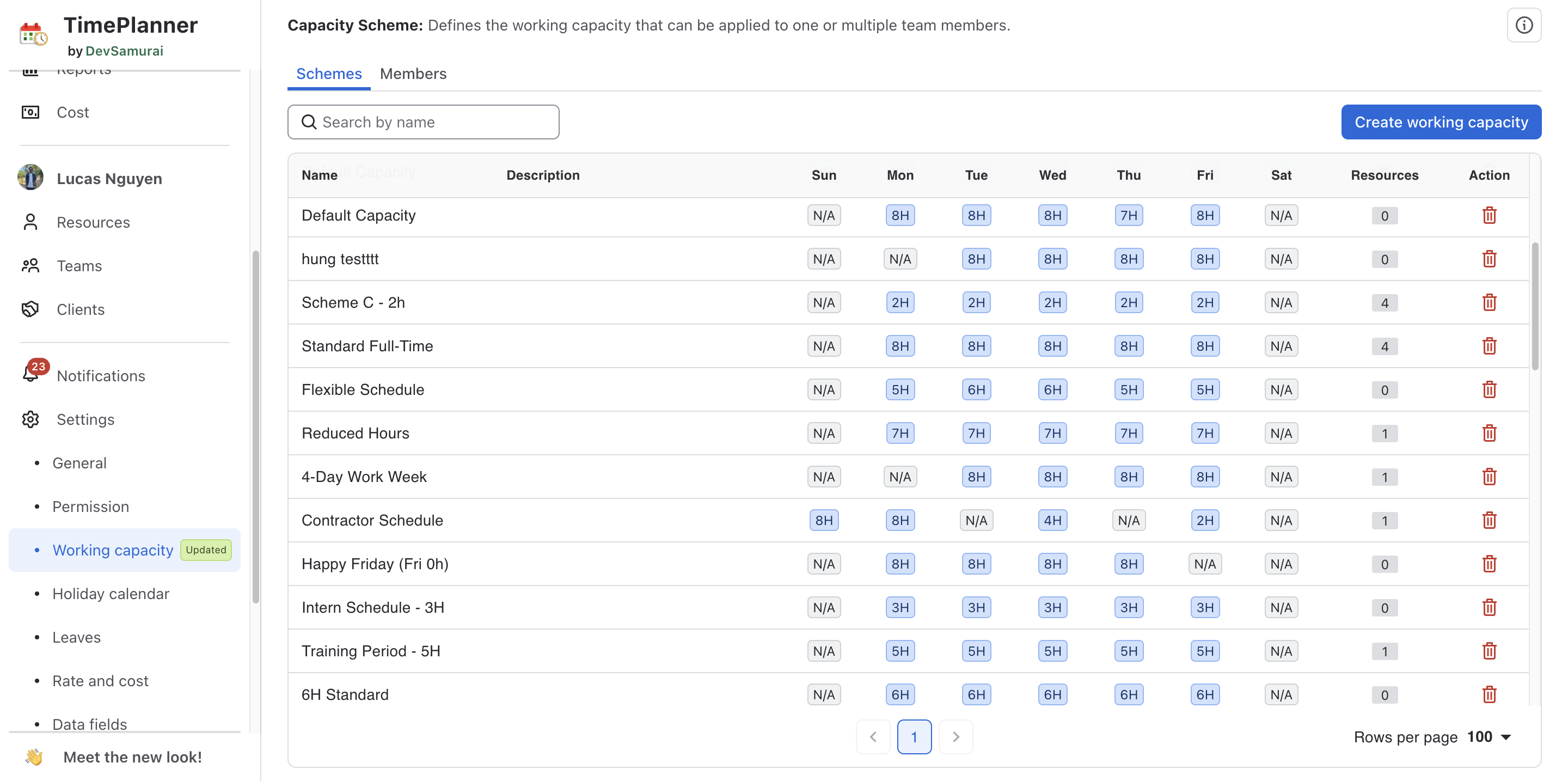
By default, TimePlanner sets the working capacity to 8 hours per day (Monday to Friday). This default scheme is automatically applied to any resource not assigned to a specific custom capacity scheme.
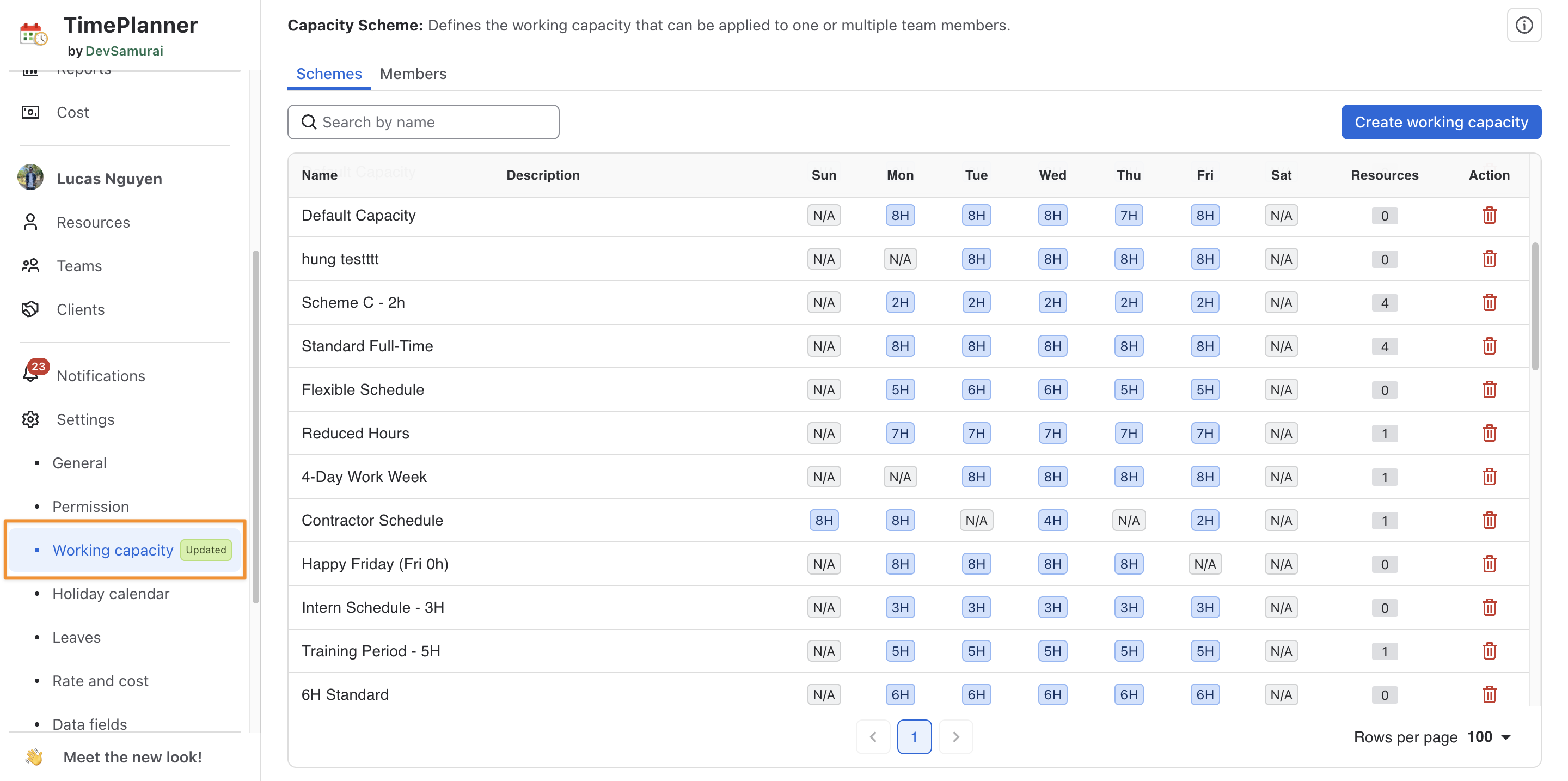
1. Accessing Working Capacity Settings
To configure working capacity in TimePlanner, navigate to 
2. Create a Custom Capacity Scheme
To define a working schedule that matches your team’s needs:
-
Click on

-
Enter a Name and Description for the new scheme.
-
Customize the working hours for each day of the week.
-
Click

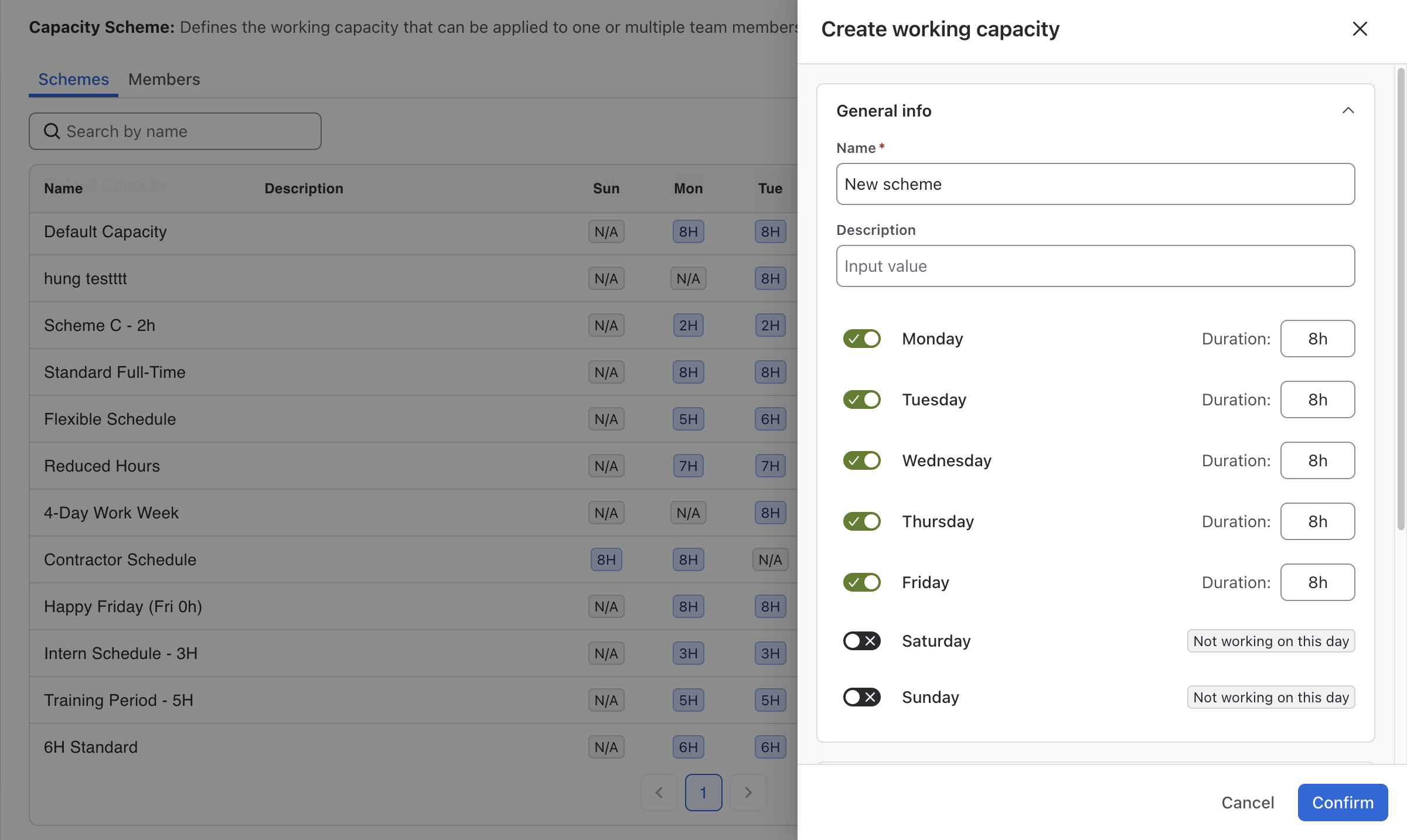
Once added, the new scheme will appear in the list. You can edit by clicking on it or delete ( 
3. Assign Team Members to a Capacity Scheme
After creating a scheme, you can assign one or multiple members to a capacity scheme.
-
Click on the scheme.
-
Scroll down on the panel to Resources at the bottom.
-
Search for a team member and add them to the scheme. Once assigned, the selected members will follow the working hours defined in that scheme.