.png)
In WBS Gantt mode, select multiple work items at once and apply bulk actions — re-parenting, reordering, moving, changing color, or removing a plan — instead of updating work items one by one. This makes it much faster to restructure large work breakdown structures.
Selecting multiple work items
-
Switch the hierarchy view to WBS mode.
-
In the work item table, check the checkbox next to each work item you want to include in the bulk action. You can select items across different parents and hierarchy levels.
-
Once at least one item is selected, a bulk action toolbar appears above the table.
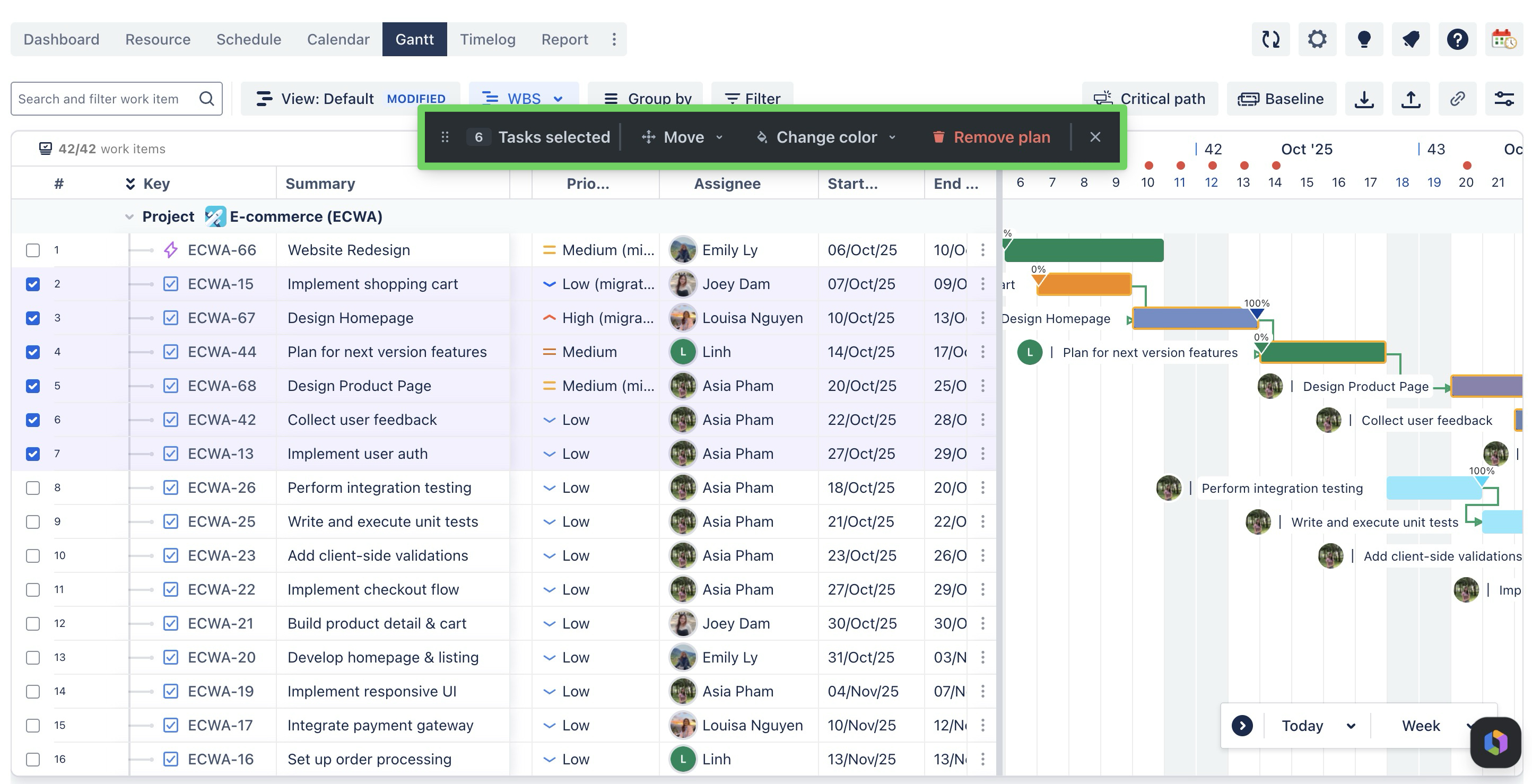
Bulk action toolbar
Once work items are selected, the following actions become available:
|
Action |
Description |
|---|---|
|
Move |
Re-parent and/or reorder all selected work items at once. |
|
Change color |
Apply a new taskbar color to all selected work items. |
|
Remove plan |
Clear the schedule (start/end dates) for all selected work items without deleting the work items themselves. |
|
Close |
Deselect all work items and close the bulk action toolbar. |
Bulk re-parent work items
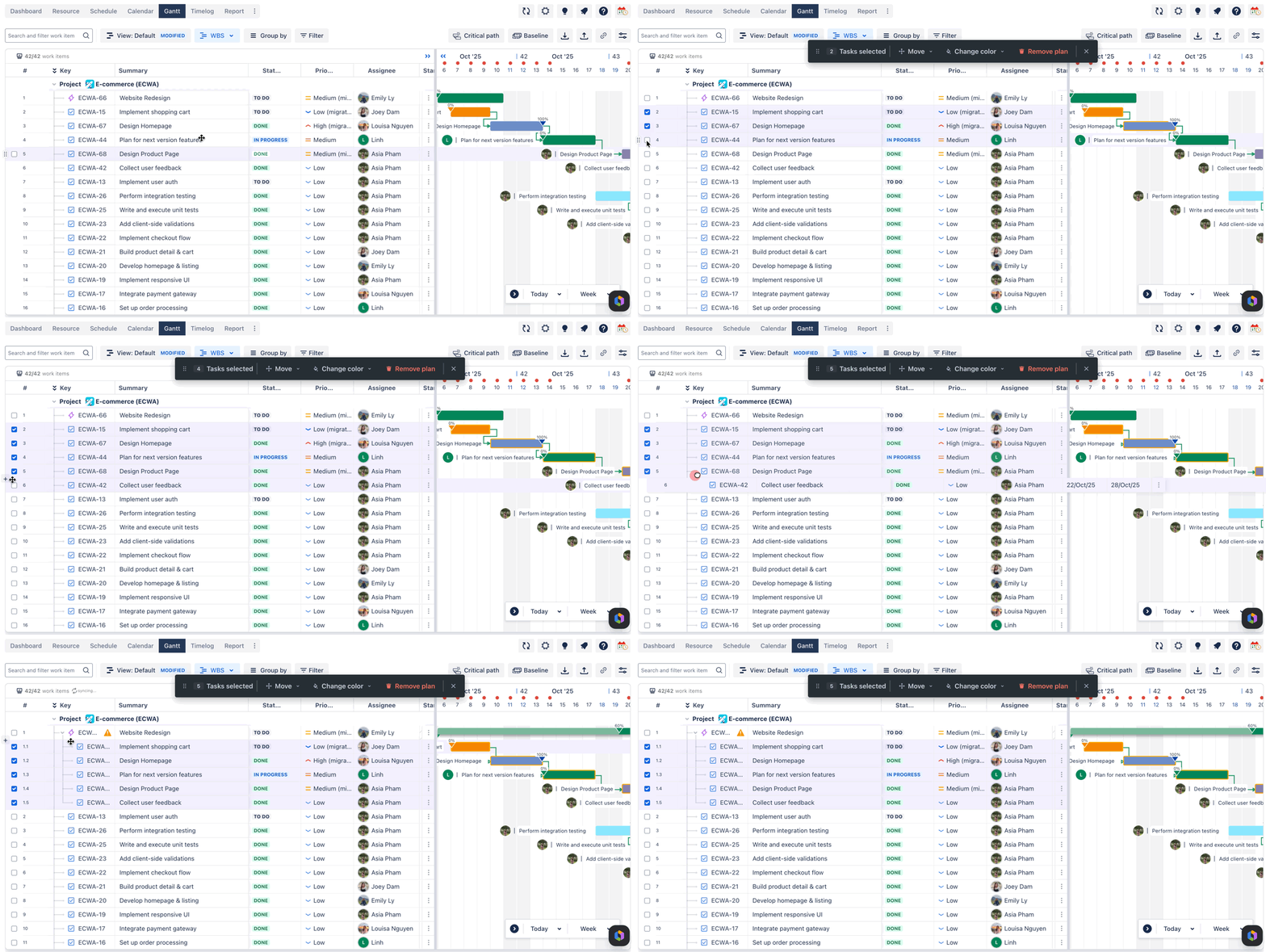
Move multiple work items under a new parent at once, keeping their relative order intact.
Option 1: Drag and drop
-
Select the work items you want to move.
-
Click and drag any one of the selected rows.
-
Drop it onto the row of the work item you want to set as the new parent.
-
All selected work items move under the new parent together.
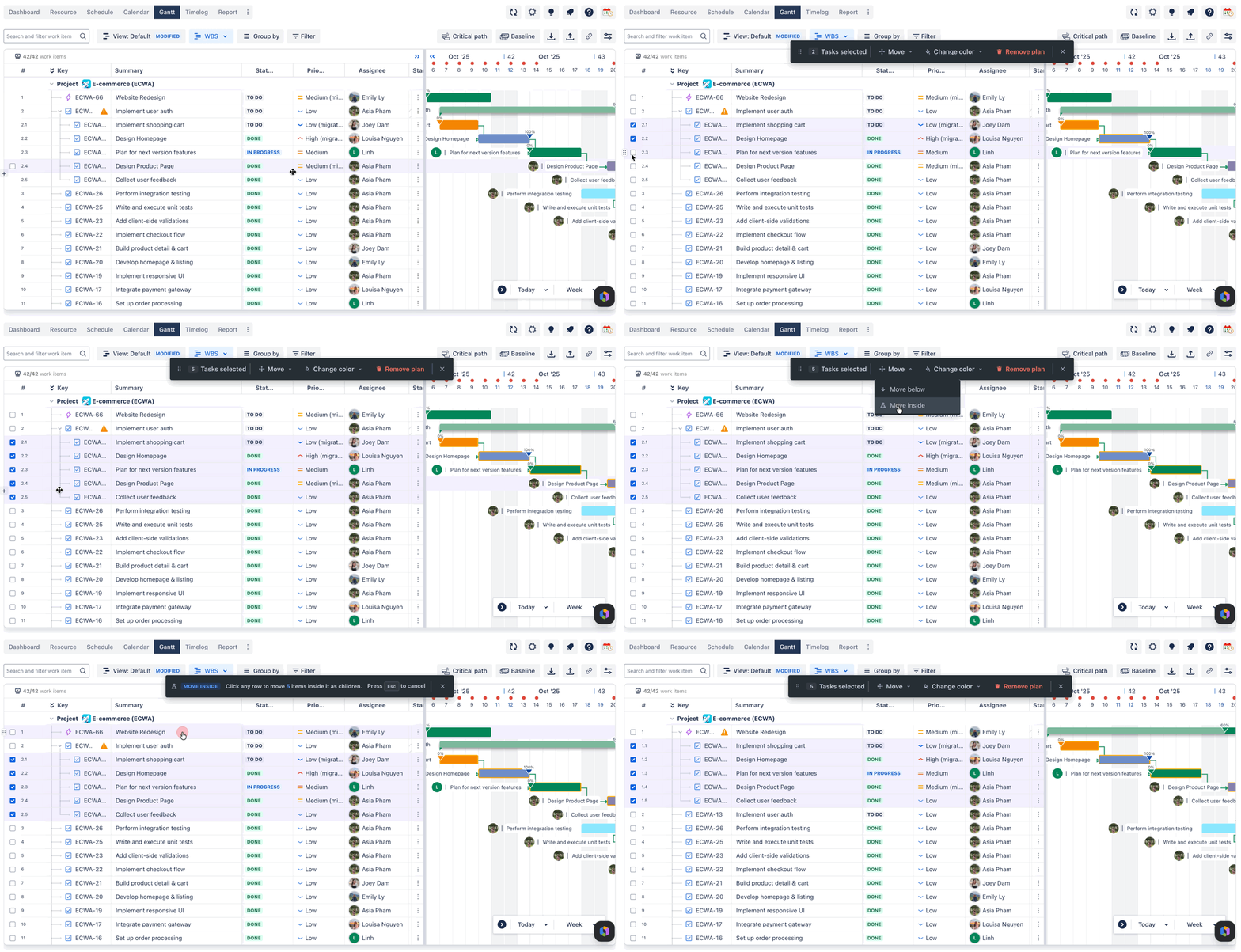
Option 2 — Bulk action menu (Move inside)
-
Select the work items you want to re-parent.
-
In the bulk action toolbar, click Move → Move inside.
-
Click the row you want to set as the new parent. The selected work items are immediately re-parented underneath it.
-
To cancel without making a change, press Esc or click the ✕ on the banner.
Bulk re-order work items
Change the position of multiple work items within the same parent level at once.
Option 1 — Drag and drop
-
Select the work items you want to reorder.
-
Drag the selection to the desired position in the list.
-
Drop between two existing rows to place the selected work items there. The selected work items keep their order relative to each other.
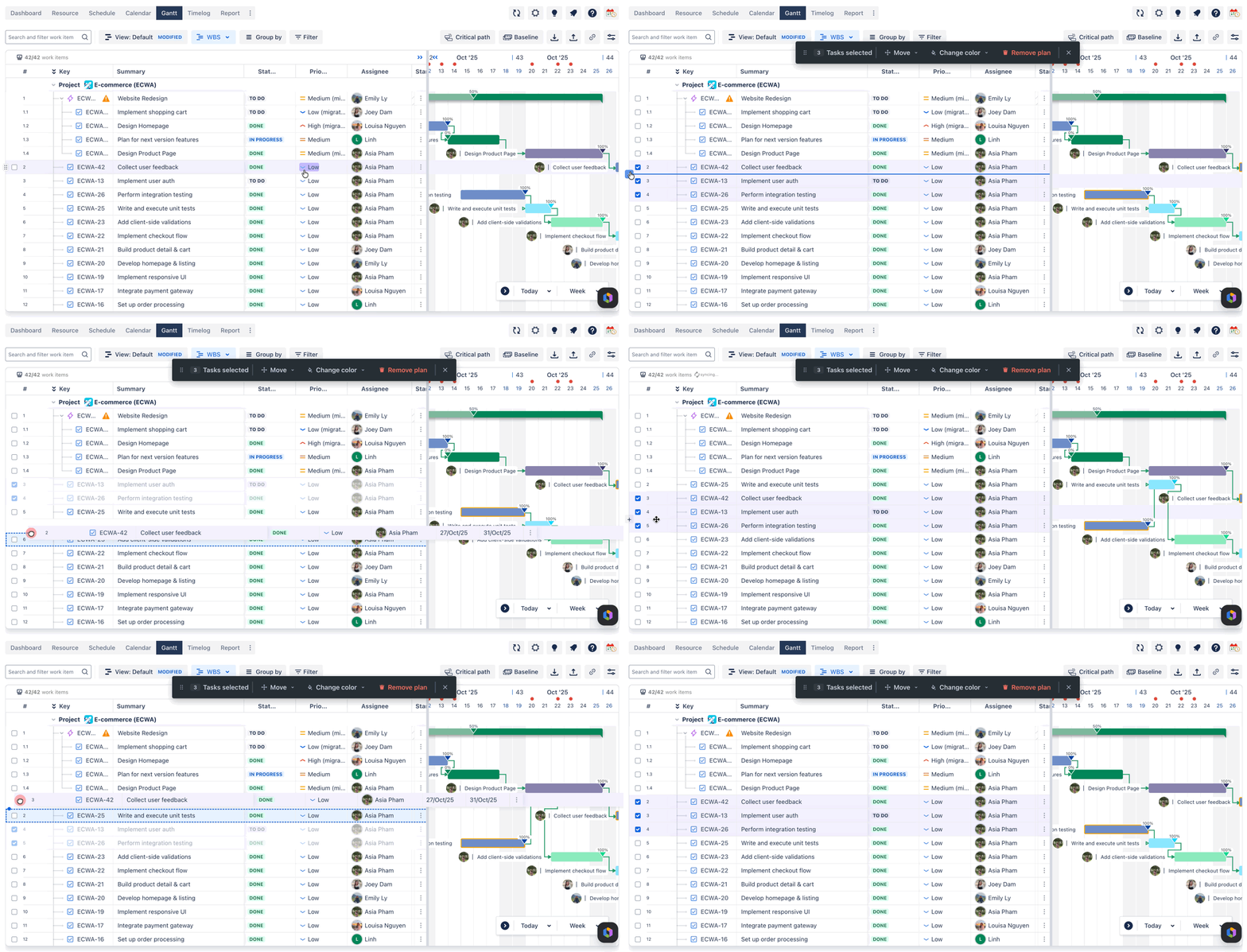
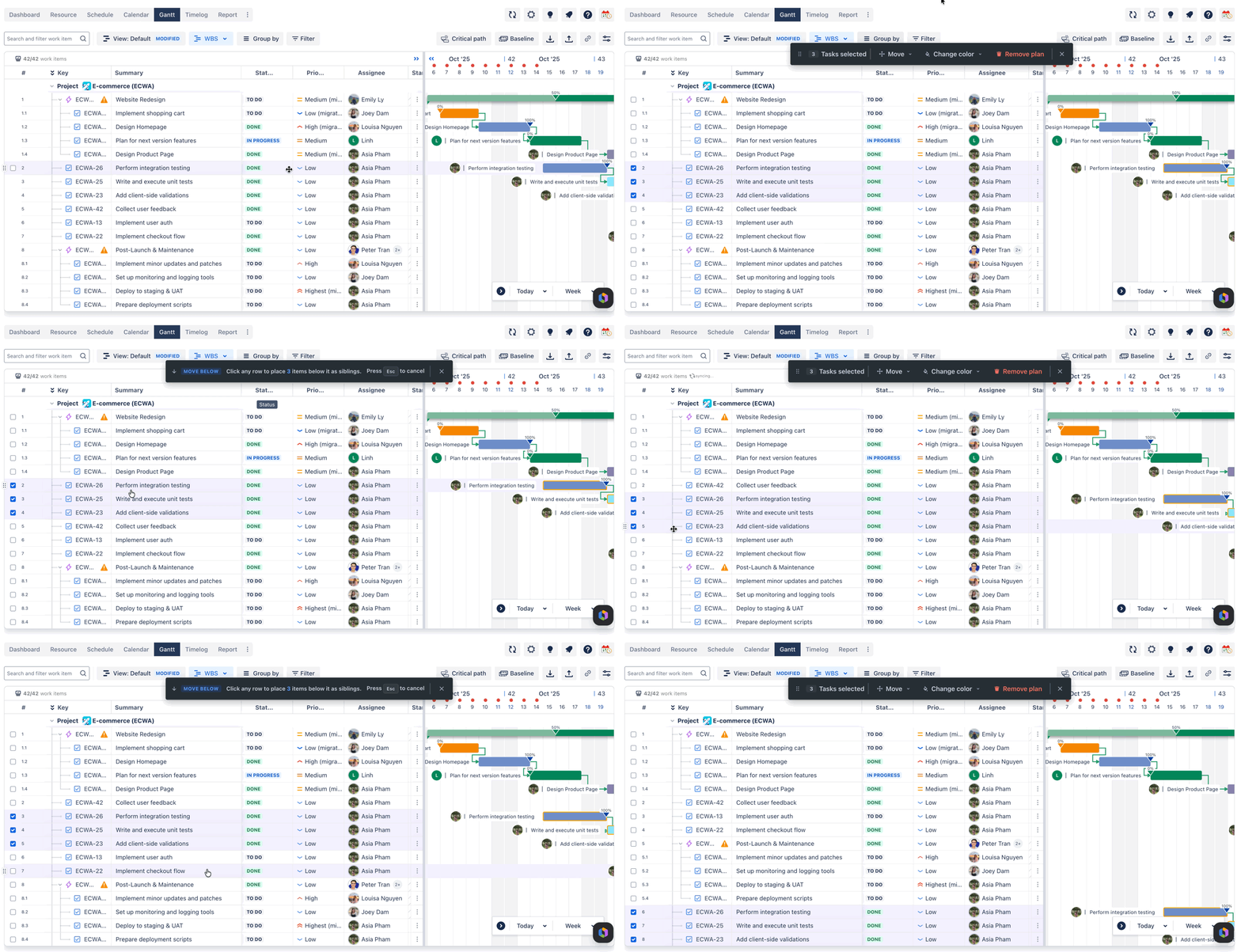
Option B: Bulk action menu (Move below)
-
Select the work items you want to reorder.
-
In the bulk action toolbar, click Move → Move below.
-
Click the row you want the selected items to be placed directly below. The selected work items move to that position as siblings, keeping their relative order.
-
To cancel without making a change, press Esc or click the ✕ on the banner.