.png)
The Hierarchy view allows you to control how work items are structured and displayed in the Gantt view. By switching between different hierarchy modes, you can choose the structure that best fits your planning and tracking needs.
How to switch Hierarchy views
-
Open the Gantt view.
-
Click the Hierarchy view selector in the toolbar.
-
Choose Jira hierarchy, Flat, or WBS from the dropdown.
The Gantt chart and work item list update immediately to reflect the selected hierarchy.
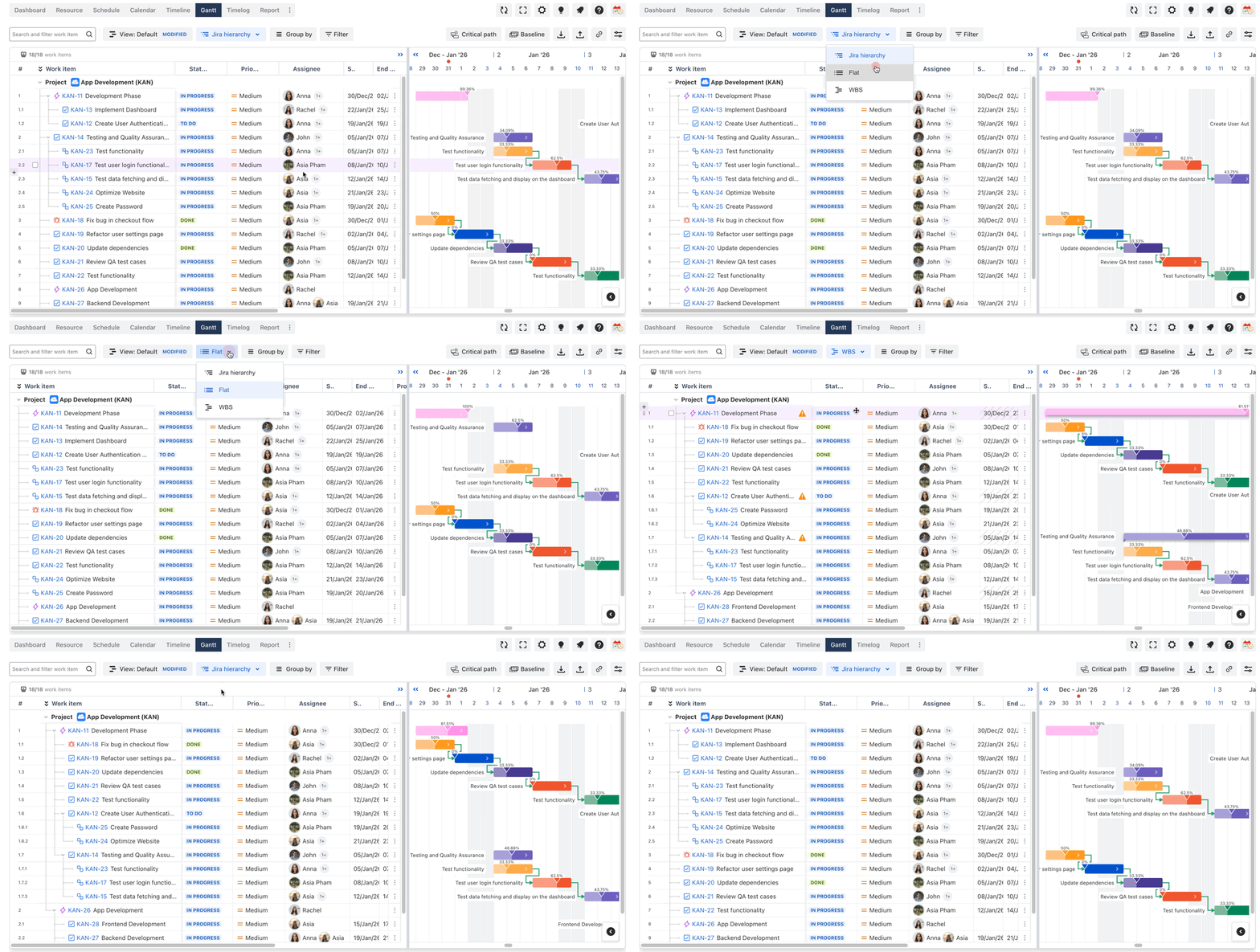
Hierarchy view options
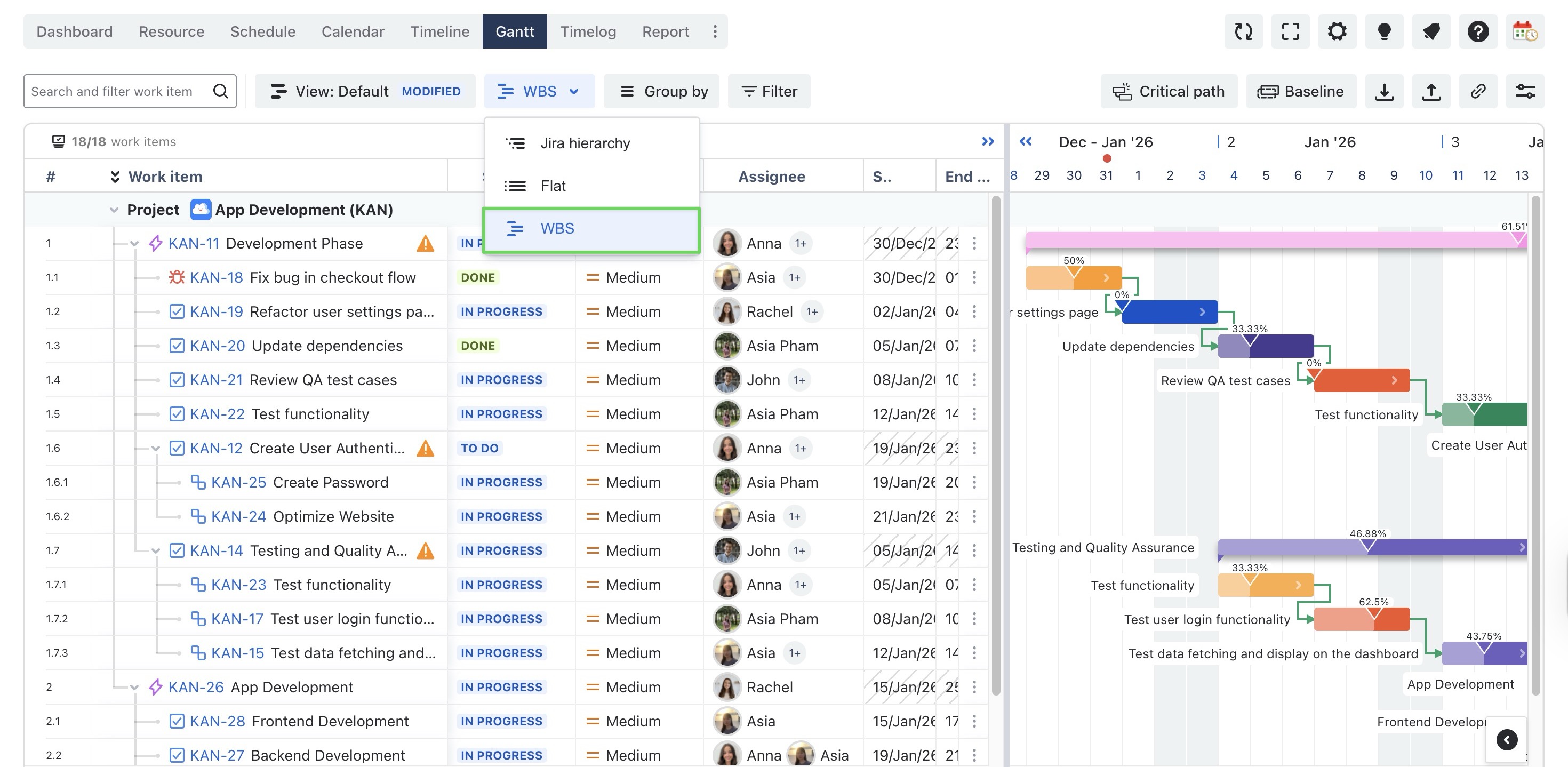
WBS (Work Breakdown Structure)
Organizes work items into a hierarchical tree based on the project’s work breakdown structure. This view is especially helpful for high-level planning and understanding task dependencies and project structure.
In WBS view, you can drag and drop work items directly in the table to reorganize the hierarchy, making it easy to adjust project structure as plans evolve.
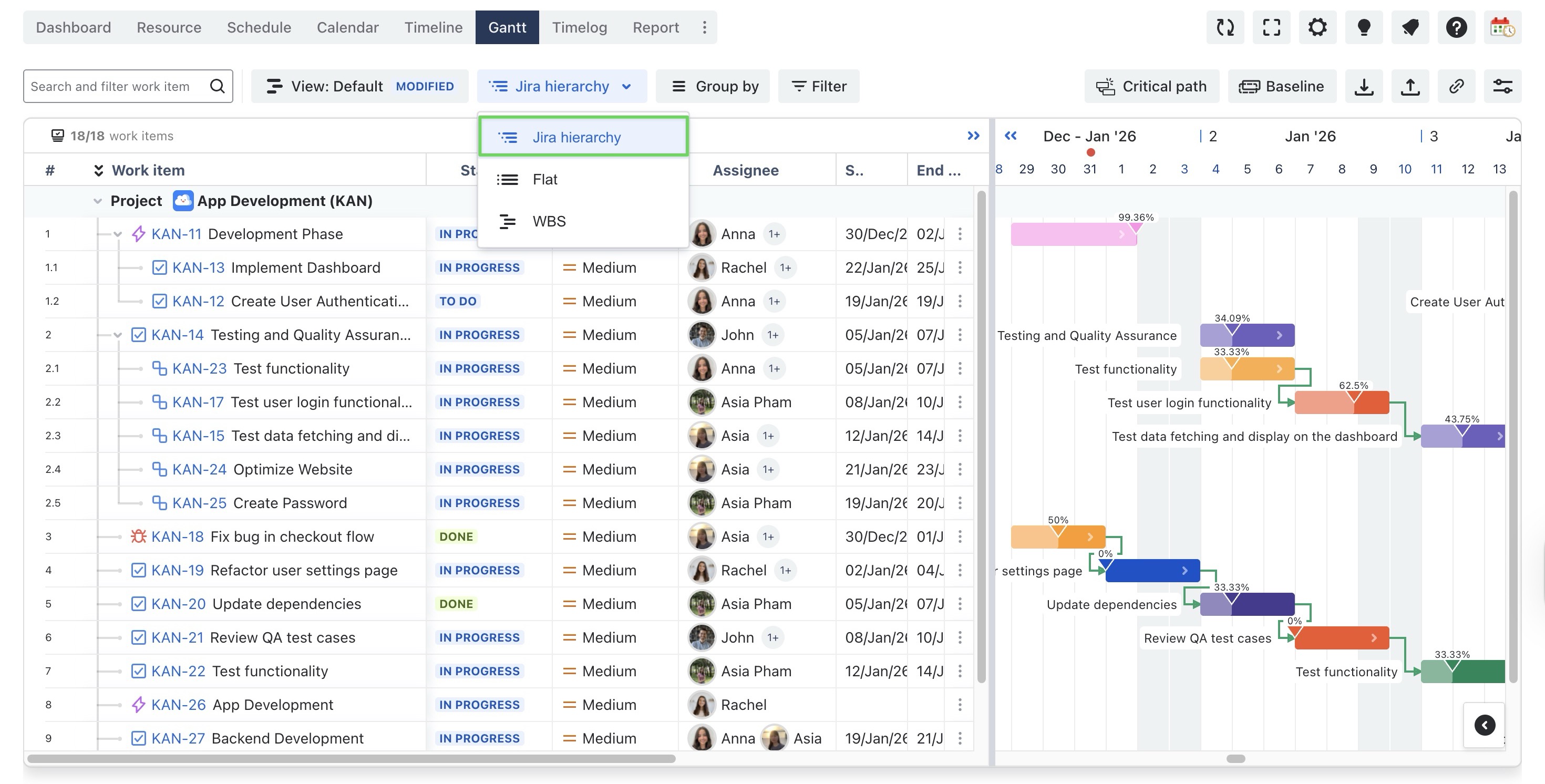
Jira Hierarchy
Displays work items following the native Jira hierarchy (for example, Epics → Stories → Sub-tasks). This view is ideal if you want to align your Gantt plan closely with Jira’s issue structure.
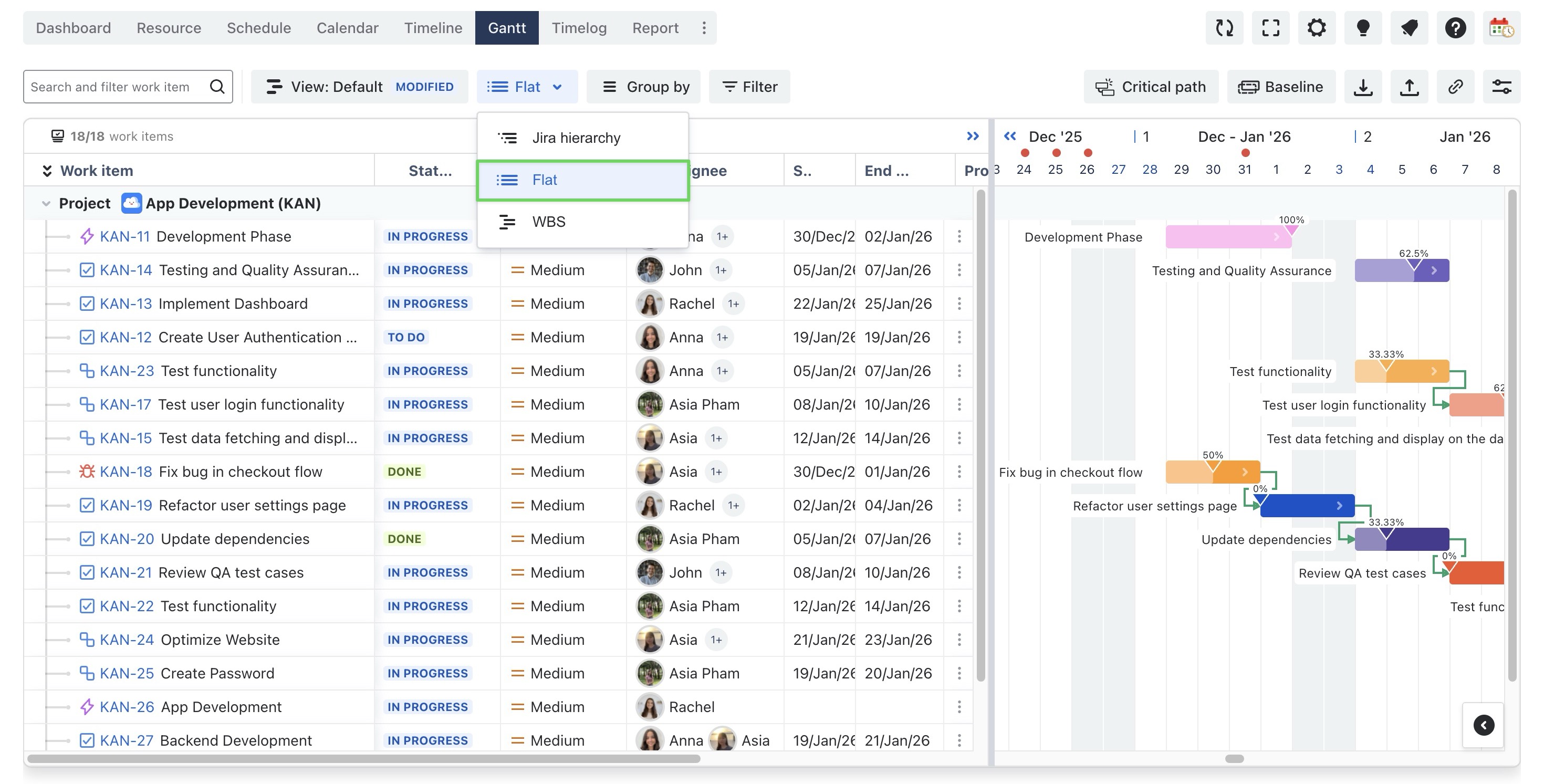
Flat Structure
Displays all work items in a single, flat list without parent–child relationships. This view is useful for focusing on individual tasks without considering hierarchy.