.png)
There are 3 approaches to creating test executions:
1. Create Test Executions in the Test Executions section
To create Test Executions in the Test Executions section, follow these steps:
-
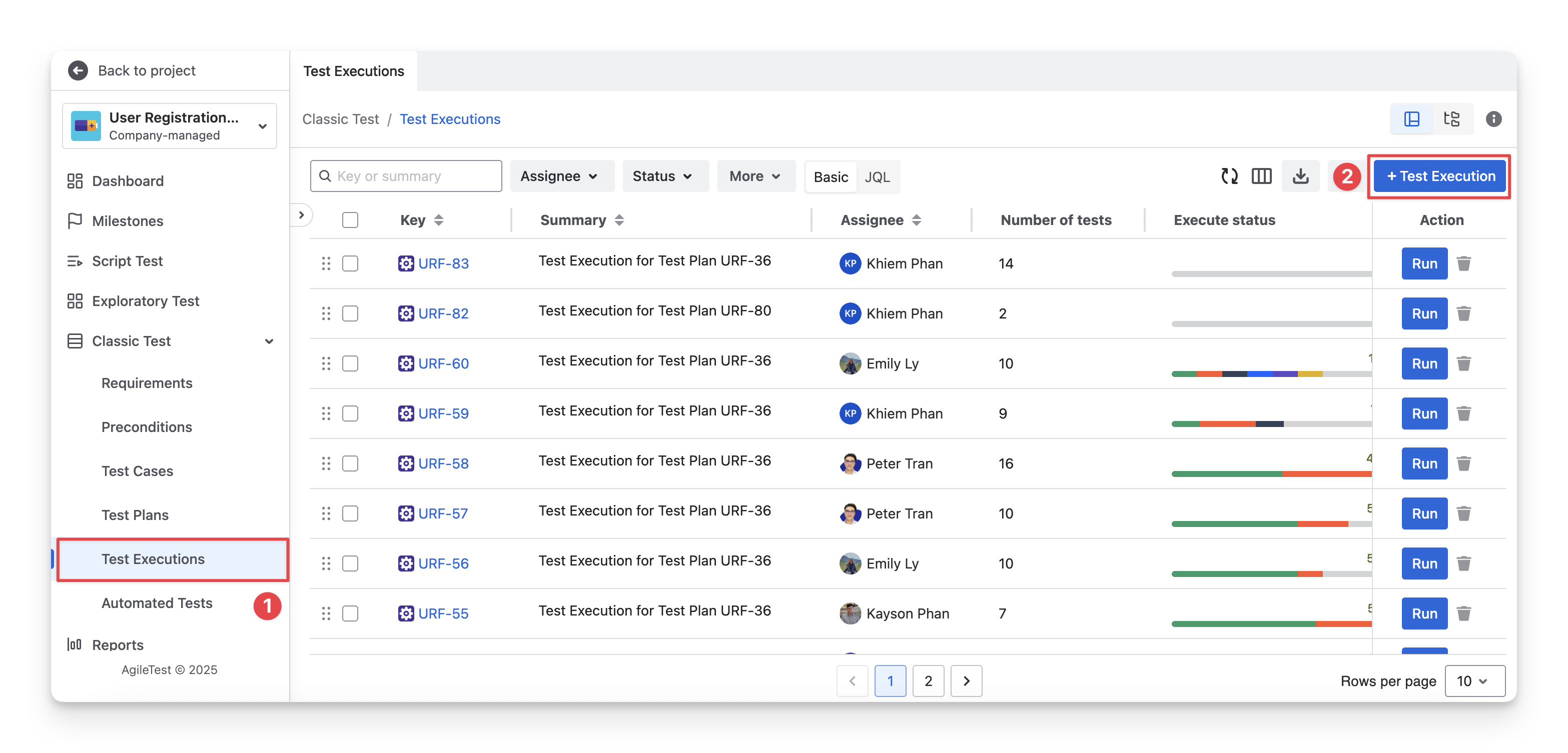
On the left-hand side menu bar, navigate to the Classic Test section → Choose Test Executions.
-
Click on the “+ Test Execution” button.
-
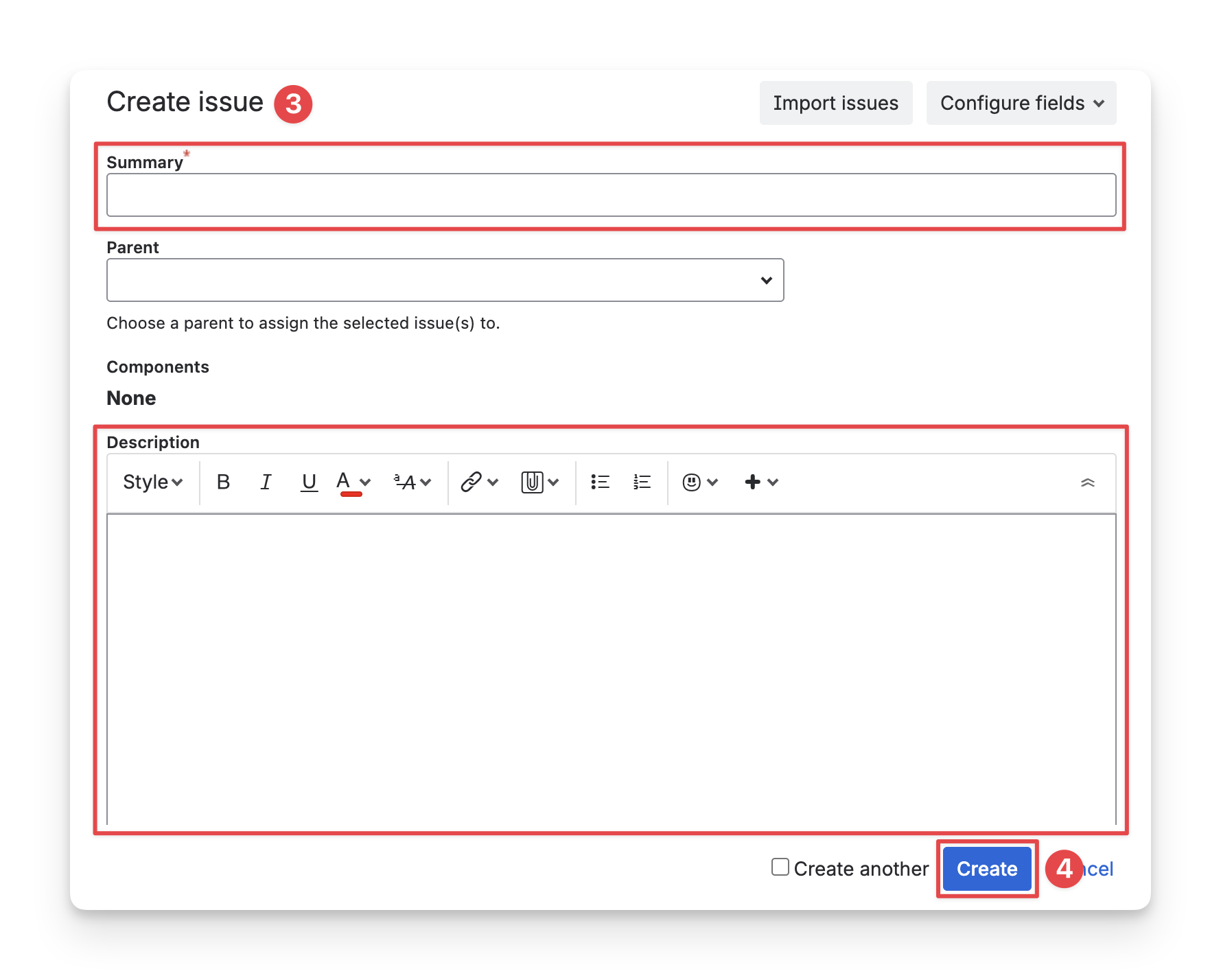
Fill in the test execution details.
-
Summary: Enter a short and clear name that describes the purpose of the test execution (for example, feature name, test cycle, or execution scope).
-
Description: Provide additional details about the test execution, such as testing focus, environment, execution notes, or any instructions for the testing team.
-
Click on the “Create” button to finish.
How to Create Multiple Test Executions Without Repeating the Process
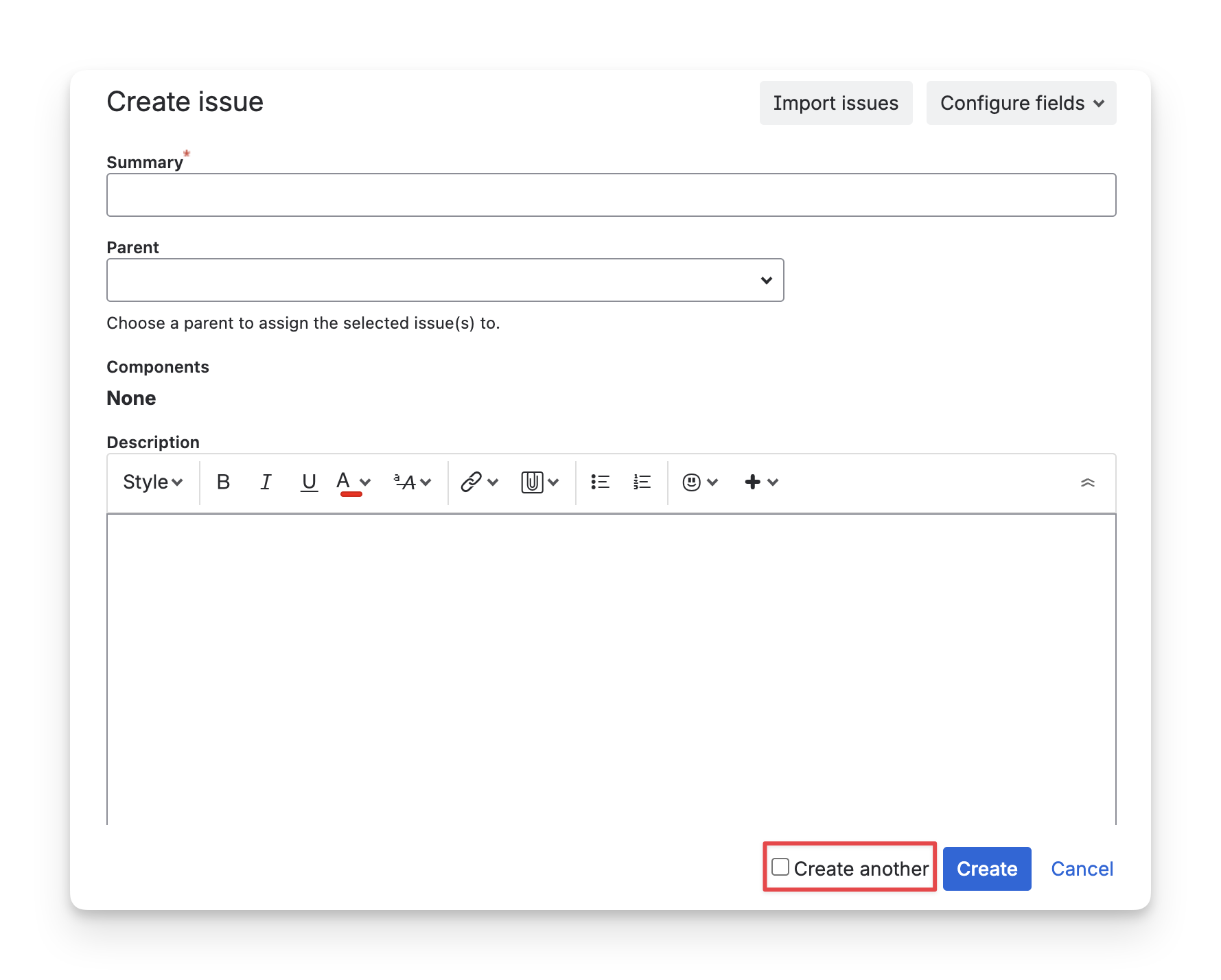
Follow the same steps used to create the first test execution. In the 3rd step, select “Create another” instead of clicking “Create”.
This keeps the dialog open after the test execution is created, allowing you to continue creating and editing additional test executions without reopening the dialog each time.
2. Create Test Executions in the Test Cases section
This approach helps QA teams in two ways:
-
Convenient execution flow: QA teams can create test executions directly while working with test cases, allowing execution setup to happen naturally as part of test case management.
-
Reduced setup effort: The selected test cases are automatically included in the test execution, eliminating the need to manually add them later.
To create Test Executions in the Test Cases section, follow these steps:
-
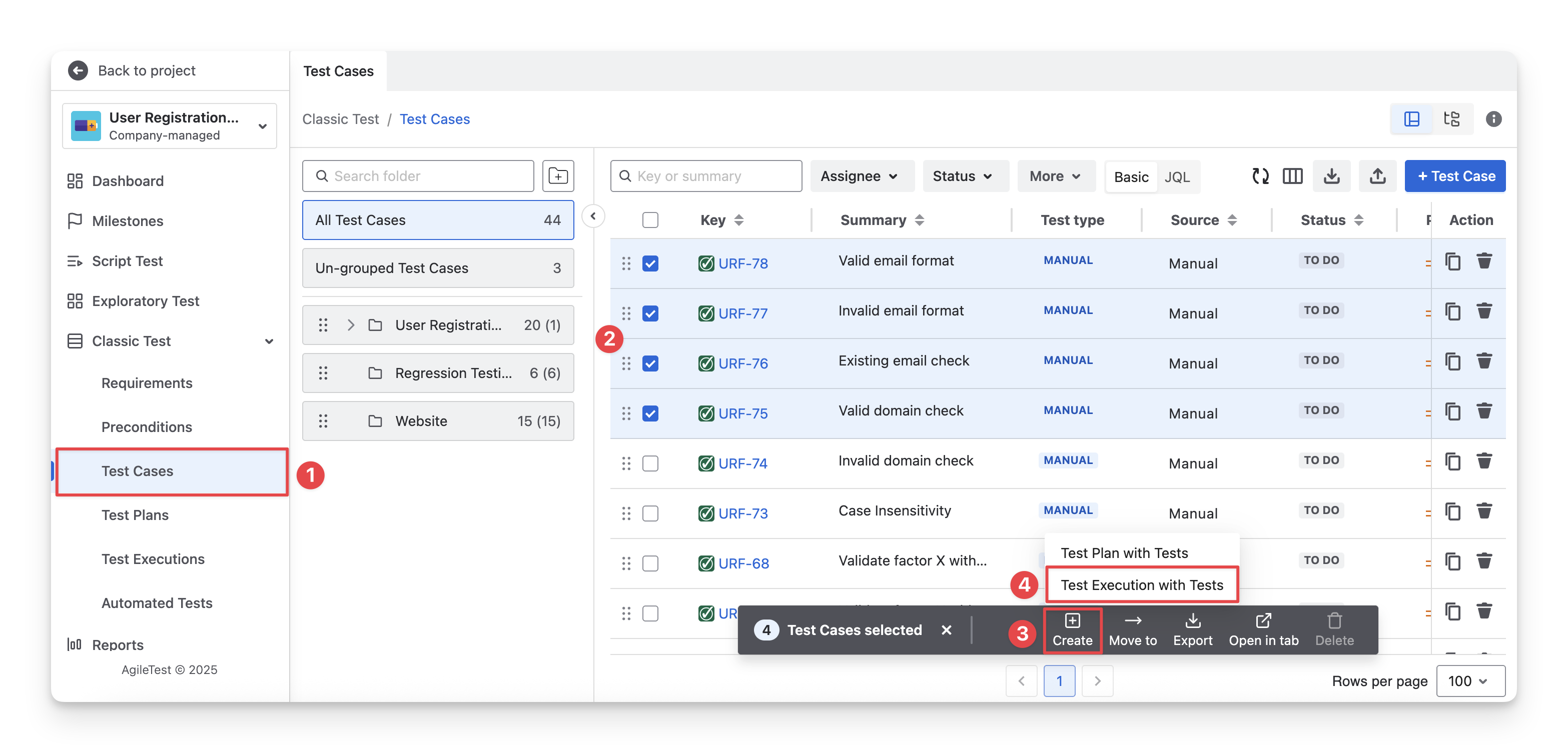
On the left-hand side menu bar, navigate to the Classic Test section → Choose Test Cases.
-
Multi-select test cases that you want to create a test execution for.
-
Select the “Create” button in the toolbar.
-
Choose the “Test Executions with Tests” option.
-
Fill in the test execution details.
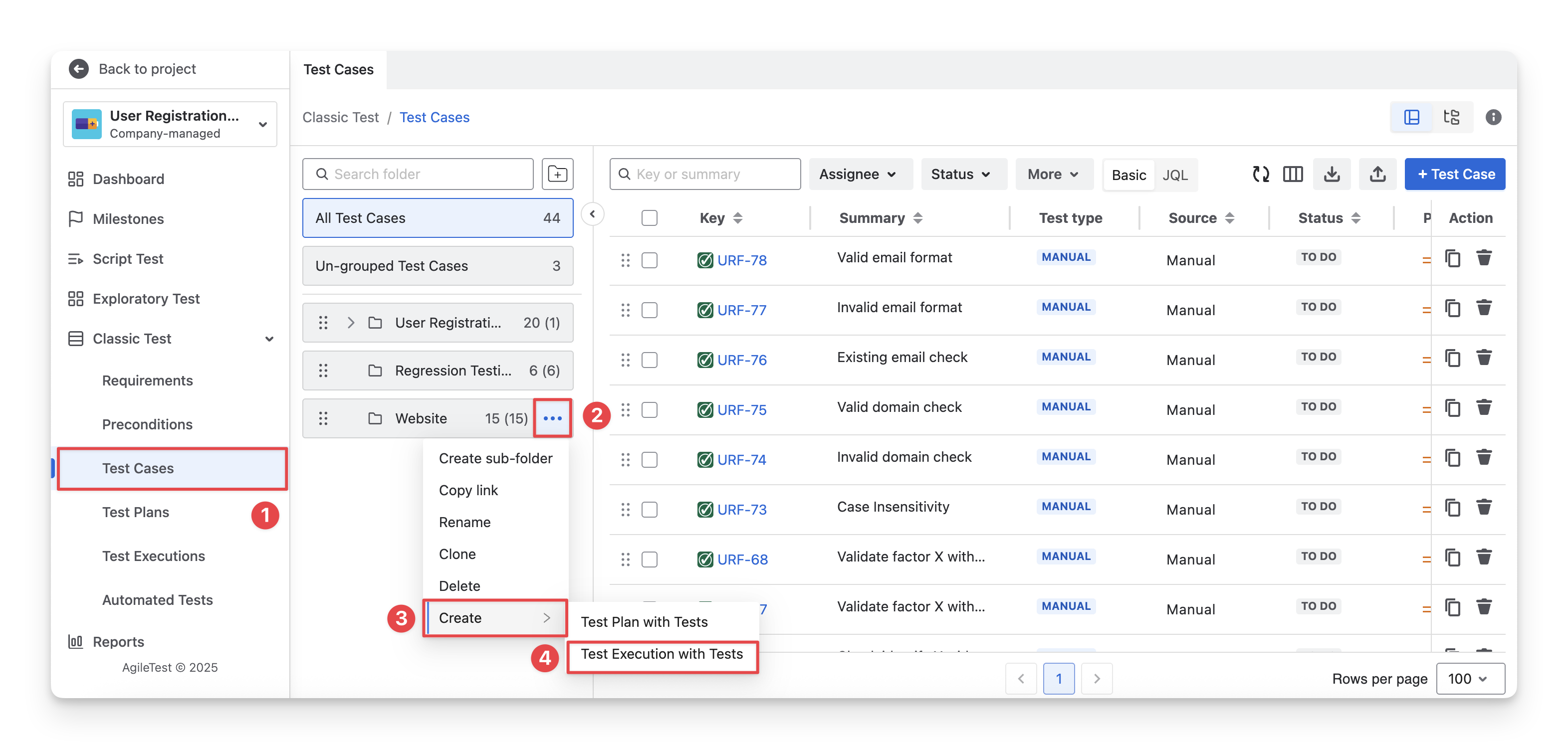
How to Create a Test Execution from A Folder of Test Cases?
-
On the left-hand side menu bar, navigate to the Classic Test section → Choose Test Cases.
-
Navigate to the test case folder you want to create a test execution for. Click on the “
-
Select the “Create” button.
-
Choose the “Test Execution with Tests” option.
-
Fill in the test execution details.
3. Create Test Executions inside a Test Plan
Before creating a test execution with this approach, ensure the test plan includes some test cases.
This approach helps QA teams in two ways:
-
Plan-driven execution: QA teams can create test executions directly within a test plan, ensuring executions are fully aligned with the planned testing scope.
-
Better control and organization: Test executions follow the test plan structure, ensuring only planned test cases are executed and making progress easier to track.
To create a test execution in the test plan, follow these steps:
-
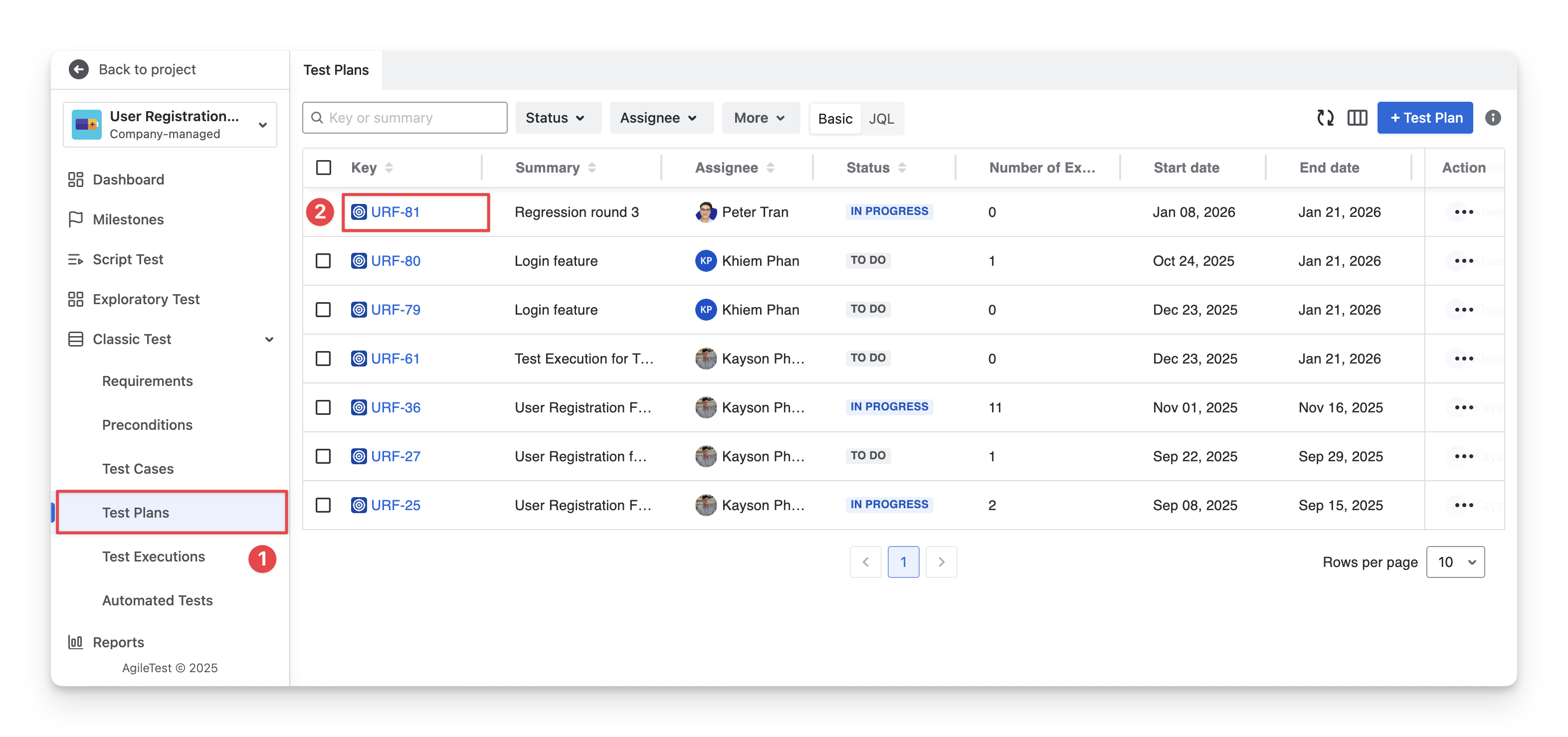
On the left-hand side menu bar, navigate to the Classic Test section → Choose Test Plans.
-
Click on the Test Plan Key of the test plan you want to create test execution for.
-
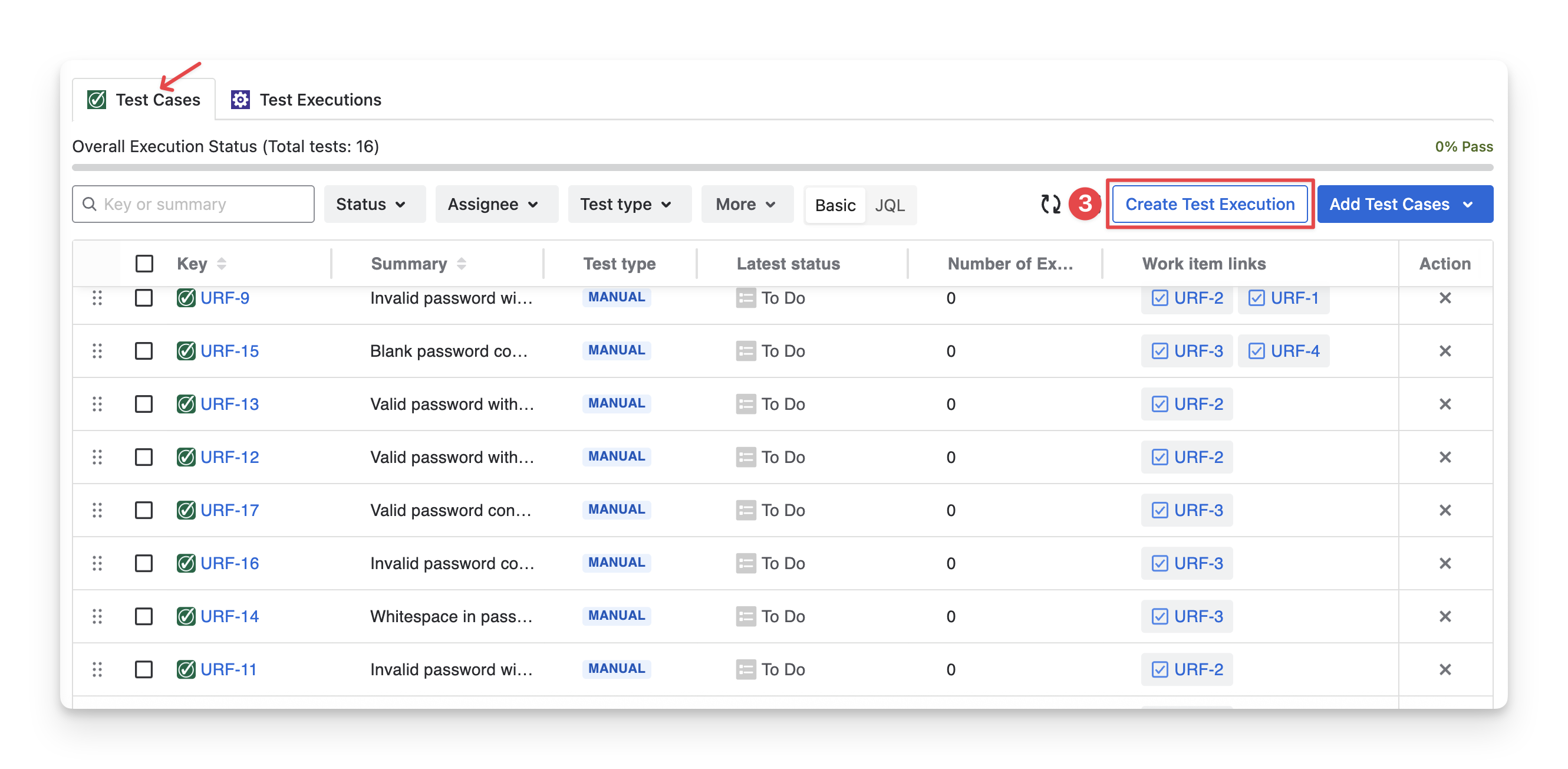
In the Test Cases tab inside a test plan, click on the “Create Test Execution” button.
-
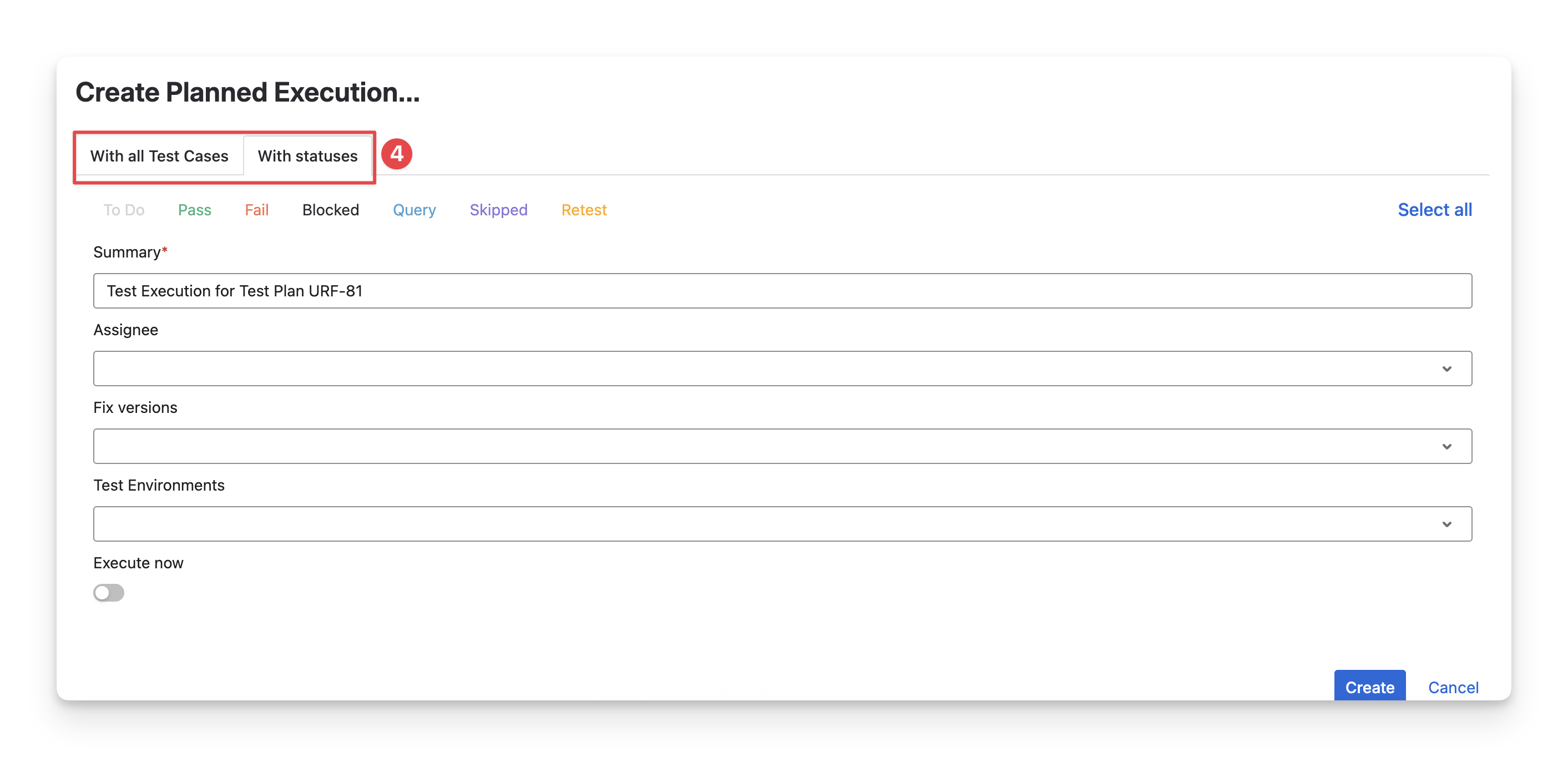
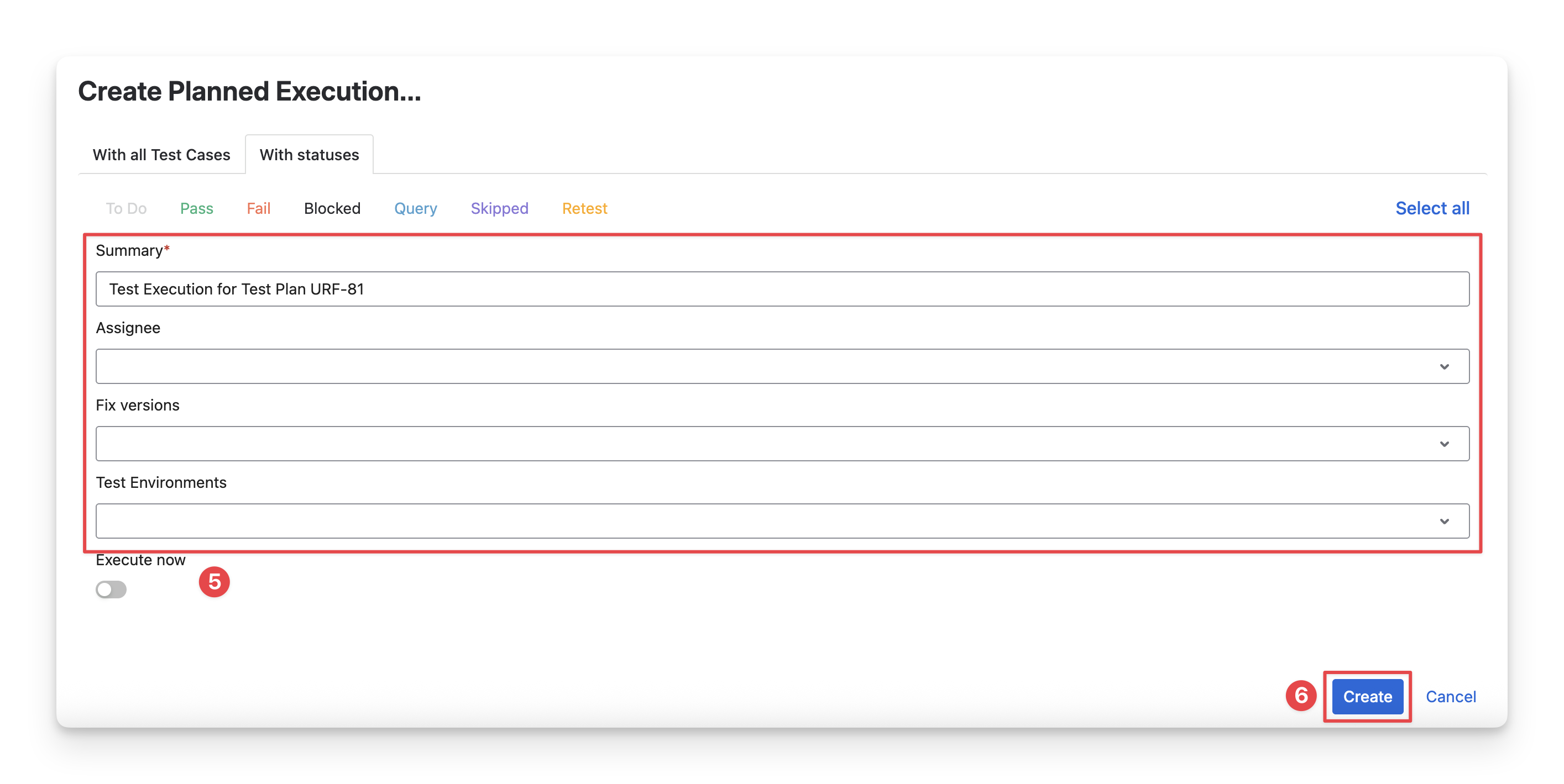
A dialog to create a test execution will appear. You can see 2 tabs:
-
With All Test Cases: Select this tab to create a new test execution that includes all test cases currently in the test plan.
-
With Statuses: Select this tab to create a new test execution based on the latest execution status of test cases, allowing you to include only test cases with specific statuses (for example, Fail or blocked ).
-
Fill in the Test Executions details.
-
Summary: Enter a short, descriptive name for the test execution to identify its purpose (for example, the test cycle name).
-
Assignee: Select the team member responsible for running and managing this test execution.
-
Fix version: Choose the product version or release that this test execution is validating.
-
Test Environment: Specify the environment where the tests will be executed (such as QA, Staging, or Production).
-
Click the “Create” button to finish.
You can turn the “Execute now” option on or off to decide whether the test execution should start immediately after it is created or be run at a later time.
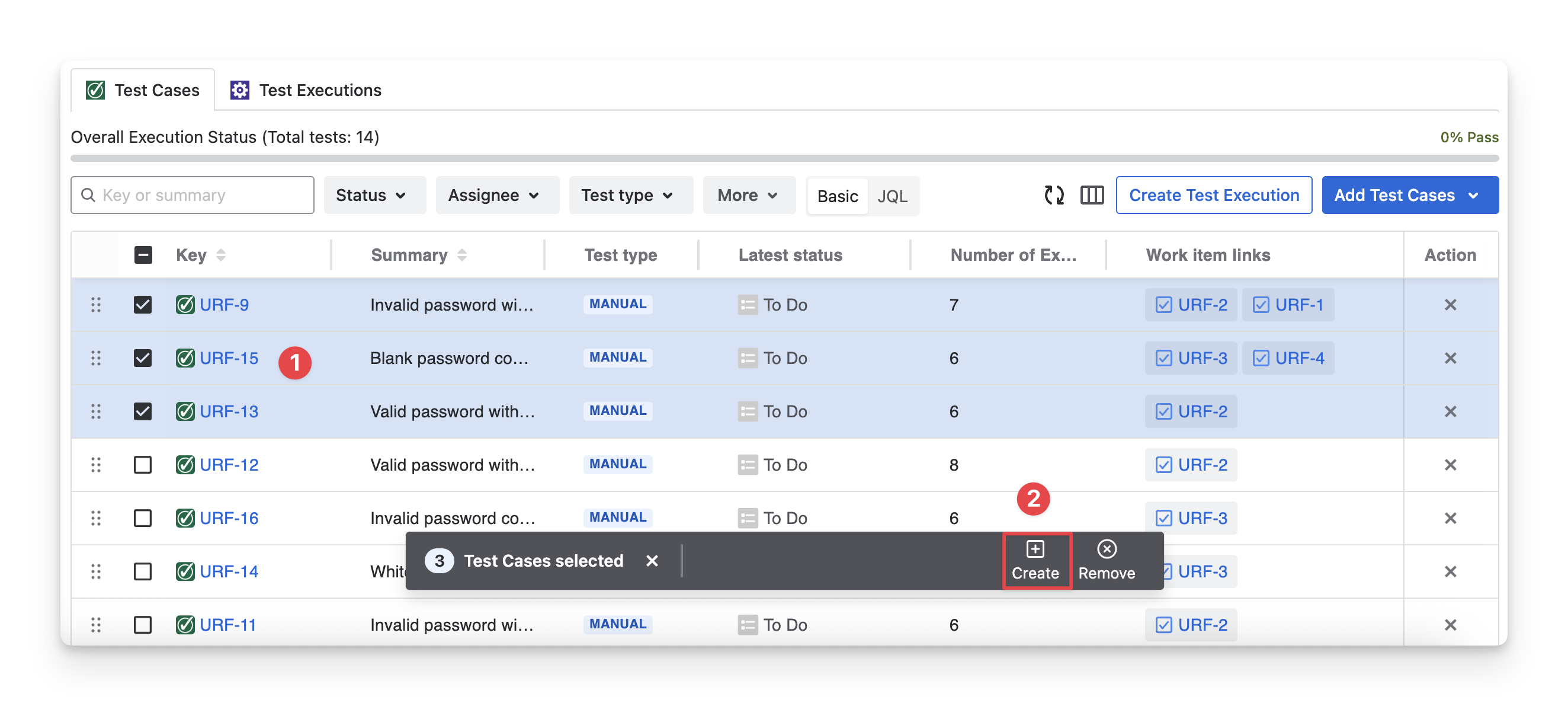
You can also add test execution from selected test cases only. Here is how:
-
In the Test Cases tab inside a test plan, multi-select the test cases you want to include in the test execution.
-
Choose the “Create” button in the toolbar.
-
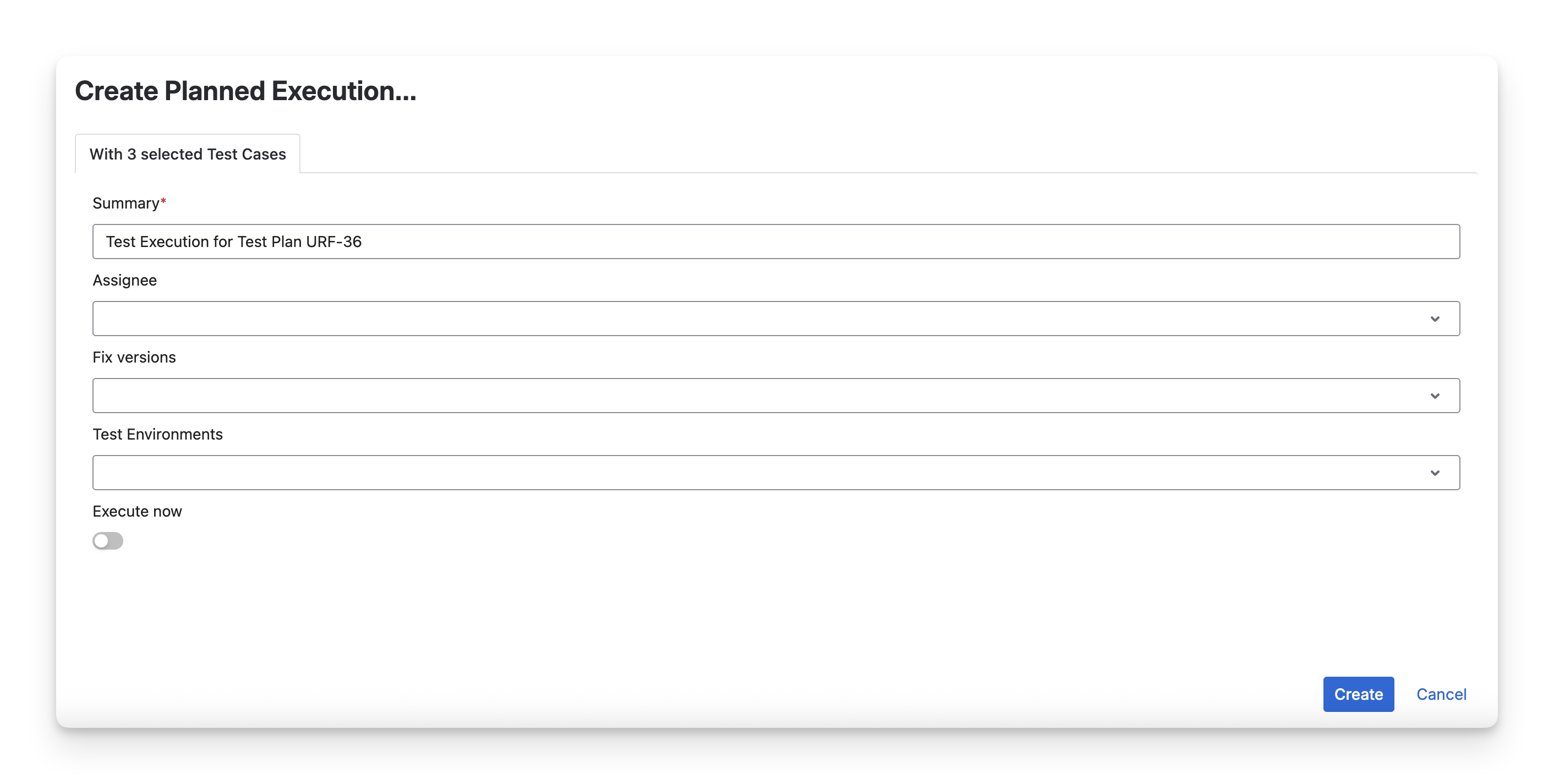
Fill in the Test Execution details. Click the “Create” button to finish.
-
Click the “Create” button to finish.
Should you need any assistance or further AgileTest inquiries, contact our 24/7 Support Desk!