.png)
When you click on any Precondition Key in the Precondition table, you are redirected to the Precondition Detail screen, where you can view and manage detailed information related to that precondition.
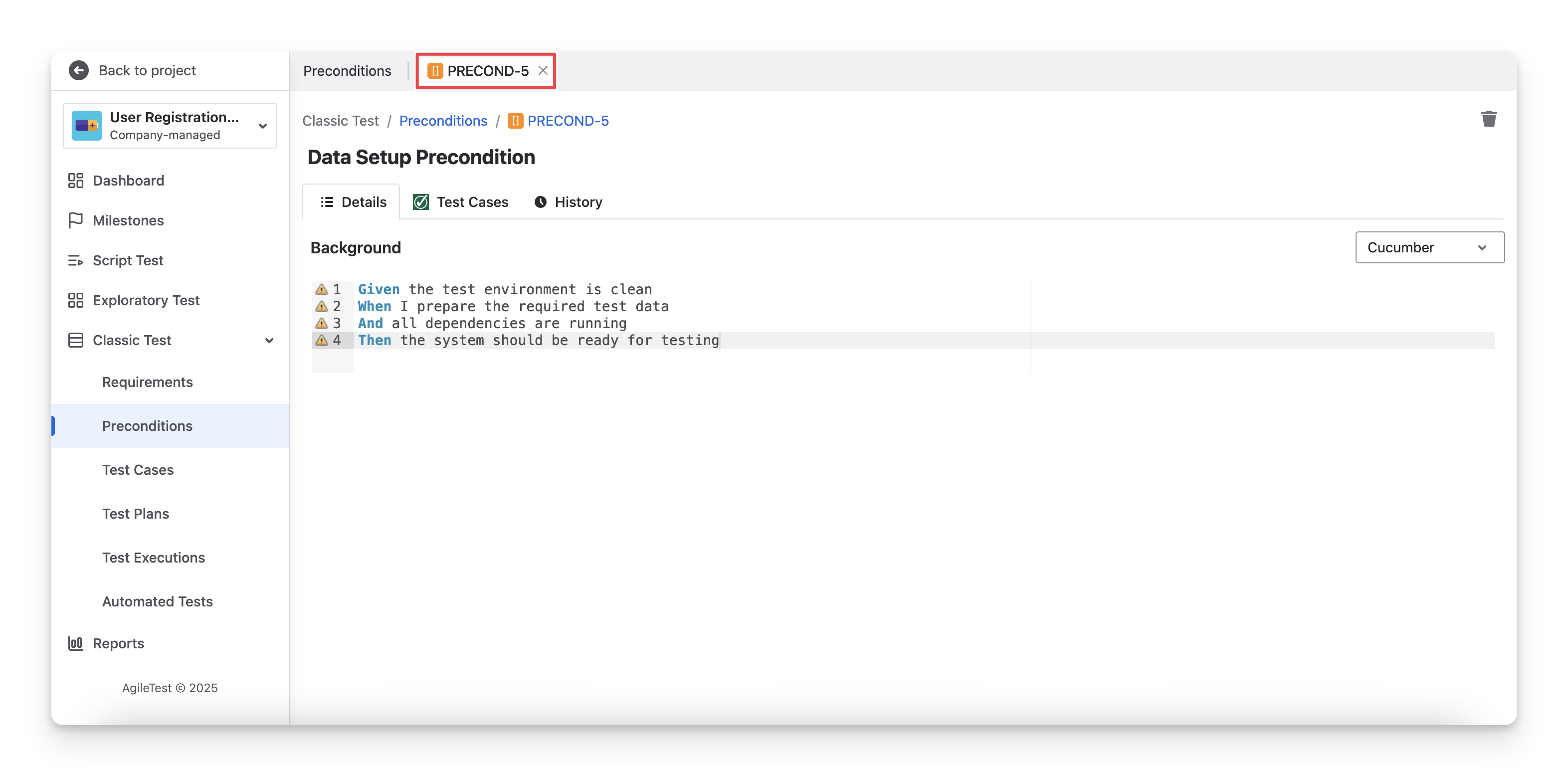
1. Details Tab
In the Details tab, you can view the precondition type and its current setup. This tab allows you to update precondition details, as well as change the precondition type if needed, ensuring it stays aligned with your testing approach.
1.1 Update Precondition Details
To update precondition details, click the details field and edit.
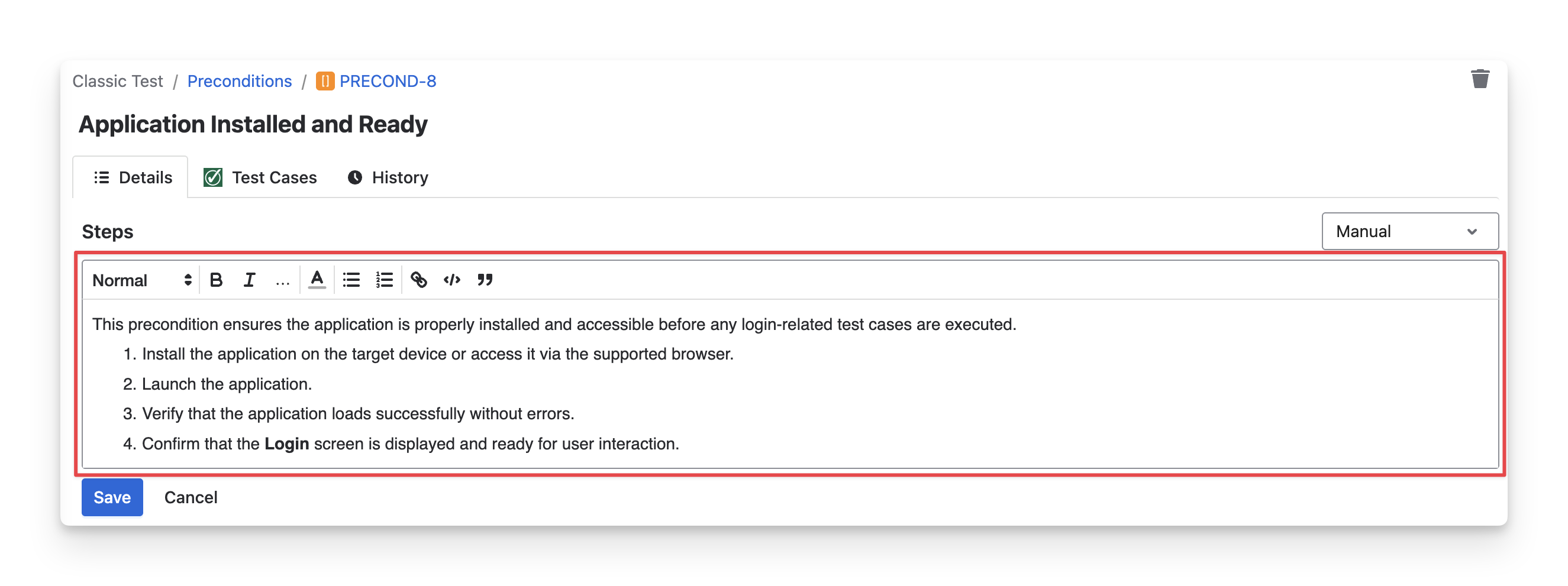
For the Manual Precondition Type, you can edit the created steps in the system space. Click the “Save” button to apply your changes.
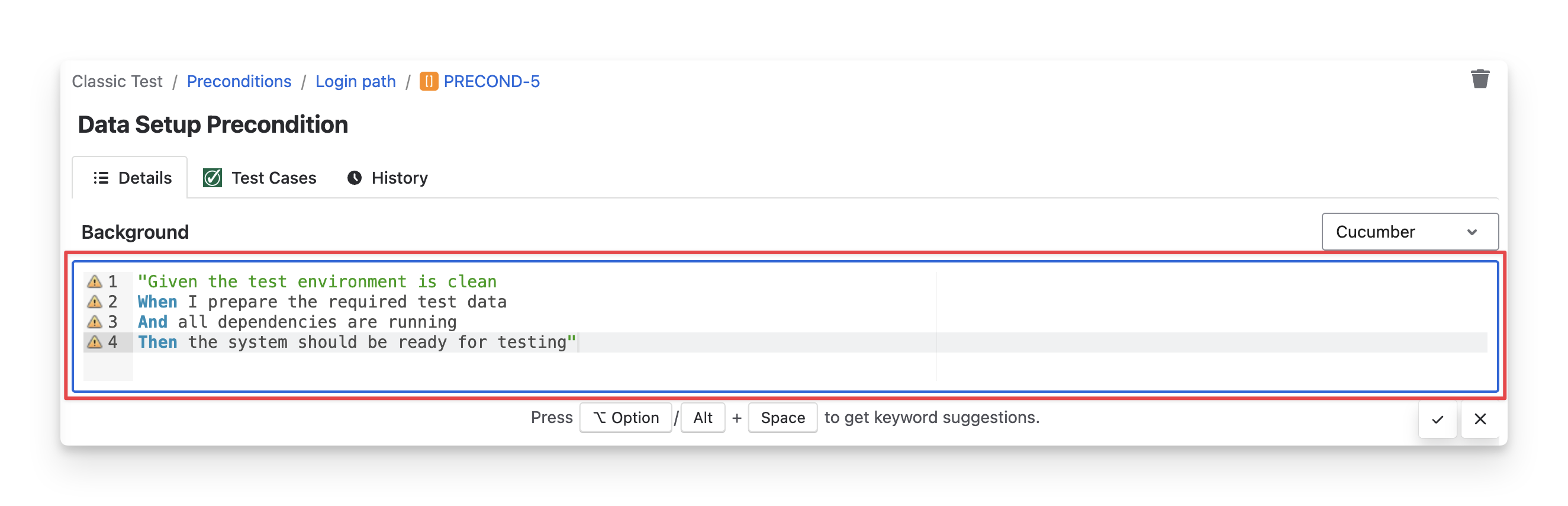
For the Cucumber Precondition Type, you can edit your input content in the code base to update the precondition logic. Click the /
button to save or discard your changes.
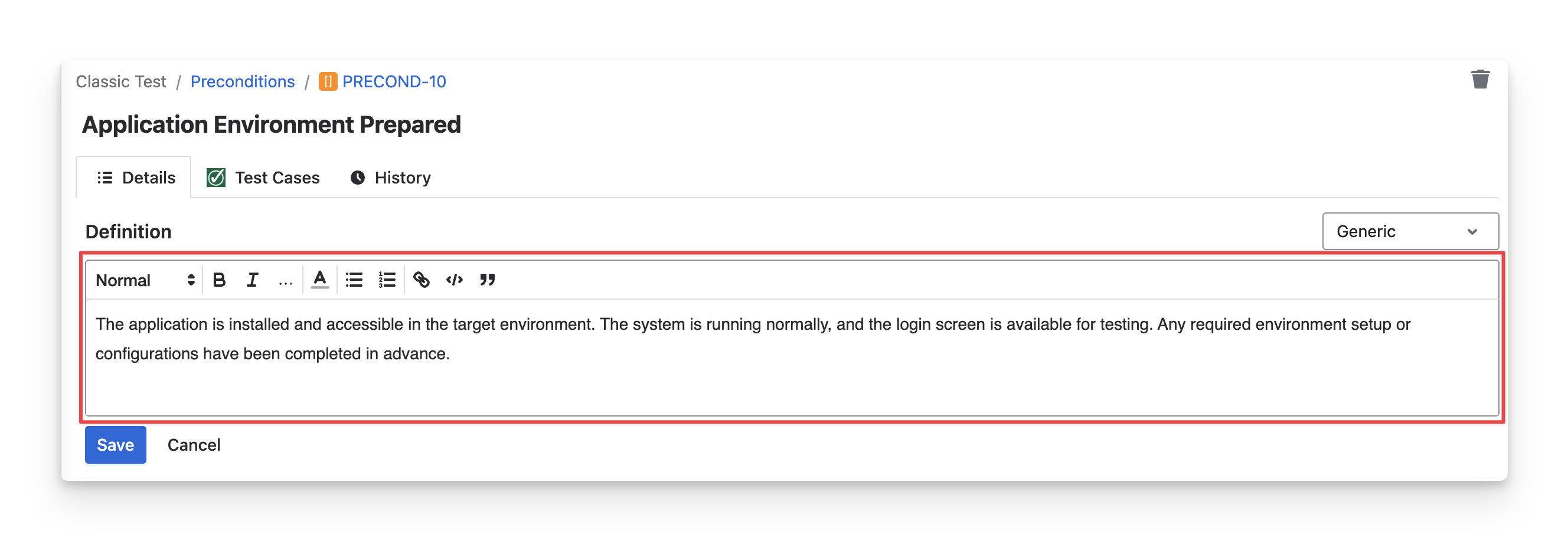
For the Generic Precondition type, you can edit the content in the text field to update notes, configurations, or checklist information. Click the “Save” button to apply your changes.
1.2 Change Precondition Types
To change the precondition type, click the dropdown menu in the Details tab and select the type you want to use.
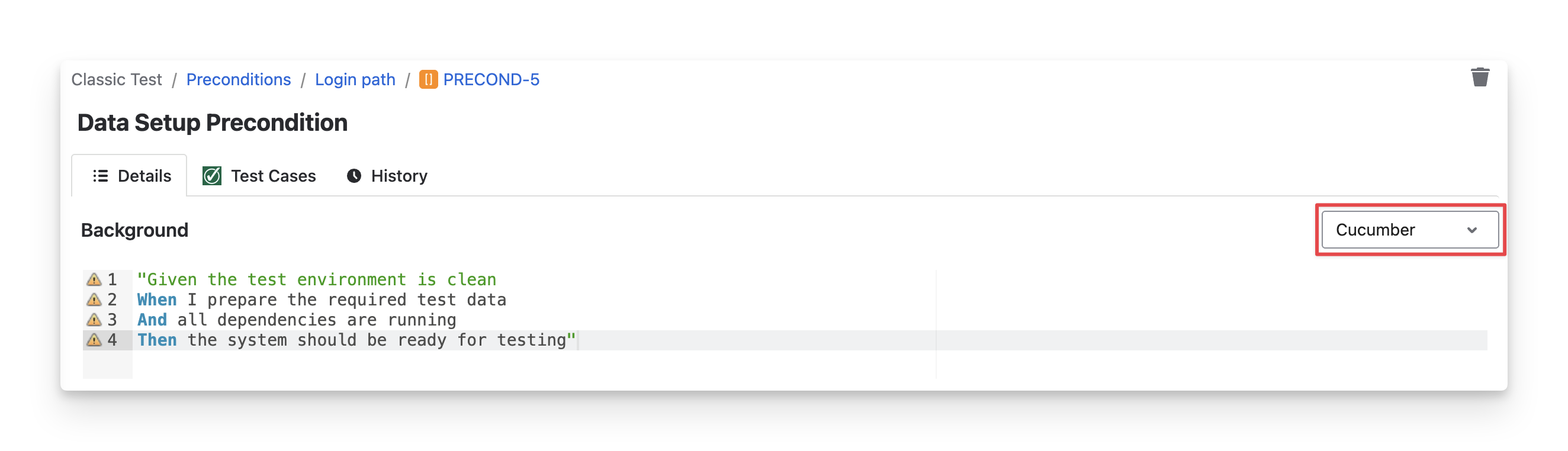
Since Precondition types must match Test Case types, changing the Precondition Type will remove all existing details and unlink any test cases currently associated with the precondition. Make sure to review this impact before making the change.
2. Test Cases
In the Test Cases tab, you can view which test cases the preconditions are linked to. This helps you track which required conditions, data, or environment setup must be fulfilled before executing those test cases.
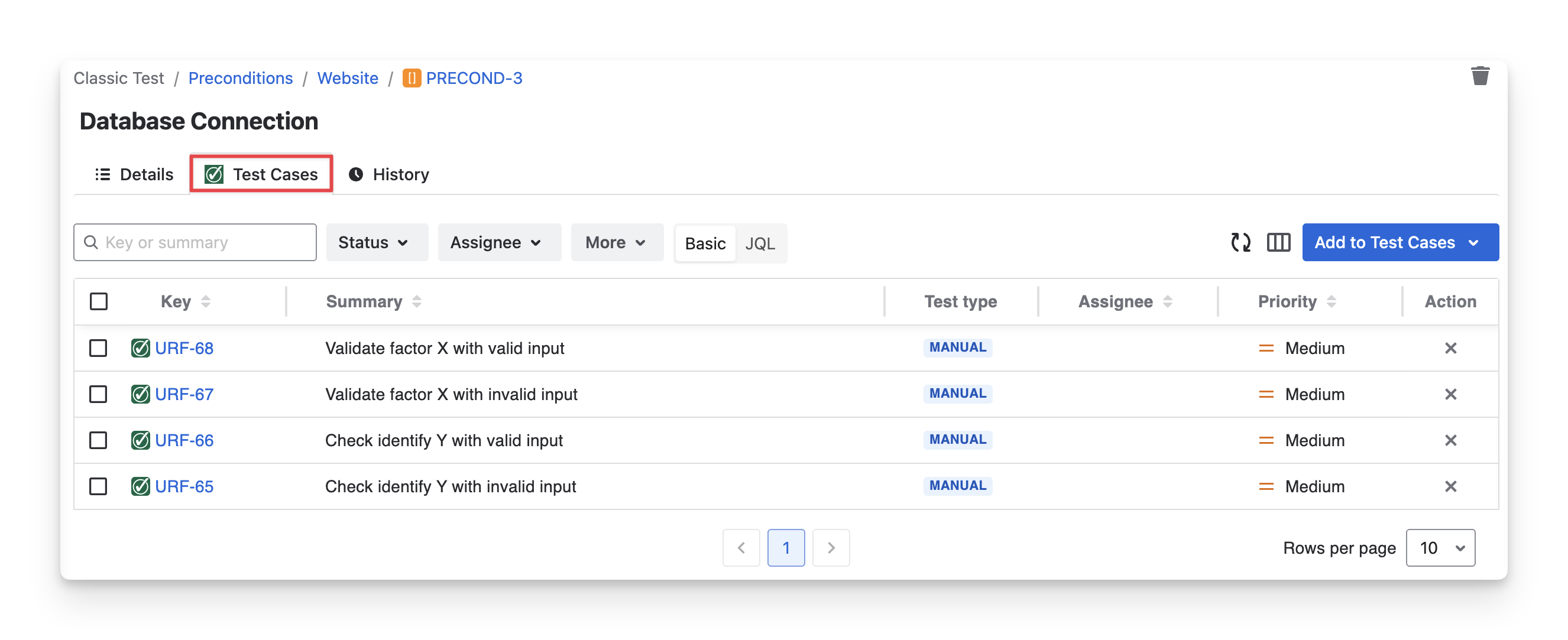
2.1 Link Preconditions To Test Cases
You can only link preconditions to test cases with the same types.
To link this precondition with test cases, you can follow these steps:
-
Choose the Test Cases tab in the Precondition Detail screen.
-
Click the “Add to Test Cases” button.
-
Choose “Existing Test Cases”.
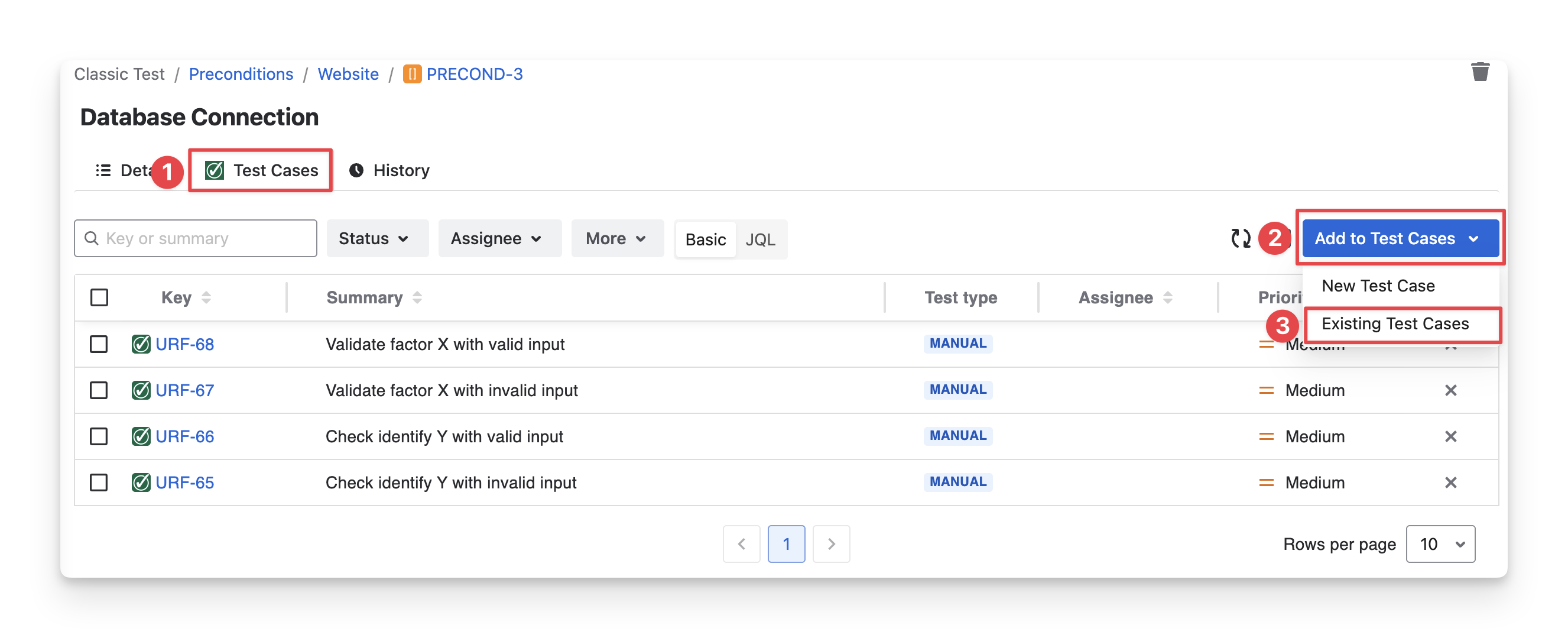
If you choose “New Test Cases” you will manually create a new test case here.
Learn more about creating a test case indirectly in the Precondition.
-
Select the test cases you want to link with this requirement.
-
Choose “Add Selected” to finish.
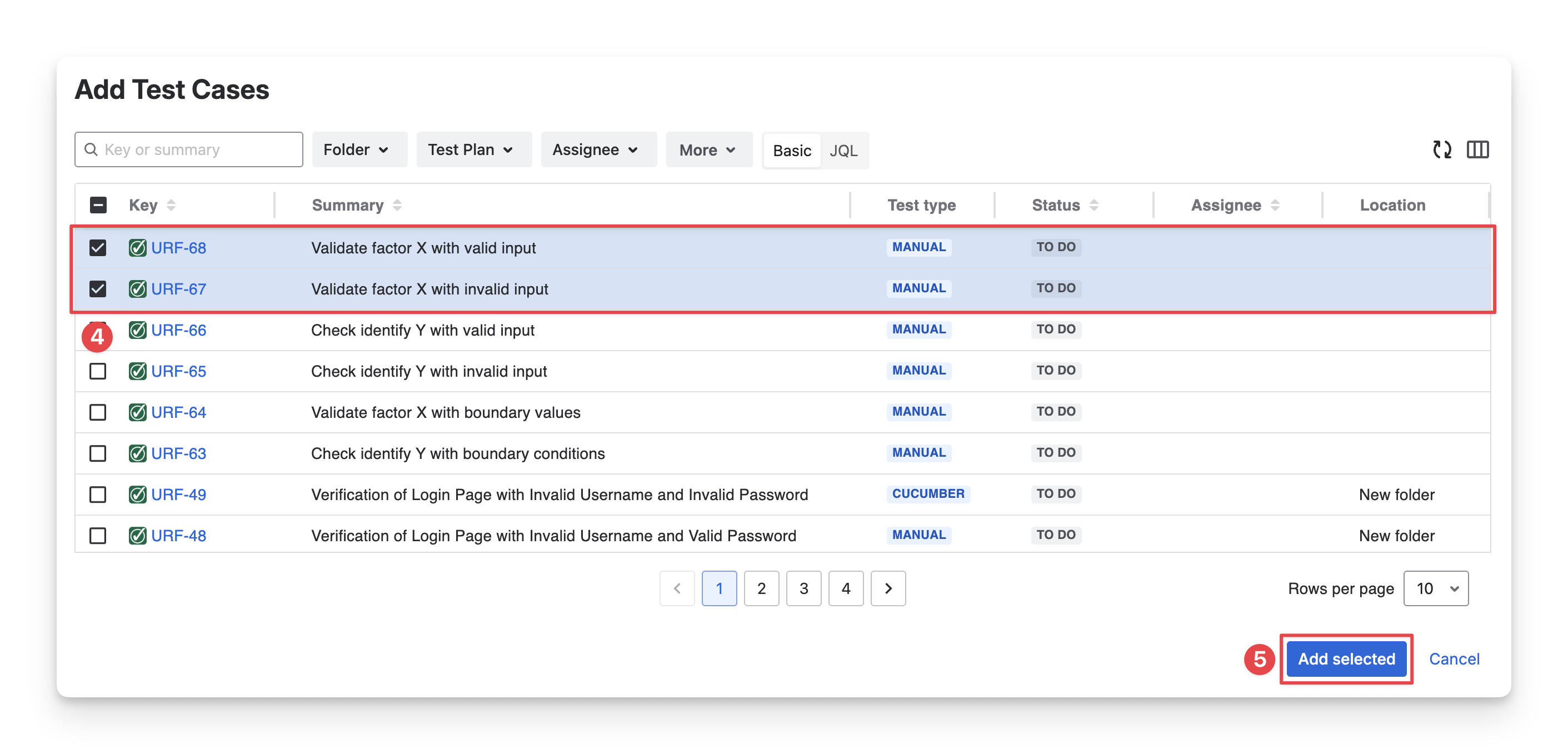
2.2 Remove Test Cases From Preconditions
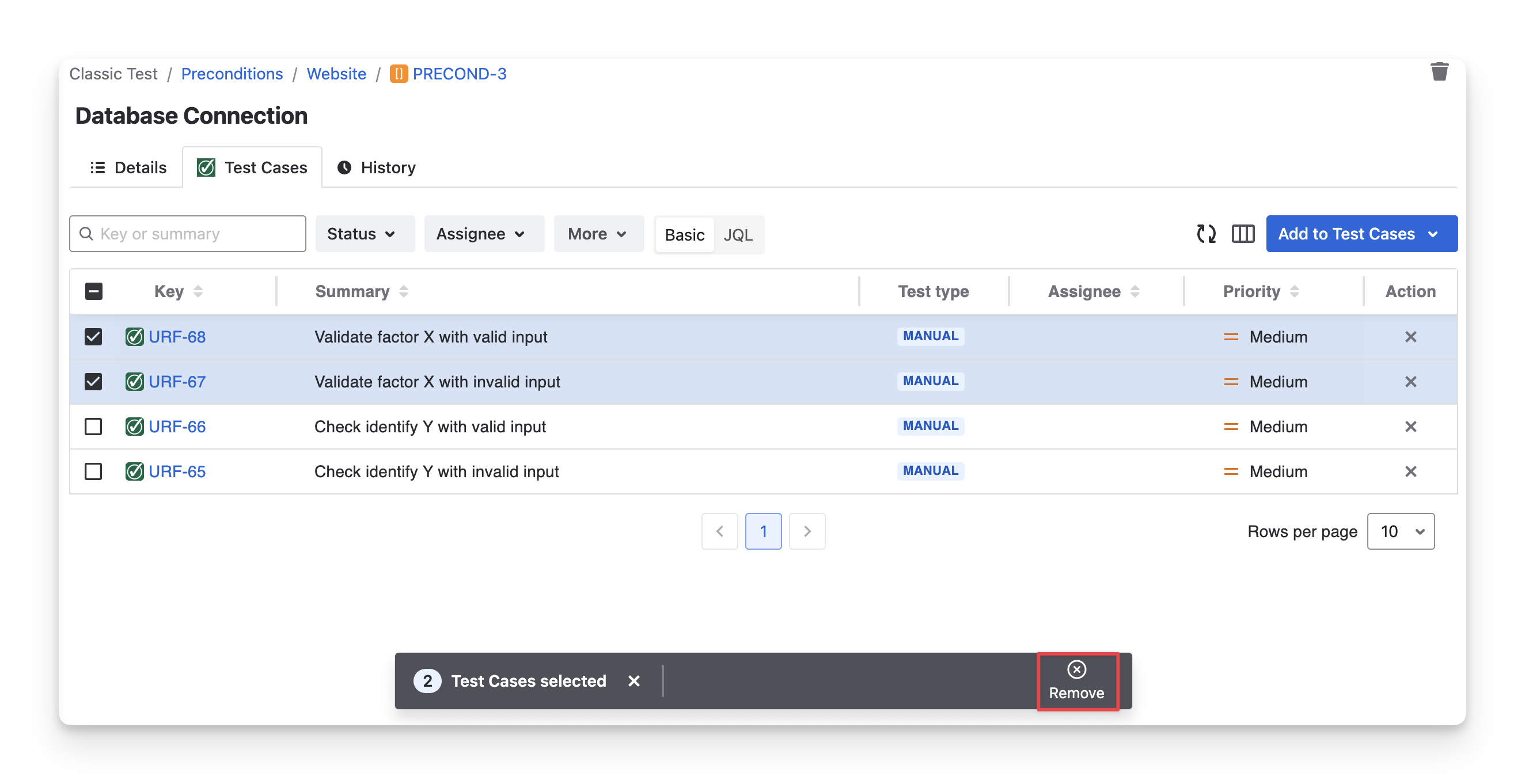
To unlink preconditions from test cases, select the preconditions you want to remove and click the “Remove” button in the toolbar. Or you can also click the “X” button to remove a single test case.
3. History
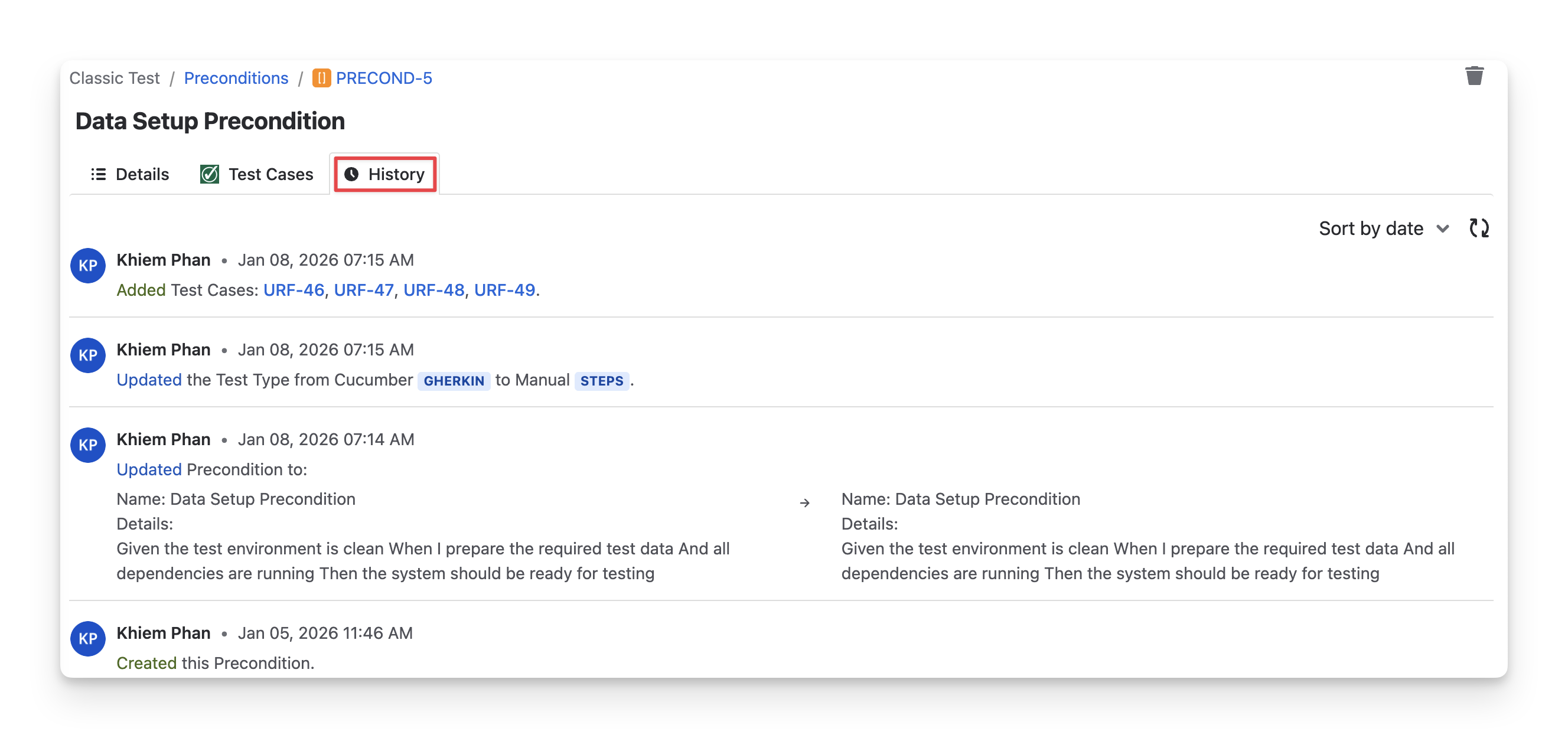
In the History tab, you can see the change logs of the associated precondition. This helps you track any modifications, updates, or status changes made to the precondition over time.
Should you need any assistance or further AgileTest inquiries, contact our 24/7 Support Desk!