.png)
You can create new test cases under 2 main approaches:
-
Directly in the Test Case section
-
Indirectly via the Requirement, Precondition, Test Plan & Test Execution section
This approach allows you to create only one test case type, which is the default test type configured in your Test Types settings. If you wish to create other test case types, you have to go to the AgileTest App Settings → Test Types → Change the default type.
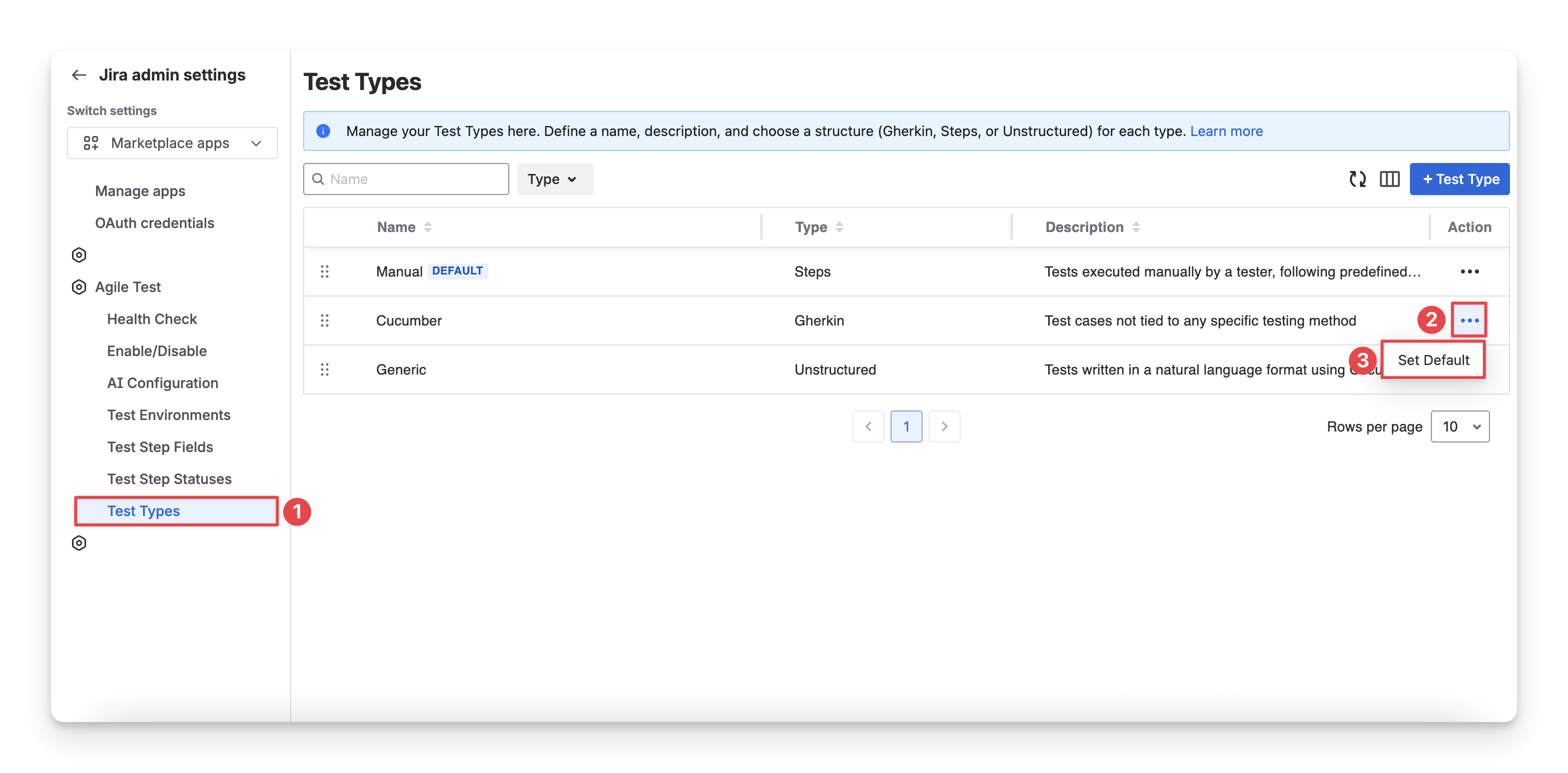
Learn more about Test Types.
1. Create Test Cases In The Test Cases Section
To do this, follow these steps:
-
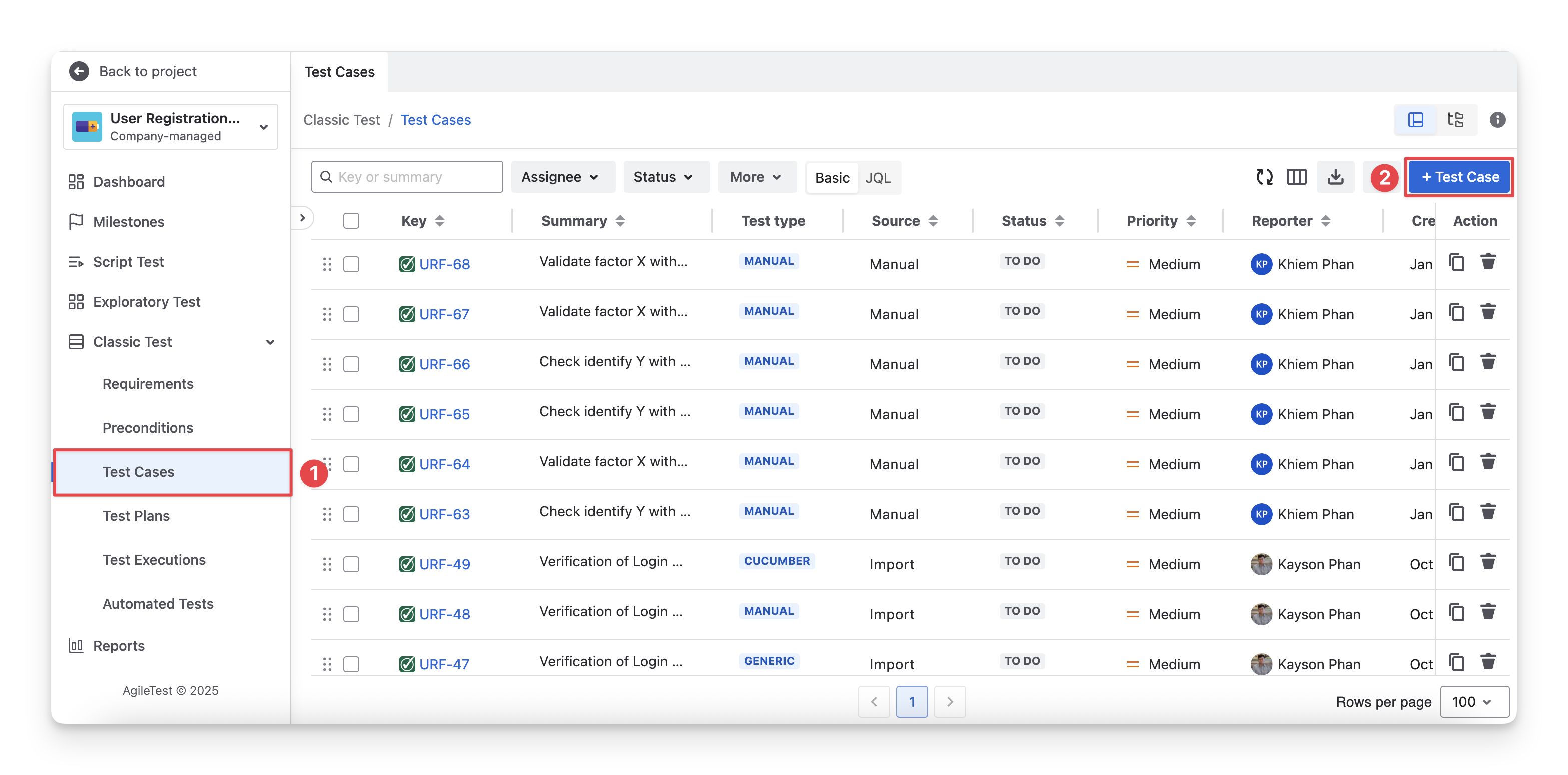
On the left-hand side menubar, navigate to the Classic Test section → Choose Test Cases.
-
Select the “+ Test Case” button.
-
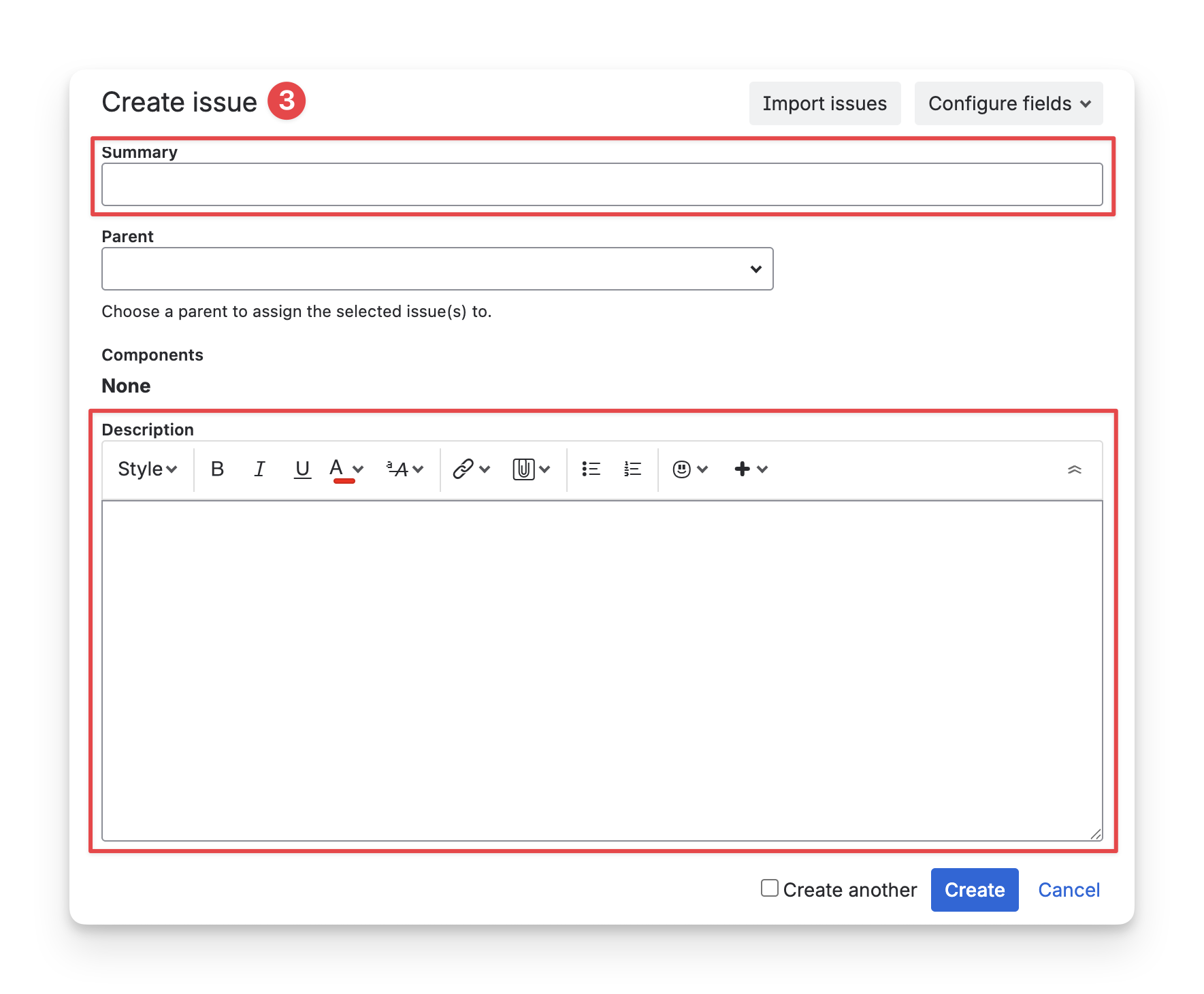
Fill in the details.
-
Summary Field: Enter a short and clear title that describes the purpose of the test case.
-
Description Field: Provide a detailed explanation of what the test case validates, including context, conditions, or acceptance criteria if applicable. This helps testers understand the intent of the test and execute it correctly.
2 Create Test Cases Inside A Specific Requirement, Precondition, Test Plan, and Test Execution Section
You can create test cases indirectly from a requirement, precondition, test plan, or execution section.
This indirect approach provides two key benefits:
-
Reduces manual linking: each test case created is automatically linked to the correct section.
-
Improves convenience: allows quickly create pop-up test cases during test planning or execution, without interrupting your workflow.
2.1 Create Test Cases Inside A Specific Requirement
Test cases created directly within a requirement are automatically linked to that requirement.
To create test cases inside a requirement, follow these steps:
-
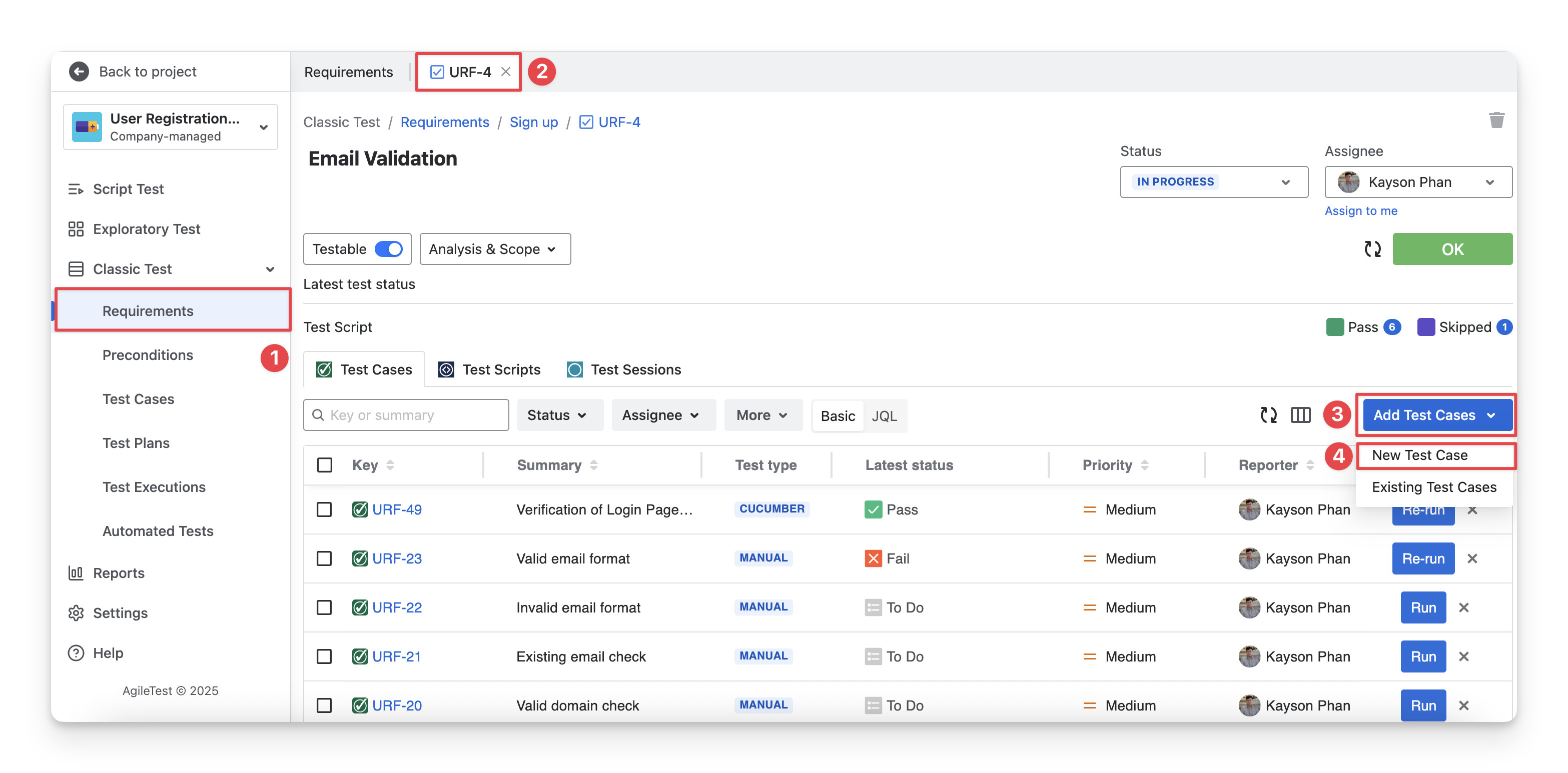
On the left-hand side menubar, navigate to the Classic Test section → Choose Requirements.
-
Choose a requirement you want to create a test case for.
-
Choose “Test Cases” tab -> Click the “Add Test Cases” button.
-
Select the “New Test Case” button.
-
Fill in the details.
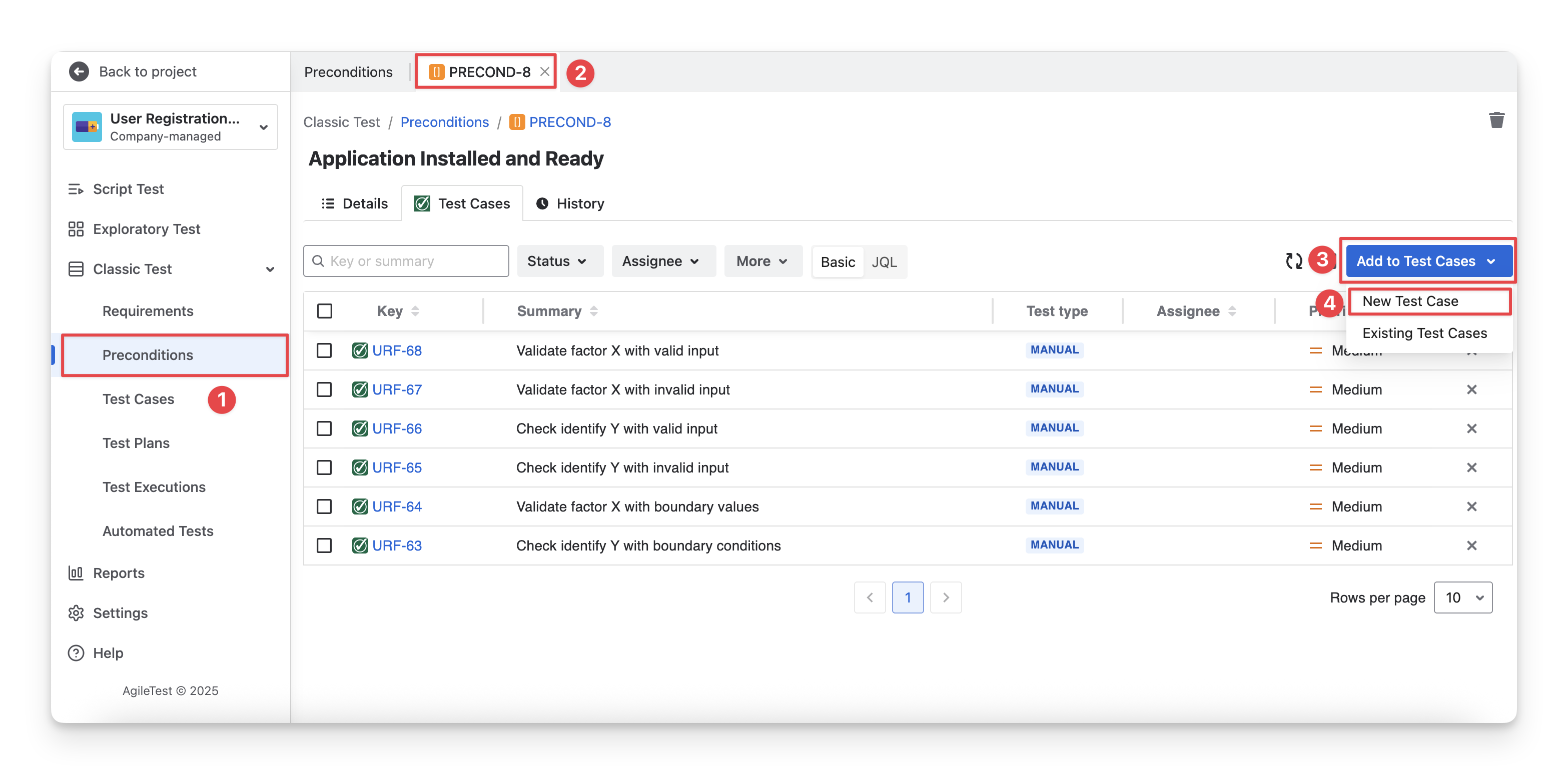
2.2 Create Test Cases Inside A Specific Precondition
To create test cases in a precondition, follow these steps:
-
On the left-hand side menubar, navigate to the Classic Test section → Choose Preconditions.
-
Choose a precondition you want to create a test case for.
-
Choose “Test Cases” tab -> Click the “Add Test Cases” button.
-
Select the “New Test Case” button.
-
Fill in the details.
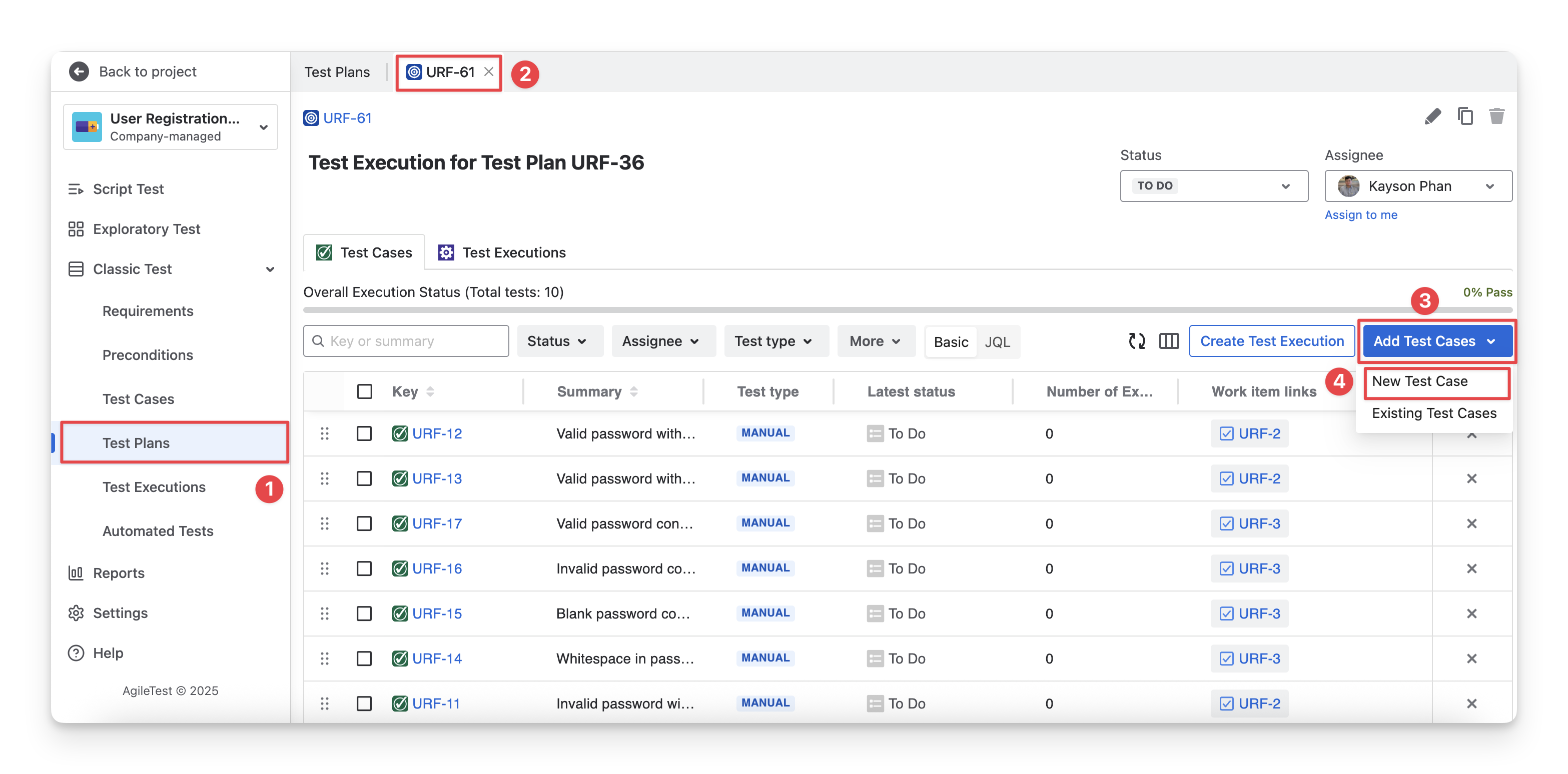
2.3 Create Test Cases Inside A Test Plan
To create test cases inside a test plan, follow these steps:
-
On the left-hand side menubar, navigate to the Classic Test section → Choose Test Plans.
-
Choose a test plan you want to create a test case for.
-
Choose “Test Cases” tab -> Click the “Add Test Cases” button.
-
Select the “New Test Case” button.
-
Fill in the details.
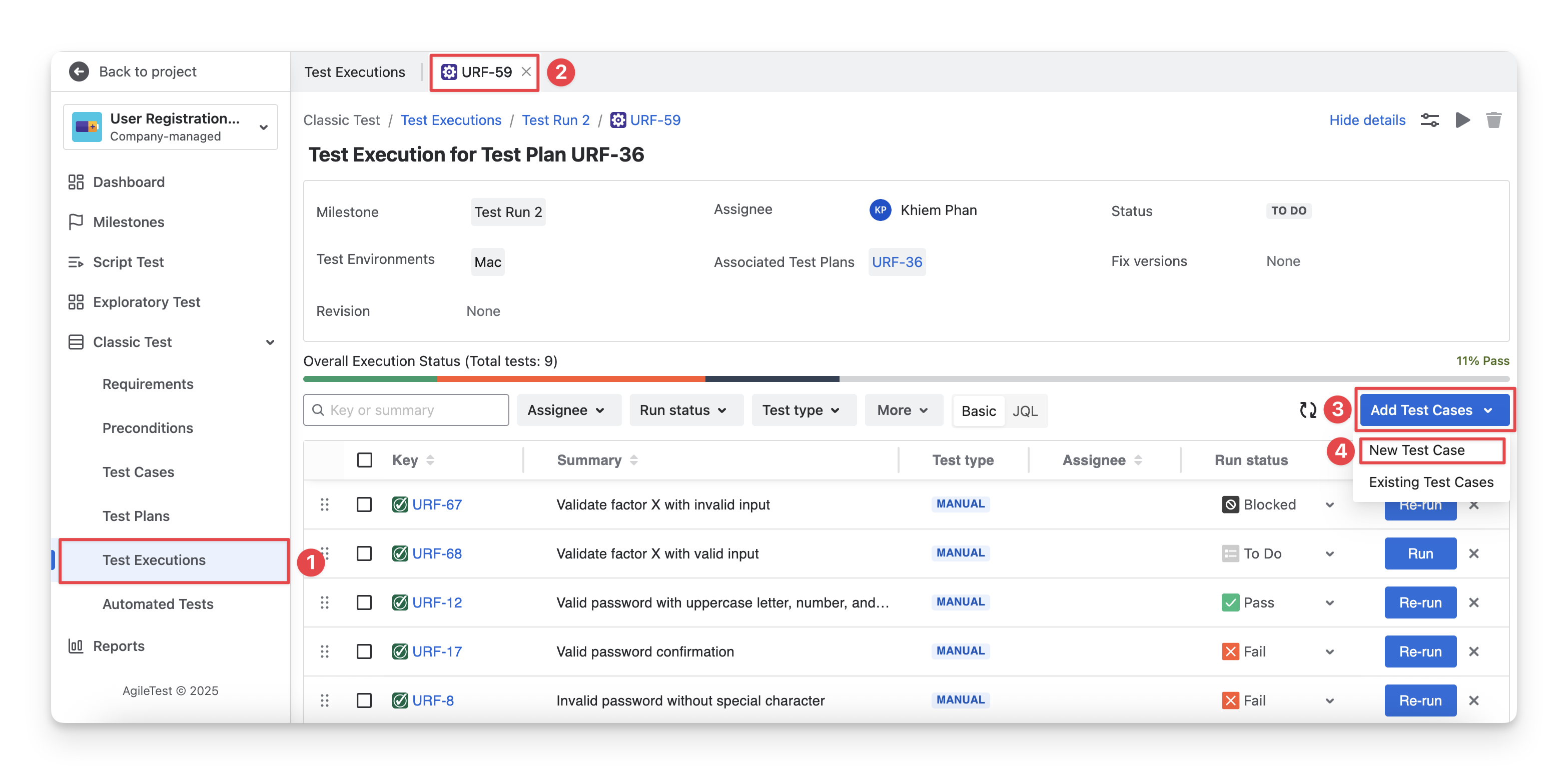
2.4 Create Test Cases Inside A Test Execution
To create test cases inside a test execution, follow these steps:
-
On the left-hand side menubar, navigate to the Classic Test section → Choose Test Executions.
-
Choose a test execution you want to create a test case for.
-
Click the “Add Test Cases” button.
-
Select the “New Test Case” button.
-
Fill in the details.
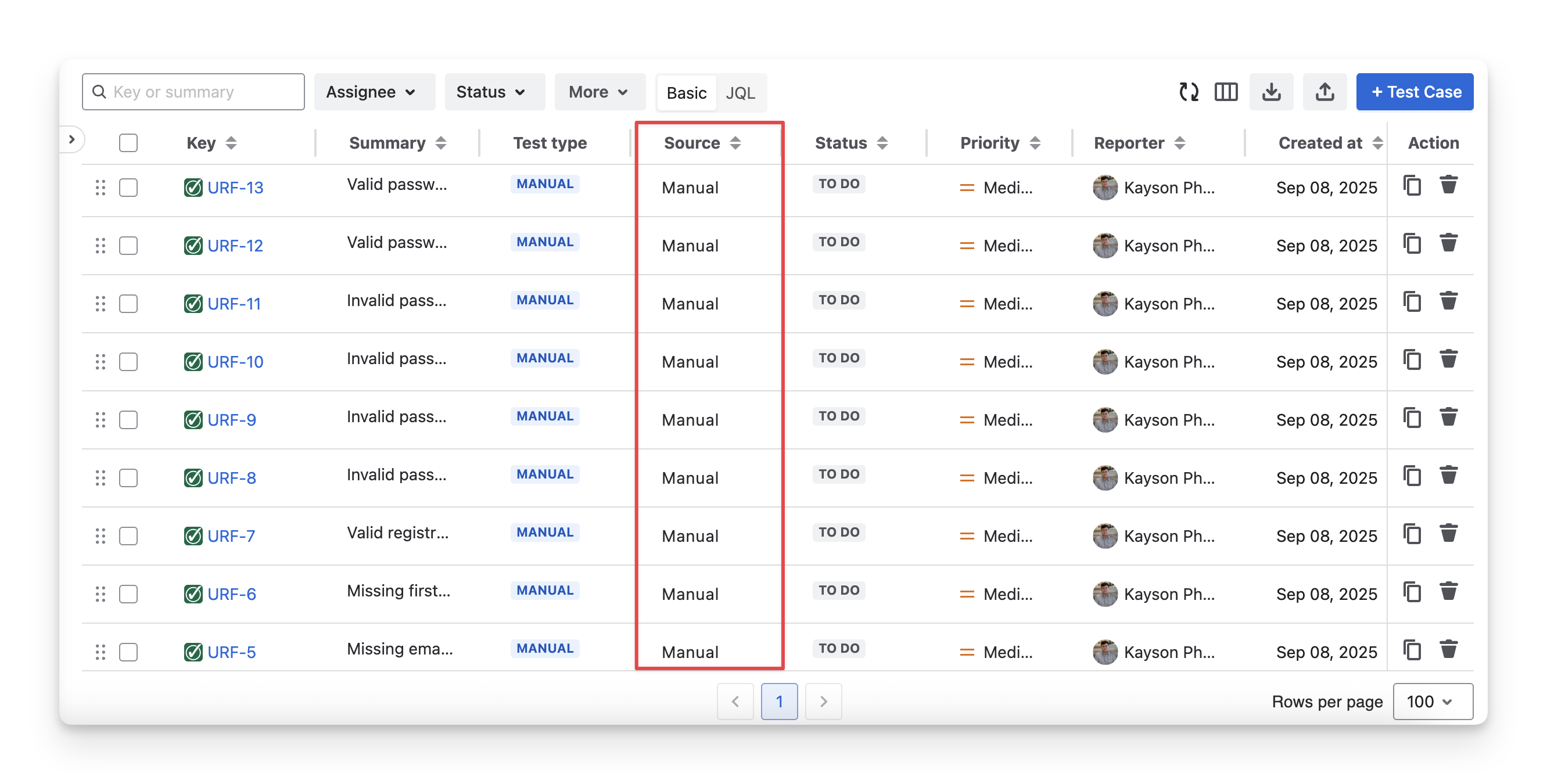
All test cases created manually will be displayed with the Manual source in the Test Case table.
Should you need any assistance or further AgileTest inquiries, contact our 24/7 Support Desk!