.png)
You can create test steps under 3 approaches:
1. Create New Test Steps
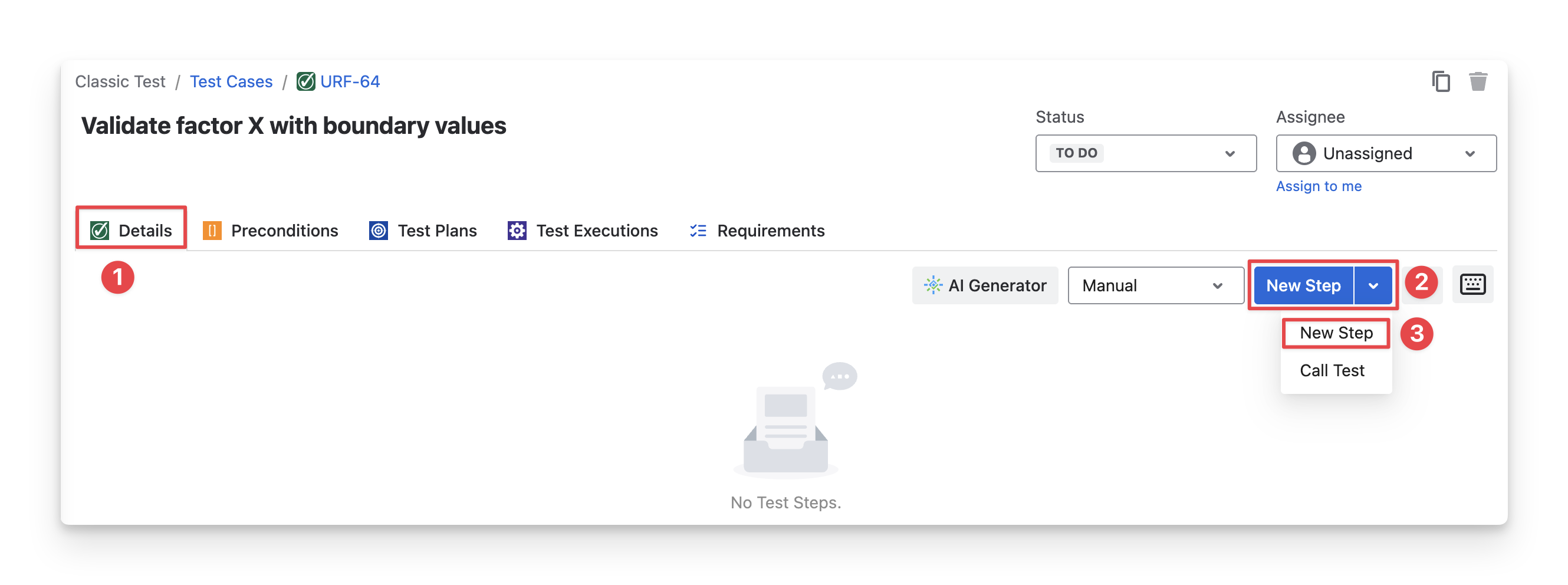
Inside a Test Case, you can create new test steps by following these steps:
-
Choose the “Details” tab.
-
Click on the “New Step” button.
-
Choose “New Step”.
-
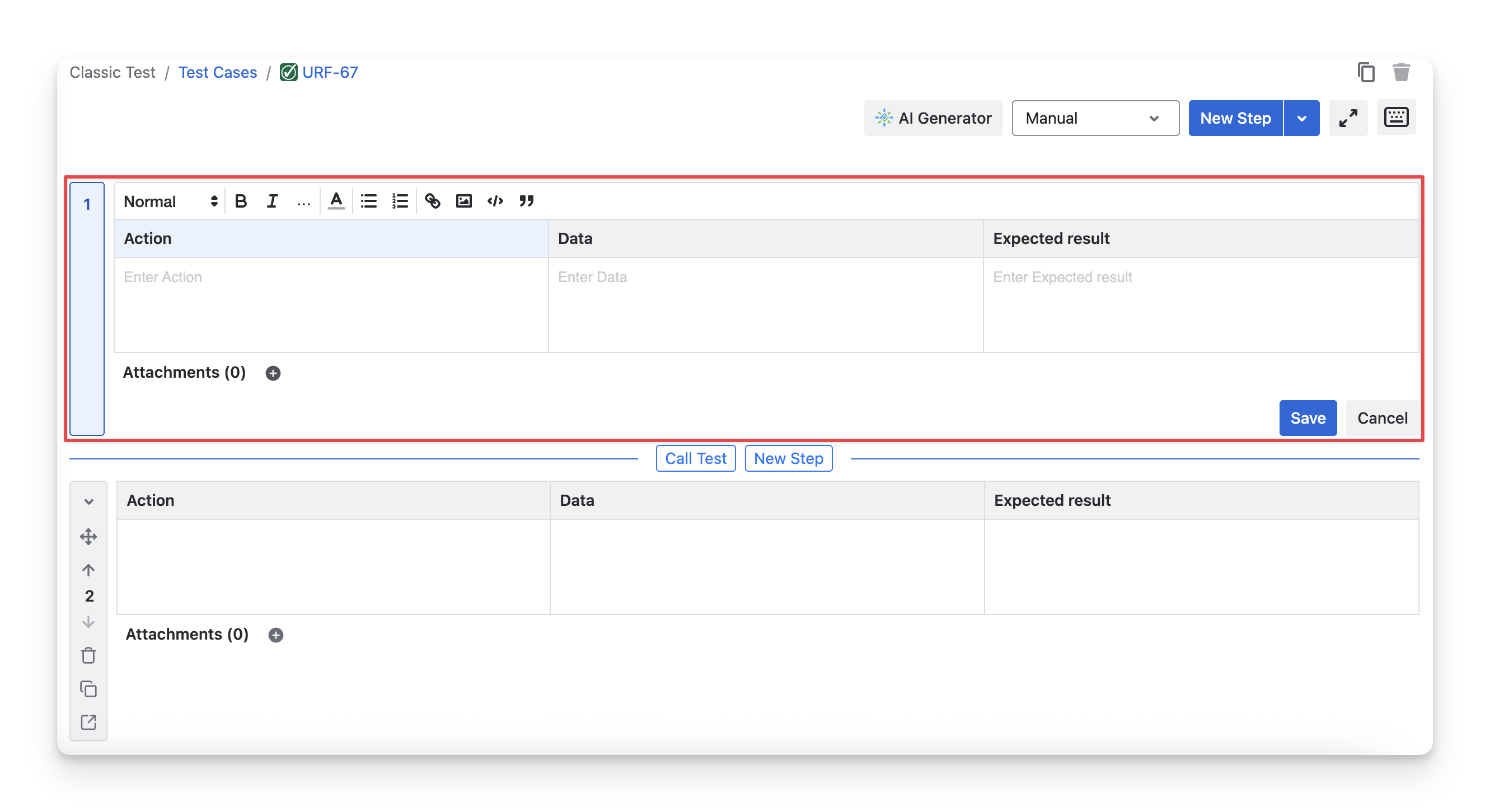
You can enter your test steps, add necessary attachments, and reorder them to match your testing flow.
2. Call Existing Test Steps
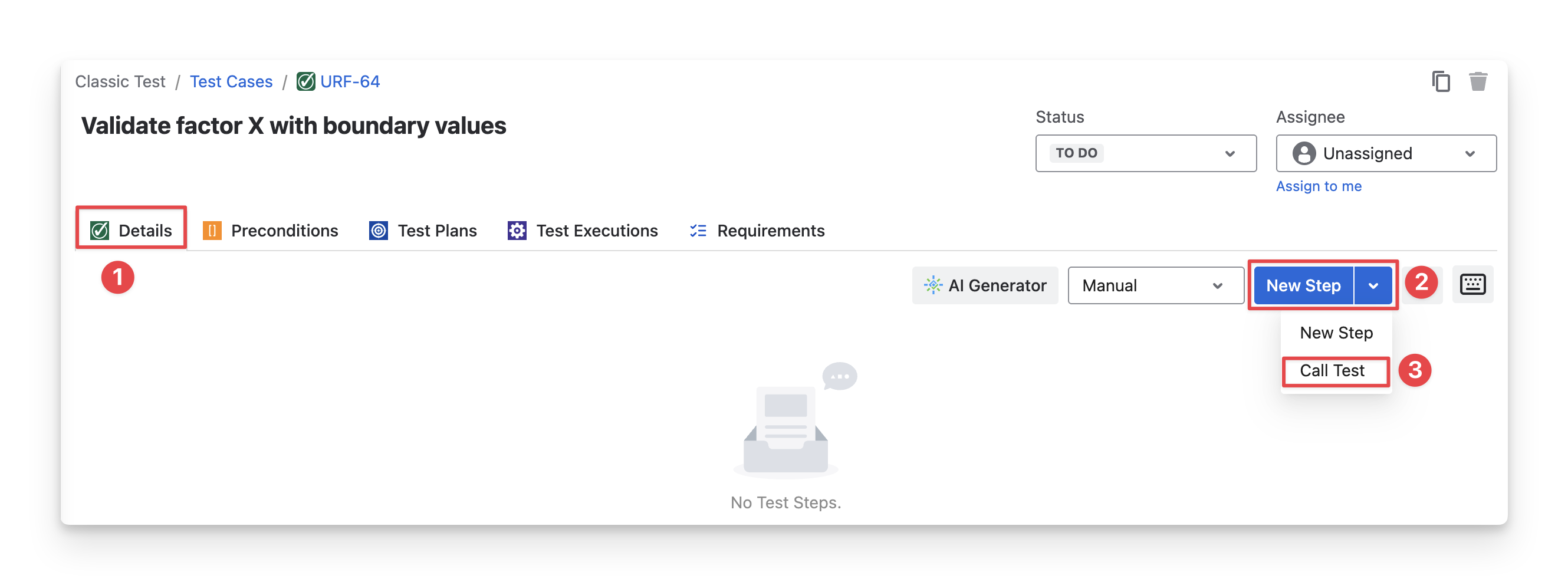
If you have an existing test case with detailed steps, you can call test to reuse its steps, data, and attachments on another test case. To do this, follow these steps:
-
Choose the “Details” tab.
-
Click on the “New Step” button.
-
Choose “Call Test”.
-
Apply filters to select a test case to “Call test”. Click Add to complete this process.
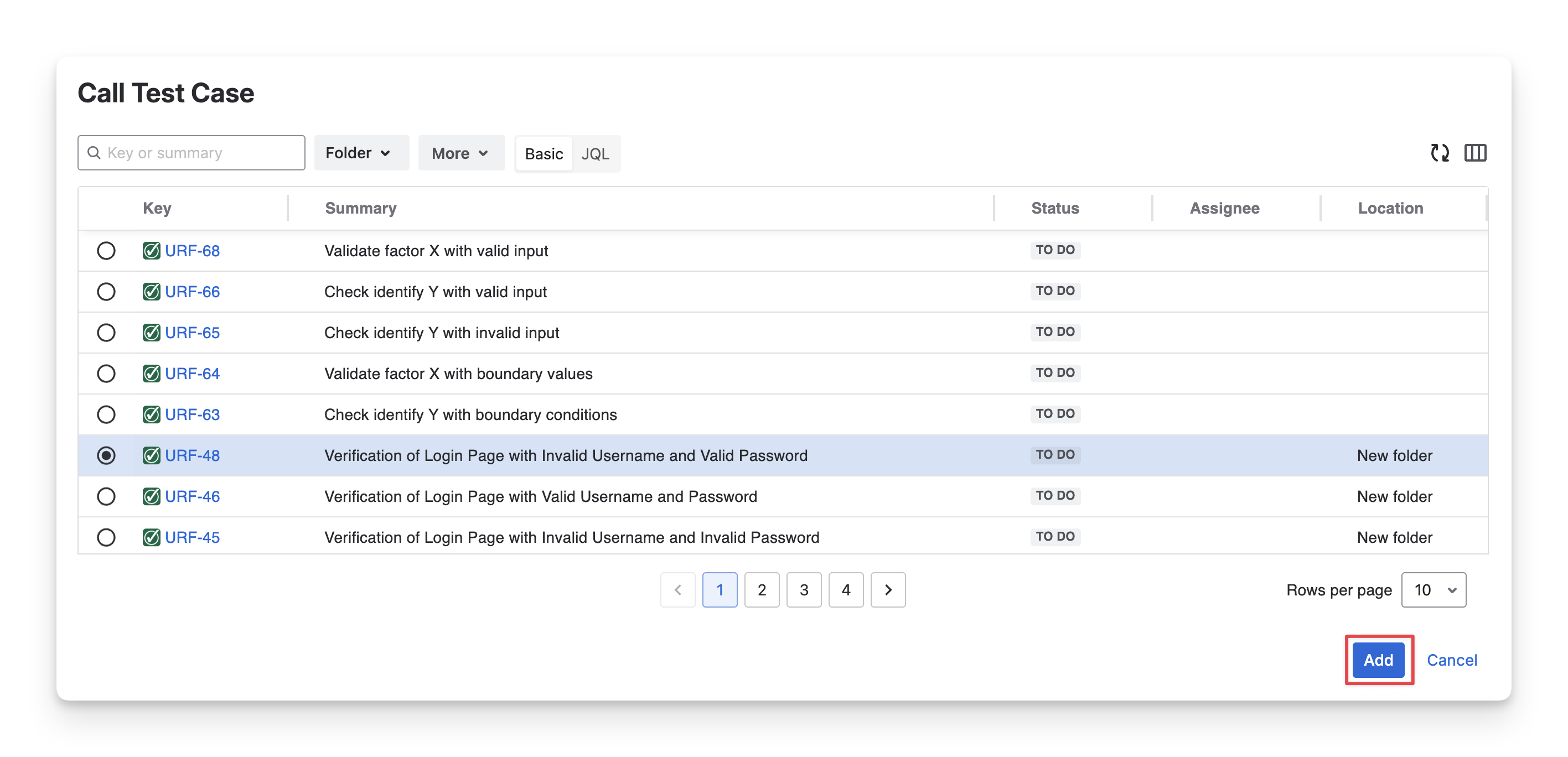
You can only select 1 test case to call its test steps at a time.
3. Generate Test Steps with AI Generator
The AI Generator in AgileTest uses your requirement descriptions as the primary input to automatically generate relevant test steps for each test case. When the requirement clearly describes the context, expected behavior, and conditions, the AI can more accurately identify the key actions and expected outcomes needed to form meaningful and executable test steps.
To use the AI Generator, you need to make sure:
-
At least one requirement is available.
-
The requirement description is filled with details.
-
Test cases are linked with requirements.
-
AI features are enabled in the Jira admin settings. To do this, go to ⚙️ → Apps → Agile Test → AI Configuration.
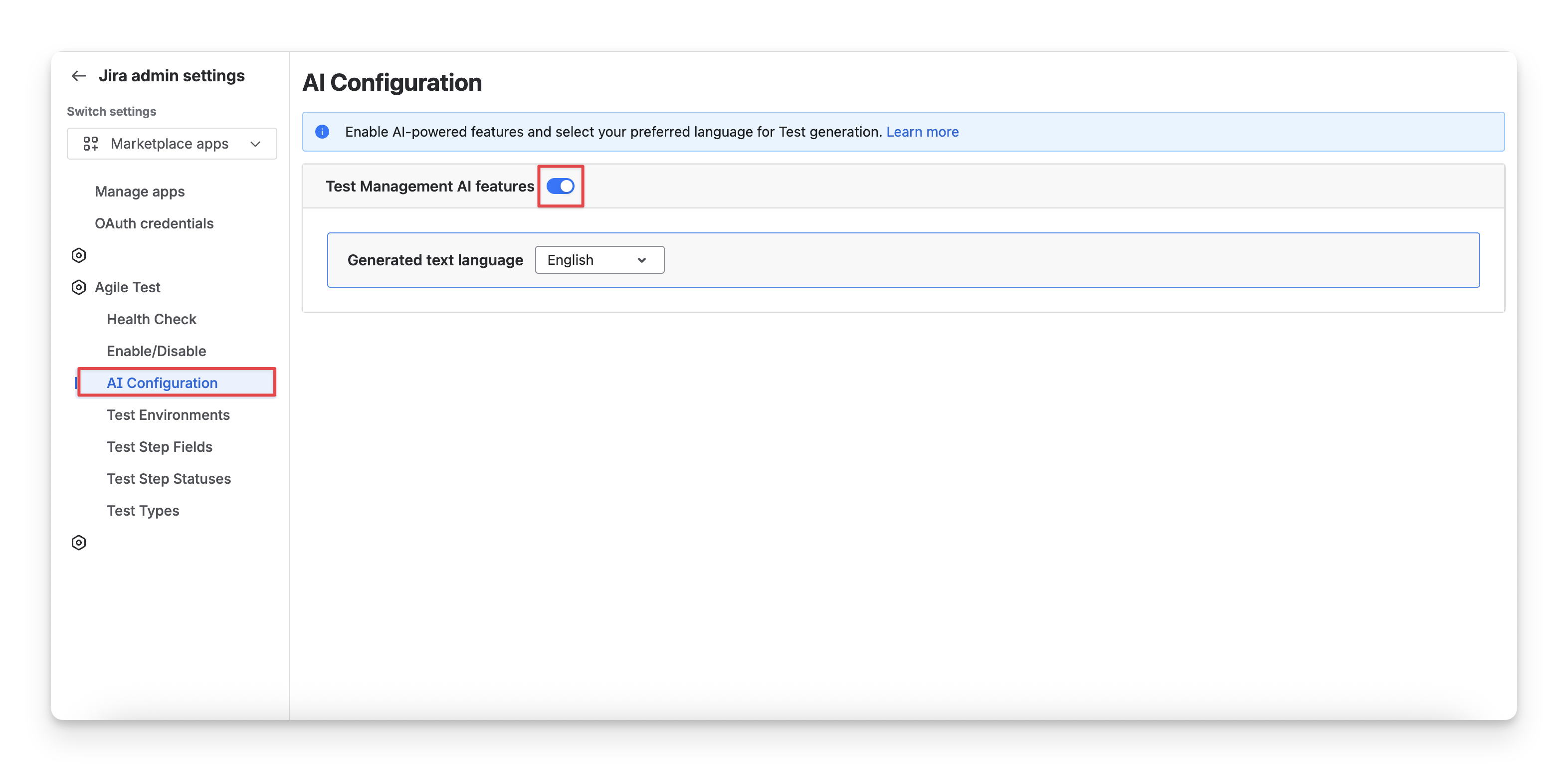
To generate test steps with AI Generator, you can follow these steps:
-
Choose the “Details” tab.
-
Click on the “AI Generator” button.
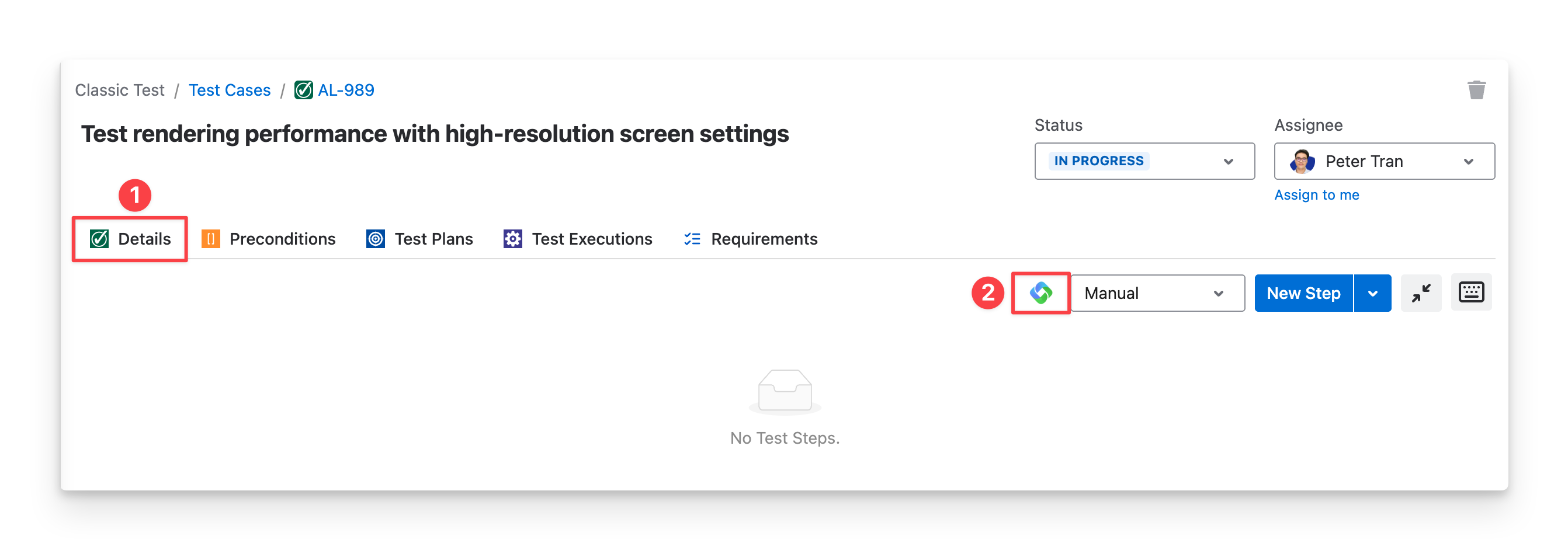
-
Then, you’ll be redirected to the “Generate Test Steps“ dialog.
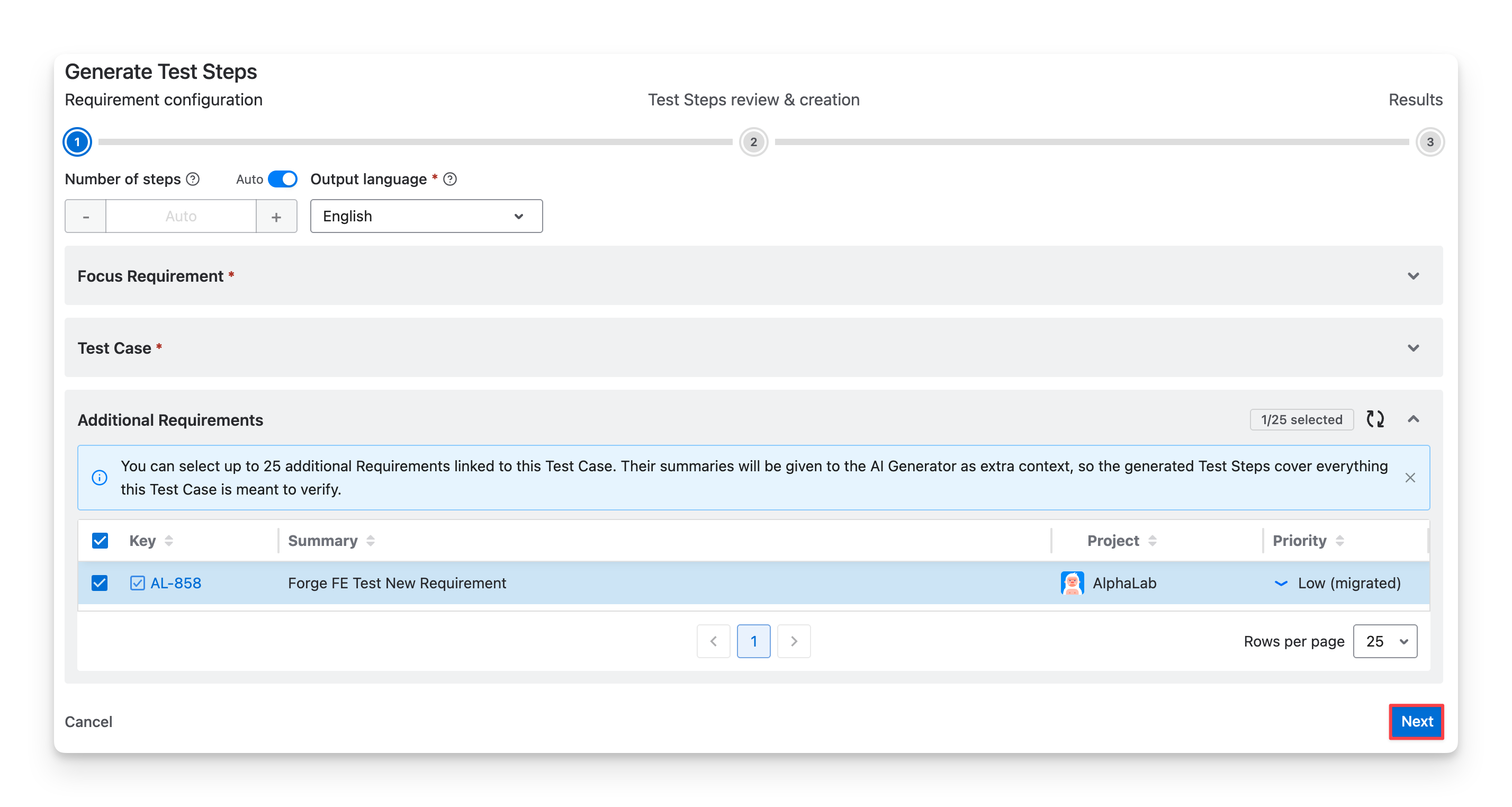
3.1. Requirement configuration
Configure how your test steps are generated:
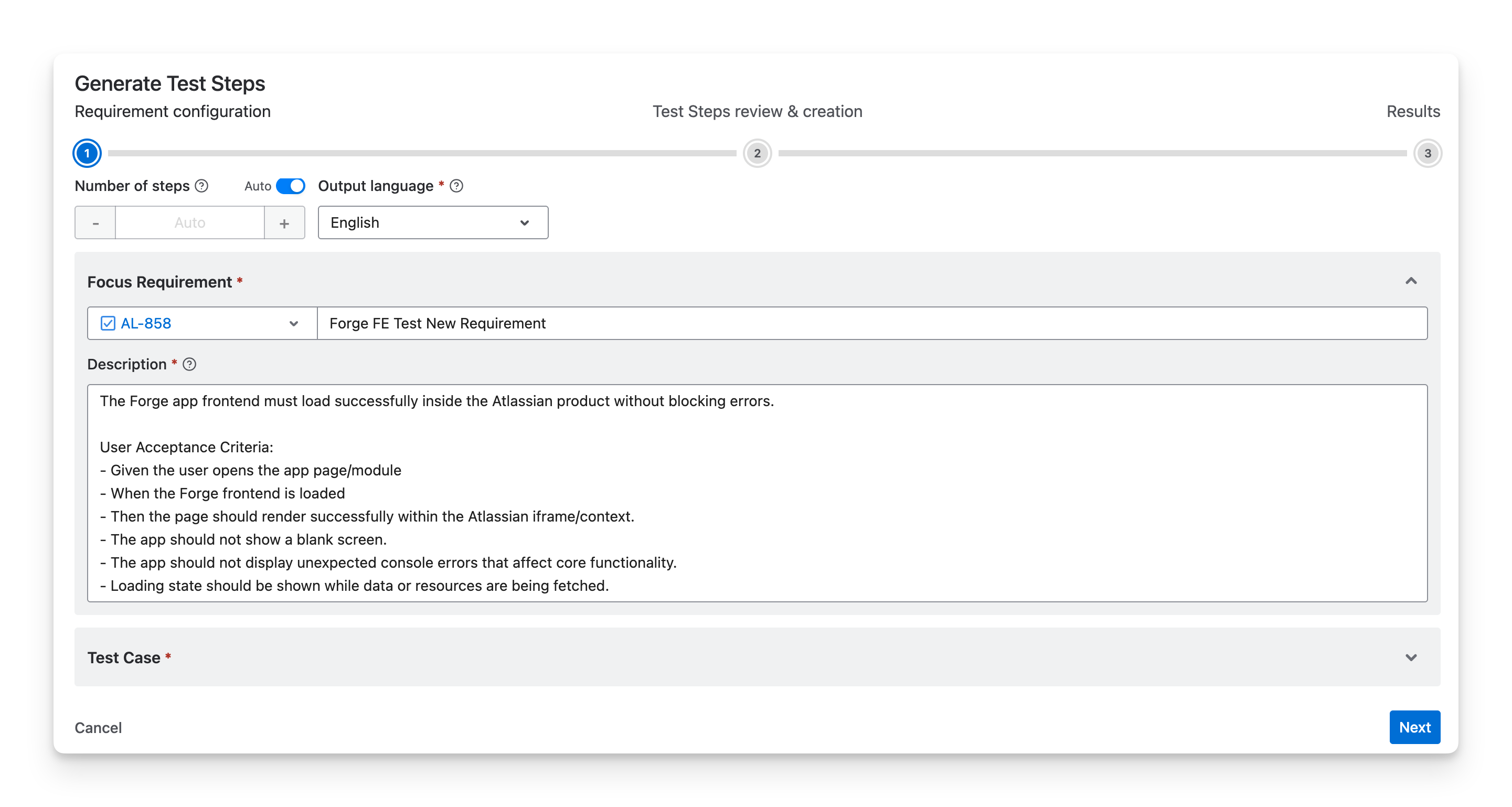
-
Number of steps: Set how many test steps the AI Generator creates.
-
Turn on Auto to let the AI decide the number based on the complexity of the requirement and Test Case.
-
Turn off Auto to set the number manually.
-
-
Output language: Select the language for the generated test steps.
-
Focus Requirement: Verify the requirement used as the source for test step generation. You can select another requirement to change the source for generating test steps.
-
Requirement description: Review or edit the requirement details, including acceptance criteria, business rules, or expected behavior. This information is used to generate more accurate test cases.
-
Note:
Editing the Requirement or Description here does not change the original descriptions in Jira. These edits are used only to shape the AI Generator's output for this generation.
-
Test Case: Confirm the Test Case that the steps are generated for. You can select a different Test Case to change the target.
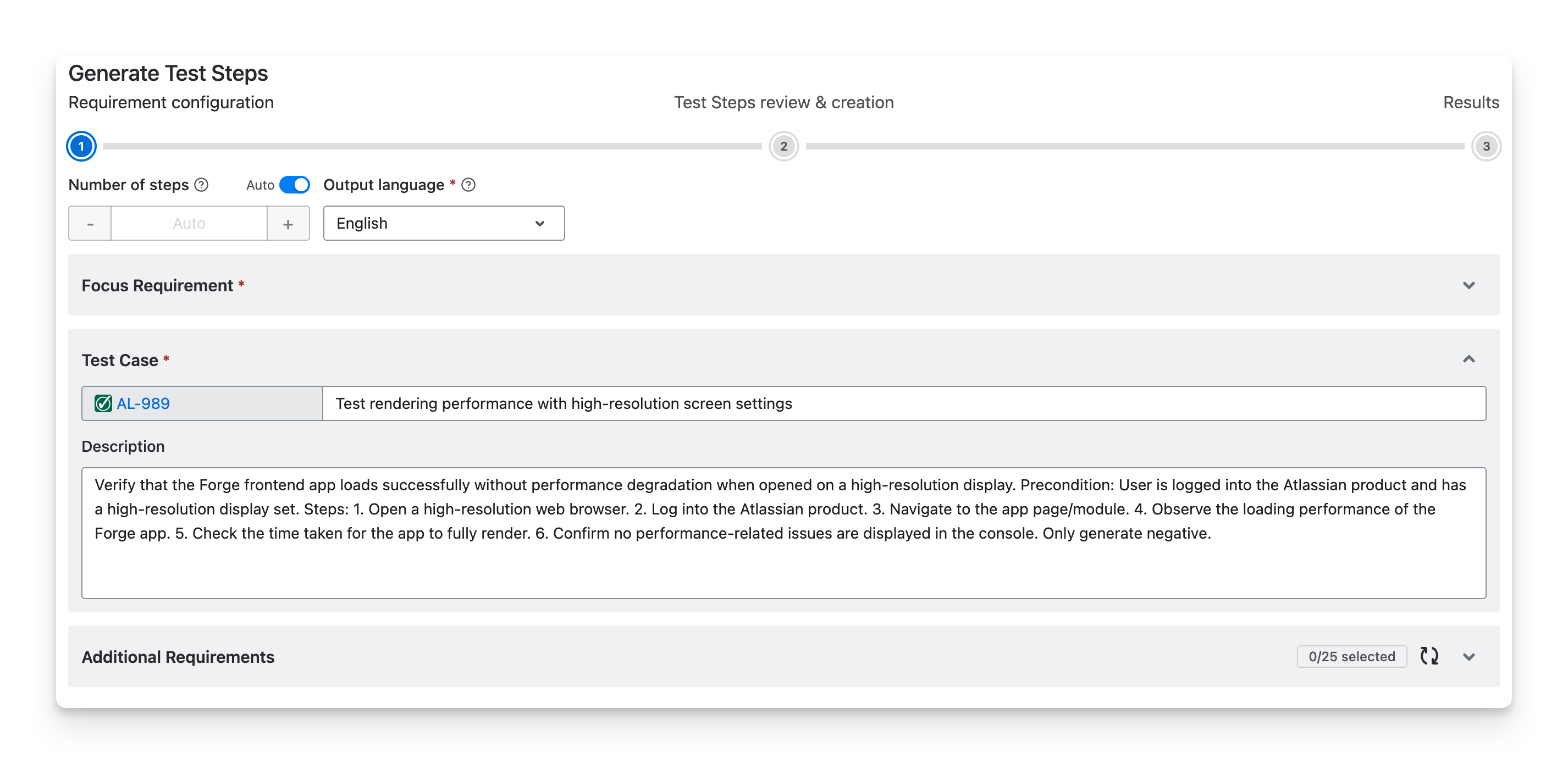
-
Additional Requirements: Select up to 25 additional Requirements linked to this Test Case. Their summaries are given to the AI Generator as extra context, so the generated test steps cover everything this Test Case is meant to verify.
-
Click "Next" to complete this step.
3.2 Test Steps review & creation
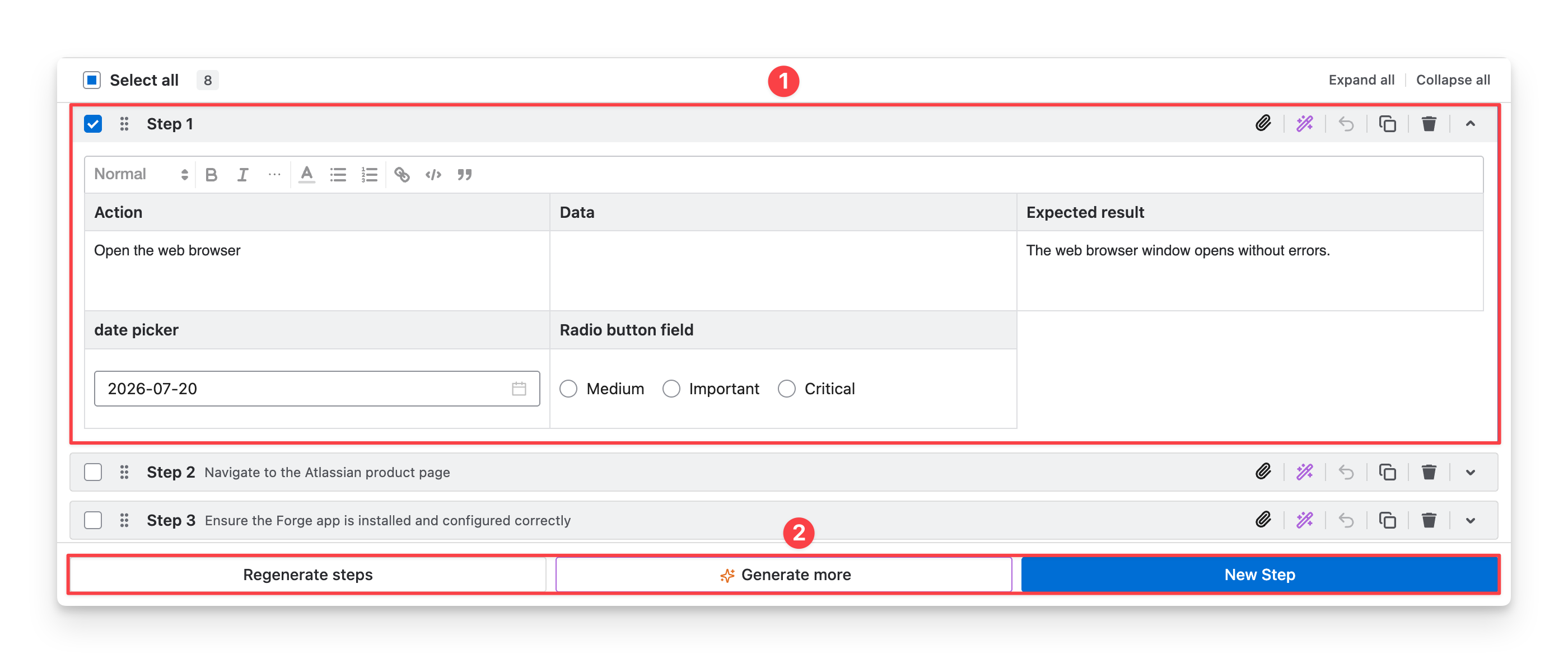
You can refine them at two levels.
-
At the individual step level, you can:
-
Review and edit the Action, Data, and Expected result fields directly.
-
Regenerate with AI: Add your feedback to regenerate the test step.
-
Duplicate: Duplicate a test step to reuse or edit its data.
-
Delete: Delete a test step you do not want to insert.
-
-
For the full step list, you can:
-
Select "Regenerate steps" to regenerate all test steps for the current test case.
-
Select "Generate more" to generate and append additional steps to the existing list.
-
Select "New Step" to manually create and add a test step to the list.
-
Pro Tip:
The "Regenerate with AI" and "Regenerate steps" actions open a feedback box. Enter your feedback to guide how the AI regenerates the content, either for a single step or for the whole list.
Specific feedback (for example, "add negative cases" or "include validation checks") produces regenerated steps that better match your intent.
When you have reviewed and edited all your test steps, click "Next" to continue.
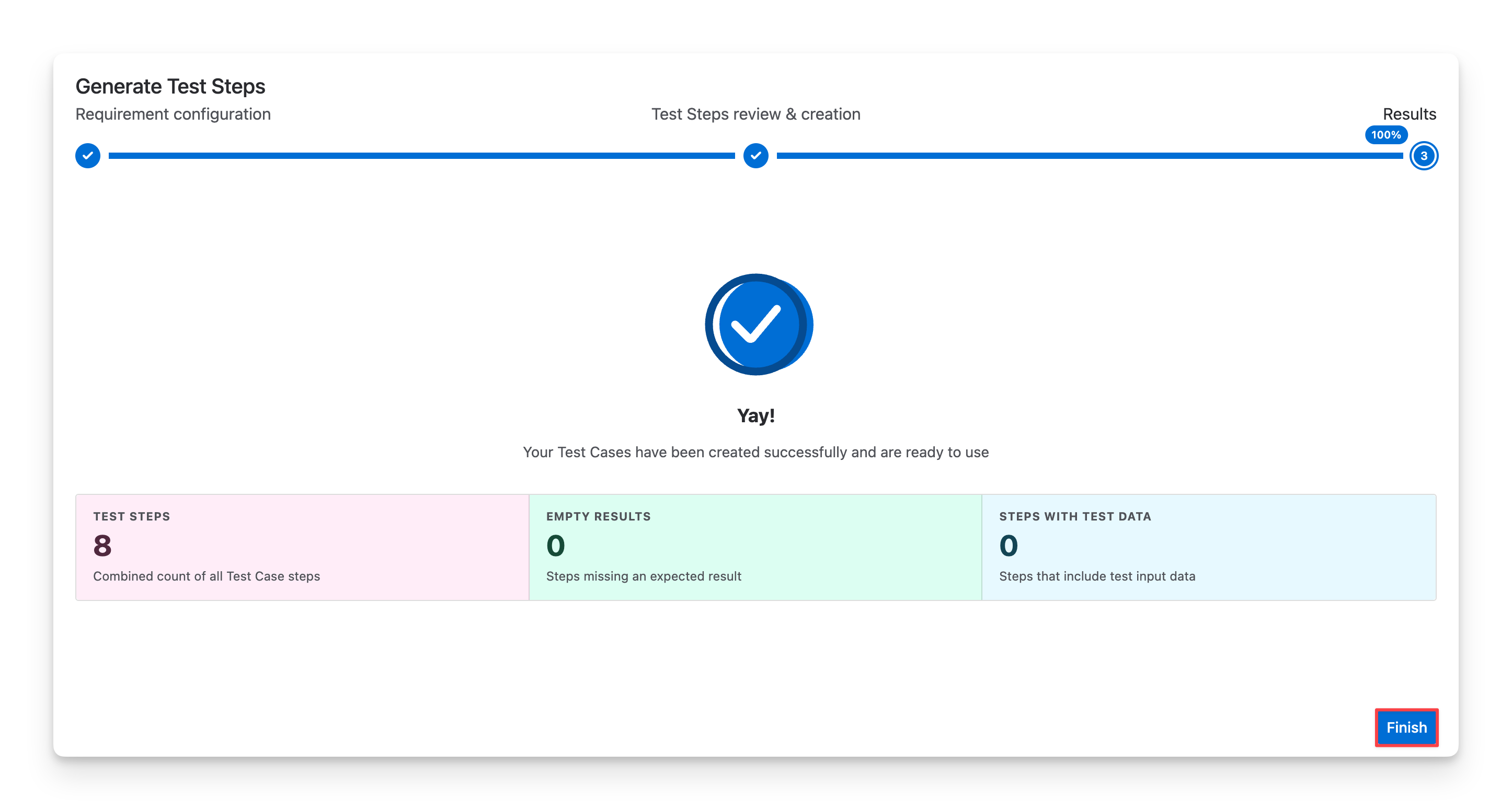
3.3 Results
Review the results and click "Finish" to complete generation.
Read more: Apply AgileTest Generator to suggest and generate test cases with detailed test steps.
Should you need any assistance or further AgileTest inquiries, contact our 24/7 Support Desk!