.png)
For each test step, you can conduct several types of actions on the left action bar:
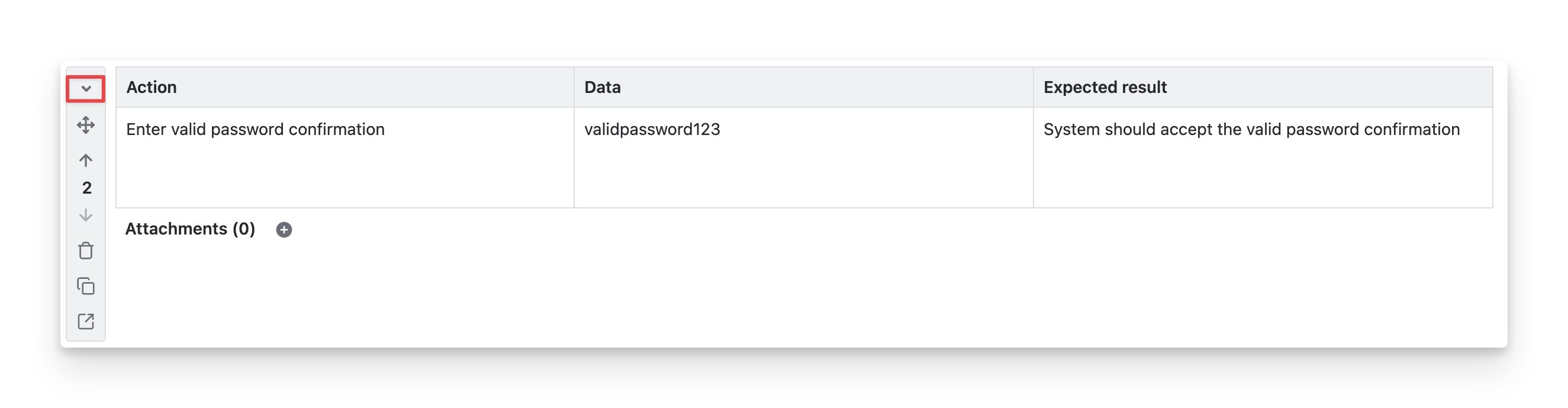
1. Collapse Test Steps
To hide/unhide the details of the test step, you can click on the 🔽 / 🔼 icon on the action bar.
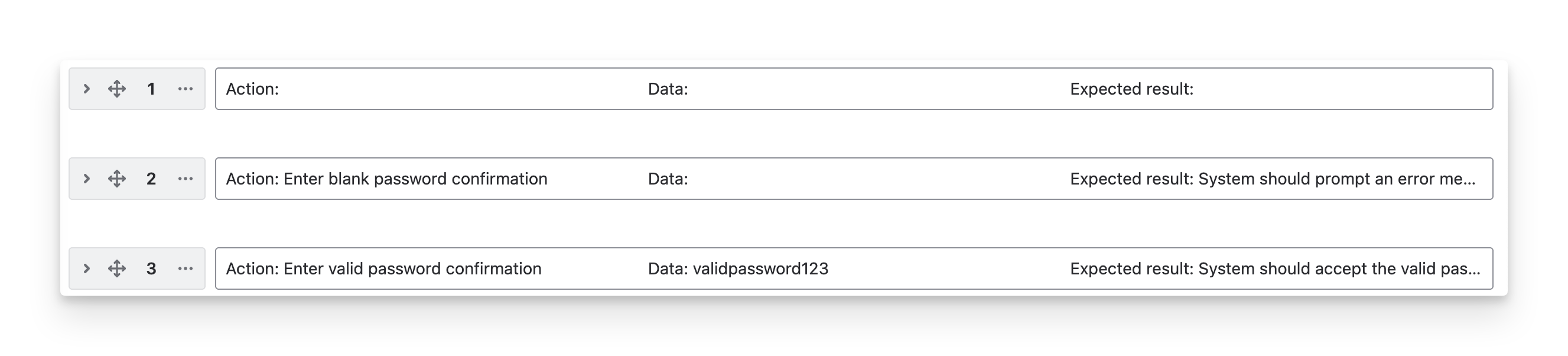
You can view brief details of your test steps after collapsing them, but you must expand them to edit or perform other actions.
2. Move Test Steps
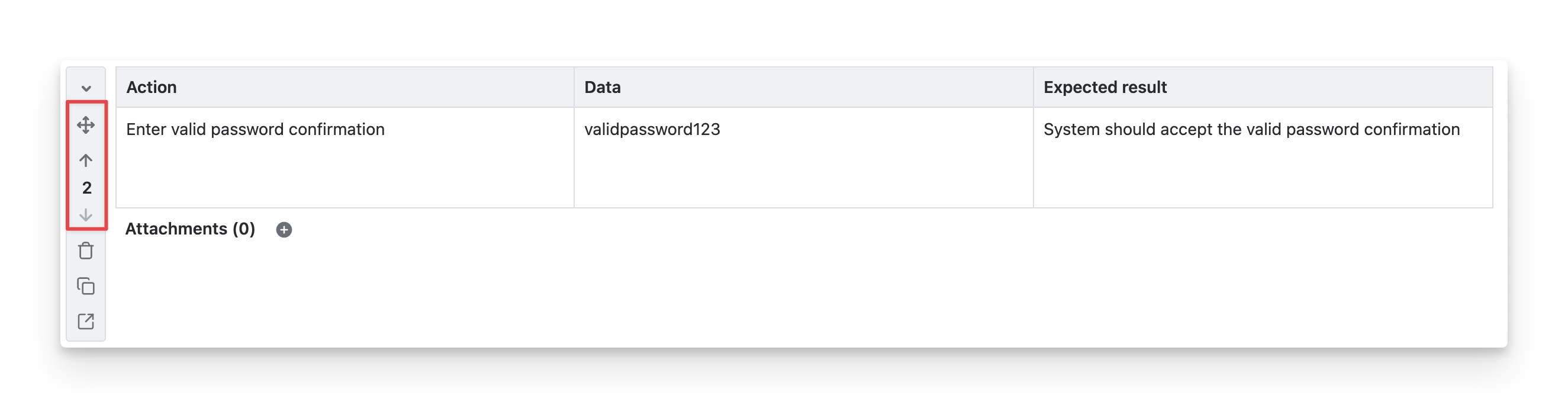
You can rearrange the order of test steps to change the sequence of actions in the test case. To perform this action, you can:
-
Drag the test step using the :+: icon and drop it into the desired position.
-
Click on the ⬆️ / ⬇️ icons to move the test step one position up/down at a time.
-
Enter a number to move the test step directly to a specific position in the sequence.
3. Delete Test Steps
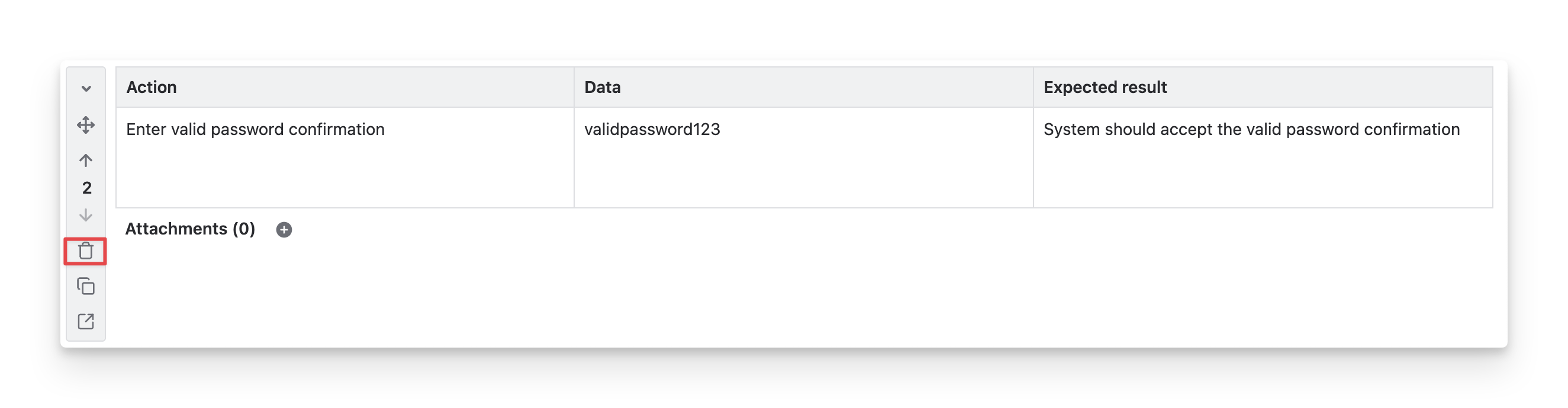
To remove unnecessary or incorrect steps, you can click on the :delete_icon: button.
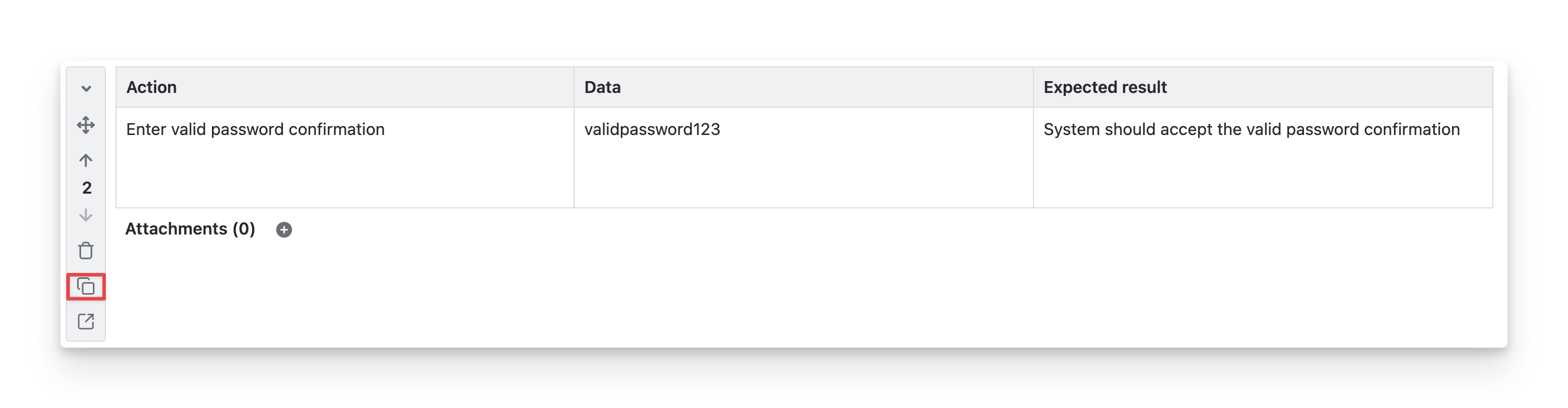
4. Clone Test Steps
You can reuse existing test steps by duplicating/cloning them. To do this, click on the :Duplicate: button.
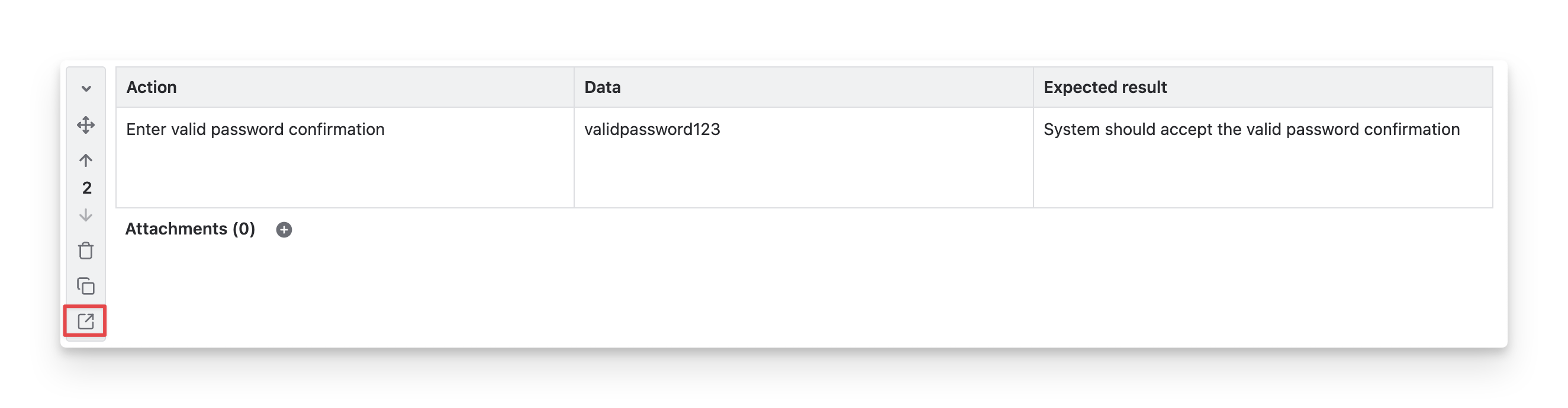
5. Open Test Steps In A Dialog
To open the details of the test step in a dialog, you can click on the “View” button.
Learn more about how to customize the step field in test steps.
Should you need any assistance or further AgileTest inquiries, contact our 24/7 Support Desk!