
In AgileTest, a Test Case status can be updated in different ways, depending on the Test Case type and execution method:
-
Manual Test Case: AgileTest calculates the Test Case status based on the individual Test Step status you map for each test step in test executions.
-
Generic & Cucumber Test Cases: AgileTest updates the Test Case status by importing results from supported automation frameworks or API requests.
1. How AgileTest Calculates Manual Test Case Status From Test Steps
1.1 Test Step Status Priority Order
When a Test Case has multiple Test Steps with different statuses, AgileTest determines the overall Test Case Status using the priority order below. The first matching rule takes precedence.
|
Priority |
Test Step Status |
|---|---|
|
1 |
FAIL |
|
2 |
Other custom test step statuses mapped with NOK |
|
3 |
BLOCKED |
|
4 |
QUERY RETEST and other custom test statuses mapped with UNKNOWN |
|
5 |
TO DO and other custom test statuses mapped with NOT RUN |
|
6 |
PASS SKIPPED and other custom test statuses mapped with OK |
Example:
|
Scenario |
Test Step 1 |
Test Step 2 |
Test Step 3 |
Test Case (Overall Status) |
|---|---|---|---|---|
|
1 |
Fail |
Pass |
To Do |
FAIL |
|
2 |
Skipped |
Blocked |
To Do |
BLOCKED |
|
3 |
Pass |
To Do |
Query |
QUERY |
|
4 |
Retest |
Skipped |
Blocked |
BLOCKED |
|
5 |
Pass |
To Do |
Retest |
RETEST |
|
6 |
Pass |
-- |
Pass |
TO DO |
|
7 |
Pass |
Pass |
Pass |
PASS |
1.2 Custom Test Step Status Priority
1.2.1 Create and Map a Custom Test Step Status
In addition to the default Test Step statuses, you can create custom Test Step statuses and map them to default or custom Test Case statuses.
Custom Test Step statuses follow the same Test Step Status Priority Order, based on the Test Case status they are mapped to.
For example, if three custom Test Step statuses Pending, Needs Review, and Inconclusive, are all mapped to the Test Case status UNKNOWN , then AgileTest will apply the priority order within that group when calculating the overall Test Case status.
|
Test Step 1 |
Test Step 2 |
Test Step 3 |
Test Case (Overall Status) |
|---|---|---|---|
|
Pending |
Needs Review |
Inconclusive |
Inconclusive |
-
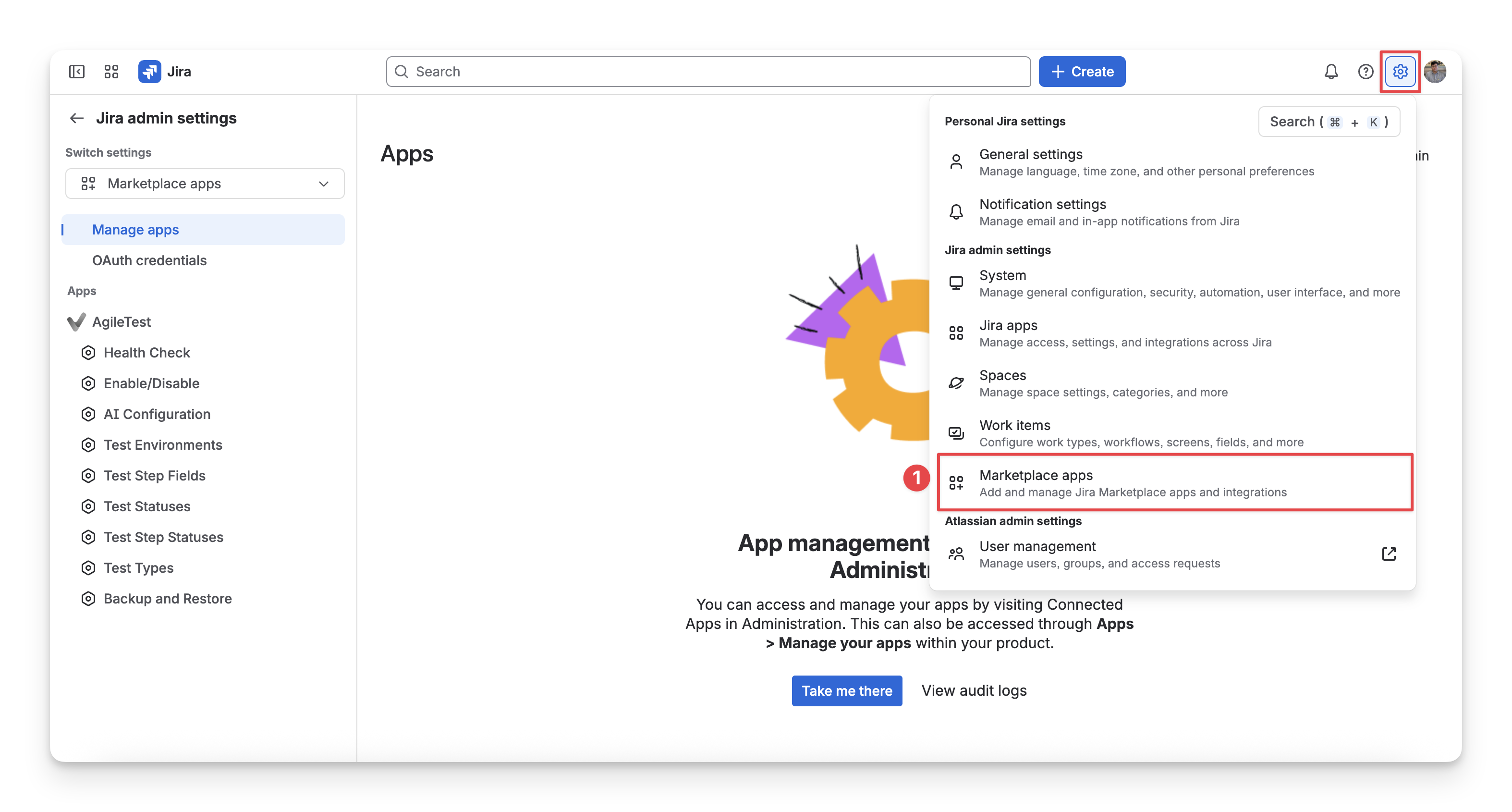
Go to Jira Settings → Marketplace apps.
-
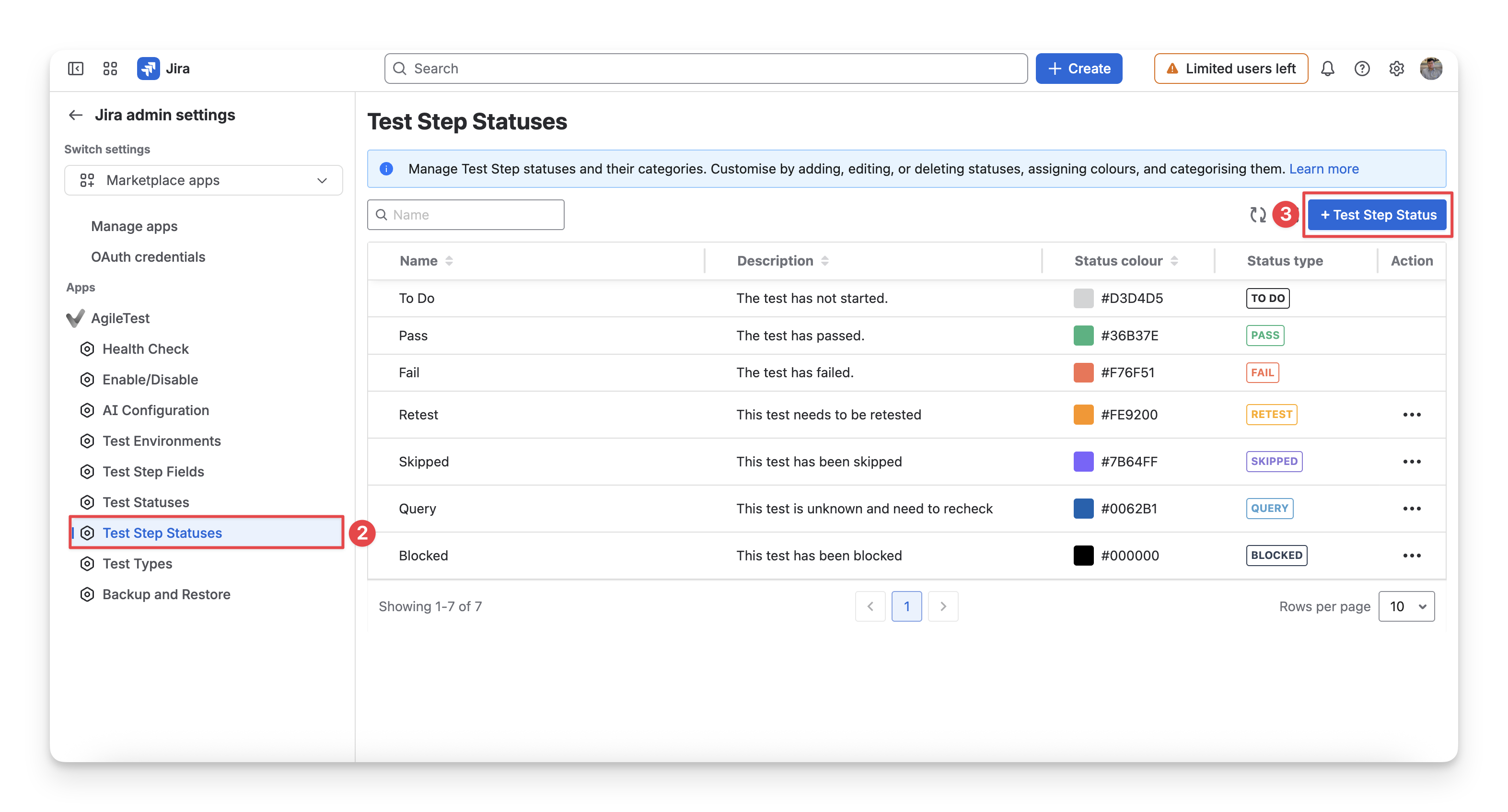
Select the AgileTest app and choose Test Step Statuses.
-
Click the “+ Test Step Status” button.
-
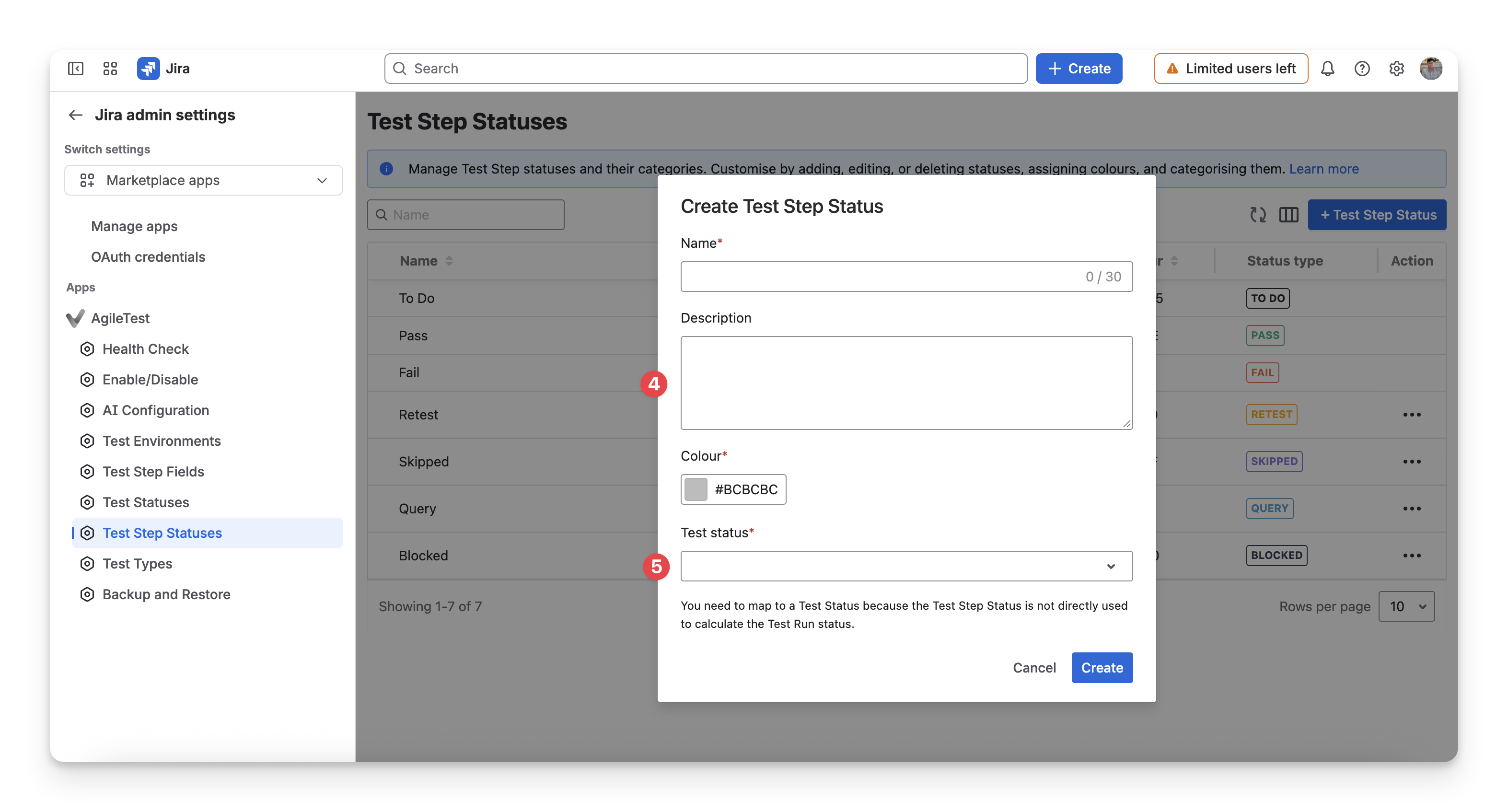
Enter the name, description, and color.
-
In Test Status, select the available status you have created in the Test Statuses settings.
1.2.2. How Custom Status Mapping Affects Test Case Status
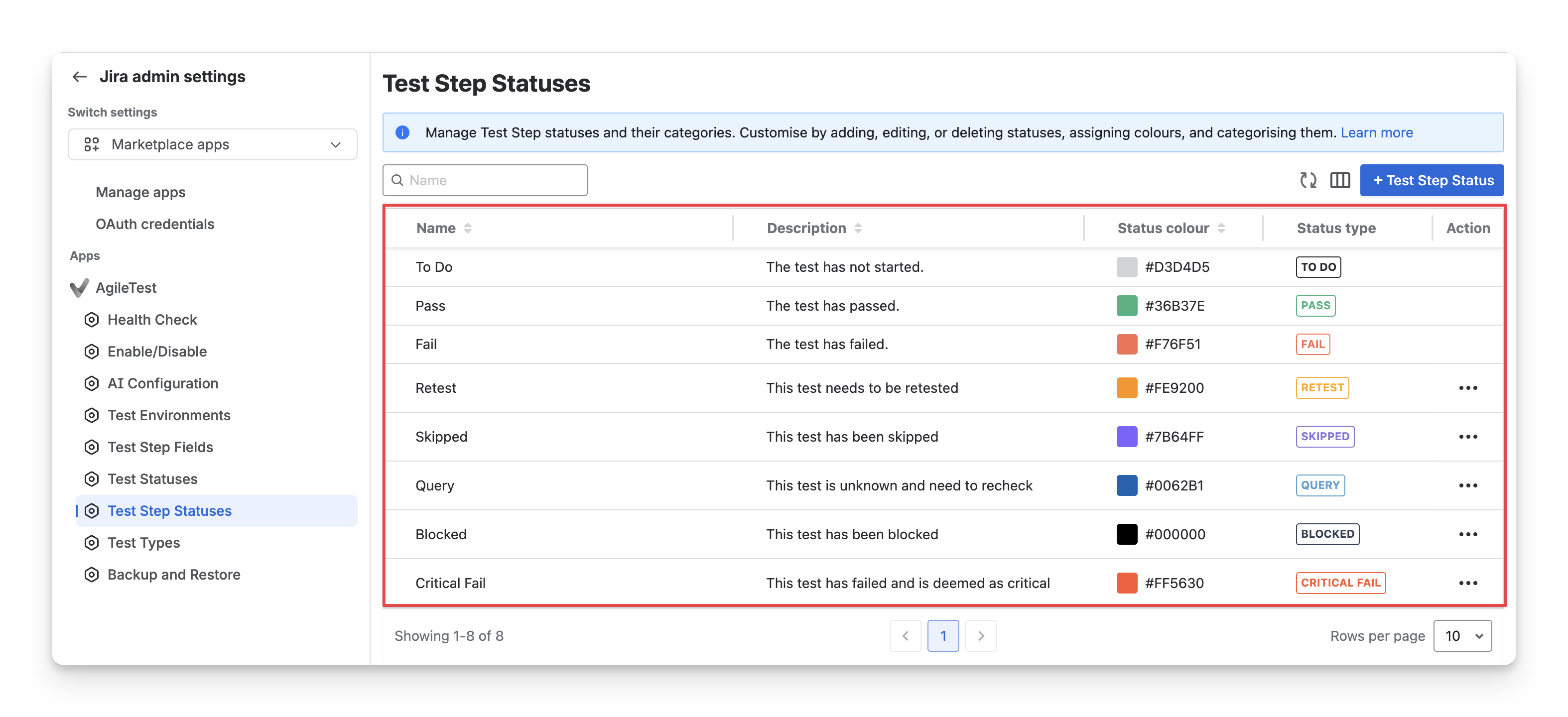
When multiple step statuses rank the same, the most recently created Test Step status takes precedence. For the default statuses, this means a custom status wins over a default status at the same priority because custom statuses are created after the defaults.
You can see the creation order in Settings → Test Step Statuses: newer statuses are lower in the list.
Example:
|
Scenario |
Test Step 1 |
Test Step 2 |
Test Step 3 |
Test Case |
|---|---|---|---|---|
|
1 |
Pass |
Skipped |
Pass |
SKIPPED |
|
2 |
Pass |
To Do |
Wait for Environment (custom step maps to NOT RUN ) |
WAIT FOR ENVIRONMENT |
|
3 |
Pass |
In Review (custom step maps to UNKNOWN ) |
Query |
IN REVIEW |
|
4 |
Critical Fail
|
Fail |
Pass |
FAIL |
|
5 |
Pass |
Critical Fail (custom step maps to NOK ) |
Blocked |
CRITICAL FAIL |
2. How AgileTest Calculates Generic and Cucumber Test Case Statuses
In automation, the report file can contain many statuses for the same test case, so AgileTest can automatically calculate the overall Test Case status when you import automation results into a Test Execution.
The calculation depends on the automation framework, the imported results, and their mapped Test Statuses.
When importing automation results, AgileTest matches each result to a Test Status in the following order:
-
Find a Test Status with the exact same name as the imported result.
-
If no exact match exists, find a matching status regardless of uppercase or lowercase letters.
-
If no matching status exists, use the default status mapping below.
-
If the result is not recognized, assign TO DO .
For JUnit, TestNG, NUnit, xUnit, and Robot Framework, the default mapping is:
|
Imported Result |
AgileTest Status |
|---|---|
|
passed, pass, success |
PASS |
|
failure, failed, fail, error, inconclusive |
FAIL |
|
skipped, skip, ignored, notrunnable |
SKIPPED |
|
blocked |
BLOCKED |
|
retest |
RETEST |
|
query |
QUERY |
|
todo, to do, not run, or unrecognized results |
TO DO |
After importing results, AgileTest calculates the overall status from the results imported through JUnit, TestNG, NUnit, xUnit, or Robot Framework.
If a Test Case has multiple results, such as retries or parameterized test runs, AgileTest combines them using the priority order like the manual test step.
Example:
|
Scenario |
Test Result 1 |
Test Result 2 |
Test Result 3 |
Test Result (Overall Status) |
|---|---|---|---|---|
|
1 |
Fail |
Pass |
To Do |
FAIL |
|
2 |
Skipped |
Blocked |
To Do |
BLOCKED |
|
3 |
Pass |
To Do |
Query |
QUERY |
Should you need any assistance or further AgileTest inquiries, contact our 24/7 Support Desk!